
Todoist Review 2026: The Best App for Getting Things Done?
 ·
Last Updated: January 30, 2026 ·
10 min read
·
Last Updated: January 30, 2026 ·
10 min read
I’ve been in productivity app hell for fifteen years.
The cycle is always the same: Download a shiny new tool. Spend three hours configuring it. Use it religiously for a week. Watch it slowly suffocate under the weight of its own features. Abandon it. Repeat.
Most productivity apps suffer from the Goldilocks Paradox. They’re either too simple (Apple Reminders is great for groceries, useless for managing client projects) or too complex (OmniFocus requires a PhD in computer science to configure).
Todoist promises to be the “just right” option. The app that scales from “buy milk” to “manage a six-figure project” without collapsing.
So I didn’t just tinker with it for a weekend. I migrated my entire life—five active client projects, a home renovation, my daily habits, and a running list of random ideas—into Todoist for 90 days. I pushed it to 300+ tasks to see if the interface would crack under pressure.
Here’s what I learned
The 30-Second Verdict
🏆 Quick Rating:
|
Metric |
Score |
Summary |
|---|---|---|
|
Capture Speed |
⭐️⭐️⭐️⭐️⭐️ |
Best-in-class Natural Language Processing (NLP). |
|
GTD Power |
⭐️⭐️⭐️⭐️ |
Filters make it a powerhouse; lacks a native “Review” mode. |
|
Ease of Use |
⭐️⭐️⭐️⭐️⭐️ |
Zero friction to start; scales up complexity only when needed. |
|
Price Value |
⭐️⭐️⭐️⭐️ |
Free tier is limited; Pro is essential for serious GTD. |
|
OVERALL |
4.8/5 |
The Best All-Rounder. |
If you only read one section of this review, make it the next one.
The “Capture” King: Why Speed Wins
The single most important feature of any productivity system is how fast you can get tasks out of your head.
If it takes more than five seconds to capture a thought, you won’t do it. The friction kills the habit.
Todoist wins this battle decisively.
Natural Language Processing (NLP) is Not a Gimmick
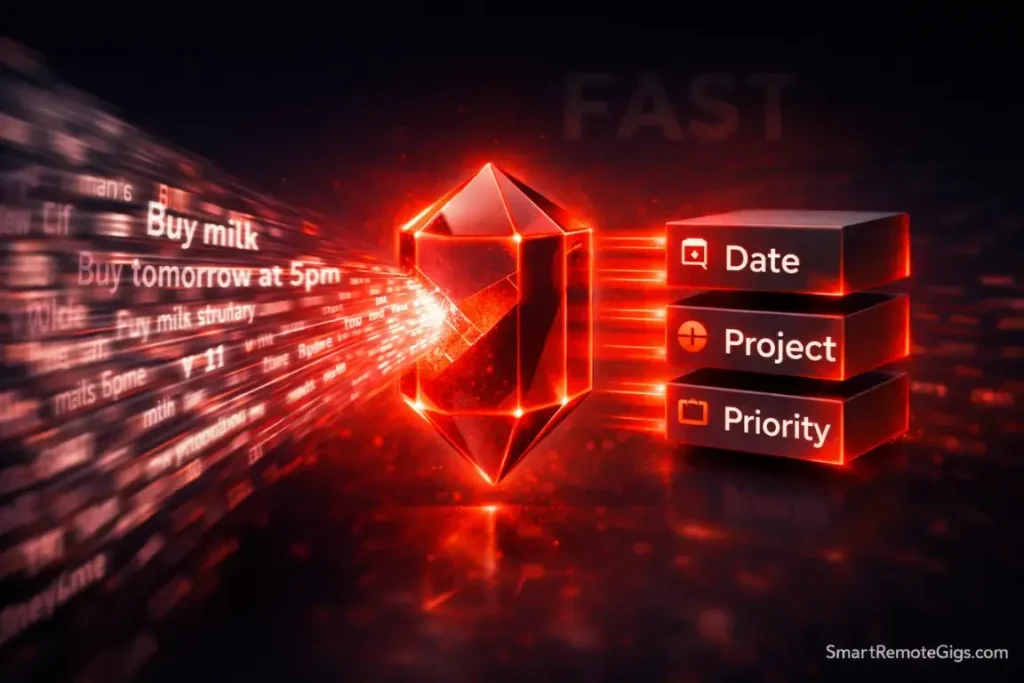
Most apps make you click through three menus to add a simple task. Todoist lets you type everything in one sentence.
Type this: Buy milk ev fri at 5pm #Groceries p1
Todoist instantly parses it into:
- Task: Buy milk
- Recurring: Every Friday
- Time: 5:00 PM
- Project: Groceries
- Priority: P1 (high priority)
Zero clicking. Zero friction. Just pure brain-to-system transfer.
The NLP understands natural phrases like “tomorrow,” “next Monday,” “in 3 days,” “every other Tuesday,” and even complex patterns like “every last friday of the month.” It’s frighteningly good.
For GTD practitioners, this is transformative. The entire system depends on frictionless capture. If capturing tasks feels like work, the system dies.
Pro Tip: The “Quick Add” shortcut is your secret weapon. On desktop, hit Cmd+Shift+A (Mac) or Ctrl+Shift+A (Windows) and the capture box appears over any app you’re using. Capture the task without breaking your flow, then get back to work. I use this 20+ times per day.
Speed of entry equals reliability of system. Todoist nails this.
Is Todoist Actually Good for GTD?
Here’s where most productivity apps fail: they’re great for simple lists, but they collapse when you try to implement a real methodology like Getting Things Done.
Todoist doesn’t collapse. But it requires you to understand how its features map to GTD concepts.
Projects vs. Labels (The Context Engine)
Standard GTD organizes tasks by context—where or in what situation you can complete the task. Examples: @Home, @Computer, @Errands, @Calls.
Todoist doesn’t have native “contexts,” but it has something better: Labels.
Here’s how I map them:
- Projects = GTD Areas of Focus (Client Work, Home, Personal Development)
- Labels = GTD Contexts (@Computer, @LowEnergy, @Errands, @Calls)
- Priorities = Urgency (P1 = today, P2 = this week, P3 = this month)
The beauty of labels is that they’re flexible. A single task can have multiple labels. “Call plumber” can be tagged with both @Calls and @Home so it shows up in either context view.
This flexibility means you can organize the same task list multiple ways depending on what you need to see.
Filters: The Secret Weapon for Focus
Most people use Todoist’s default “Today” view and wonder why they’re overwhelmed.
The real power is in custom filters.
Filters let you create dynamic views of your tasks based on any combination of criteria. This is where Todoist becomes a GTD powerhouse.
Here are the filters I live in:
High Energy Work:
(@HighFocus | p1) & todayShows only high-priority tasks tagged with @HighFocus that are due today. I check this view when I’m fresh in the morning.
Quick Wins (15-Minute Tasks):
@QuickWins & !subtask of: *Shows tasks I tagged as quick wins that aren’t subtasks. Perfect for when I have 20 minutes before a meeting.
Low Energy Admin:
@LowEnergy & overdueThe stuff I do at 4 PM when my brain is fried.
Weekly Review Prep:
(overdue | 7 days) & !@SomedayEverything that’s overdue or due in the next week, excluding my Someday/Maybe list.
These filters transform Todoist from a dumb list into an intelligent system that shows you the right tasks based on your current state.
Filters are useless if you don’t trust your system. Learn how to audit these views in our GTD Weekly Review Guide.
The Free vs. Pro Dilemma
Let’s talk money.
Todoist has a generous free tier, but it’s crippled in one critical way: you only get 5 active projects and 5 filters.
For casual users managing a shopping list and a few personal tasks, the free version is fine.
For serious GTD practitioners, it’s unusable.
Here’s the breakdown:
|
Feature |
Todoist Free |
Todoist Pro |
|---|---|---|
|
Active Projects |
5 |
300 |
|
Custom Filters |
5 |
Unlimited |
|
Reminders |
❌ None |
✅ Unlimited |
|
Themes & Views |
❌ Limited |
✅ All themes + Calendar view |
|
File Uploads |
❌ None |
✅ Up to 100MB per file |
|
Price |
Free |
$4/month (annual) or $6/month |
The filter limit is the dealbreaker.
If you’re implementing GTD properly, you need at minimum 8-10 filters (one for each context, plus review views, plus priority views). The free plan caps you at 5.
My verdict: If you’re serious about GTD, pay for Pro. At $4/month on the annual plan, it’s cheaper than a single coffee. The filter limit alone justifies the cost.
If you just want a simple to-do list for personal errands, stick with the free plan.
The “Reference” Trap (Where Todoist Fails)
Here’s where Todoist falls apart: it’s a terrible filing cabinet.
Many users try to turn Todoist into an all-in-one system. They dump meeting notes, reference documents, and project support materials into task comments and attachments.
Don’t do this.
Todoist is designed for action, not storage. When you start using it to store information, the signal-to-noise ratio collapses. You end up scrolling through 40 tasks trying to find that one PDF you attached three weeks ago.
Warning: Don’t Store Files Here. Tasks are for action; notes are for storage. Keep your PDFs, long drafts, and reference materials out of Todoist. Use the task description to link to where the file actually lives (Google Drive, Dropbox, Notion).
Here’s my rule: If a task requires reference material, the task should link to it, not contain it.
Example:
- Bad: Attaching the 20-page contract PDF to the task “Review contract”
- Good: Task reads “Review contract [link to Google Drive folder]”
This keeps Todoist fast and focused on what it does best: showing you what to do next.
For your reference materials and project support files, pair Todoist with a proper note-taking system like Notion, Obsidian, or Evernote.
Todoist vs. The World
How does Todoist stack up against the competition?
Todoist vs. OmniFocus
This is the battle between flexibility and structure.
OmniFocus is the gold standard for hardcore GTD practitioners. It has built-in support for projects, contexts, perspectives, and review modes. It’s also complex, expensive ($100 one-time purchase), and Apple-only.
Todoist is cross-platform, cheaper, and infinitely more approachable. But you have to configure it to work like GTD—it doesn’t enforce the methodology out of the box.
Who wins: OmniFocus if you’re a GTD purist on Apple devices and willing to invest time learning the system. Todoist if you want flexibility and cross-platform support.
Todoist vs. TickTick
TickTick is Todoist’s closest competitor. It has almost feature parity, plus a built-in Pomodoro timer and better calendar integration.
So why do I still prefer Todoist?
Speed of capture. TickTick’s NLP is good, but Todoist’s is faster. The parsing feels instant. TickTick has a tiny lag that breaks my flow.
TickTick also suffers from feature bloat. It has a calendar, a habit tracker, a Pomodoro timer, note-taking, and more. For some users, that’s a benefit. For me, it’s visual clutter that makes the app feel heavier.
Who wins: TickTick if you want an all-in-one productivity suite with calendar view. Todoist if you want a laser-focused task manager that does one thing exceptionally well.
Frequently Asked Questions
Is Todoist Pro worth the money?
Yes, if you follow GTD or manage multiple projects.
The filter limits on the free plan break the system. You can’t build proper context views or review perspectives with only 5 filters.
For casual users managing simple lists, the free plan is sufficient. But if you’re reading this review, you’re probably not a casual user.
At $4/month on the annual plan, it’s one of the best value productivity tools available.
Can Todoist work offline?
Yes, and it works well.
The mobile apps have full offline functionality. You can capture tasks, check items off, and reorganize projects without an internet connection. Everything syncs instantly once you’re back online.
I’ve used it on flights and in remote areas with zero connectivity. No data loss, no sync conflicts.
Does Todoist have a calendar view?
Yes, they recently added “Calendar Layout” for projects.
You can now view your tasks in a weekly calendar grid, similar to TickTick. It’s helpful for visual planners who need to see their week at a glance.
However, the calendar view is still basic compared to dedicated calendar apps. It doesn’t integrate with Google Calendar events (you can only see your Todoist tasks, not your meetings).
If you need deep calendar integration, you might need to supplement Todoist with Google Calendar or Fantastical.
Final Verdict: The Honda Civic Type R of Productivity Apps
Todoist is the Honda Civic Type R of productivity apps.
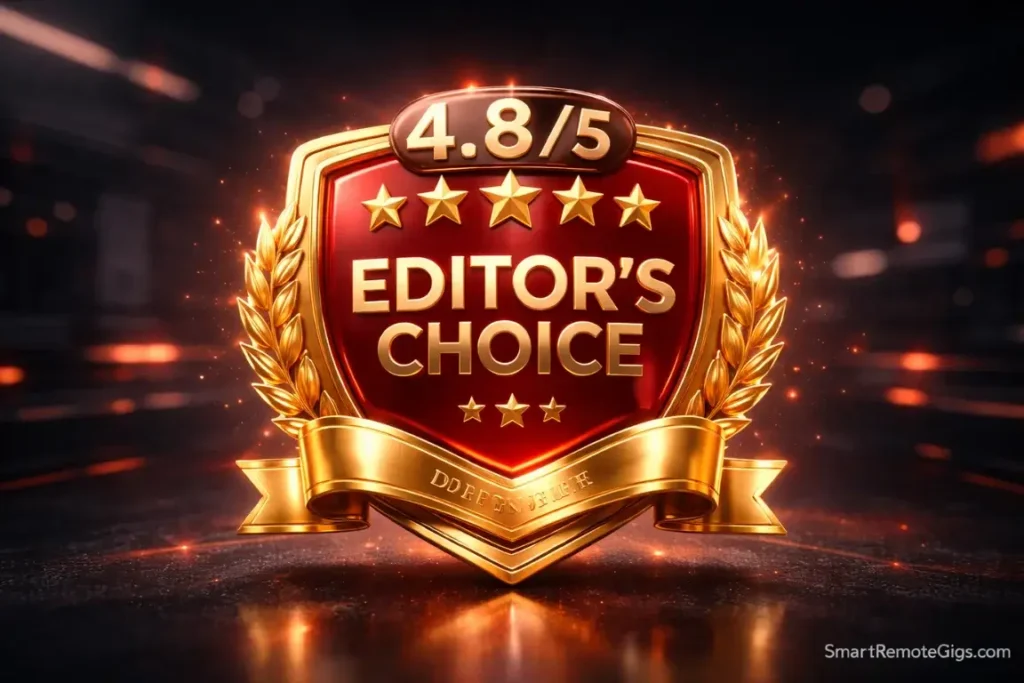
It’s reliable enough to drive to the grocery store (simple lists), but powerful enough to take on the race track (complex GTD implementation) if you know how to drive manual.
It wins because it gets out of your way.
There’s no forced methodology. No overwhelming feature set. No complex setup wizard. You can start using it in 30 seconds with a basic list, then gradually unlock advanced features as you need them.
The NLP capture is the best in the business. The filter system is powerful enough for serious GTD work. The cross-platform sync is flawless. The price is reasonable.
The only meaningful weakness is the lack of native reference storage, but that’s fixable by pairing Todoist with a proper note-taking app.
Who should buy Todoist Pro:
- GTD practitioners who need unlimited filters and projects
- Anyone managing multiple work and personal projects
- People who value speed of capture above all else
Who should stick with the free plan:
- Casual users with simple lists
- People who only need basic task management
- Anyone testing the waters before committing
Who should skip Todoist entirely:
- Apple-only users who want native GTD structure (OmniFocus is better)
- People who need built-in time blocking and calendar integration (try TickTick)
- Teams needing advanced collaboration (try Asana instead)
For everyone else, Todoist is the safest bet in productivity software.
Ready to set it up properly? Download our GTD Setup Checklist for Todoist (PDF) and build your system in under 20 minutes. Don’t waste time configuring—follow the blueprint and start capturing immediately.
Your productivity system should serve you, not suffocate you.
Todoist gets that right.
Todoist
The 'Honda Civic Type R' of productivity apps. Todoist wins on speed, reliability, and cross-platform support. Its natural language capture is the best in the industry, making it the perfect choice for 90% of users who need a flexible, friction-free system.
The Good
- Best-in-class Natural Language Processing (NLP)
- Instant cross-platform sync (iOS, Android, Mac, Windows)
- Powerful custom filters for GTD workflows
- Zero-friction task capture
The Bad
- No native 'Weekly Review' mode
- Free plan limits active filters to 5
- Lacks project dependencies

![Build AI Second Brain Assistant 2026: Local Setup [Guide]](https://smartremotegigs.com/wp-content/uploads/2026/09/build-your-second-brain-ai-assistant-local-rag-hero-1024x577.webp)
![Second Brain with Claude & Obsidian 2026 [My Setup]](https://smartremotegigs.com/wp-content/uploads/2026/08/claude-obsidian-second-brain-mcp-hero-1024x577.webp)
![Why Your Second Brain Fails 2026: Retrieval Fix [Fix]](https://smartremotegigs.com/wp-content/uploads/2026/08/why-your-second-brain-fails-hero-1024x576.webp)