
How to Automate Your Job Search with Smart Remote Gigs & Zapier
Stop refreshing the job board manually. Let the jobs come to you.
We are proud to announce that Smart Remote Gigs is now officially integrated with Zapier. This means you can automatically send every new vetted remote job we post directly to the apps you use every day—like Slack, Gmail, Notion, Google Sheets, and thousands more.
No coding required. Set it up once, and never miss an opportunity again.
What You Can Do with This Integration
By connecting Smart Remote Gigs to Zapier, you can build custom workflows (Zaps) to streamline your job hunt:
- Get Instant Alerts: Receive a notification in Slack or Microsoft Teams the moment a new job is live.
- Organize Your Search: Automatically add new jobs to a Notion database, Trello board, or Google Sheet to track your applications.
- Email Forwarding: Send new job details directly to your email inbox or draft an email to a friend.
- Social Sharing: Automatically post new jobs to your LinkedIn or Twitter feed (great for building a following).
Step-by-Step Setup Guide
Follow these simple steps to create your first automation.
Step 1: Create a Zapier Account
If you haven’t already, sign up for a free account at Zapier.com.
Step 2: Create a New Zap
Click the “Create Zap” button on your dashboard.
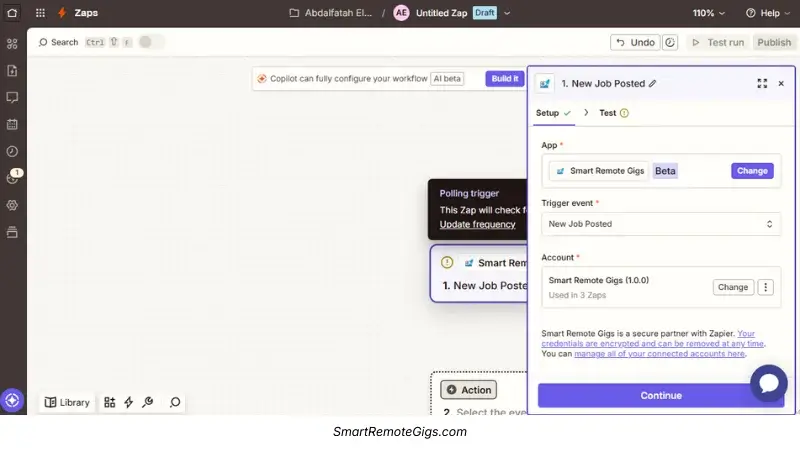
Step 3: Choose “Smart Remote Gigs” as the Trigger
In the trigger search bar, type “Smart Remote Gigs” and select our app.
- Trigger Event: Select “New Job Posted”.
- Click Continue.
Step 4: Connect Your Account
You may be asked to sign in or authorize the connection. Since our job feed is public, this step is seamless. Click “Test Trigger” to see a sample of the latest job data pulled from our site.
Step 5: Choose Your Action App
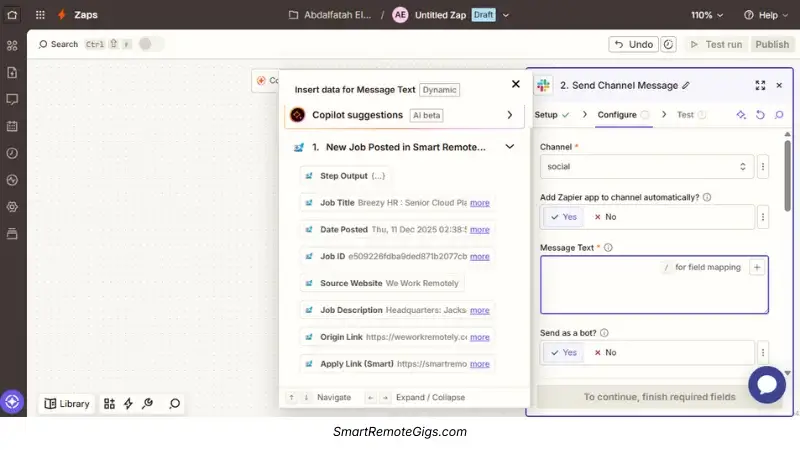
Now, decide where you want the job data to go. Search for the app you want to connect (e.g., Slack).
- Action Event: Choose what happens (e.g., “Send Channel Message”).
- Map the Fields: You can pull in data like Job Title, Company Name, Job URL, and Date from Smart Remote Gigs and insert them into your message.
Step 6: Publish Your Zap
Test the action, and if it looks good, click Publish. You’re done! Your automated job hunter is now running 24/7.
Popular Workflows to Try
Not sure where to start? Try one of these popular templates:
- Slack Alert: New Job Posted → Send Slack Message to #job-hunting channel.
- Notion Tracker: New Job Posted → Create Database Item in Notion.
- Email Digest: New Job Posted → Send Email via Gmail.
Frequently Asked Questions (FAQ)
Q: Is this integration free?
A: Yes, the Smart Remote Gigs integration is 100% free. However, Zapier has its own pricing plans. The free Zapier plan is usually sufficient for simple notifications.
Q: How often does it check for new jobs?
A: This depends on your Zapier plan. Free plans typically check for new data every 15 minutes, while paid plans check every 1-2 minutes.
Q: Can I filter which jobs get sent?
A: Yes! You can use Zapier’s built-in “Filter” step (available on paid Zapier plans) to only send jobs that contain specific keywords like “Writer” or “Developer.”
Need Help?
If you encounter any issues setting up your Zaps, please check Zapier’s Help Center. For issues specific to our job data, feel free to Contact Us.