


Quick Summary:
One-Line Answer: This free time blocking template plans a week and a day in blocks, with buffer blocks and padded estimates built in.
Quick Wins:
- Plan slack on purpose with a buffer block type and a Padded estimate column.
- Use it as a time blocking planner for the week, then work from the daily tab.
- Open the filled example week to see how the blocks fit together.
This is our own file, and the slot size, colors and padding factor are our design choices. The advice behind it comes from Stanford’s weekly planning handout, Newport’s description of his own practice, and one 1994 study abstract. Checked 2026-11-25.
Format
Google Sheets, Excel (.xlsx), printable PDF
Files
3 tabs (Weekly, Daily, Filled example); 2-page PDF (weekly page, daily page)
Works with
Google Sheets, Excel; prints on A4 or US Letter (page sizes are our design)
License
Free for personal use; please do not resell
Get your copy in Google Sheets or print
Pick the format that fits how you plan. The PDF is for printing, the Excel file is for offline use, and the Google Sheets version lives in your own account.
For the Google Sheets version, make your own copy in Google Sheets and edit it there.
Warning: The copy link asks you to sign in to Google, then saves a copy in your own account. If you have no Google account, print the PDF or download the .xlsx instead.
How to use the template
1 Get your copy
In Google Sheets, open the file and choose File, then Make a copy, as Google’s steps to make a copy of a file describe. For Excel, use the .xlsx button above; if you later download a Sheet from Google, Google’s guide to using Excel and Sheets together lists the Excel option. To print, use the PDF button, or print a Sheet with Google’s steps to print from Sheets.
2 Enter what is fixed first
Start the weekly tab by checking the Week of date, which you can change with the date picker in Google Sheets. Then add your personal non-negotiables, regular commitments and set meetings as P and M blocks (the legend is below). This order is ours, and Stanford’s weekly planning handout starts with personal non-negotiables.
3 List tasks and pad the estimates
List the week’s tasks beside the grid, split big ones into smaller tasks, and add an estimate for each. The Padded column multiplies each estimate by 1.5, our default, and you can change it. Stanford’s Center for Teaching and Learning says to “overestimate” how long things take, and a 1994 study of how students predict task times found their predictions too optimistic.
4 Place tasks as blocks by type
Give each task a block type. In the weekly grid, type the block letter, a space, then the task. Put harder tasks in the hours when you have more energy, and easier ones when you tend to be more tired, as Stanford’s handout suggests.
5 Add reactive and buffer blocks
Block time for email and chat, and leave buffer blocks on purpose. Cal Newport’s post on planning every minute says reactive time can be blocked off like any other obligation, which is his view. Stanford’s handout suggests blank space so you can shift tasks, and the buffer length in our file is our choice.
6 Close each day with a shutdown note
End each day with the shutdown note, and mark each row Done, Moved or Dropped. Move a slipped block instead of deleting it, since Stanford’s Center for Teaching and Learning calls a calendar a “flexible decision-making tool” in its handout. Newport plans the next day each evening and leaves extra room for corrections, which is his own practice.
Weekly time blocking template layout
The weekly tab is a Monday to Sunday grid with rows in 30-minute slots from 6:00 AM to 10:00 PM. The Week of cell shows this week’s Monday and fills in the dates; change it with the Google Sheets date picker or type a date such as 2026-12-07. Pick a date if you want it fixed; otherwise it moves to the current week each Monday.
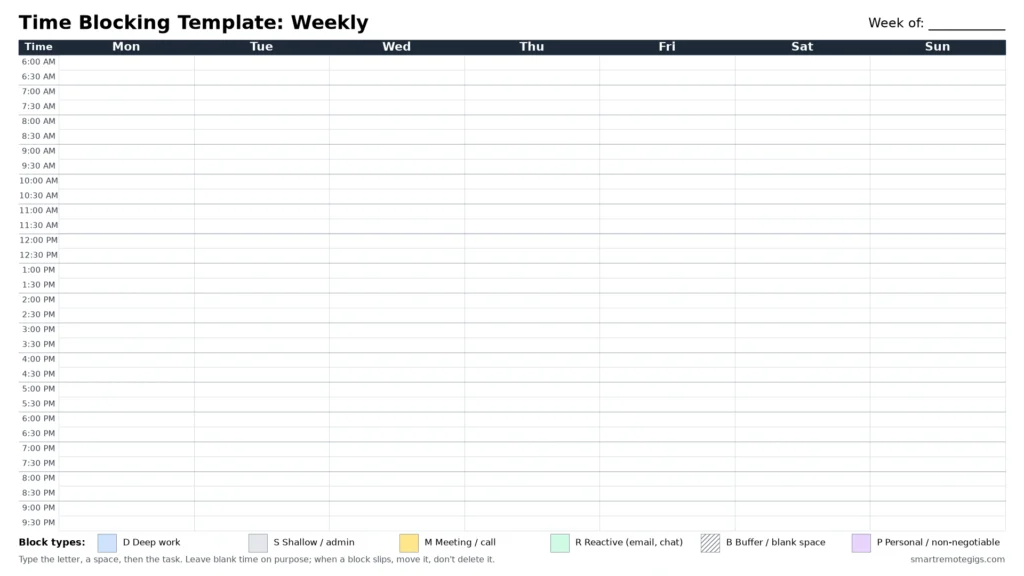
Beside the grid you get a task list with Estimate and Padded columns, hours planned per block type, and a Buffer hours target cell that starts blank. The six block types below are our own.
| Code | Type | Use it for | Color |
|---|---|---|---|
| D | Deep work | Your harder tasks | Blue |
| S | Shallow / admin | Admin and lighter tasks | Gray |
| M | Meeting / call | Set meetings and calls | Amber |
| R | Reactive (email, chat) | Replies and messages | Green |
| B | Buffer / blank space | Room to shift tasks | White (hatched in the PDF) |
| P | Personal / non-negotiable | What you protect first | Purple |
Daily time blocking template layout
The daily tab plans one day. It has a Date cell and Top 3 priorities above a grid with Time, Block type, Task and Status columns. Its rows use the same slots as the weekly tab.
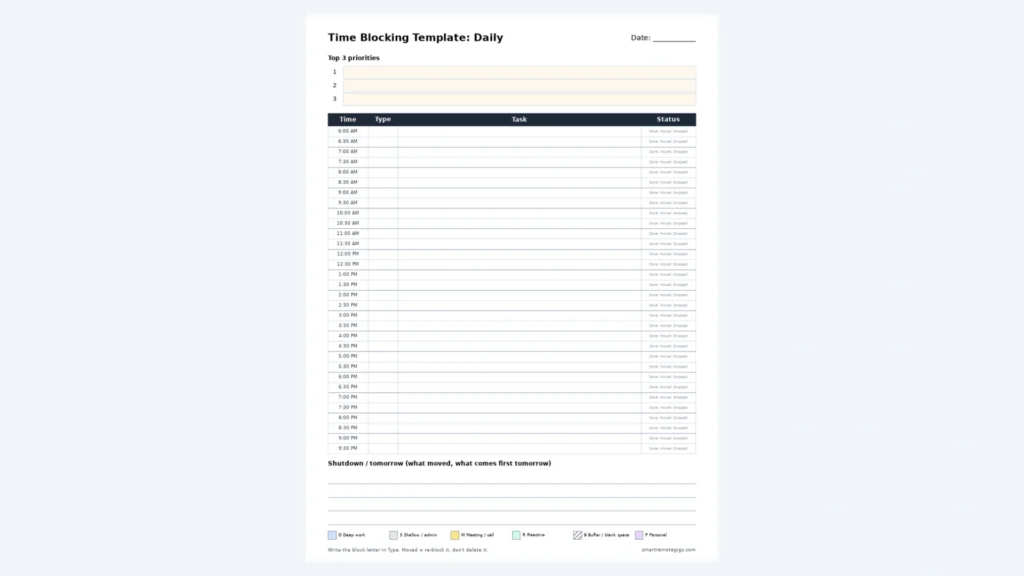
Status is a dropdown with Done, Moved and Dropped. A shutdown note below the grid holds what moved and what comes first tomorrow. In the PDF, the daily layout is one portrait page.
Filled time block schedule template example
The Filled example tab shows one week for a generic remote freelancer. Work runs Monday to Friday, Saturday is light and Sunday is off. Each weekday has at least two deep-work blocks, and each weekday ends its afternoon with a buffer block at 4:00 PM.
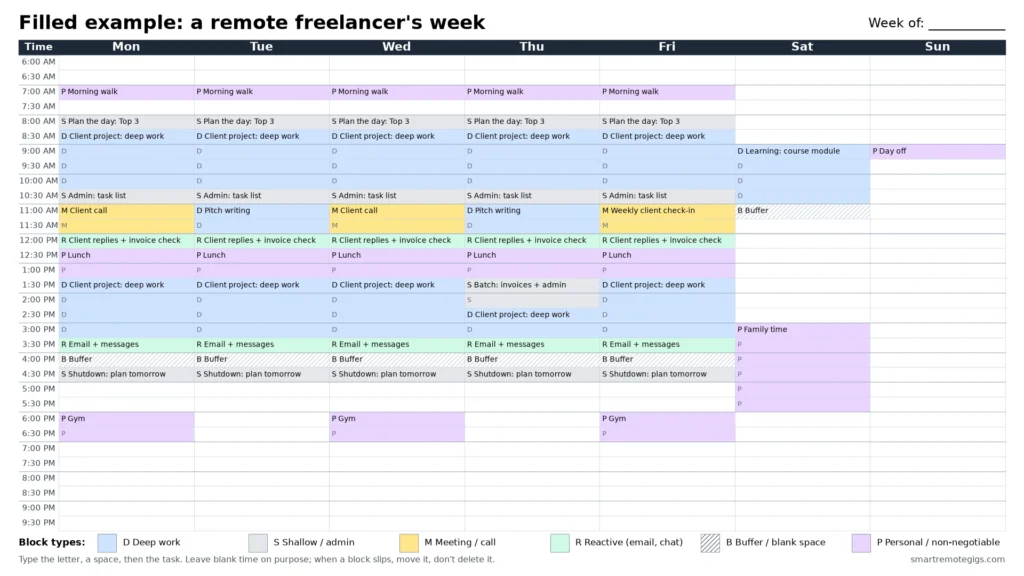
A 12:00 PM reactive block on each weekday also checks invoices, a secondary purpose of the kind Newport suggests for reactive blocks. Thursday adds a batch block for invoices and admin, and these task batching examples show other ways to group similar tasks. Monday’s daily view shows one block moved and the gym block dropped.
Copy the plain-text version
If you plan in a notes app, paste this daily block plan and swap in your own blocks. The letters match the legend above.
Top 3: Finish draft section 2 | Send call notes to the client | Send this month's invoice
7:00 AM P Morning walk
8:00 AM S Plan the day: Top 3
8:30 AM D Client project: draft section 2
10:30 AM S Admin: update task list
11:00 AM M Client call
12:00 PM R Client replies + invoice check
12:30 PM P Lunch
1:30 PM D Client project: draft section 3
3:30 PM R Email + messages
4:00 PM B Buffer
4:30 PM S Shutdown: plan tomorrow
Shutdown note: what moved, what comes first tomorrow
Go deeper
Our how-to guide shows how to build a time block schedule from scratch, if you want the method behind the grid.
Our weekly routine guide shows how to plan your week, and this file works as the weekly plan template for it.
What we didn’t check
- Whether your organization’s Google Workspace settings allow copying files from outside it.
- Whether colors, dropdowns and print setup carry into Excel, LibreOffice or a converted Sheet.
- The Google Sheets mobile app steps for copying or printing.
- Any study of time blocking itself: the advice rests on one university handout, one author’s own practice and one 1994 abstract.
Based on official sources and previews rendered from our own workbook, checked November 2026. We opened the copy link and the shared Sheet once on 2026-11-25; the list above covers what we did not check.