The 5-Step Toolkit to Fix Bad Hands (Quick Answer)
- Use Negative Prompts: Add terms like –no deformed hands, extra fingers
- Prompt for “Safe” Poses: Use “hands in pockets” or “arms crossed”
- Describe the Hands in Detail: Specify “five fingers, natural skin texture”
- Use Inpainting: Select and regenerate only the hand area
- Apply ControlNet: Use a reference image for perfect anatomical structure
The Uncanny Valley Moment Every AI Artist Knows
I once spent 4 hours perfecting a “Business Woman at a Laptop” image for a client—stunning lighting, perfect composition, 8K resolution. Then I saw them: seven fingers on the spacebar. It was a mutant disaster that made the image 100% unusable.
Dealing with AI art bad hands is the final hurdle to professional-grade results in 2026. This guide provides the exact toolkit I use to bridge the “Uncanny Valley” and ensure your characters look human every time, regardless of the generator you use.
The “Why”: A Simple Explanation for a Complex Problem
Understanding why AI struggles with hands isn’t just academic curiosity—it’s the key to solving the problem effectively. The root cause comes down to two fundamental challenges that every AI image generator faces.

The Training Data Problem
AI image generators learn by studying millions of photographs from the internet. While this sounds comprehensive, there’s a hidden bias in this training data that creates the “bad hands” problem.
Think about the photos you see online: profile pictures, stock photography, social media posts, and professional portraits. In most of these images, hands are either:
- Partially hidden or cropped out of frame
- Folded or clasped in ways that obscure individual fingers
- Blurred in the background or out of focus
- Small and indistinct compared to faces and bodies
The AI has seen thousands of clear, well-lit faces from every angle, but relatively few examples of hands with all five fingers clearly visible and properly positioned. This creates an imbalanced learning experience where the AI becomes an expert at faces but struggles with hand anatomy.
The Complexity Challenge
Even when the AI has good training examples, hands present unique anatomical challenges that make them incredibly difficult to generate correctly:
Articulation Complexity: Hands have 27 bones, 29 joints, and can create thousands of different poses. Compare this to a face, which has relatively fixed proportions and limited expression variations.
Contextual Positioning: Hands must look natural in relation to arms, body position, and any objects being held. A face just needs to look like a face—hands need to look like they belong to that specific person in that specific pose.
Detail Expectations: We notice hand problems immediately because we use our hands constantly and have an intuitive understanding of how they should look and move.
This combination of limited training data and inherent complexity explains why even the most advanced AI systems still struggle with hands. As Google Research has documented in their work on high-fidelity image generation, generating fine anatomical details remains one of the most significant challenges in AI image synthesis.
The mathematical foundation of modern diffusion models compounds this challenge—the step-by-step denoising process that makes these models so powerful at creating coherent images also makes them susceptible to “averaging” complex details like fingers across multiple training examples, resulting in the anatomical confusion we see in generated hands.
How to Fix Bad Hands: A 5-Step Toolkit
Now that you understand the “why,” let’s focus on the “how.” These five techniques, used individually or in combination, will dramatically improve your hand generation success rate.
Technique 1: Use Negative Prompts
Negative prompts are your most powerful tool for preventing hand disasters before they happen. By explicitly telling the AI what to avoid, you can eliminate the most common hand deformities.
Your Go-To Negative Prompt for Hands:
--no deformed hands, extra fingers, mutated hands, poorly drawn hands, extra limbs, close up hands, too many fingers, long neck, duplicate, mutilated, mutilated hands, poorly drawn face, deformed, blurry, bad anatomy, bad proportionsPlatform-Specific Syntax:
- Midjourney: Add
--no deformed hands, extra fingersto your prompt - DALL-E 3: Include “without deformed hands or extra fingers” in your main prompt
- Stable Diffusion: Use the negative prompt field with the above terms
Why This Works: Negative prompts guide the AI away from the most common failure patterns it has learned from flawed training examples.
For a deeper understanding of crafting effective prompts, including mastering negative prompting techniques and the complete prompt engineering framework, our comprehensive guide covers everything from basic to advanced strategies.
Technique 2: Prompt for “Hand-Positive” Poses
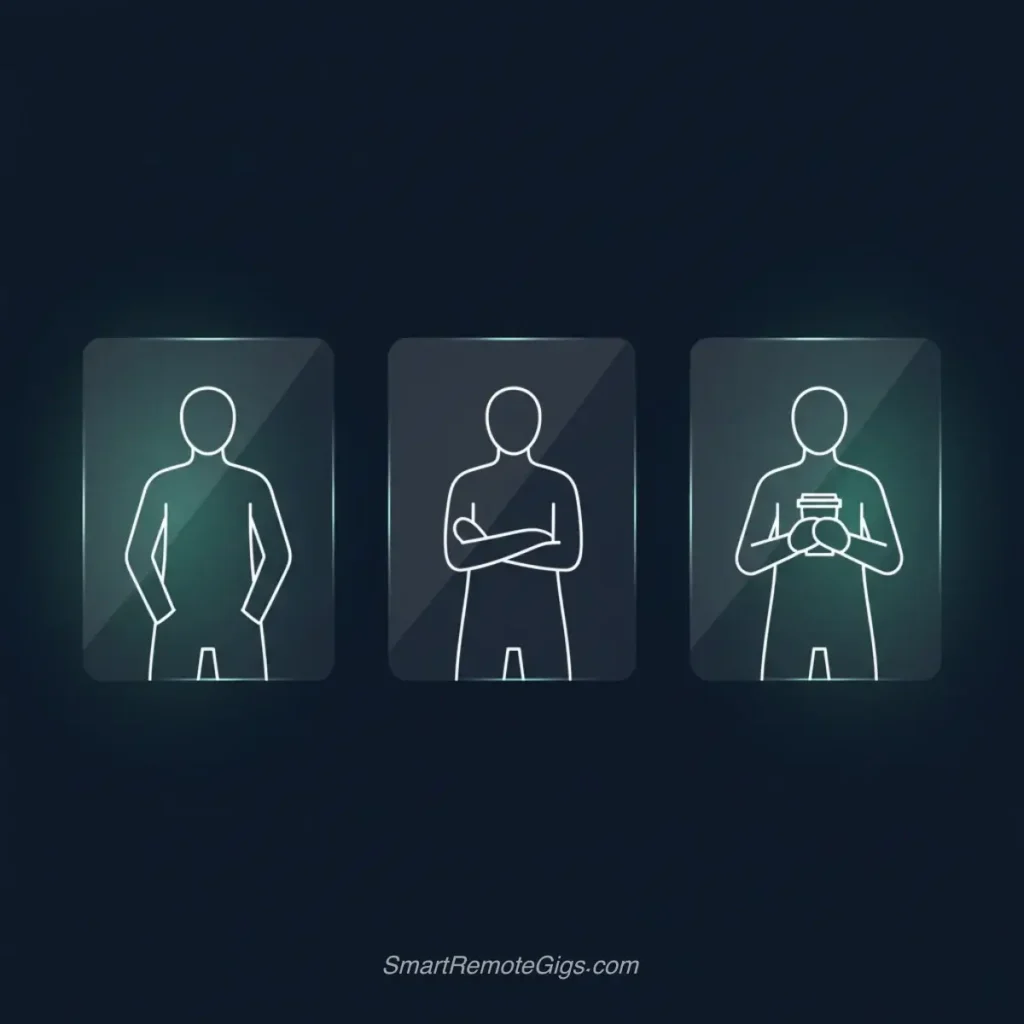
The easiest way to get perfect hands is to choose poses where hands are naturally simple or partially concealed. This works with the AI’s limitations rather than fighting against them.
Beginner-Friendly Hand Poses:
- “Hands in pockets” – Eliminates finger complexity entirely
- “Arms crossed” – Hands are tucked away and simplified
- “Holding a coffee cup” – Gives hands a natural, simple grip position
- “Hands behind back” – Completely removes hands from the equation
- “Waving with one hand” – Limits complexity to a single, simple gesture
Intermediate Poses:
- “Hands resting on a table” – Provides a surface reference for natural positioning
- “Hands clasped together” – Creates a symmetrical, balanced pose
- “One hand on hip, one relaxed at side” – Mixes simple with natural
Advanced Natural Poses:
- “Adjusting glasses” – Gives hands a specific, believable action
- “Hands gently cupping face” – Creates an elegant, purposeful position
- “Holding a book open” – Provides context and natural hand positioning
Pro Tip: Combine hand-positive poses with your negative prompts for maximum effectiveness.
Example: “Professional portrait, hands in pockets, confident pose –no deformed hands, extra fingers”
Technique 3: Describe the Hands in Detail

Sometimes the solution is to give the AI more detailed guidance about exactly what you want the hands to look like. This technique works by providing the AI with specific visual targets.
Descriptive Hand Terms That Work:
- “Elegant hands with five fingers each”
- “Natural hand proportions”
- “Well-defined fingers”
- “Realistic hand anatomy”
- “Detailed, graceful hands”
- “Proper finger placement”
Complete Example:
❌ Instead of: “Portrait of a woman”
✅ Try: “Portrait of a woman with elegant hands, natural finger positioning, five fingers on each hand, realistic hand proportions”
When to Use This Technique:
- When hands are a focal point of your image
- For fashion or beauty photography styles
- When other techniques haven’t worked
- For close-up or medium shots where hands are prominent
Advanced Specificity: You can even describe hand actions in detail: “A person delicately holding a wine glass with thumb and index finger, remaining three fingers naturally curved”
Technique 4: Fix Flaws with Inpainting
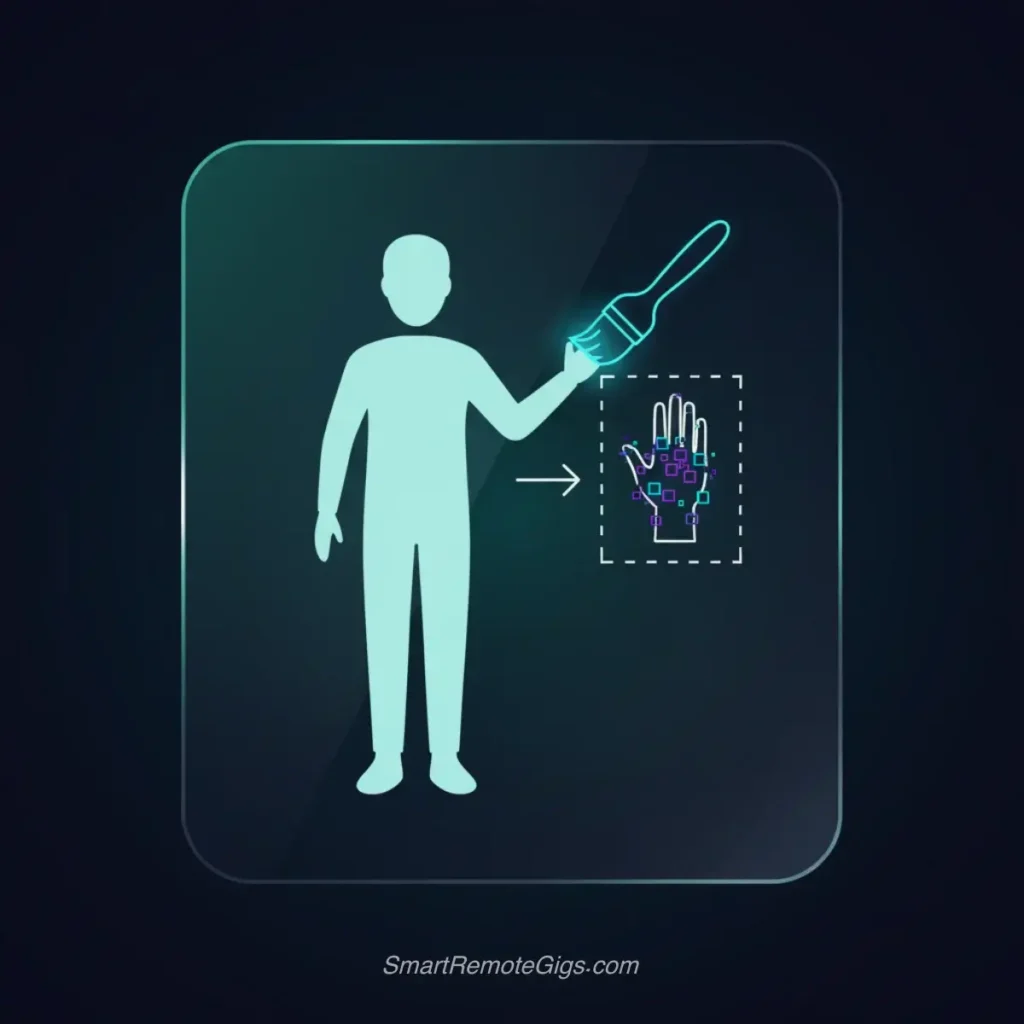
When prevention doesn’t work, inpainting allows you to fix problems after generation. This technique regenerates only the flawed portions of your image while keeping everything else intact.
What is Inpainting: Inpainting is a feature that lets you select a specific area of a generated image (like problematic hands) and ask the AI to regenerate just that section. Think of it as a “spot treatment” for AI art flaws.
Tools That Offer Inpainting:
- DALL-E 3: Built-in editing features for regenerating selected areas
- Leonardo.Ai: Advanced inpainting tools with brush selection
- Stable Diffusion: Multiple inpainting options through various interfaces
- Adobe Firefly: Generative fill for fixing specific problems
For a complete breakdown of which free AI image generators offer the best inpainting features and how to access them, our detailed comparison ranks platforms by editing capabilities.
Step-by-Step Inpainting Process:
- Generate your initial image
- Identify the problematic hand area
- Use the selection tool to mask only the bad hands
- Add specific prompts like “realistic human hands, five fingers”
- Regenerate only the selected area
- Repeat if necessary until satisfied
Inpainting Pro Tips:
- Select slightly more area than just the problem zone for better blending
- Use the same style keywords from your original prompt
- Try multiple regenerations—inpainting often improves with iteration
- Consider inpainting surrounding areas if hands look disconnected
Pro Tip: Advanced Inpainting with Post-Processing Software
While AI platforms offer built-in inpainting, combining them with professional software gives you surgical precision for fixing anatomical flaws. You can check our hands-on ranking of the best free AI image generators to see which platforms offer the most advanced built-in editing canvases and inpainting tools.
The Pro Workflow:
1. Generate in your AI platform (Midjourney, DALL-E 3, etc.)
2. Export to AI photo editor (Adobe Photoshop with Generative Fill, Luminar Neo, Topaz Photo AI)
3. Use advanced selection tools to isolate problematic hands with pixel-perfect masks
4. Apply AI-powered healing with context-aware fill algorithms
5. Fine-tune manually with traditional editing tools
Why this works better:
Professional software has more sophisticated masking tools
You can blend multiple AI generations seamlessly
Manual touch-ups integrate with AI fixes
Non-destructive editing preserves your original
Critical for copyright: Substantial human editing through professional software can establish the human authorship required for copyright protection, transforming pure AI output into a copyrightable derivative work
Best software combinations:
Midjourney + Photoshop: Generate artistic base, refine with Generative Fill
DALL-E 3 + Luminar Neo: Quick fixes with AI-powered enhancement
Stable Diffusion + GIMP (free): Budget-friendly professional control
Time investment vs. quality: This workflow adds 5-10 minutes but can salvage otherwise perfect images that would require complete regeneration.
Technique 5: Use ControlNet for Pose Reference
ControlNet is a breakthrough technology that lets you guide AI generation with reference images, giving you surgical control over hand positioning and anatomy.
What is ControlNet: ControlNet is an extension for Stable Diffusion that analyzes reference images (like photographs or sketches) and uses their structure to guide AI generation. Think of it as giving the AI a “blueprint” to follow.
How it solves hand problems:
- Upload a photo with perfect hand positioning
- ControlNet extracts the pose structure
- Your prompt describes the style, but hands follow the reference
- Result: Hands in exactly the position you want, with correct anatomy
Platform availability:
- Stable Diffusion: Full ControlNet support (primary platform)
- Leonardo.Ai: ControlNet features in advanced mode
- Midjourney/DALL-E 3: No direct ControlNet (use pose descriptions instead)
Step-by-step ControlNet workflow:
- Find or create a reference image with the hand pose you want
- Load it into ControlNet (OpenPose or Depth model)
- Write your style prompt: “Professional portrait, business attire, photorealistic”
- Generate: AI follows your reference pose with your style
- Result: Perfect hand anatomy with your creative vision
When to use ControlNet:
- Complex hand poses (holding objects, gesturing, interacting)
- Professional projects where anatomical accuracy is critical
- After other techniques have failed
- When you need consistent hand positioning across multiple images
Pro Tip: Creating Your Own Hand Reference Library
Professional AI artists don’t start from scratch every time—they maintain a reference library.
Build your collection:
1. Photograph your own hands in common poses (holding cup, phone, pen, gesturing)
2. Use stock photo sites with clear hand imagery (Unsplash, Pexels)
3. Screenshot from video (pause at frames with clear hand positions)
4. 3D hand models (free software like MakeHuman, Daz3D)
Organize by category:
Holding objects: cups, phones, tools, weapons
Gestures: pointing, waving, peace sign, thumbs up
Resting poses: hands on lap, table, crossed
Action: typing, writing, reaching
The payoff: When you need perfect hands, load your reference into ControlNet instead of hoping the AI guesses correctly. This single habit separates amateur AI artists from professionals.
THE VERDICT: The Most Effective Method
After testing all five techniques across hundreds of images, here’s the definitive ranking:
🥇 1st Place: Inpainting (Technique 4)
Why it wins: The only reliable way to fix a 95% perfect image without losing the original composition
Best for: Salvaging otherwise flawless images with isolated hand problems
Success rate: 80-90% with 2-3 iterations
Downside: Requires learning platform-specific tools
🥈 2nd Place: ControlNet (Technique 5)
Why it’s powerful: Prevents problems before they happen with pose references
Best for: Complex hand poses or projects requiring anatomical precision
Success rate: 90%+ when reference image is good
Downside: Only available for Stable Diffusion users
🥉 3rd Place: Negative Prompts (Technique 1)
Why it’s essential: Easiest to implement, works on all platforms
Best for: Preventing the most common errors (extra fingers, mutated hands)
Success rate: 60-70% improvement
Downside: Can’t fix complex anatomical issues alone
The Hybrid Approach (What Pros Actually Do):
1. Start with Negative Prompts (always) + Hand-Positive Poses (when possible)
2. If that fails: Use Detailed Descriptions for specific guidance
3. For salvage operations: Deploy Inpainting on the problematic area
4. For critical projects: Use ControlNet with pose references from the beginning
Bottom line: Negative prompts are your baseline defense. Inpainting is your surgical fix. ControlNet is your precision weapon for mission-critical work.
Beyond Hands: Fixing Other Common AI Flaws
The same principles that solve hand problems can fix other notorious AI art issues. Understanding the underlying causes helps you tackle any AI flaw systematically.
Distorted Background Faces
The Problem: AI often generates strange, melted-looking faces in crowds or backgrounds.
The Solution: Apply the same negative prompt strategy:
- Add
--no distorted faces, melted faces, multiple facesto your prompts - Specify “single person” or “solo portrait” when you want to avoid crowds
- Use “shallow depth of field” to naturally blur backgrounds
Garbled Text and Signage
The Problem: AI-generated text looks like alien hieroglyphics. This has been such a persistent issue that companies like Ideogram have been built specifically to solve it, achieving coherent typography as a major breakthrough in generative AI.
The Solution:
- Avoid prompting for specific text or readable signs
- Use negative prompts:
--no text, letters, writing, signs - Focus on visual elements rather than textual ones
- Consider adding text in post-processing instead
- Or use Ideogram for text-heavy images
Architectural Inconsistencies
The Problem: Buildings with impossible geometry or floating elements.
The Solution:
- Reference real architectural styles: “Victorian house” instead of “fancy house”
- Use negative prompts:
--no impossible geometry, floating elements - Specify “realistic architecture” or “structurally sound building”
The Universal Fix: Iterative Improvement
The most effective technique for any AI art flaw is iteration:
- Generate with your best prompt and negative prompts
- Analyze what went wrong specifically
- Adjust your prompts to address the specific problems
- Regenerate and repeat
This process works because each iteration teaches you more about how the AI interprets your instructions, allowing you to communicate more effectively with each attempt.
Conclusion: The Uncanny Valley Is Getting Smaller
While AI art’s hand problems can be frustrating, they’re not insurmountable. The techniques in this guide—negative prompts, smart pose selection, detailed descriptions, inpainting, and ControlNet—give you multiple ways to achieve the results you want.
Remember that AI image generation is improving rapidly. Major breakthroughs in training methods and model architectures are making hand generation better with each new release. Companies like OpenAI, Stability AI, and others are specifically addressing these anatomical challenges in their research.
But even as the technology improves, understanding these fundamental techniques will always give you better results. The principles of working with AI limitations, using negative prompts effectively, and iterating toward better outcomes will serve you well regardless of which platform you use.
Start by adding negative prompts to your workflow, experiment with smart poses, and explore inpainting when needed. Every AI artist faces this challenge—now you have the complete toolkit to solve it.
If you think static hands are difficult, managing anatomical consistency in AI video generation is the next frontier for creators. The same principles apply, but multiplied across 30 frames per second.
Ready to create AI art without the hand frustration? Pick one technique from this guide and test it on your next project. The difference will be immediately visible.
What’s your biggest AI art challenge? Share in the comments below!