
Friction Design: Optimizing Your Digital Workspace for Focus
 ·
Last Updated: January 24, 2026 ·
9 min read
·
Last Updated: January 24, 2026 ·
9 min read
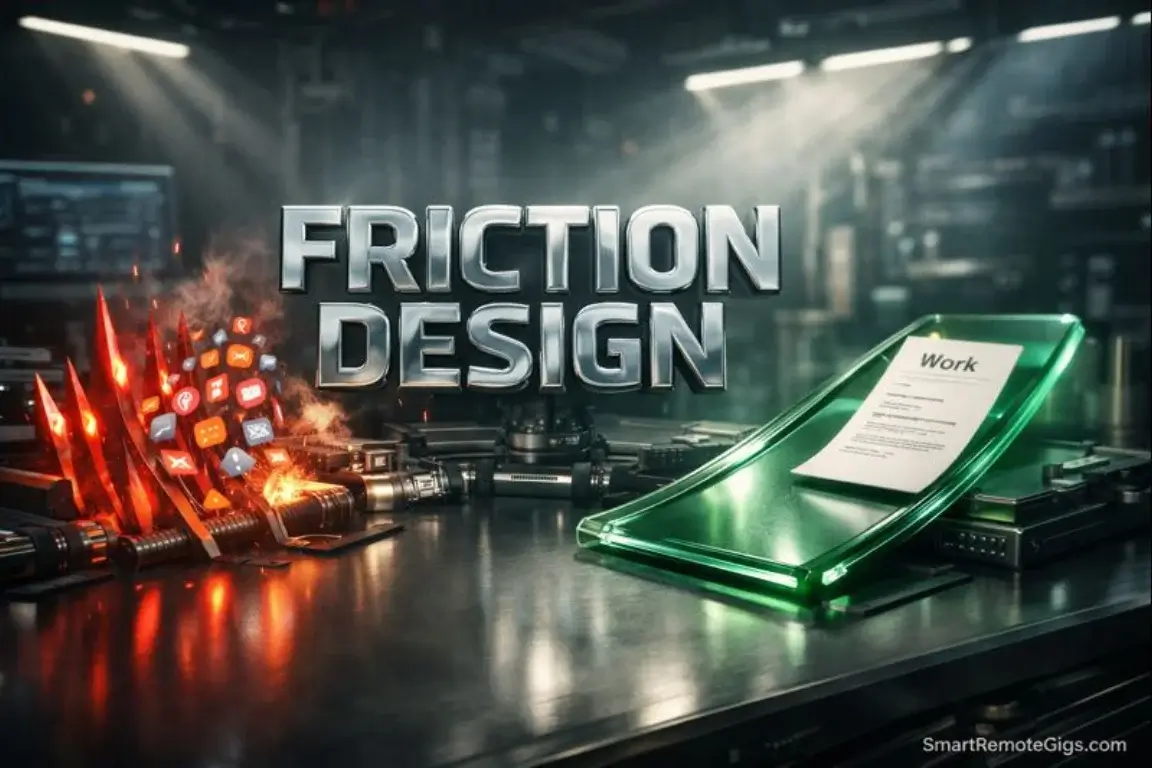
The “Click Trance.” You open a new tab to search for a synonym, see a red notification dot, and suddenly it’s 20 minutes later and you’re reading a Reddit thread about sourdough starters. Your digital workspace is currently designed by Silicon Valley engineers to steal your attention, not by you to preserve it.
My desktop used to be a minefield. A single wrong click on the bookmark bar (which contained Twitter right next to Trello) would derail my entire morning. I wasn’t undisciplined; I was navigating a hostile interface.
We will stop relying on willpower to resist clicks. Instead, we will use Friction Design to reshape your UI/UX, making bad habits painfully difficult and good habits lazily easy.
⚡ The Friction Audit Matrix
Goal: Deep Work
Current Friction: High (Password required, 5 clicks to open)
Fix: Auto-load Script
Goal: Social Media
Current Friction: Zero (Logged in, App on dock)
Fix: Log out + 2FA + Hidden Folder
The Law of Least Effort (Why You Doomscroll)
Humans are efficiency machines. We’re hardwired to conserve energy through what psychologists call the principle of least effort.
In the savannah, this kept us alive. In the digital age, it keeps us scrolling.
Your brain doesn’t care about your goals. It cares about minimizing effort. And when the path of least resistance leads to TikTok instead of your client proposal, you lose.
This isn’t a character flaw. It’s physics.
Digital Gravity: Explaining that humans naturally follow the path of least resistance
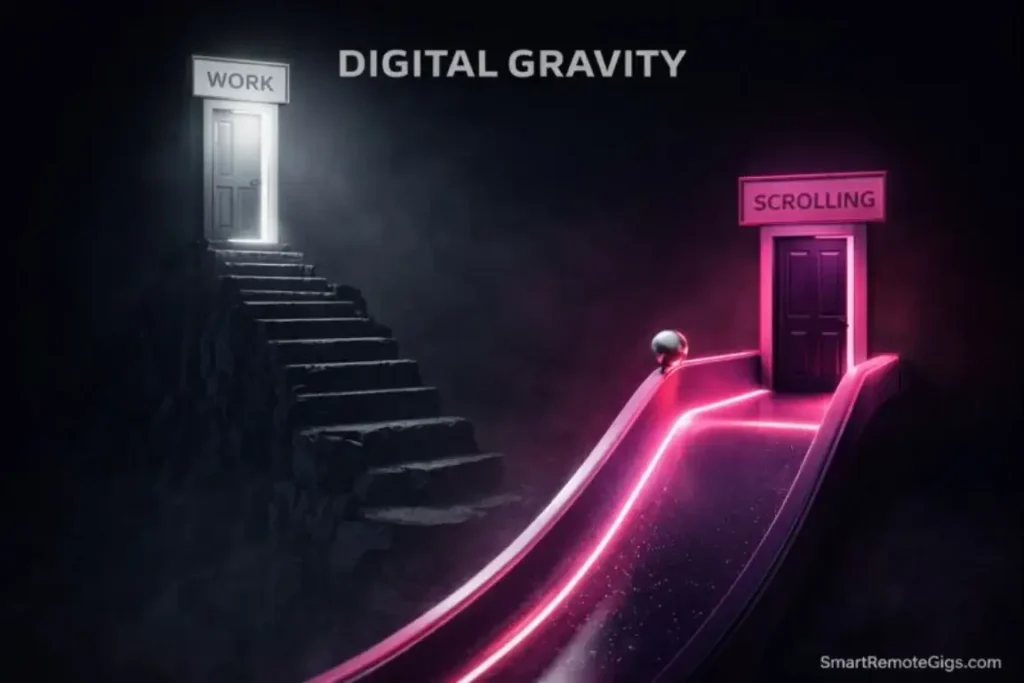
Imagine two doors.
Door A requires three keys, a password, and a fingerprint scan to open.
Door B is already open, with a neon sign that says “FREE SNACKS INSIDE.”
Which door do you walk through?
Door B. Every time. Not because you’re weak. Because you’re human.
Your digital workspace has the same setup.
Door A (Work):
- Open your browser
- Type in the URL (or search for the bookmark)
- Log in with your password
- Navigate to the specific document
- Find where you left off
Door B (Distraction):
- Click the Twitter app on your dock (0.5 seconds)
- Or just click the tab that’s already open (0.1 seconds)
The friction differential is massive.
If Instagram is one tap away and your work document is three clicks away, you will choose Instagram 9 times out of 10.
This is digital gravity. The path of least resistance wins.
Weaponized UX: How apps use “infinite scroll” and “autoplay” to remove friction entirely
Social media companies employ thousands of engineers with one job: remove all friction from their apps.
- Infinite scroll: You never have to click “next page.” The content just keeps coming.
- Autoplay: The next video starts before you decide to watch it.
- Push notifications: They bring the app to you, so you don’t even have to open it.
- Red dots: Visual anxiety triggers that create a compulsion loop.
These aren’t bugs. They’re features. Designed by behavioral psychologists using persuasive technology principles to exploit your brain’s desire for novelty and completion.
You’re not fighting a fair fight.
Warning: You cannot out-willpower a billion-dollar algorithm. You must out-engineer it by breaking the flow.
The solution isn’t discipline. It’s design.
You need to reverse-engineer the friction gradient. Make distractions hard. Make work easy.
Phase 1: Greasing the Gears (Reducing Friction for Work)
If you want to do more deep work, the work needs to be easier to start than the distractions.
The ‘One-Touch’ Workstation: Using browser profiles (Chrome/Arc) to create a specific “Work” interface where only essential tools exist
Here’s the first rule of Friction Design: Context separation.
Your brain can’t distinguish between “work browser” and “personal browser” if they’re the same browser with the same tabs and bookmarks.
You need separate interfaces.
Step 1: Create a dedicated “Work” browser profile
In Chrome/Edge/Arc:
- Create a new profile called “Deep Work”
- In this profile, install ONLY work-related extensions (Grammarly, Notion Web Clipper, etc.)
- Bookmark ONLY work tools (Google Docs, Asana, Figma, etc.)
- Block all social media sites using an extension like StayFocusd
Step 2: Make this profile auto-open
Set your computer to launch the “Deep Work” profile automatically when you start your workday.
Now, when you sit down, you’re not greeted by last night’s YouTube rabbit hole. You’re greeted by a clean, focused workspace.
The friction to start work just dropped to zero.
Automation as On-Ramping: Using tools like Raycast or Shortcuts to open all necessary apps with a single keystroke
The second rule of Friction Design: Automation is anti-friction.
Every click is a decision point. Every decision point is an opportunity to get distracted.
The goal is to eliminate decision points.
Example: The “Work Mode” Script
Using tools like Raycast (Mac) or AutoHotkey (Windows), you can create a single keyboard shortcut that:
- Opens your Work browser profile
- Launches Slack (if needed for work)
- Opens your task manager (Asana/Todoist)
- Starts a Pomodoro timer
- Enables Do Not Disturb mode
- Closes all non-work apps
One keystroke. The entire workspace is ready.
Pro Tip: Biometric Speed: Use TouchID or Windows Hello. Typing passwords is high friction that delays “flow state” entry.
Phase 2: Installing Speed Bumps (Increasing Friction for Noise)
Reducing friction for work is only half the equation. You also need to increase friction for distractions.
The 20-Second Rule: Based on Shawn Achor’s research. If you add 20 seconds of effort to a distraction, the urge passes
Psychologist Shawn Achor, author of The Happiness Advantage, discovered something powerful through his research on habit formation:
If you add just 20 seconds of effort to a bad habit, you’re significantly less likely to do it.
In his research, he wanted to stop watching TV after work. So he removed the batteries from the remote and put them in a drawer across the room.
The extra 20 seconds of effort (walk to drawer, get batteries, insert them, return to couch) was enough to break the automatic habit.
By the time he completed the task, the urge had passed.
How to apply this to digital distractions:
Bad habit: Checking Twitter during work hours
20-Second Friction:
- Log out of Twitter on all devices
- Enable two-factor authentication
- Delete the app from your phone
- Use a password manager with a master password you have to type manually
Now, to check Twitter, you need to:
- Open the browser
- Navigate to Twitter.com
- Type your email
- Type your password
- Get your phone
- Open the authenticator app
- Type the 2FA code
By step 3, you’ve already given up.
The urge passed.
The Nuclear Option (Blocking): Why “closing the tab” isn’t enough. You need DNS-level blocking (Freedom, Cold Turkey) during work hours

Sometimes, 20 seconds isn’t enough. Sometimes, you need a wall.
The problem with “just closing the tab”:
Closing a tab takes 0.5 seconds. Opening it again takes 0.5 seconds. There’s no friction.
You need something stronger.
The solution: DNS-level blocking.
Tools like Freedom, Cold Turkey, and SelfControl don’t just block websites in your browser. They block them at the network level.
Once you start a blocking session, there’s no “just this once.” The sites are unreachable. Even if you restart your computer.
My setup:
Every weekday, 9 AM to 5 PM, these sites are blocked:
- YouTube (except specific work-related channels)
- TikTok
- News sites
I can’t access them even if I want to. The friction is infinite.
For a complete list of blocking tools and strategies, refer to our Digital Minimalism guide.
The Hardware Interface (Physical Friction)
Digital friction is powerful. But physical friction is even more powerful.
The ‘Other Room’ Policy: The single most effective friction tactic: Putting the phone in the kitchen

This is the simplest, most effective piece of advice in this entire article:
During deep work hours, put your phone in another room.
Not face-down on your desk. Not in your pocket. Not in your bag.
In. Another. Room.
Why?
Because the mere presence of your phone—even if it’s off—reduces your available cognitive capacity.
Because the friction to check your phone goes from 0.5 seconds (reach into pocket) to 15 seconds (stand up, walk to kitchen, pick up phone).
That 15-second gap is enough for your brain to realize: “Wait, I don’t actually need this right now.”
I keep my phone in the kitchen from 9 AM to 12 PM every day. The first week was hard. By week two, I forgot the phone existed during those hours.
The urge to check it disappeared.
Input Device Optimization: Using Stream Decks or programmable mice to reduce the friction of complex workflows
If you do repetitive tasks (video editing, design work, coding), every extra click compounds into hours of wasted time.
Example: A designer’s workflow
Without optimization:
- Open Figma (2 clicks)
- Navigate to project (3 clicks)
- Select the rectangle tool (2 clicks)
- Set the color to brand blue (4 clicks)
Total: 11 clicks per rectangle.
With a Stream Deck:
- Press button #3 (1 click)
The Stream Deck macro opens Figma, loads the project, selects the tool, and applies the color.
Total: 1 click per rectangle.
This isn’t just “efficiency.” It’s friction removal. And when the friction is gone, you’re more likely to do the work.
See our hardware guide for programmable peripherals that shave seconds off every task.
Comparative Analysis: The Before & After
|
The Default Desktop |
The Designed Desktop |
|---|---|
|
Cluttered with 50+ desktop icons |
Hidden icons, access via Spotlight/Start Menu search only |
|
All notifications enabled (email, Slack, calendar, everything) |
DND Mode scheduled automatically from 9 AM to 12 PM |
|
Mixed browser tabs (work + personal + shopping + news) |
Isolated “Context Spaces” (separate browser profiles for work/personal) |
|
Social media apps on dock/taskbar (one click away) |
Social media logged out, apps deleted, 2FA enabled |
|
Phone on desk, face-up, notifications on |
Phone in another room during deep work blocks |
|
Work documents require 3-5 clicks to access |
Work documents auto-open via script (zero clicks) |
|
Password manager requires typing master password each time |
Biometric login (TouchID/FaceID) for instant access |
The difference isn’t discipline. It’s design.
The Default Desktop is engineered by app companies to maximize engagement (theirs, not yours).
The Designed Desktop is engineered by you to maximize deep work.
The Verdict
Design beats willpower. Every time. If you want to work remotely for the long haul, stop trying to be stronger and start being smarter. Engineer the laziness out of your distractions.
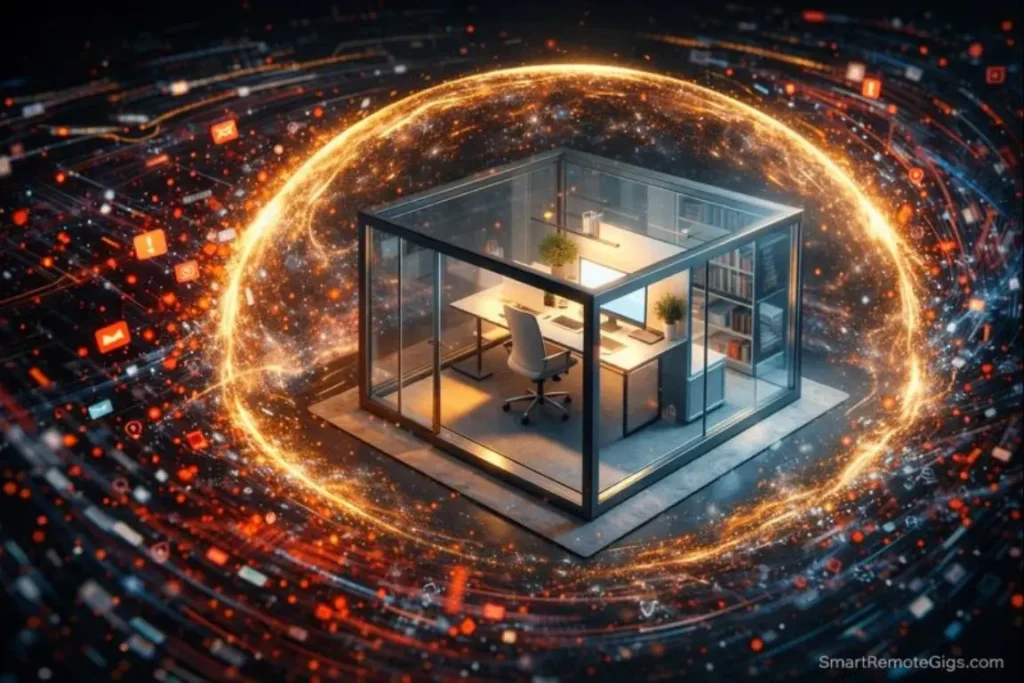
You’re not lazy. You’re human.
And humans follow the path of least resistance.
Your job isn’t to fight this instinct. Your job is to redirect it.
Make the good path easier than the bad path. Make deep work frictionless. Make distractions painful.
Do this once, and the system runs itself.
Your workspace is now a fortress of focus. But what happens when you step away? Read our Atomic Habits for Remote Work hub to ensure your routine matches your new environment.
![Build AI Second Brain Assistant 2026: Local Setup [Guide]](https://smartremotegigs.com/wp-content/uploads/2026/09/build-your-second-brain-ai-assistant-local-rag-hero-1024x577.webp)
![Second Brain with Claude & Obsidian 2026 [My Setup]](https://smartremotegigs.com/wp-content/uploads/2026/08/claude-obsidian-second-brain-mcp-hero-1024x577.webp)
![Why Your Second Brain Fails 2026: Retrieval Fix [Fix]](https://smartremotegigs.com/wp-content/uploads/2026/08/why-your-second-brain-fails-hero-1024x576.webp)