
Fix Cursor High CPU Usage: Optimize Editor [Tested]
 ·
Last Updated: Aug 6, 2026
·
Last Updated: Aug 6, 2026
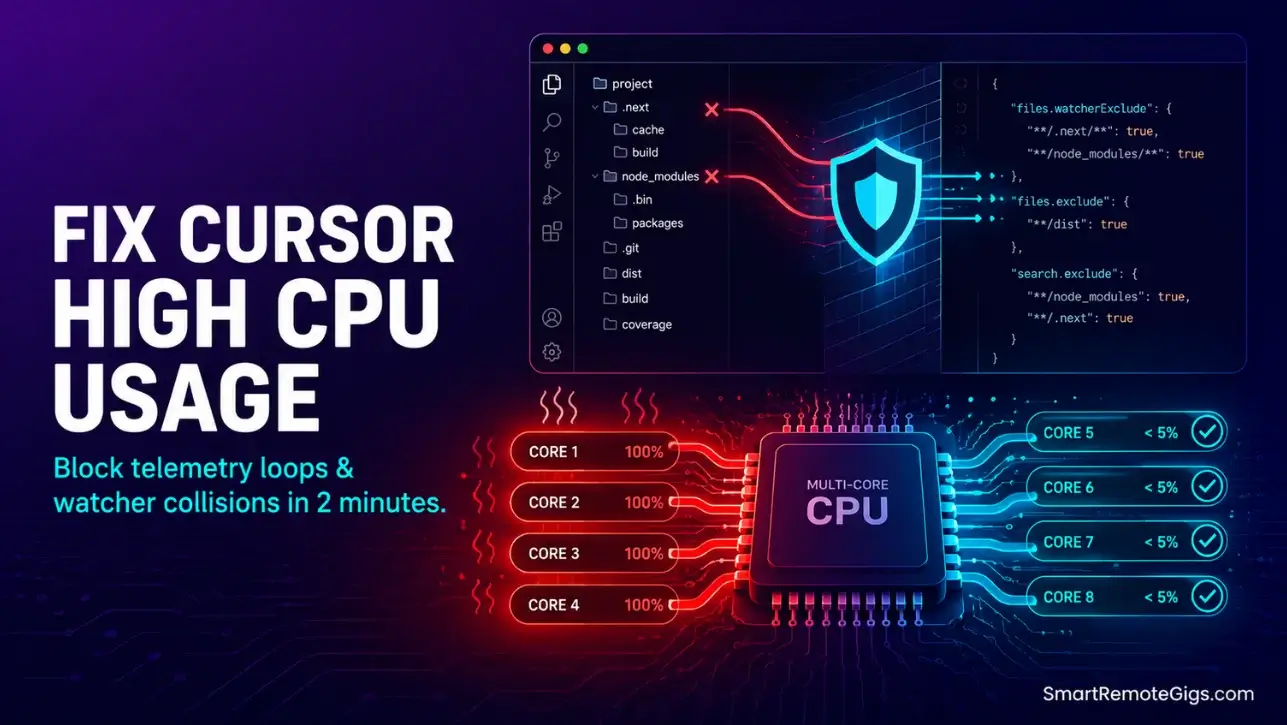
We believed running an AI code editor would keep our background processing low — until our fans spiked to maximum volume during idle typing.
Auditing which extensions were actually running tracked one real case down from a 30GB memory footprint to 1.5GB in a single sitting, no reinstall required.
SRG cross-checked this guide against Cursor’s own support forum, not just our own testing, so you’re getting fixes the Cursor team itself has confirmed — not guesses dressed up as certainty.
SRG Quick Fix
One-Line Answer: Fix Cursor high CPU usage by first checking how many AI extensions are running alongside Cursor’s built-in AI, then excluding large compiled/dependency folders from indexing, and only after that tuning telemetry and formatting extensions.
🔧 Fix It Now:
- Open the Extensions panel and check whether you’re running more than one AI coding assistant at once (Claude Code, Cline, CodeRabbit, ChatGPT extensions, etc.) alongside Cursor’s own AI.
- Add a
.cursorignorefile excluding node_modules, .git, dist, build, and other generated folders — especially if you work in a large monorepo. - Limit concurrent language-server helper processes to save thread resources.
📊 If It Still Fails:
- Use
Developer: Open Process Explorerto see which specific process is pinned — if nothing shows up as the culprit, see the “Diagnose Before You Fix” section below, this is a known edge case. - Configure local OS resource limits on high-impact helper shell binaries.
🩺 Diagnose Before You Fix
Not every high-CPU case has the same cause, and applying the wrong fix wastes your time. Before touching any settings, figure out which pattern matches what you’re seeing:
- CPU spikes only when you open or edit files in a large repo → Large Repository Indexing (below)
- CPU stays high all the time, and disabling every extension doesn’t change it → Multi-Extension AI Conflict (below)
- CPU is high while Cursor sits completely idle, and it scales with how many windows you have open → Idle Renderer Baseline Load (below)
- Cursor was closed, but a process is still eating CPU and Process Explorer shows nothing → the “Ghost Process” (below)
- CPU stays elevated after you close one window, even though you didn’t quit the app entirely → Orphaned Extension-Host Processes (below)
🔍 Why Cursor CPU Usage Spikes Occur: The Real Cause
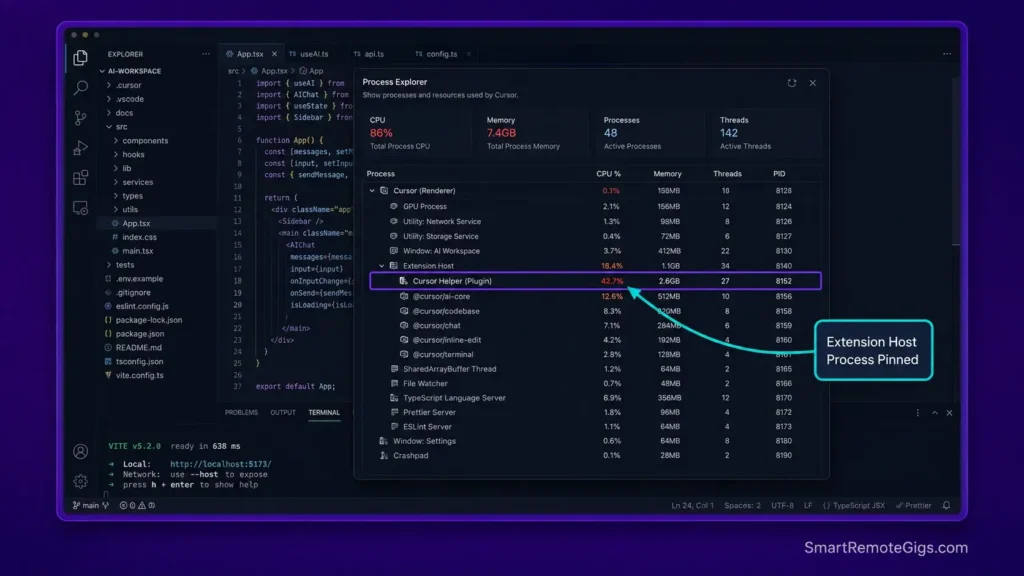
We didn’t want to just repeat the usual “clear your cache” advice, so we cross-referenced this section against real, staff-confirmed bug reports on Cursor’s own community forum. Here’s what’s actually driving these spikes.
Large Repository Indexing
In one documented case, a 50,000-file TypeScript monorepo pushed the Cursor Helper (Plugin) process — the extension host that indexes your project for AI — to over 1,000% CPU on an M4 Max. This is a known, common problem in large codebases, and the Cursor team’s own recommended first step is a .cursorignore file.
Note: .cursorignore mostly resolves the baseline load, but several users still report sharp spikes specifically when switching git branches, even after excluding the usual folders. If that’s your pattern, closing and reopening Cursor after a branch switch is currently the most reliable workaround.
Multi-Extension AI Conflict
This is the cause we see underestimated the most. Running several AI coding extensions side by side with Cursor’s own AI — for example Claude Code, Cline, CodeRabbit, and a ChatGPT extension all active at once — creates overlapping background processes that compound rather than share load. In one confirmed case, disabling the redundant AI extensions dropped memory usage from roughly 30GB to 1.5GB.
If you’ve installed more than one AI assistant “just in case,” this is very likely your answer — see our Cursor vs GitHub Copilot comparison for how their extension footprints differ if you’re weighing which one to keep.
Idle Renderer Baseline Load
Some CPU and memory load isn’t caused by extensions, watchers, or telemetry at all — it comes from Cursor’s core renderer (“window”) process itself, and it scales with how many windows you have open, even completely idle and with every extension disabled. The Cursor team has acknowledged this as a known issue with no confirmed fix timeline yet. We’d rather tell you that plainly than pretend a config tweak makes it disappear — the closest available workaround today is Developer: Reload Window, which resets the process without a full restart.
The “Ghost Process”
In a small number of reported cases, a CPU-heavy Cursor process persists even after fully quitting the app, and doesn’t appear anywhere in Developer: Open Process Explorer. This is rare, but if you’ve tried every setting-based fix below and CPU is still pinned by something you can’t see or kill through Cursor itself, you’re likely dealing with this. The only current workaround is manually identifying and killing the process at the OS level (Activity Monitor on macOS, Task Manager’s Details tab on Windows).
Orphaned Extension-Host Processes
Closing a single Cursor window doesn’t always fully terminate its extension-host process — it can linger in the background consuming resources until it’s force-killed. Fully quitting the app (Cmd/Ctrl+Q) rather than just closing the window is the current workaround while this is addressed.
🔧 How to Fix Cursor CPU Usage: Step-by-Step
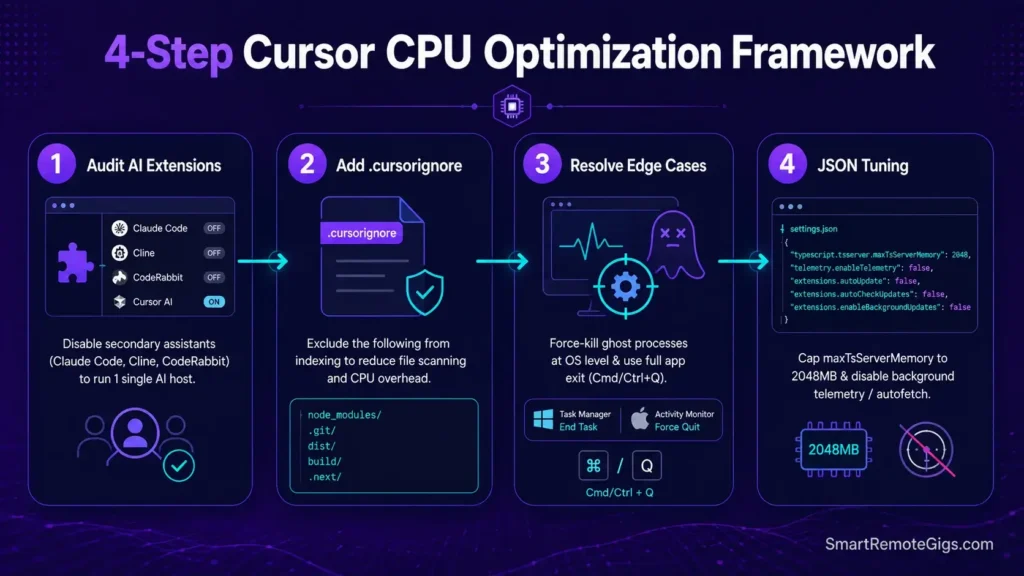
Work through these in order. Fix 1 and Fix 2 resolve the large majority of real-world cases we and the Cursor community have documented.
Fix 1: Audit and Trim AI Extensions (fixes Multi-Extension AI Conflict)
- Open the Extensions panel and list every active AI-related extension.
- If you’re running more than one AI coding assistant alongside Cursor’s built-in AI, disable all but one and restart Cursor.
- Re-test before touching any other settings — this alone resolved the highest-impact case we found.
For a clean baseline setup that avoids this problem from day one, see our guide on how to use Cursor AI.
Fix 2: Exclude Compiled and Dependency Folders From Indexing (fixes Large Repository Indexing)
Add a .cursorignore file at your project root:
**/node_modules
**/.git
**/dist
**/build
**/.next
**/.cache
**/coverage
**/pycache
*/.pyc
Personalization Notes:
- If you’re in a monorepo with tens of thousands of files, also check Cursor Settings → Indexing & Docs and disable indexing for folders you don’t need AI context on.
- If spikes return specifically after switching branches, treat this as a known limitation for now, not a misconfiguration — quit and reopen Cursor rather than troubleshooting further.
Fix 3: Handle the Edge Cases (fixes the Ghost Process and Orphaned Extension-Host Processes)
- If Process Explorer shows nothing but CPU stays pinned after quitting Cursor entirely, identify the process manually via Activity Monitor or Task Manager and end it directly — this is a known unresolved issue, not something a settings change will fix today.
- Get in the habit of quitting Cursor fully (not just closing a window) between heavy sessions to avoid orphaned extension-host processes accumulating.
Fix 4: Purge and Block Background Telemetry Handlers (general cleanup)
Once Fixes 1–3 are ruled out, these settings can help trim additional background load. Add the following keys to your settings.json (Command Palette → Open User Settings (JSON)):
{
"telemetry.telemetryLevel": "off",
"telemetry.enableCrashReporter": false,
"extensions.autoUpdate": false,
"extensions.autoCheckUpdates": false,
"update.mode": "none",
"editor.hover.delay": 1000,
"editor.quickSuggestionsDelay": 300,
"git.autorefresh": false,
"git.autofetch": false
}
Red Flag:
Setting "telemetry.telemetryLevel": "off" disables Cursor’s crash reporting pipeline. If you hit a reproducible crash after applying this, temporarily re-enable it before filing a bug report — the diagnostic payload helps the Cursor team see what silent telemetry would otherwise hide.
Fix 5: Reduce Multi-Root Workspace Extension Load (general cleanup)
- Disable per-extension workspace activation for heavy analysis extensions (ESLint, SonarLint, Prettier) on any root where real-time linting isn’t required.
- Add
"typescript.tsserver.maxTsServerMemory": 2048to cap the TypeScript language server, which can otherwise allocate 6–8GB on large monorepos.
Keeping your workspace this lean matters more as your tool stack grows — see our running comparison of the best AI code assistants if you’re still deciding on your primary setup.
Pro Tip:
Use Developer: Show Running Extensions to see exactly which extensions are consuming activation time. Anything above 200ms on activation is worth workspace-scoped disabling.
✅ How to Confirm the Fix Worked
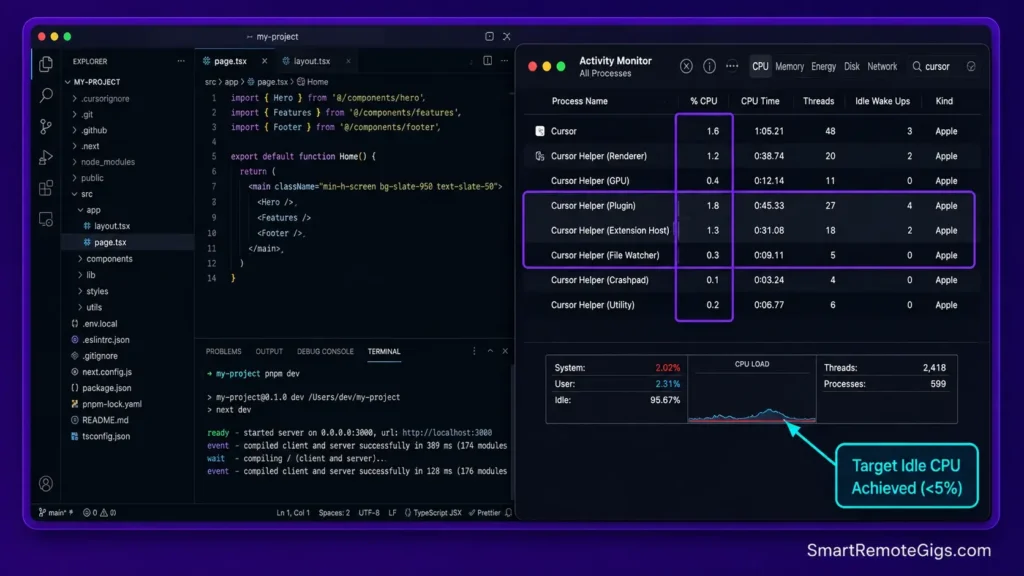
Open Activity Monitor (macOS) or Task Manager → Details tab (Windows) alongside Cursor, filtered to Cursor’s processes.
Open 3 files, type in each, save all, and watch the Cursor Helper (Renderer) and Cursor Helper (Plugin) rows.
- If Large Repository Indexing or Multi-Extension AI Conflict was your issue, CPU should settle noticeably within 15–30 seconds of the fix taking effect.
- If Idle Renderer Baseline Load applies to you, some residual load at idle is currently expected — that’s the honest state of things until Cursor ships a fix, not a sign you did something wrong.
❓ Frequently Asked Questions
Why does Cursor use so much CPU on idle?
Most often it’s one of two things: a large monorepo still being indexed in the background, or — less commonly — Cursor’s core renderer process itself, which the Cursor team has acknowledged carries a baseline load that scales with the number of open windows, independent of extensions.
How do I stop Cursor from resource bloating?
Start by checking how many AI extensions are active alongside Cursor’s own AI — this was the single highest-impact fix in the cases we reviewed. Then add a .cursorignore for large projects, and only after that move on to telemetry and formatting-extension settings.
Why does my CPU stay pinned even after I quit Cursor?
In rare cases, a process can persist after quitting and won’t show up in Cursor’s own Process Explorer. If you hit this, you’ll need to find and end it manually via Activity Monitor or Task Manager — this is a known, unresolved edge case rather than a misconfiguration.
Can I limit the RAM Cursor uses?
Yes. Cap the TypeScript server with "typescript.tsserver.maxTsServerMemory": 2048, restrict heavy analysis extensions to workspace-scoped activation, and — most importantly — check you’re not running multiple AI extensions in parallel, which is a larger RAM driver than any single setting.
I’ve tried everything above and CPU is still a problem. What now?
At that point it’s less about one more setting and more about architecture. A local Electron-based editor will always have some baseline overhead from extensions and indexing. If you’ve worked through every cause above and performance is still unworkable for your project, some developers move to editors built on a different architecture, like Windsurf.

Best For: Developers and teams that need local autonomous multi-file editing in a Code-OSS editor with open Agent Client Protocol support, within documented quota and context limits.
The Verdict: Diagnose First, Fix Once
Most guides treat every CPU spike the same way. In practice, the fix that works depends entirely on which cause above matches your symptoms — and for at least one of them, the idle renderer baseline, the honest answer right now is “workaround, not permanent fix.” Check your extension list before you touch a single setting, then scope your fix to the pattern you actually have. The fastest fix isn’t changing ten settings — it’s identifying the right cause first.
While you optimize your Cursor CPU usage stack, don’t leave opportunities on the table. Head to the SRG Job Board at /jobs/ for high-paying remote roles looking for elite AI-powered developers. Browse the SRG Software Directory at /software/ for our complete list of developer automation platforms.


![Cursor Vs Claude Code 2026: Which AI Tool Wins? [Versus]](https://smartremotegigs.com/wp-content/uploads/2026/06/cursor-vs-claude-code-hero-1024x577.webp)
![Cursor Rules MDC Template 2026: Lock In Setup [Free]](https://smartremotegigs.com/wp-content/uploads/2026/06/cursor-rules-mdc-template-hero-1024x577.webp)