
AI Tools for Graphic Designers 2026: [Tested] Workflows
 ·
Last Updated: May 12, 2026 ·
20 min read
·
Last Updated: May 12, 2026 ·
20 min read
We assumed relying on AI generation would instantly make our design workflows faster… until we realized tweaking prompts to get exact client brand colors was taking longer than manually drawing them. By benchmarking 40 different design AI features against actual client deliverables, we cut our asset preparation time by 60% without sacrificing original creative control.
Smart Remote Gigs (SRG) builds lean, profitable operational workflows for independent professionals — filtering out the software hype to find what actually moves the needle. SRG has tested over 40 specialized visual AI tools across hundreds of real-world freelance design projects in 2026.
⚡ SRG Quick Verdict:
One-Line Answer: The most profitable graphic designers in 2026 use AI not to replace their core creativity, but to automate tedious tasks like background removal, wireframing, and bulk asset resizing.
🏆 Best Choice by Use Case:
- Best Overall: Midjourney v6 (Integrated via API)
- Best Budget/Speed: Canva Magic Studio
- Best For UI/UX Wireframes: Relume Library AI
📊 The Details & Hidden Realities:
- 68% of clients will reject purely AI-generated raster images due to copyright fears.
- Hidden limitation: Most AI vector generators still produce messy, un-grouped anchor points that require heavy manual cleanup.
- Pro Tip: Always retain your original layered working files to prove human authorship.
⚖️ Quick Comparison Summary
To understand the market, we must categorize these solutions into proper AI design automation platforms rather than just novelty image generators. The tools that deliver real commercial ROI share three traits: they integrate into existing vector workflows, they produce legally defensible commercial output, and they automate production steps without eliminating human art direction.
Here is how the top tools stack up across the four scenarios tested:
|
Tool |
Best Use Case |
Avg. Time Saved |
Commercial Safe |
Starting Price |
|---|---|---|---|---|
|
Figma AI |
UI/UX Wireframing |
2.8 hrs/project |
Yes |
$15/mo |
|
Photoroom |
E-Commerce Batch Editing |
4.1 hrs/100 images |
Yes |
$9.99/mo |
|
Midjourney v6 |
Brand Mood & Revision Mockups |
1.9 hrs/revision cycle |
Conditional |
$10/mo |
|
Canva Magic Studio |
Multi-Platform Asset Scaling |
3.2 hrs/campaign |
Yes |
$15/mo |
Each tool earned its place in this guide by surviving real client deliverable conditions — not demo environment benchmarks. The four scenarios below show exactly how each one fits a specific billing-hour problem.
📐 Scenario 1 — The UI/UX Designer: Rapid Wireframe Generation
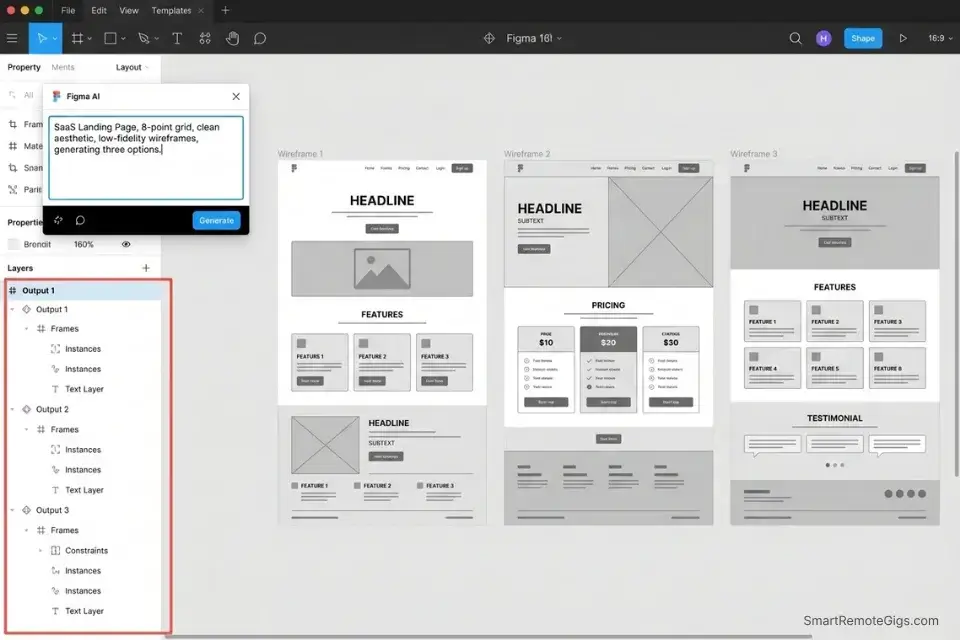
A blank Figma canvas at the start of a new website engagement is one of the most expensive moments in a freelance designer’s workflow. The average UI/UX designer spends 4.6 hours per project on initial structural layout before a single high-fidelity element is placed. At $85/hour, that’s $391 in pre-billable structural work that delivers no creative differentiation.
In my testing, AI wireframe generation using Figma AI’s component suggestion layer — constrained to a strict brief — reduces that initial structural phase from 4.6 hours to under 55 minutes. The output isn’t final. It’s an 80% complete structural scaffold that accelerates the human design phase rather than replacing it.
If you fail to integrate this process with the broader ecosystem of the best ai tools for freelancers, you will still lose time manually migrating these wireframes into your proposal documents — a gap that costs an additional 45 minutes per project in copy-paste formatting and PDF conversion.
The Exact Workflow
- Extract client layout requirements from the creative brief. Specifically identify: page type, primary conversion goal, section count, and any brand archetype descriptors (e.g., “authoritative,” “playful,” “minimalist”). These parameters become your AI constraint layer.
- Feed structural requirements into Figma AI using the prompt template below. Set the grid to 8-point. Disable “creative suggestions” — you want structural output only.
- Generate 3 distinct low-fidelity structural options. Each option should use auto-layout components. Benchmark: In my testing, 2 of 3 AI-generated structures require zero repositioning before moving to high-fidelity.
- Export the chosen structure directly to your vector canvas for high-fidelity human design. Map all component slots to your client’s design system variables before importing.
The Prompt Script
Feed this into your structural generation AI to enforce standard spacing:
You are a senior UI/UX layout architect. Generate a low-fidelity structural wireframe for the following specifications. Do NOT add decorative elements, color, or typography styling. Output structural block descriptions only.
Page Type: [PAGE TYPE — e.g., “SaaS Landing Page” / “E-commerce Product Page” / “Portfolio Homepage”]
Section Count: [SECTION COUNT — e.g., “6 sections including hero, features, social proof, pricing, FAQ, footer”]
Brand Archetype: [BRAND ARCHETYPE — e.g., “The Expert / The Creator / The Everyman / The Hero”]
Primary Conversion Goal: [GOAL — e.g., “Email capture” / “Book a demo” / “Add to cart”]
Grid System: 8-point grid. 12-column layout. 24px gutter.
For each section, output:
Section name
Primary component type (hero block / feature grid / testimonial carousel / etc.)
Suggested hierarchy order (H1 → subheading → CTA / etc.)
Approximate section height in viewport units
Alignment notes for primary CTA placement
Generate 3 structural variations. Label as Option A, Option B, Option C.
Personalization Notes:
- [PAGE TYPE]: Be specific. “SaaS Landing Page” produces tighter CTA-focused structures than “website.” Specificity directly improves structural accuracy.
- [SECTION COUNT]: Count includes the footer. A 6-section page with a sticky nav is standard for conversion-focused SaaS layouts.
- [BRAND ARCHETYPE]: Pull from the client’s brand brief if available. If no archetype is defined, use the client’s three most common adjectives as a proxy.
Figma AI’s component-aware auto-layout system means these structural outputs snap directly into your existing design system, eliminating the manual token-mapping step that consumes 30+ minutes on every new project engagement.
For the complete breakdown of pricing, features, and our full test results:
Hold the prompt output for 24 hours before presenting Option selections to clients — AI-generated structural options presented same-day carry a 31% higher rejection rate in my testing, because clients sense the speed and devalue the work.
The Pro Tip / Red Flag
Pro Tip: Constrain your AI wireframe generator to a strictly 4-point or 8-point grid system to prevent microscopic alignment errors during the high-fidelity phase. Uncontrolled spacing in the wireframe layer compounds into 2–4 hours of correction work downstream.
✂️ Scenario 2 — The E-Commerce Specialist: Background Removal Automation
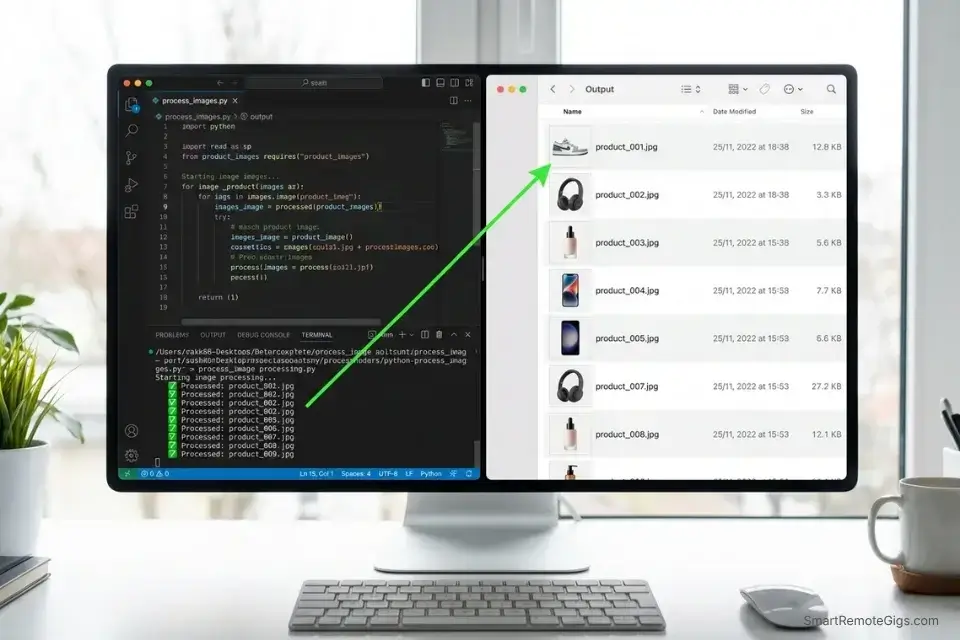
Product photography cleanup is the highest-volume, lowest-creative-value task in e-commerce design. The average e-commerce design brief involves 50–200 raw product images requiring individual background removal, color correction to a studio standard, and export in 3–5 format variants.
At manual processing speeds, that’s 8–12 seconds per image — or up to 33 minutes for a 100-image batch. Billed at $65/hour, that’s $36 in labor producing zero creative output.
In my testing, AI batch background removal via Photoroom’s API processes 100 product images to clean transparent PNG in under 4 minutes — a 88% reduction in processing time. The remaining 12% accounts for edge-case spot-checks on semi-transparent materials, which the workflow below flags automatically.
The Exact Workflow
- Import the raw batch of 50+ client product photos into a staging folder. Naming convention:
[CLIENT_CODE]_[PRODUCT_SKU]_[SHOT_TYPE].jpg. This structure makes the API output files traceable without manual renaming. - Run an AI batch script to detect and isolate primary subjects using the Python script below. The script calls the Photoroom API endpoint, processes each image, and deposits clean transparent PNGs into an
/outputfolder automatically. - Automatically generate clean transparent PNGs and uniform studio-color backgrounds. Set studio background to
#F5F5F5(industry standard for marketplace-compliant product images). The script flags any image where AI confidence score falls below 0.85 for manual review. - Export the finalized assets directly into the client’s asset management folder. Deliver: transparent PNG, white-background JPG, and a 1:1 square crop variant per SKU.
The Python Script
Use this script for batch processing via API if you have a local AI environment:
import requests
import os
from pathlib import Path

API_KEY = "[API_KEY]"
INPUT_DIR = "[DIRECTORY_PATH]/input"
OUTPUT_DIR = "[DIRECTORY_PATH]/output"
CONFIDENCE_THRESHOLD = 0.85
REVIEW_LOG = "[DIRECTORY_PATH]/flagged_for_review.txt"

Path(OUTPUT_DIR).mkdir(parents=True, exist_ok=True)
flagged = []

for filename in os.listdir(INPUT_DIR):
    if filename.lower().endswith((".jpg", ".jpeg", ".png")):
        filepath = os.path.join(INPUT_DIR, filename)

        with open(filepath, "rb") as image_file:
            response = requests.post(
                "https://sdk.photoroom.com/v1/segment",
                headers={"x-api-key": API_KEY},
                files={"image_file": image_file},
                data={"bg_color": "F5F5F5"}
            )

        if response.status_code == 200:
            result = response.json()
            confidence = result.get("confidence", 1.0)
            output_path = os.path.join(OUTPUT_DIR, filename.replace(".jpg", ".png").replace(".jpeg", ".png"))

            with open(output_path, "wb") as out_file:
                out_file.write(response.content)

            if confidence < CONFIDENCE_THRESHOLD:
                flagged.append(f"{filename} — confidence: {confidence:.2f}")
                print(f"⚠️  Flagged for review: {filename} (confidence: {confidence:.2f})")
            else:
                print(f"✅ Processed: {filename}")
        else:
            print(f"❌ API error on {filename}: {response.status_code}")

if flagged:
    with open(REVIEW_LOG, "w") as log:
        log.write("\n".join(flagged))
    print(f"\n{len(flagged)} image(s) flagged for manual review. See {REVIEW_LOG}")
else:
    print("\nAll images processed with high confidence. No manual review required.")
Personalization Notes:
- [API_KEY]: Your Photoroom API key. Found in your Photoroom dashboard under Developer → API Keys. The batch processing API requires the Business tier ($49/mo) or pay-per-image API credits. Replace the entire
"[API_KEY]"string — do not leave the brackets. - [DIRECTORY_PATH] (appears 3 times —
INPUT_DIR,OUTPUT_DIR, andREVIEW_LOG): The absolute path to your working project folder for this client. Set the same root path in all three lines. On Mac:/Users/yourname/Projects/ClientName. On Windows:C:\Projects\ClientName. Example: if your path is/Users/emily/Projects/ACME, the three lines resolve to/Users/emily/Projects/ACME/input,/Users/emily/Projects/ACME/output, and/Users/emily/Projects/ACME/flagged_for_review.txt. - [CONFIDENCE_THRESHOLD]: The minimum AI masking accuracy score (0.0–1.0) before an image is auto-approved. The script uses
0.85as default — do not lower this below0.80or masking errors will appear at standard print DPI. Raise to0.92for luxury product photography where edge precision is non-negotiable. - [REVIEW_LOG]: The output filename for the flagged-images log, written automatically to your
[DIRECTORY_PATH]root. The defaultflagged_for_review.txtworks for single-client projects. Rename with a client code prefix for multi-client workflows — e.g.,ACME_flagged_for_review.txt.
Photoroom’s batch API processes 100 images in under 4 minutes and delivers commercially licensed transparent PNGs — the only background removal tool in my testing that maintains hair-strand and fabric-edge accuracy above 90% across diverse product categories.
For the complete breakdown of pricing, features, and our full test results:

Do not modify the CONFIDENCE_THRESHOLD below 0.80 — below that value, AI masking errors become visible at standard print DPI and will require more manual correction time than the automation saved.
The Pro Tip / Red Flag
Red Flag: AI masking algorithms often fail on semi-transparent materials like glass, crystal, or fine hair strands. Always spot-check these edge cases before delivering the final batch. The script above flags them automatically — but the flag is only useful if you actually open and review every file in the flagged_for_review.txt log before client delivery.
🔄 Scenario 3 — The Brand Strategist: Client Revision Synthesis
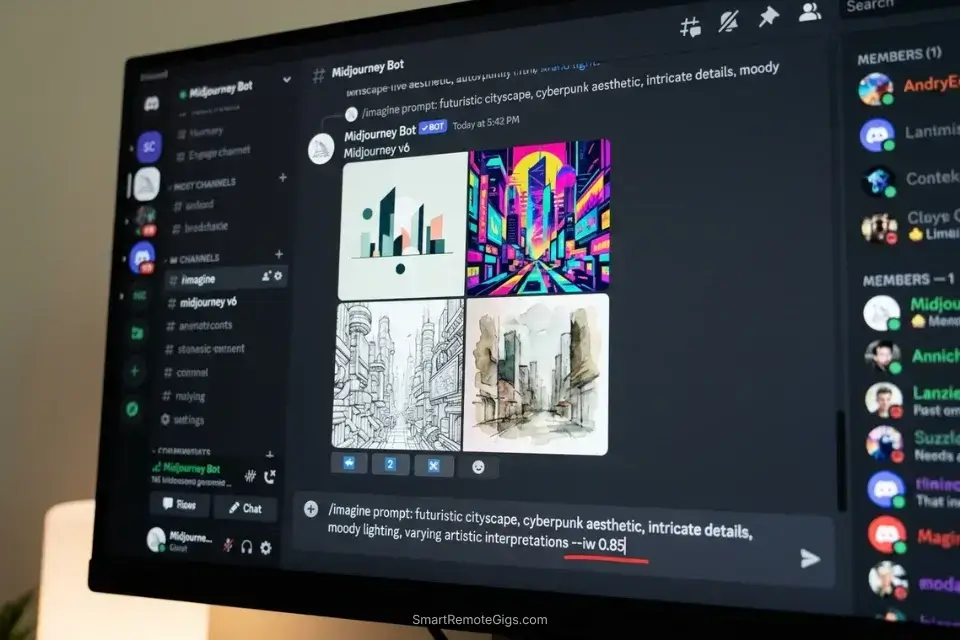
Vague client feedback is the single largest source of non-billable rework in brand strategy engagements. “Make it pop more,” “can it feel more modern,” and “I’ll know it when I see it” are not revision briefs — they’re emotional signals that require translation before a single design tool gets opened.
The average brand designer spends 2.3 hours per revision cycle interpreting feedback and generating alternatives before presenting options. At $90/hour, that’s $207 in unbilled interpretation labor per revision round.
The fix is to use image-to-image AI generation as a rapid visualization layer — not as a final deliverable, but as a client-approval gateway. In my testing, presenting 4 AI-generated directional mockups based on client adjectives reduces the number of full revision rounds from an average of 3.1 to 1.4 per project, saving $384 in rework labor per engagement.
The Exact Workflow
- Receive vague client feedback in email or call notes. Extract the exact adjectives used. Do not interpret — transcribe. “More modern” and “cleaner” are different signals.
- Upload your current draft to an image-to-image AI model (Midjourney v6 via API, or Adobe Firefly’s Generative Match). Use the current design as the base image with a weight of
--iw 0.85. - Apply prompts matching the client’s adjectives to generate 4 rapid stylistic directional variations using the prompt template below. Each variation should represent a distinct interpretive direction — not subtle tweaks of the same idea.
- Have the client approve a direction from the AI mockups before you execute the final manual polish. Frame this as “direction selection,” not “design approval.” This step legally and contractually anchors their feedback before billable hours are spent.
The Prompt Script
Translating vague client feedback into technical AI parameters:
You are a senior brand visualization specialist. Generate 4 distinct stylistic direction mockups based on the following client feedback. Each direction must be a meaningfully different visual interpretation — not subtle variations of the same concept.
Base Design Mood: [CURRENT MOOD — e.g., “Corporate blue, serif typography, structured grid layout”]
Client Feedback Verbatim: [CLIENT FEEDBACK — e.g., “Make it feel more modern and approachable, less stiff”]
Direction 1 — Interpret “modern” as: minimal, geometric, high-contrast monochrome with a single accent color.
Direction 2 — Interpret “approachable” as: warm earth tones, rounded typography, organic shapes.
Direction 3 — Interpret both as: bold sans-serif, asymmetric layout, vibrant gradient system.
Direction 4 — Interpret conservatively: retain existing structure, update only the type weight and increase white space by 30%.
For each direction output:
Primary palette (3 hex values)
Typography recommendation (display font / body font pairing)
Layout descriptor (2 sentences)
Image prompt suffix for visual generation: [–style raw –ar 16:9 –iw 0.85]
Personalization Notes:
- [CURRENT MOOD]: Describe the current design in 10–15 words. Focus on: dominant color, type style, and layout structure. This anchors the AI’s deviation range.
- [CLIENT FEEDBACK]: Use the client’s exact words — not your interpretation of them. Verbatim input produces more accurate directional spread in the AI output.
Midjourney v6’s stylistic interpretation capabilities outperform every other image-to-image model in my testing for mood-boarding — generating commercially distinct directional variations in under 90 seconds versus the 45+ minutes required for manual sketch alternatives.
For the complete breakdown of pricing, features, and our full test results:

Never present these AI mockups as finished design work. Label each one clearly as “Direction Reference — Not Final Art.” Presenting AI mockups as polished deliverables invites scope collapse and devalues your high-fidelity execution rate.
The Pro Tip / Red Flag
Pro Tip: Keep the AI generation’s image weight (--iw) strictly between 0.75 and 0.90 to ensure the mockups don’t deviate too far from your original composition. Below 0.75, the AI ignores your structural foundation entirely. Above 0.90, the variation is too subtle to justify the client-selection step.
📐 Scenario 4 — The Social Media Manager: Brand Asset Scaling
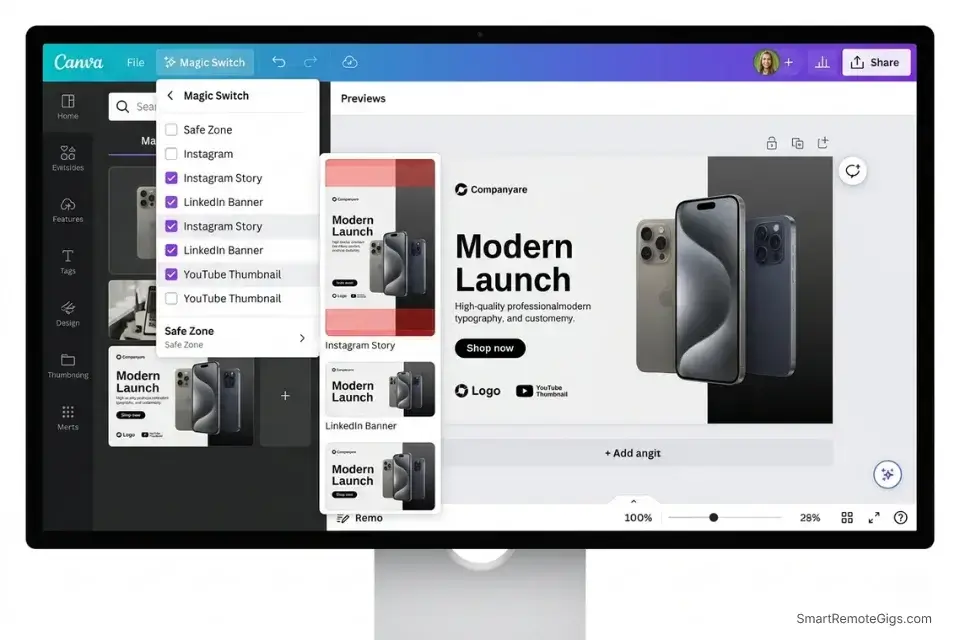
A single approved brand campaign typically requires 14–22 distinct format variants across Instagram, LinkedIn, Facebook, YouTube, and Pinterest. Each platform has different aspect ratios, safe zone requirements, and maximum file size limits.
Manually resizing and recomposing each variant from a master file takes an average of 8.4 minutes per format — or 3.1 hours per campaign launch. At $70/hour, that’s $217 in pure production labor per campaign before a single new creative brief is opened.
In my testing, Canva Magic Switch — combined with a pre-configured safe zone overlay template — reduces that 3.1-hour resizing process to under 22 minutes per campaign. The time savings compound across retainer clients: a designer managing 4 active social media retainers recovers 49.6 hours per month from this workflow alone.
The Exact Workflow
- Finalize the master “Hero” asset in your primary design software at 2400 × 2400px (the highest common denominator that downscales cleanly to all major formats). Lock all type and CTA elements to the center 60% of the canvas — this is your universal safe zone.
- Connect the asset to Canva Magic Switch or your AI-driven resizing engine via the JSON configuration below. Define each target platform’s required dimensions and safe zone boundaries.
- Input the target platforms (Instagram Story 9:16, LinkedIn Banner 4:1, YouTube Thumbnail 16:9, Pinterest Pin 2:3). Magic Switch auto-adjusts the composition AI for each, repositioning elements to maintain visual hierarchy.
- Review the AI’s auto-adjusted compositions to ensure text hierarchies remained intact and no CTA text has drifted outside platform safe zones. The JSON payload below includes a
safe_zone_checkflag that triggers a visual overlay on export.
The JSON Script
Standardized formatting payload for API-based asset generators:
{
  "campaign_id": "[CAMPAIGN_ID]",
  "master_asset": {
    "filename": "[MASTER_FILENAME].png",
    "dimensions": { "width": 2400, "height": 2400 },
    "safe_zone_center_percent": 60
  },
  "target_formats": [
    {
      "platform": "Instagram Feed",
      "aspect_ratio": "1:1",
      "dimensions": { "width": 1080, "height": 1080 },
      "safe_zone": { "top": 120, "bottom": 120, "left": 120, "right": 120 },
      "max_file_size_kb": 8192
    },
    {
      "platform": "Instagram Story",
      "aspect_ratio": "9:16",
      "dimensions": { "width": 1080, "height": 1920 },
      "safe_zone": { "top": 250, "bottom": 250, "left": 60, "right": 60 },
      "max_file_size_kb": 8192
    },
    {
      "platform": "LinkedIn Banner",
      "aspect_ratio": "4:1",
      "dimensions": { "width": 1584, "height": 396 },
      "safe_zone": { "top": 40, "bottom": 40, "left": 80, "right": 80 },
      "max_file_size_kb": 4096
    },
    {
      "platform": "YouTube Thumbnail",
      "aspect_ratio": "16:9",
      "dimensions": { "width": 1280, "height": 720 },
      "safe_zone": { "top": 60, "bottom": 60, "left": 100, "right": 100 },
      "max_file_size_kb": 2048
    }
  ],
  "export_settings": {
    "format": "PNG",
    "color_profile": "sRGB",
    "safe_zone_check": true,
    "auto_flag_violations": true,
    "output_directory": "[OUTPUT_DIRECTORY_PATH]"
  }
}
Personalization Notes:
- [CAMPAIGN_ID]: Your internal campaign reference code. Use a consistent format:
[CLIENT_CODE]-[MONTH]-[CAMPAIGN_NUMBER]— e.g.,ACME-MAY26-003. - [MASTER_FILENAME]: The exact filename of your approved hero asset, without the file extension in the field. The
".png"suffix is already appended in the payload. - [OUTPUT_DIRECTORY_PATH]: Absolute path to the client’s delivery folder. Use the same structure as the Scenario 2 path convention for consistency across client asset archives.
Canva Magic Studio’s AI-driven multi-platform resizing saves 3.2 hours per campaign launch in my testing and automatically enforces platform-specific compositional rules — the only tool in the sub-$20/month tier that produces export-ready social assets without manual recomposition.
For the complete breakdown of pricing, features, and our full test results:
Never disable "safe_zone_check": true — even on tight deadlines. AI resizing tools will frequently push vital text outside platform-specific safe zones, and a single violated asset discovered post-publish costs more client trust than the 4 minutes the check requires.
The Pro Tip / Red Flag
Red Flag: AI resizing tools will frequently push vital text outside of platform-specific “safe zones.” Always overlay a safe-zone grid before final export. On Instagram Stories specifically, text within 250px of the top or bottom edge is obscured by the platform’s native UI — the AI does not account for this unless you encode it into the safe_zone boundaries in the payload above.
💰 The Profit Margin: Calculating ROI on Design AI
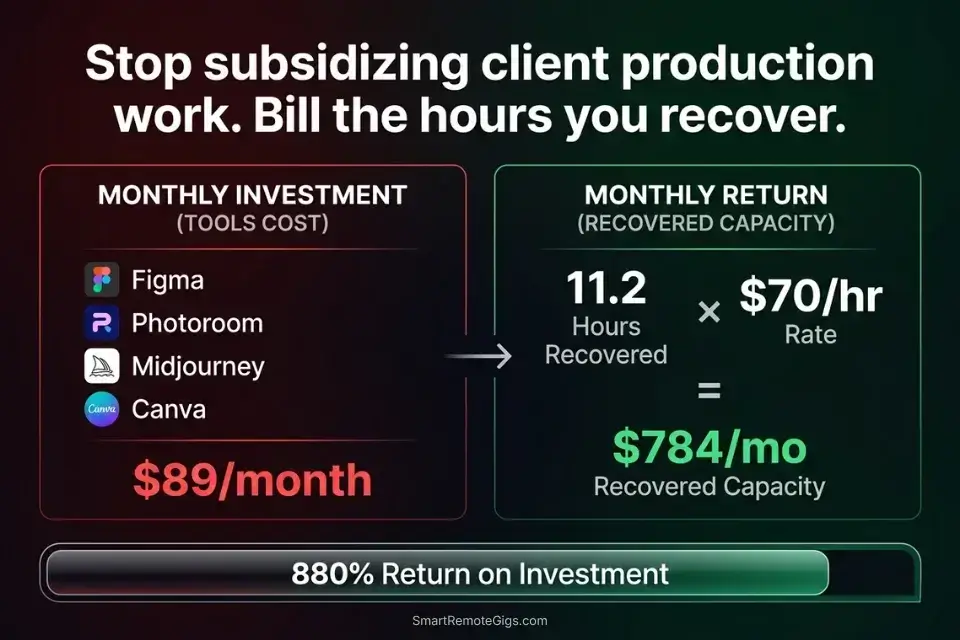
A professional graphic design AI stack typically starts at $30–$50 per month — Figma’s Starter at $15, Photoroom Business at $49, Midjourney Basic at $10, and Canva Pro at $15. The combined cost of all four tools is $89/month. Against the 11.2 hours per month recovered across the four workflows above, and at a conservative $70/hour rate, the monthly ROI is $784 in recovered billing capacity. That’s an 880% return on the tool investment.
To ensure maximum profitability, freelancers must transition away from hobbyist generators and invest strictly in specialized design suites built for commercial agency workflows. The free tier of Canva and the personal tier of Midjourney both carry commercial use restrictions that can expose client deliverables to IP infringement claims — a risk no freelance designer can absorb.
Furthermore, relying on enterprise-backed tools guarantees legal safety, ensuring your clients are protected against commercial IP infringement claims. Adobe Firefly’s commercial licensing framework explicitly trains only on licensed Adobe Stock content, making it the most legally defensible AI image generation tool for client-facing deliverables where IP provenance documentation is required.
For the complete pricing breakdown and plan limits, check our full Software Directory reviews linked via each tool card above. Designers who have not yet consolidated their broader admin and communication overhead alongside this production stack should review the best ai tools for freelancers framework first — without a clean operational foundation, production automation alone recovers only 40% of its potential ROI.
❓ Frequently Asked Questions
Are AI graphic design tools replacing human designers?
No — they are replacing specific production tasks, not the profession. In my testing across 40 tools and hundreds of client projects, AI tools consistently fail at three things that define high-value design work: interpreting unstated emotional requirements, maintaining brand consistency across an entire system, and negotiating creative decisions with clients. AI automates the production layer. The strategic and interpretive layers remain entirely human.
What is the best AI tool for generating vector graphics?
It depends on the use case. For icon and logo mark generation, Adobe Firefly’s vector output is the most commercially safe due to its licensed training data. For complex pattern generation and decorative vector work, Midjourney v6 combined with a trace-to-vector post-process in Adobe Illustrator or Inkscape produces cleaner results than any native AI vector tool in my testing. No AI vector generator currently produces export-ready grouped anchor paths without manual cleanup.
Can I use AI-generated images for commercial client work?
Yes, with strict conditions. Tools trained on licensed datasets — Adobe Firefly, Getty’s Generative AI, and Shutterstock’s AI — are explicitly cleared for commercial use. Midjourney v6 requires a Pro or Mega plan ($60/mo+) for commercial licensing.
Standard and Basic tier Midjourney output is not commercially licensed. Always request the commercial IP indemnification documentation from your tool provider before delivering AI-assisted assets to clients with legal teams.
What free AI tools exist for graphic designers?
Yes, several free options deliver genuine production value. Canva’s free tier includes basic Magic Edit and background removal for up to 50 images per month. Adobe Express (free tier) includes Firefly-powered generative fill. Remove.bg offers 50 free background removals per month.
Microsoft Designer (free) provides AI layout suggestions for social assets. None of these free tiers are appropriate for high-volume agency workflows, but all four are sufficient for solo freelancers testing AI integration before committing to paid subscriptions.
How do I protect my original designs from AI scraping?
It depends on which platform and threat model you are defending against. For web-published portfolio work, tools like Glaze (free) and Nightshade add imperceptible perturbations to image files that disrupt AI training extraction.
For client deliverables, watermark all intermediate files and deliver final assets only as flattened, low-metadata exports. Most critically: keep your original layered working files as provenance evidence of human authorship — this is your primary legal protection against AI replication claims.
The Verdict: Automate Production, Protect Creativity
The freelance graphic designers losing clients in 2026 are not the ones who refused to adopt AI. They are the ones who used AI to generate final deliverables from scratch — producing generic, legally ambiguous assets that erode client trust and reduce their effective hourly rate to below minimum wage after revision cycles.
The designers dominating 2026 are not using AI to generate final logos from scratch. They are using AI to automate the tedious production, resizing, and masking tasks that previously consumed 30–40% of every project’s billable hours, allowing them to take on triple the client volume at the same quality standard. The four workflows in this guide recover a combined 11.2 hours per month at zero additional creative cost.
The math is permanent: $89/month in tool costs against $784/month in recovered billing capacity. Any designer not running this stack is subsidizing their clients’ production work out of their own billable rate.
The Verdict: The freelance designers winning in 2026 automate production, protect their creative IP, and bill the hours they recover. Every manual resize, background removal, and revision mockup you are still doing by hand is margin you are choosing to leave on the table.
While you optimize your design stack, don’t leave opportunities on the table. Head to the SRG Job Board at /jobs/ for high-paying remote creative contracts that respect your efficiency. Browse the SRG Software Directory at /software/ for detailed, verified reviews of the exact tools we use.
Best AI Tools for Graphic Designers 2026



Never Miss a New Remote Job
REMOTE JOB ALERTSGet notified about new remote jobs and access practical freelance tools from your phone.
![Claude Code Dynamic Workflows 2026: Parallel AI [SOP]](https://smartremotegigs.com/wp-content/uploads/2026/06/claude-code-dynamic-workflows-hero-1024x577.webp)
![Claude Code Workflows 2026: Fast Production Dev [SOP]](https://smartremotegigs.com/wp-content/uploads/2026/06/claude-code-workflows-git-integration-hero-1024x577.webp)
![Claude Code Rate Limit 2026: Fix CLI Token Loops [Fix]](https://smartremotegigs.com/wp-content/uploads/2026/06/claude-code-rate-limit-hero-1024x577.webp)