
Migrate n8n SQLite to PostgreSQL 2026: Docker SOP [Guide]
 ·
Last Updated: October 7, 2026 ·
10 min read
·
Last Updated: October 7, 2026 ·
10 min read
An n8n SQLite to Postgres migration moves workflows, credentials, and execution data from the default single-file database to a PostgreSQL 16 service in Docker Compose. The procedure has three parts: export the data with n8n’s CLI, provision PostgreSQL with a health-gated start, and import the data with the original encryption key in place. This guide documents that sequence as an SRG reference procedure.
This SOP guides systems administrators, DevOps engineers, and technical solopreneurs upgrading self-hosted n8n storage in Docker Compose. It excludes managed cloud hosting. Smart Remote Gigs (SRG) publishes source-backed technical guides, SOPs, and career blueprints.
Method: compiled from 3 sources reviewed on October 2026 for n8n database migration commands and Docker Compose configurations. SRG did not hands-on test this setup.
SRG Quick Guide Summary
One-Line Goal: Migrate self-hosted n8n from SQLite to PostgreSQL 16 in Docker Compose using n8n’s CLI export and import commands.
🚀 Prerequisites: A running n8n instance on SQLite, access to its .n8n data directory, a saved copy of the encryption key, and Docker Engine with the Compose plugin.
📋 Core Workflow: Back up the data directory and save the encryption key ➔ export workflows and credentials ➔ provision PostgreSQL 16 in compose.yml ➔ import the exports ➔ restart the stack and verify.
⚠️ Primary Pitfall: Starting the new stack with a different encryption key than the original leaves imported credentials undecryptable. Separately, n8n aborts initialization if it cannot connect to PostgreSQL within the 20,000 ms (20 seconds) default connection timeout.
Pre-Migration Architecture: SQLite Limitations vs. PostgreSQL Sizing
SQLite File-Lock Concurrency Bottlenecks
The official sources reviewed for this guide do not document SQLite concurrency limits, so no locking behavior is asserted here. The reason to migrate is a design choice: PostgreSQL runs as its own service, with health checks and connection settings that n8n documents, as the steps below show.
Prerequisites & Environment Baseline
The official n8n Docker Compose documentation lists version 2.42.3 as the current stable release, and this guide pins that tag. Official documentation does not specify a minimum RAM/CPU baseline; this guide demonstrates the configuration on a standard Linux VPS baseline running Docker Compose.
Without a license key, n8n runs as the free Community edition. The official n8n pricing page lists unlimited executions for it under the Sustainable Use License. For a full fresh deployment, see the self-hosting deployment guide.
Phase 1: Immutable Backups & Native CLI Data Extraction (export:workflow & export:credentials)
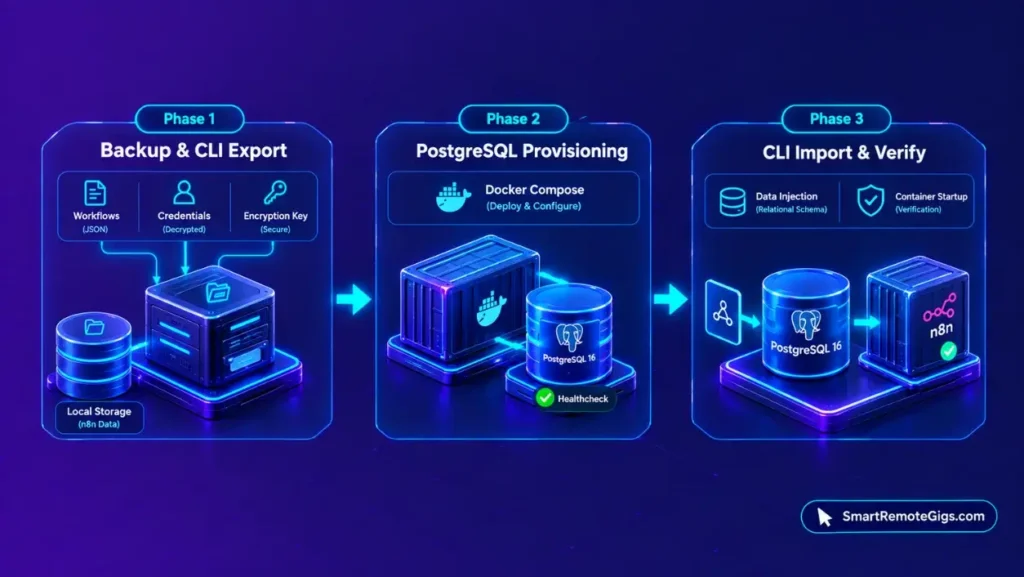
Step 1: Snapshotting SQLite Volumes and Preserving Encryption Keys
Stop the running container, then archive the data directory before changing anything. Locate the encryption key and save it somewhere secure. n8n encrypts stored credentials with this key, so the new PostgreSQL stack must run with the same value.
The sources reviewed do not document where the key is stored. Check the container’s N8N_ENCRYPTION_KEY environment variable first, then the config file in the data directory, and confirm in a sandbox.
Step 2: Executing Native CLI Workflow and Credential Exports
The commands below run n8n’s export commands in a temporary container that mounts the data directory. The credentials export uses --decrypted, which writes secrets in plain text. Keep that file private and delete it after the import.
# Adjust ~/.n8n to the host path of your SQLite data directory
docker stop n8n
tar -czvf n8n-backup-$(date +%F).tar.gz ~/.n8n
# Default node UID; verify in your environment if non-standard
sudo chown -R 1000:1000 ~/.n8n
docker run --rm -v ~/.n8n:/home/node/.n8n docker.n8n.io/n8nio/n8n:2.42.3 n8n export:workflow --all --output=/home/node/.n8n/workflows.json
docker run --rm -v ~/.n8n:/home/node/.n8n docker.n8n.io/n8nio/n8n:2.42.3 n8n export:credentials --all --decrypted --output=/home/node/.n8n/credentials.json
This manifest demonstrates an SRG reference architecture; validate syntax in a sandbox before deploying to live client workloads. Confirm the export command names and flags against n8n export:workflow --help and n8n export:credentials --help for v2.42.3.
Phase 2: PostgreSQL Container Provisioning & Docker Network Setup
Step 3: Structuring the PostgreSQL 16 Multi-Container Manifest
The new stack defines two services. postgres uses the postgres:16-alpine image, a pg_isready healthcheck, and a db-storage volume. n8n pins docker.n8n.io/n8nio/n8n:2.42.3 and uses depends_on with condition: service_healthy, so n8n starts only after PostgreSQL accepts connections.
Reverse proxy and TLS settings are covered in the self-hosting deployment guide and are omitted here.
Step 4: Configuring Connection Pool Limits & Enforcing Modern N8N_WEBHOOK_URL
The official n8n database configuration reference documents the three timeout parameters in the manifest. The manifest sets each to its documented default. It also sets N8N_ENCRYPTION_KEY to the key saved in Step 1, and N8N_WEBHOOK_URL to the public address of the instance. N8N_WEBHOOK_URL supersedes the legacy WEBHOOK_URL variable.
SRG reference architecture: validate in a sandbox before deploying to live client workloads.services:
postgres:
image: postgres:16-alpine
restart: unless-stopped
environment:
– POSTGRES_USER=[POSTGRES_USER]
– POSTGRES_PASSWORD=[POSTGRES_PASSWORD]
– POSTGRES_DB=[POSTGRES_DB]
volumes:
– ./db-storage:/var/lib/postgresql/data
healthcheck:
test: [“CMD-SHELL”, “pg_isready -U $${POSTGRES_USER} -d $${POSTGRES_DB}”]
interval: 5s
timeout: 5s
retries: 10
networks:
– n8n-net
n8n:
image: docker.n8n.io/n8nio/n8n:2.42.3
restart: unless-stopped
depends_on:
postgres:
condition: service_healthy
ports:
– “5678:5678”
environment:
– DB_TYPE=postgresdb
– DB_POSTGRESDB_HOST=postgres
– DB_POSTGRESDB_PORT=5432
– DB_POSTGRESDB_DATABASE=[POSTGRES_DB]
– DB_POSTGRESDB_USER=[POSTGRES_USER]
– DB_POSTGRESDB_PASSWORD=[POSTGRES_PASSWORD]
– DB_POSTGRESDB_CONNECTION_TIMEOUT=20000
– DB_POSTGRESDB_IDLE_CONNECTION_TIMEOUT=30000
– DB_POSTGRESDB_MAX_CONNECTION_LIFETIME_MS=3600000
– N8N_ENCRYPTION_KEY=[ORIGINAL_ENCRYPTION_KEY]
– N8N_WEBHOOK_URL=https://[YOUR_DOMAIN]/
volumes:
– ./n8n_data:/home/node/.n8n
networks:
– n8n-net
networks:
n8n-net:
driver: bridge
This manifest demonstrates an SRG reference architecture; validate syntax in a sandbox before deploying to live client workloads.
[POSTGRES_USER]: the PostgreSQL username, identical in both services.[POSTGRES_PASSWORD]: a strong database password, identical in both services.[POSTGRES_DB]: the database name, identical in both services.[ORIGINAL_ENCRYPTION_KEY]: the exact encryption key saved from the SQLite instance in Step 1.[YOUR_DOMAIN]: the public domain that serves the instance.
Copy workflows.json and credentials.json into the new ./n8n_data directory so the container can read them at /home/node/.n8n.
Phase 3: Schema Initialization & Data Import Sequence
Step 5: Bootstrapping the PostgreSQL Database Schema
Start PostgreSQL alone first and confirm it reports healthy. Then start n8n so it can connect and prepare its tables in the empty database. This table-creation behavior is not recorded in the sources reviewed, so confirm in a sandbox that n8n completes initialization before running the imports.
If the n8n container exits at this stage, check the log for a database connection error. The PostgreSQL timeout resolution guide covers connection-timeout fixes.
Step 6: Importing Workflows and Credentials via CLI Commands
With n8n running on PostgreSQL, run the import commands inside the container. The terminal output reports how many workflows and credentials were imported. Compare those counts with your exports.
docker compose up -d postgres
docker compose up -d n8n
docker compose exec -u node n8n n8n import:workflow --input=/home/node/.n8n/workflows.json
docker compose exec -u node n8n n8n import:credentials --input=/home/node/.n8n/credentials.json
docker compose logs --tail=100 n8n
This manifest demonstrates an SRG reference architecture; validate syntax in a sandbox before deploying to live client workloads. Confirm the import flags against n8n import:workflow --help and n8n import:credentials --help for v2.42.3.
Step 7: Container Orchestration & Healthcheck Verification
Restart the full stack with docker compose down followed by docker compose up -d. The service_healthy condition holds n8n back until PostgreSQL passes its pg_isready check. That matters because the default DB_POSTGRESDB_CONNECTION_TIMEOUT of 20,000 ms converts to a 20-second window (calculated by SRG), and a failure to connect within the configured timeout aborts container initialization.
Common Migration Pitfalls & Failure Modes (Encryption Key Mismatches)
Failure Mode 1: Encryption Key Mismatch & Broken Credential Decryption
If N8N_ENCRYPTION_KEY in the new stack differs from the original, n8n cannot decrypt credentials that were encrypted with the original key. Workflows that call external services may then fail to authenticate. Compare the key in compose.yml with the saved original character by character.
The --decrypted export gives a second route, since the credentials file holds plain-text secrets, but it is not a substitute for keeping the key. Treat that file as sensitive and delete it after the import.
Failure Mode 2: Startup Race Conditions & 20s Connection Timeout Drops
The 20,000 ms default connection timeout converts to 20 seconds (calculated by SRG). Per the database configuration reference, failing to establish a database connection within the configured timeout aborts container initialization. The health-gated depends_on in the manifest controls start order so n8n does not begin connecting before PostgreSQL is ready.
For tuning beyond start order, see the PostgreSQL timeout resolution guide.
Post-Migration Verification Checklist & SQLite Decommissioning
- Workflows: Open the n8n canvas and verify that imported workflows appear, then confirm that trigger-based workflows show the active state you expect.
- Credentials: Run a test execution for a workflow that uses an imported credential and verify that it authenticates against the external service.
- Execution history: Run a workflow manually and verify that the execution appears in the executions list after a stack restart.
- Database in use: Inspect the n8n container environment and logs and confirm that
DB_TYPEispostgresdband thatdatabase.sqliteis no longer being modified. - Decommissioning: Archive the original backup archive and the SQLite file to storage you control, delete
credentials.json, and remove old copies only after the checks above pass.
The Verdict: Operational Boundaries of Database Migration
The migration changes where n8n stores its data, and the encryption key is the one value that must carry over unchanged. Everything else in the new stack is configuration: a PostgreSQL service, documented connection timeouts, a health-gated start order, and N8N_WEBHOOK_URL.
The documented timeout is the main startup risk. A missed connection within 20 seconds by default aborts initialization, so the service_healthy dependency is part of the migration, not an optional addition. The CLI commands, the key location, and the table-creation behavior are SRG reference steps and need sandbox confirmation.
This guide is a documentation-derived production configuration baseline, not a field-certified environment. Rehearse the full migration on a copy of the SQLite data before touching a live instance.
Documented via 3 official vendor sources as of October 2026. SRG did not hands-on test this setup.
For a complete server architecture, see the self-hosting deployment guide. Managed cloud plans remove database administration from the operator and start at €20/month billed annually. For full plan specifications and limits, see the n8n dossier:

Best For: Technical solopreneurs, systems integrators, and engineering teams that need either self-hosted execution under the free Community edition or Cloud plans metered per full workflow run with unlimited users.
Automation roles that use n8n are listed on the Smart Remote Gigs Exchange.

Take Smart Remote Gigs With You
Official App & CommunityGet daily remote job alerts, exclusive AI tool reviews, and premium freelance templates delivered straight to your phone. Join our growing community of modern digital nomads.

![How to Self-Host n8n on Docker 2026: Deployment SOP [Guide]](https://smartremotegigs.com/wp-content/uploads/2026/10/how-to-self-host-n8n-hero-1024x577.webp)