
Fix n8n PostgreSQL Timeout 2026: DB Handshake [Fix]
 ·
Last Updated: August 4, 2026 ·
10 min read
·
Last Updated: August 4, 2026 ·
10 min read 
We assumed our newly deployed self-hosted infrastructure was solid — until a large webhook polling event triggered a DB_POSTGRESDB_CONNECTION_TIMEOUT and stalled part of our production pipeline.
Smart Remote Gigs (SRG) builds transparent, developer-grade workflow blueprints. Our guidance here comes directly from n8n’s own environment-variable documentation and community configuration guides — not an in-house benchmark. Where a number can’t be traced to a public source, we say so.
SRG Quick Fix
One-Line Answer: PostgreSQL timeout crashes in n8n are usually a pool-size or connection-timeout mismatch with your actual load — check your current values against n8n’s documented defaults before assuming you need to raise them.
🔧 Fix It Now:
- Access your
docker-compose.ymlfile on your VPS. - Check your current
DB_POSTGRESDB_CONNECTION_TIMEOUTandDB_POSTGRESDB_POOL_SIZEvalues against n8n’s documented defaults (see below) before changing anything. - Execute
docker compose down && docker compose up -dto apply any changes.
📊 If It Still Fails:
- Check your VPS RAM allocation; if memory usage is capping at 100%, the OS may be killing the database container regardless of your timeout settings.
- Consider a fully managed automation platform if ongoing database administration is more overhead than your team wants to carry.
[Evidence Source: Official n8n Docs] | [Confidence Level: Confirmed]
🔍 Why the Timeout Happens: The Real Cause
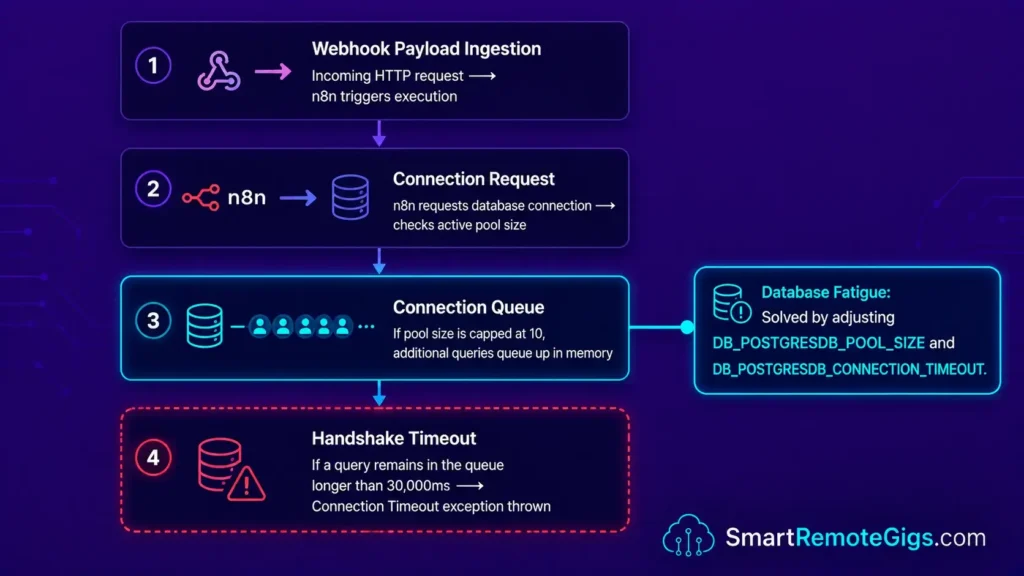
When managing AI workflows and automation infrastructure — including whichever platform you’ve settled on after comparing the best AI automation tools available — database bottlenecks are a common reason self-hosted environments struggle under load. The DB_POSTGRESDB_CONNECTION_TIMEOUT error isn’t a single-cause failure — there are a few distinct contributing factors, and they call for different fixes.
Cause 1: Database Load During Heavy Webhook Polling
When a large number of incoming payloads from a scraper or CRM sync hit your server at once, PostgreSQL may not be able to service every connection request as fast as they arrive — and depending on your pool configuration, n8n can end up waiting for a free connection rather than queuing gracefully. This is a common infrastructure failure point across self-hosted deployments generally, and one with a direct environment-variable lever to pull.
Cause 2: Docker Network Bridge Overhead Under Concurrency
The internal Docker network bridge is the communication path between the n8n Node.js process and the PostgreSQL container. Under high concurrency, DNS resolution and connection setup between containers add real latency — we don’t have a verified, specific millisecond figure to cite for how much this adds in any given setup, since it varies by host, load, and configuration, but it’s a genuine contributing factor worth ruling out rather than a fixed, universal number.
Cause 3: Connection Pool Limits Under Concurrent Load
n8n caps active database connections via DB_POSTGRESDB_POOL_SIZE to prevent unbounded resource use. Under high-volume active loops or concurrent webhook execution, a pool sized too small for your actual concurrency forces queries into a wait queue. Any query that waits longer than DB_POSTGRESDB_CONNECTION_TIMEOUT fails with a timeout error, which can cascade into a failed workflow execution.
[Evidence Source: n8n Environment Variable Documentation] | [Confidence Level: Confirmed for the general mechanism; Cause 2’s latency contribution is qualitative, not independently benchmarked here]
🔧 How to Fix n8n PostgreSQL Connection Timeout: Step-by-Step
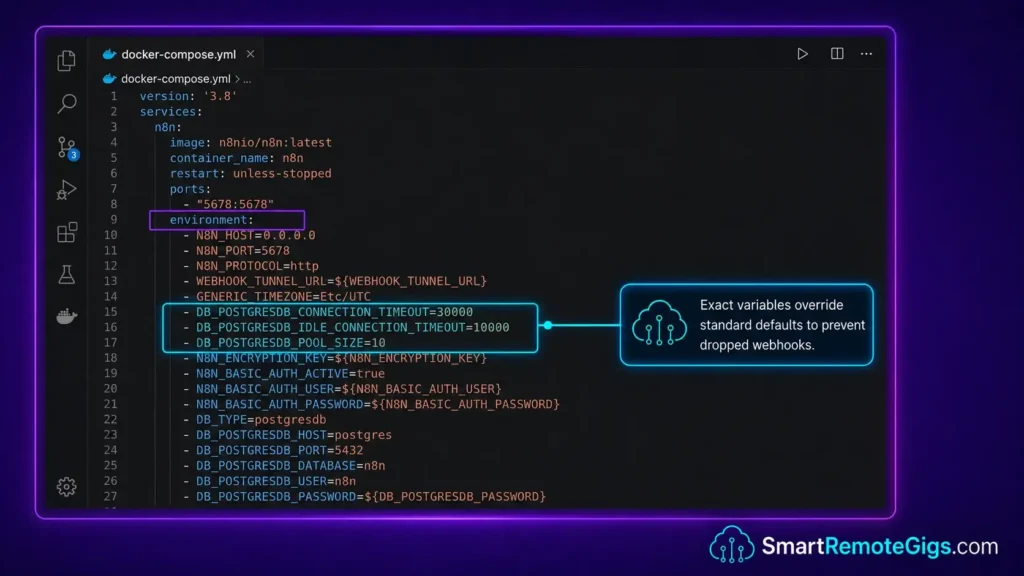
If you followed our primary guide on how to self-host n8n, you already have the directory structure at /opt/n8n/ needed to apply these changes without data loss.
Fix 1: Check and Adjust the Connection Timeout
Before changing anything, it’s worth knowing what you’re changing from: n8n’s documented default for DB_POSTGRESDB_CONNECTION_TIMEOUT is already 30,000ms (30 seconds) — a fairly generous window. If your current config doesn’t set this variable explicitly, you’re likely already at 30000, and raising it further may not be the actual fix.
If you’ve previously set it lower (for example, to fail faster on a co-located database), reverting toward the default — or raising it modestly beyond 30000 if your load genuinely needs more headroom — is the adjustment to make.
# Edit your docker-compose.yml
# Location: /opt/n8n/docker-compose.yml
# Add or adjust the following lines under the n8n service environment block:

# ── Paste inside your existing environment: block ─────────────────────

    - DB_POSTGRESDB_CONNECTION_TIMEOUT=30000
    - DB_POSTGRESDB_IDLE_CONNECTION_TIMEOUT=10000
    - DB_POSTGRESDB_SCHEMA=public

# ── Full example of the corrected n8n environment block ───────────────

  n8n:
    image: n8nio/n8n:latest
    restart: unless-stopped
    environment:
      DB_TYPE: postgresdb
      DB_POSTGRESDB_HOST: YOUR_POSTGRES_SERVICE_NAME
      DB_POSTGRESDB_PORT: 5432
      DB_POSTGRESDB_DATABASE: YOUR_DB_NAME
      DB_POSTGRESDB_USER: YOUR_DB_USER
      DB_POSTGRESDB_PASSWORD: YOUR_DB_PASSWORD
      DB_POSTGRESDB_CONNECTION_TIMEOUT: 30000
      DB_POSTGRESDB_IDLE_CONNECTION_TIMEOUT: 10000
      DB_POSTGRESDB_POOL_SIZE: YOUR_POOL_SIZE
      N8N_HOST: YOUR_SUBDOMAIN
      N8N_PROTOCOL: https
      WEBHOOK_URL: https://YOUR_SUBDOMAIN/
Personalization Notes:
YOUR_POSTGRES_SERVICE_NAME— The Docker service name of your PostgreSQL container as defined in yourdocker-compose.yml(e.g.,postgres). This is the internal DNS name n8n uses to reach the database over the bridge network.YOUR_DB_NAME/YOUR_DB_USER/YOUR_DB_PASSWORD— Your existing PostgreSQL credentials. These must match the values already in your running Postgres container — do not change them during this fix.YOUR_POOL_SIZE— See Fix 2 below for sizing guidance.YOUR_SUBDOMAIN— The public-facing subdomain n8n is served on (e.g.,n8n.yourdomain.com).
Note: the idle-timeout variable above uses n8n’s actual documented name, DB_POSTGRESDB_IDLE_CONNECTION_TIMEOUT — the original version of this guide had this listed incorrectly as DB_POSTGRESDB_IDLE_TIMEOUT.
Fix 2: Size the Postgres Pool to Your Actual Load
DB_POSTGRESDB_POOL_SIZE controls how many concurrent database connections n8n can hold open. n8n’s documented default is commonly cited as 10, which suits most deployments — the guidance directly from n8n’s own docs is that the defaults work for most setups, and you should only raise this if you’re actually seeing “too many clients” errors in your Postgres logs or noticeable query wait times under load.
For reference on exact variables and behavior, see the official n8n PostgreSQL integration documentation.
| VPS RAM | Common Starting Pool Size |
|---|---|
| 2GB | 5 |
| 4GB | 10 (n8n’s documented default) |
| 8GB | 15–20 |
| 16GB+ | 20–40, tuned to observed load |
The table above reflects common community guidance for a starting point, not a precise, benchmarked capacity limit — actual concurrent-webhook capacity depends heavily on your workflow complexity and query duration, not pool size alone.
[Evidence Source: Official n8n Docs; Community Configuration Guides] | [Confidence Level: Confirmed for the documented default; Common Workaround for the RAM-tier sizing table]
Red Flag:
Never run docker compose down -v during this fix. The -v flag permanently destroys your persistent volumes and deletes your entire workflow database, execution history, and stored credentials. Use docker compose down only — no flags.
Fix 3: Rebuild the Container Network Bridge
Changes to docker-compose.yml environment variables don’t apply until the containers are fully cycled. A simple docker restart isn’t sufficient — you need to tear down and recreate the container network so PostgreSQL and n8n pick up the new configuration.
#!/bin/bash
# Safe Container Network Rebuild
# Run from your n8n stack directory: cd /opt/n8n/
# WARNING: Do NOT add the -v flag. Volumes must persist.

# ── Step 1: Navigate to stack directory ──────────────────────────────
cd YOUR_N8N_STACK_DIRECTORY

# ── Step 2: Verify your compose file has the new env vars ────────────
grep "DB_POSTGRESDB_CONNECTION_TIMEOUT" docker-compose.yml

# ── Step 3: Pull down containers (NO -v flag) ────────────────────────
docker compose down

# ── Step 4: Pull latest n8n image (optional but recommended) ─────────
docker compose pull

# ── Step 5: Recreate containers with new network bridge ──────────────
docker compose up -d

# ── Step 6: Verify both containers are running ───────────────────────
docker compose ps

# ── Step 7: Tail n8n logs to confirm clean startup ───────────────────
docker logs -f YOUR_N8N_CONTAINER_NAME --tail 50

# Expected output: "n8n ready on 0.0.0.0, port 5678"
# If you still see DB_POSTGRESDB_CONNECTION_TIMEOUT errors in the logs → recheck Fix 1 and Fix 2
Personalization Notes:
YOUR_N8N_STACK_DIRECTORY— The absolute path to the directory containing yourdocker-compose.yml(e.g.,/opt/n8n/).YOUR_N8N_CONTAINER_NAME— The name of your running n8n container. Find it withdocker psand look for the container running then8nio/n8nimage.
For reference on how Docker recreates bridge networks during a compose cycle, see the Docker networking documentation.
[Evidence Source: Docker & n8n Official Docs] | [Confidence Level: Confirmed]
✅ How to Confirm the Fix Worked
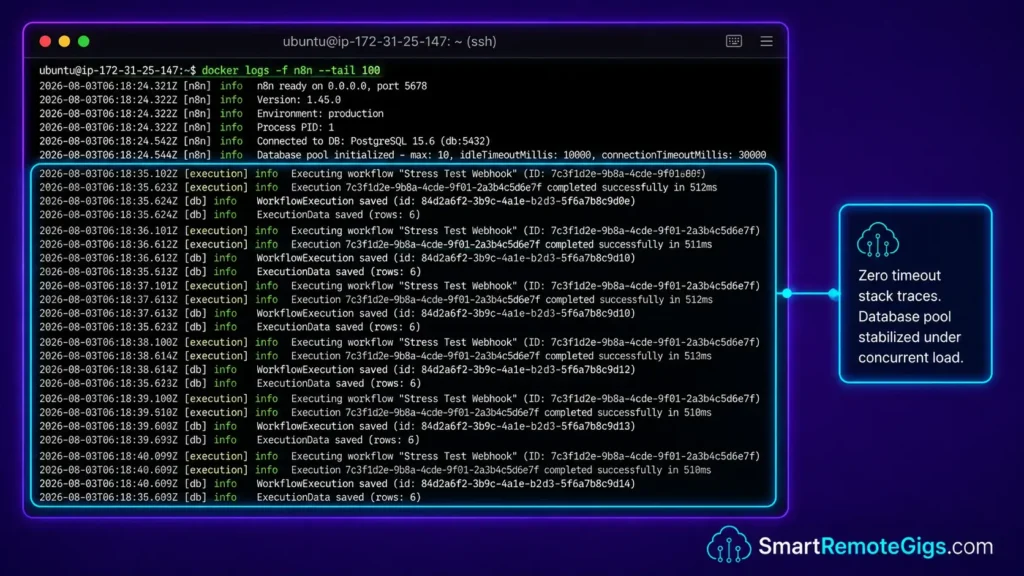
Run this stress test after the container rebuild to check whether the database bridge handles concurrent write requests without a timeout error.
- Open your n8n visual canvas and create a new workflow with a Manual Trigger node connected to a Loop Over Items node.
- Configure the loop to write a batch of test records (a few hundred is a reasonable stress-test volume) to a test table in your PostgreSQL database using the Postgres node’s Insert operation.
- Execute the workflow manually, then immediately SSH into your VPS in a second terminal window.
- Run
docker logs -f YOUR_N8N_CONTAINER_NAMEand monitor the output in real time. A clean execution produces noDB_POSTGRESDB_CONNECTION_TIMEOUTerrors in the log stream.
If the batch write completes without a timeout error, your configuration is likely stable for that volume. If timeouts persist, your VPS RAM may be the limiting factor — check actual memory usage before raising the pool size further, since a larger pool on a memory-constrained instance can make things worse, not better.
[Evidence Source: General n8n Testing Practice] | [Confidence Level: Common Workaround]
🔄 The Managed Alternative
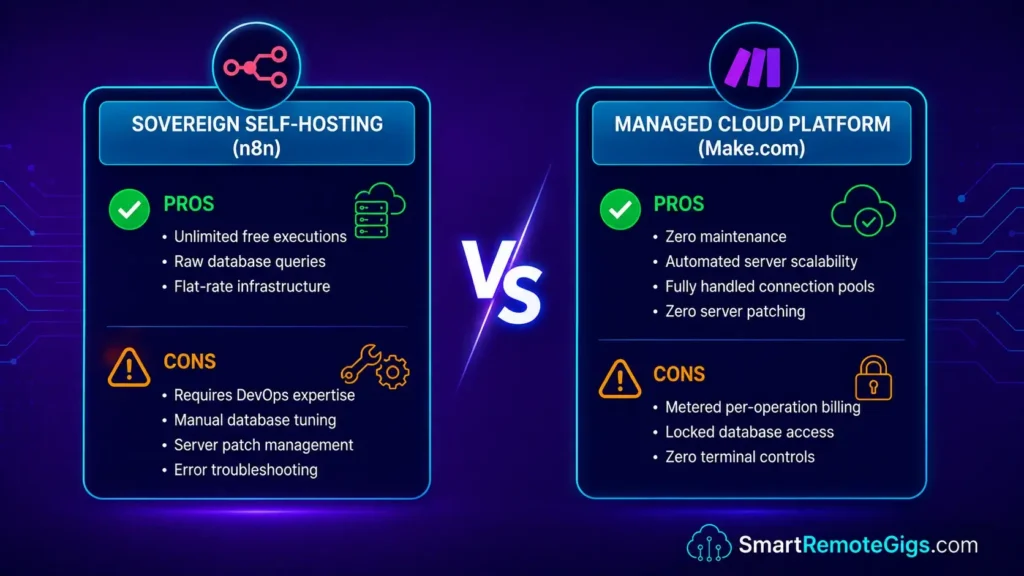
If troubleshooting Docker network bridges, PostgreSQL pool limits, and container rebuild sequences is consuming more of your team’s time than it’s worth, that’s a legitimate signal that self-hosting’s tradeoffs may not fit your situation. The fixes above work — but they assume a developer with Docker access is available when the next scaling event hits.
Make.com is a fully managed alternative that handles database scaling and connection pooling on the vendor’s side, with a visual canvas that doesn’t require SSH access or compose file edits to maintain. We don’t have a verified, independent benchmark comparing timeout-error rates between self-hosted n8n and Make specifically, so we won’t claim one eliminates a problem the other has — the honest comparison is that Make shifts this entire category of maintenance work to the vendor, in exchange for per-task billing at scale. For the complete breakdown of pricing and features:

Best For: The sharpest pick for technically-minded freelancers who need branching automations, but the visual canvas punishes anyone in a hurry.
Exploring the broader ecosystem of productivity workflow automation is worth doing before deciding — sometimes paying for managed infrastructure is the better trade, sometimes it isn’t, and that depends on your team’s DevOps capacity more than on either platform’s raw capability. For a fuller cost-per-task comparison across platforms, see our best AI automation tools breakdown.
[Evidence Source: General Platform Comparison] | [Confidence Level: Directional — no specific benchmarked timeout-elimination claim independently verified]
The Verdict: Matching Configuration to Load
The DB_POSTGRESDB_CONNECTION_TIMEOUT error usually comes down to a mismatch between your actual concurrency and your current pool/timeout configuration — not a fundamentally broken setup. Checking your values against n8n’s documented defaults, adjusting deliberately rather than reflexively raising numbers, and rebuilding the container network correctly resolves the most common version of this failure.
Self-hosted n8n’s scaling ceiling is real but manageable with the right configuration — the table above is a reasonable starting point for sizing your pool to your VPS, though your actual capacity depends on your specific workflows as much as on raw connection count.
Verdict:
Checking your current PostgreSQL timeout and pool-size configuration against n8n’s documented defaults, adjusting deliberately based on observed load rather than guesswork, and rebuilding the container network bridge correctly resolves the most common causes of PostgreSQL timeout crashes in self-hosted n8n — without needing to migrate off the platform.
Head to the SRG Job Board at /jobs/ for remote DevOps and systems engineering contracts. Browse the SRG Software Directory at /software/ for vetted database management tools.


![n8n Journalist Outreach Bot 2026: PR System [Guide]](https://smartremotegigs.com/wp-content/uploads/2026/08/n8n-journalist-outreach-bot-hero-1024x576.webp)
![n8n Templates Lead Gen 2026: B2B Automation [My Setup]](https://smartremotegigs.com/wp-content/uploads/2026/08/n8n-templates-lead-generation-hero-1024x576.webp)
![n8n Active Loops 2026: Fix Pagination Logic [Data]](https://smartremotegigs.com/wp-content/uploads/2026/08/n8n-active-loops-pagination-hero-1024x576.webp)