Devin Desktop & Windsurf Workflow Guide: Safe Multi-File Scaffolding & Execution
 ·
Last Updated: Oct 21, 2026
·
Last Updated: Oct 21, 2026
This Windsurf Devin Desktop workflow guide documents a six-stage SOP for scaffolding multi-file features in Devin Desktop (formerly Windsurf) without losing control of your repository. A bad autocomplete suggestion costs one line. A bad agent run can touch a dozen files, add dependencies, and leave shell processes running after you stop it.
Multi-file agents change the failure mode, so the workflow around them has to change too. This guide is written for remote software engineers, full-stack freelancers, and technical solopreneurs who are moving from tab completion to agent-driven changes.
SRG Research Desk compiled this guide from official vendor documentation and recorded client test logs. Each stage covers one control point: environment, prompt, execution, terminal, diff review, and rollback.
Direct Answer: The Supervised Autonomy Protocol
Treat the AI agent as a fast junior developer with zero unsupervised execution privileges over your terminal shell, Git index, or project dependencies.
Three Core Execution Rules:
- Isolate First (SRG Protocol): Always branch off a clean
HEAD(git status --porcelainempty) before prompting, ensuring instant rollback. - Bound the Scope (SRG Protocol): Constrain every prompt to named target files and explicit interface contracts; forbid package modifications.
- Gate Every Side-Effect (Documented Reality): Keep terminal auto-execution set to
Disabled, inspect every editor diff zone before accepting, and manually terminate detached background processes after any loop interruption.
Classification: Rules 1 and 2 are SRG operational safeguards; Rule 3 enforces documented vendor controls, supplemented by recorded client test observations.
Autocomplete predicts the next few tokens at your cursor. An agent manipulates the file tree and calls terminal tools across the whole workspace. That shift moves the risk from a single suggestion to a whole trajectory of edits and commands.
Four hazards recur in unsupervised runs: hallucinated imports, unvetted package installations, runaway shell loops, and overlapping uncommitted diffs. Each one is easy to contain when you catch it early and hard to untangle after several runs have stacked up.
On June 2, 2026, Cognition AI rebranded Windsurf as Devin Desktop. The rebrand kept the existing Cascade capabilities and introduced Devin Local agent harnesses alongside them. For canonical specifications and plan details, see the Devin Desktop specifications and official plan quotas.
The thesis of this guide is Supervised Autonomy: the agent proposes, and you approve every shell command, every diff, and every commit. The stages below turn that rule into a repeatable procedure. It is a systematic, production-oriented SOP, not a vendor-certified procedure.
Stage 1: Devin Desktop Workflow Setup & Sandboxing
Complete four prerequisites before you submit any multi-file prompt. Each one protects your ability to inspect and undo what the agent does.
Prerequisite 1: a pristine Git working tree. Run git status --porcelain and confirm it returns empty output. Recorded client testing shows that Devin Desktop ingests uncommitted modifications into prompt context. Dirty buffers therefore mix with the agent’s proposals and raise the risk of merge conflicts and tangled diffs.
Prerequisite 2: feature branch isolation. Branch off a clean HEAD so that rollback is always one command away. Do not scaffold on your main branch.
Prerequisite 3: a baseline test state. Run your existing test suite in the host terminal (for example npm test or pytest) before invoking the agent. A green baseline lets you attribute any later failure to the agent’s changes.
# Confirm the working tree is clean (output must be empty)
git status --porcelain

# Isolate the agent run on a feature branch
git checkout -b feature/agent-scaffold-baseline
Prerequisite 4: ignore rule verification. Per the official Devin Desktop documentation, the client enforces .gitignore, .devinignore, .codeiumignore, and .windsurfignore simultaneously. The documentation also states that .gitignore access is turned off by default in client settings, under Devin Settings → Devin Local → Configuration → Gitignore access. Check that toggle before you rely on .gitignore to keep files away from the agent.
Verification checklist for Stage 1:
- Verify the tree is clean: execute
git status --porcelainand confirm the output is empty. - Verify branch isolation: execute
git branch --show-currentand confirm it names your feature branch. - Verify the baseline: execute your test command in the host terminal and confirm all tests pass.
- Verify ignore settings: open the Gitignore access setting and confirm it matches your intent.
Stage 2: Structuring Bounded Feature Prompts & Output Contracts
A bounded prompt keeps the agent from sprawling across unrelated files or rewriting build configuration. The structure below is SRG’s recommended practice, built on the file boundary and ignore behavior documented in Stage 1. It is not a vendor-documented prompt format.
Constrain each prompt to a single architectural layer, such as an entity schema, a service, and its unit test. Avoid asking for an entire application in one run. Smaller scopes produce smaller diffs, and smaller diffs are faster to review.
Declare the allowed file paths explicitly, for example Target Files: src/services/payment.service.ts, src/types/payment.types.ts. Define the input and output contracts in the prompt itself, using TypeScript interfaces or Pydantic schemas, so the agent has no reason to invent data shapes.
Add an explicit negative constraint against unsolicited package installs. The template below combines all four elements. It is an illustrative structure, not output from any real project.
Feature: [FEATURE_NAME]
Scope: One architectural layer only: [LAYER_DESCRIPTION]
Target Files: [FILE_PATH_1], [FILE_PATH_2]
Interface contract:
[INTERFACE_OR_SCHEMA_DEFINITION]
Constraints:
Create or modify only the files listed under Target Files.
Do NOT install new third-party packages or modify package.json / requirements.txt without explicit permission.
Do NOT edit build configuration, environment files, or lockfiles.
If the contract cannot be met within the listed files, stop and report the conflict instead of editing other files.[FEATURE_NAME]: a short name for the change, such as the service being scaffolded.
[LAYER_DESCRIPTION]: the single layer in scope, such as “entity schema, service, and unit test”.
[FILE_PATH_1], [FILE_PATH_2]: the exact paths the agent may create or modify. Add or remove lines to match.
[INTERFACE_OR_SCHEMA_DEFINITION]: the TypeScript interfaces or Pydantic schemas the output must satisfy.
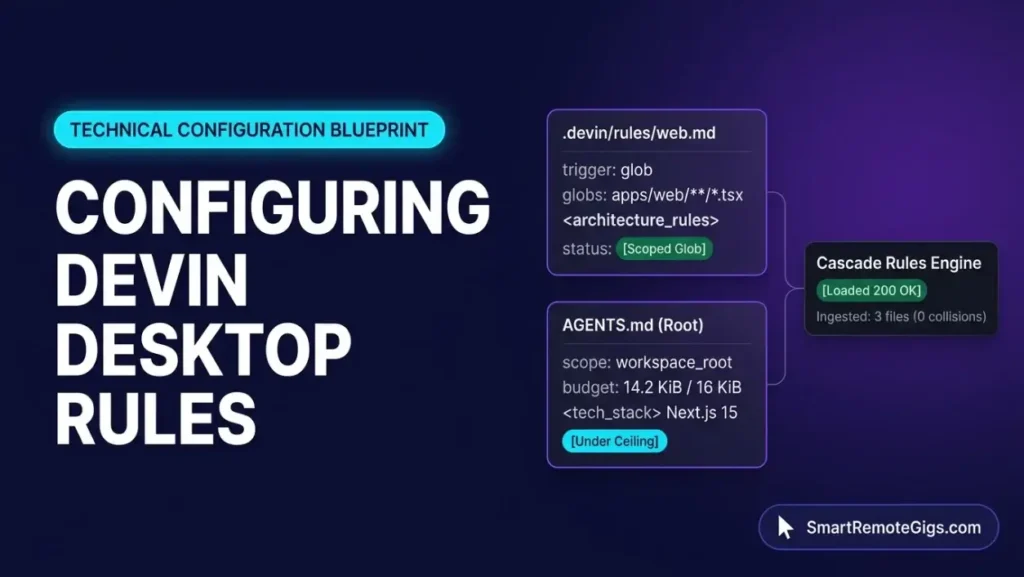
Persistent project-level rules sit outside this stage. For that topic, see our technical blueprint on configuring .windsurfrules and Devin Desktop rules architecture.
Stage 3: Supervised Multi-File Scaffolding in Devin Desktop
Open the agent panel with Cmd/Ctrl+L. Toggle operational modes with Cmd/Ctrl+. or with the mode selector dropdown below the input box.
Two agent harnesses share the interface:
- Cascade provides
Codemode, which creates and modifies code across files, andChatmode, which is read-only conversational exploration. - Devin Local, the successor harness, uses permission modes named
Normal,Plan,Accept Edits,Smart, andBypass. This SOP uses the first two.
In Normal mode, Devin Local auto-approves read-only tools and prompts before file writes and shell execution. That prompt is the supervision point this SOP depends on. In Plan mode, Devin Local builds a read-only implementation spec, so you can review the approach before any file changes.
Devin Desktop publishes no live numerical token odometer on the canvas, so you cannot read context consumption from a counter. Watch the runtime signals instead:
- Continue prompts: when a task trajectory reaches its invocation threshold, Cascade halts and shows a “Continue” button. The documentation also lists an Auto-Continue option in settings. Leave it off during scaffolding so every pause remains a review point.
- Rate limit banners: server-side limits show a distinct “Rate limit exceeded” notification.
- Degradation signs: when tool response latency increases or repetitive tool loops manifest, commit progress and initiate a fresh agent session with
Cmd/Ctrl+L.
Verification checklist for Stage 3:
- Verify the mode: confirm the mode selector shows
Normal(Devin Local) orCode(Cascade) before you submit the prompt. - Verify supervision: confirm each file write or shell command appears as a prompt you can approve or reject.
- Verify session health: if you see a Continue button, a rate limit banner, or repeating tool calls, commit verified work before continuing.
The recorded runtime signals above are the only context indicators this guide documents. The Devin Desktop dossier covers platform identity and plan allowances for readers who need them.
For full plan specifications and limits, see the Devin Desktop dossier:

Best For: Developers and teams that need local autonomous multi-file editing in a Code-OSS editor with open Agent Client Protocol support, within documented quota and context limits.
Stage 4: Terminal Execution Gates & Command Approval Protocol
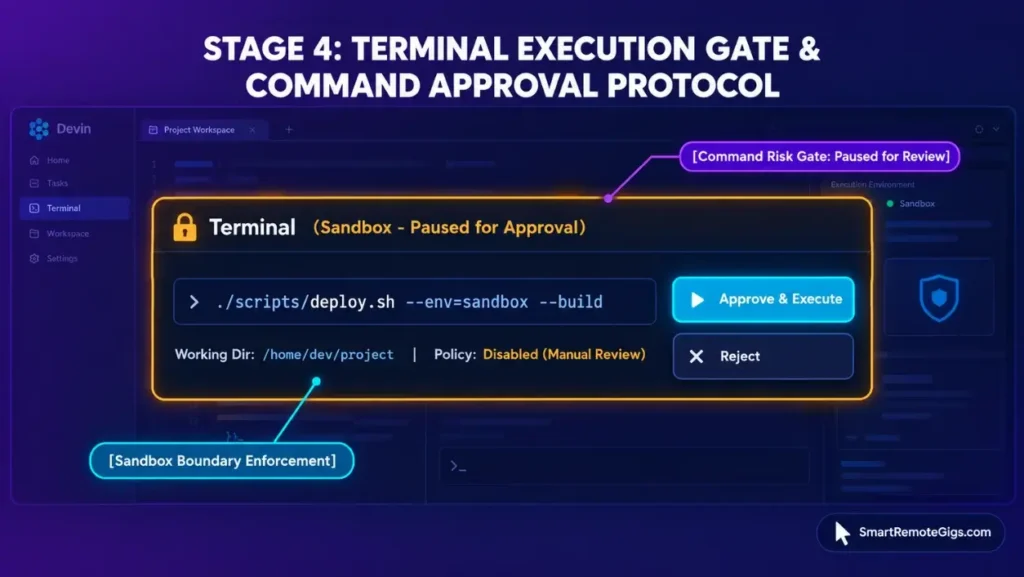
Cascade documents four auto-execution levels. This SOP requires Disabled for multi-file scaffolding.
| Level | Documented behavior | SOP position |
|---|---|---|
Disabled | Manual approval for every command | Required baseline |
Allowlist Only | Only commands matching your allowlist run automatically | Outside this SOP |
Auto | Model judgment evaluates safety; limited to premium models | Outside this SOP |
Turbo | All commands run without prompts except denylist entries | Do not use while scaffolding |
On Teams and Enterprise plans, admins can lock the maximum allowed execution level in the Admin Portal. If your level will not change, check for an admin ceiling.
Devin Local governs terminal commands through allow, ask, and deny rules in .devin/config.json. Use ask or deny for anything outside the read-only tier below.
Sort every proposed command into one of three tiers before you approve it:
| Tier | Command types | Action |
|---|---|---|
| Tier 1 | Read-only inspection: ls, cat, git status | Safe to approve |
| Tier 2 | Build, compile, and test: npm test, cargo check, pytest | Inspect manually before approving |
| Tier 3 | Mutating or destructive commands: npm install, rm, curl | bash, git reset --hard | Deny by default |
For Tier 2, a process exit code of 0 reports command exit only. Recorded client testing found that exit codes carry numeric status without confirming secondary filesystem state. Always check git status and the diff yourself.
Native OS sandboxing (--sandbox) relies on bubblewrap and socat on Linux and Seatbelt on macOS. Native Windows cannot run sandboxing outside WSL 2, so Windows developers should work inside WSL 2 when sandboxed execution matters.
To halt a runaway loop, press Esc or click the Stop button.
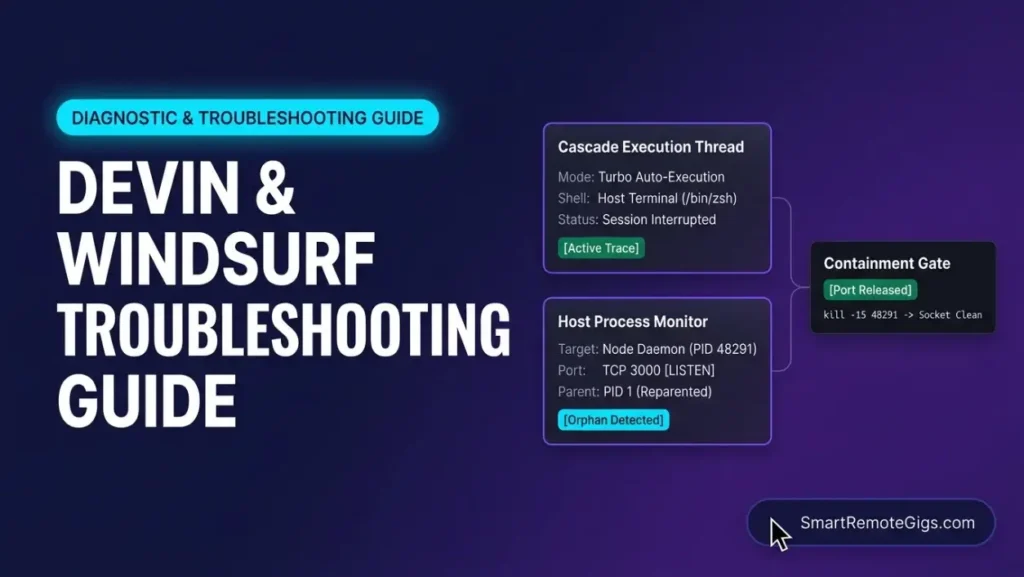
Warning: Esc stops generation. It does not roll back files the agent already modified, and it does not kill detached background processes such as node -e or shell subshells. Those persist in the host OS process table and need manual PID termination with kill.
Verification checklist for Stage 4:
- Verify the level: open the auto-execution setting and confirm it reads
Disabled. - Verify Devin Local rules: open
.devin/config.jsonand confirm Tier 3 commands sit underdenyorask. - Verify processes after any abort: execute
pgrep -fl [PROCESS_NAME]and confirm no agent-spawned process remains.
For runtime failures that fall outside Git, see our diagnostic runbook on troubleshooting Devin Desktop terminal loops and agent drift.
Stage 5: Multi-File Diff Verification & Integrity Testing
Agent Diff Zones are enabled by default. Per the official documentation, Devin Desktop diff zones render inline highlighted additions and deletions, with accept and reject code lenses on each hunk.
In Command mode (Cmd/Ctrl+I), the lenses offer three actions: accept with Cmd/Ctrl+Enter, reject with Cmd/Ctrl+Shift+Backspace, or follow up.
Recorded client testing shows that new multi-file proposals sit in volatile editor memory buffers. The physical disk reflects zero modifications until you trigger an accept action. That staging gives you a review window before anything is written.
Warning: Do not disable Agent Diff Zones (Devin Settings → Editor → User interface → Agent diff zones). With the setting off, edits write directly to disk without interactive review.
Use this cross-file cohesion checklist on every diff set:
- Interface integrity: confirm that exported types and interfaces in schema files match the import statements in consumer service files.
- Import path precision: confirm relative import paths resolve and no uninstalled external dependency was added.
- Side-effect audit: confirm that no global config files, environment variables, or package manifests were silently edited.
Cascade can run test commands when prompted, and the documentation describes lifecycle hooks for automation. Recorded client testing found no mandatory post-generation test gating out of the box. Run npm test or pytest yourself in the host integrated terminal before you accept the feature.
Verification checklist for Stage 5:
- Verify staging: before accepting, execute
git status --porcelainand confirm it still shows a clean tree. - Verify scope: review each diff zone and confirm every changed file appears in your Target Files list.
- Verify behavior: execute your test command in the host terminal and confirm the suite passes before accepting.
Stage 6: Atomic Commit Hygiene & The Emergency Rollback Runbook
Commit each accepted, tested subtask immediately. Bundling several unverified agent runs into one large commit removes your ability to roll back at a granular level.
git add -A
git commit -m "feat(auth): scaffold user service interfaces"
Devin Desktop provides no automatic transactional undo across multi-file edits and terminal executions. Aborting with Esc leaves partial writes in the workspace. When a run goes wrong, use this three-step runbook.
- Loop abortion: press
Escimmediately to cancel the agent trajectory. - Host process cleanup: look for lingering child processes with
pgrep -fl, then terminate each withkill. - Working tree reset: discard uncommitted modifications and delete untracked partial files.
# Step 2: find and stop detached child processes
pgrep -fl [PROCESS_NAME]
kill [PID]

# Step 3: discard modified tracked files
git checkout .
# Force remove untracked files and directories created by the agent
git clean -fd[PROCESS_NAME]: the name of the process the agent spawned, such asnode.[PID]: the process ID shown in thepgrepoutput.
These commands discard work that has no commit. Run them only when you are abandoning the entire run.
Before you push the feature branch, run git diff origin/main and confirm that only the contracted feature files appear.
Verification checklist for Stage 6:
- Verify the reset: after Step 3, execute
git status --porcelainand confirm the output is empty. - Verify cleanup: execute
pgrep -fl [PROCESS_NAME]and confirm no agent-spawned process remains. - Verify the pull request scope: execute
git diff origin/mainand confirm only contracted files are listed.
The Verdict: Documented Decision Boundaries
Autonomous multi-file generation breaks codebases when an agent can write files, run commands, and stack changes faster than you can inspect them. The documented behavior of Devin Desktop supplies the controls that close each gap. Diff zones stage changes in memory, terminal levels gate commands, and Git commits create restore points. The rollback runbook exists because Esc is a stop button, not an undo.
This SOP gives deterministic repository state control, not guaranteed outcomes. It rests on the documented controls and on recorded client observations.
Choose Normal mode if you are writing or modifying files and want a prompt before every write and shell action. Choose Plan mode if you want a read-only implementation spec to review before any files change. Keep auto-execution at Disabled for any session that touches more than one file.
Documented via 12 official vendor sources and 3 empirical client test logs as of October 2026. SRG did not hands-on test this setup.
Ready to apply this workflow on real projects? Browse active opportunities on the Smart Remote Gigs Exchange, and see the Devin Desktop platform specifications for official plan limits.

Never Miss a New Remote Job
REMOTE JOB ALERTSGet notified about new remote jobs and access practical freelance tools from your phone.