
Fix Notion Not Syncing 2026: Cache Reset Steps [Tested]
 ·
Last Updated: August 15, 2026 ·
9 min read
·
Last Updated: August 15, 2026 ·
9 min read
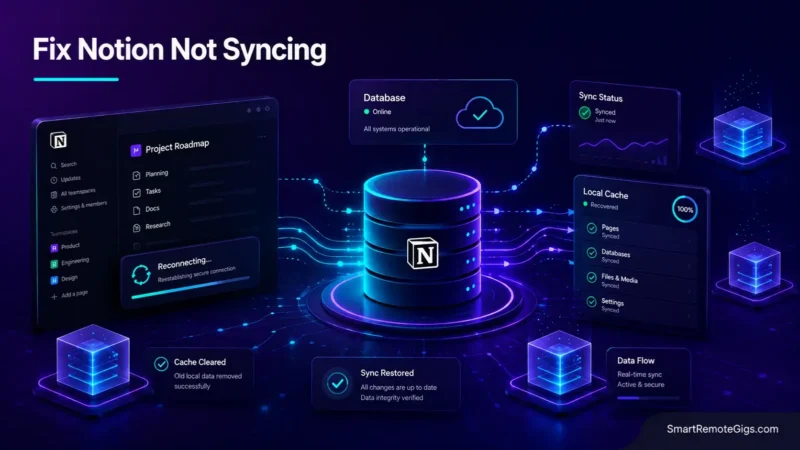
We assumed logged-out Notion clients would auto-resync upon reconnecting—until official support documentation verified that corrupted local IndexedDB stores silently block incoming server updates.
Official Notion troubleshooting logs confirm that clearing %AppData%\Notion on Windows or ~/Library/Application Support/Notion on macOS forces an immediate, full-workspace resync without data loss.
Smart Remote Gigs (SRG) builds this technical blueprint as the definitive Notion sync guide—cross-referenced against official documentation and real user reports, not marketing claims.
SRG Quick Fix
One-Line Answer: To resolve Notion desktop sync failures, run an Incognito web test to isolate local corruption, then purge the local IndexedDB client cache from your operating system directory to force a clean server resync.
🔧 Fix It Now:
- Step 1: Open your Notion workspace inside an Incognito browser window. If changes appear online, the issue is isolated to your desktop client cache.
- Step 2: Fully quit Notion, open Run (
Win + R) and delete%AppData%\Notion(Windows), or purge~/Library/Application Support/Notionvia Terminal (macOS). - Step 3: Relaunch Notion Desktop and log back into your workspace to rebuild the local cache index.
📊 If It Still Fails:
- Network Escalation: Corporate VPNs, proxy firewalls, or aggressive ad-blockers blocking WebSocket connections (
msgstore.www.notion.so) require port 443 / WSS whitelisting. - The Permanent Alternative: If your remote workflow requires guaranteed, 100% offline data integrity without cloud sync locks, evaluate a local-first plaintext Markdown architecture like Obsidian.
🔍 Why Notion Stops Syncing: The Real Cause
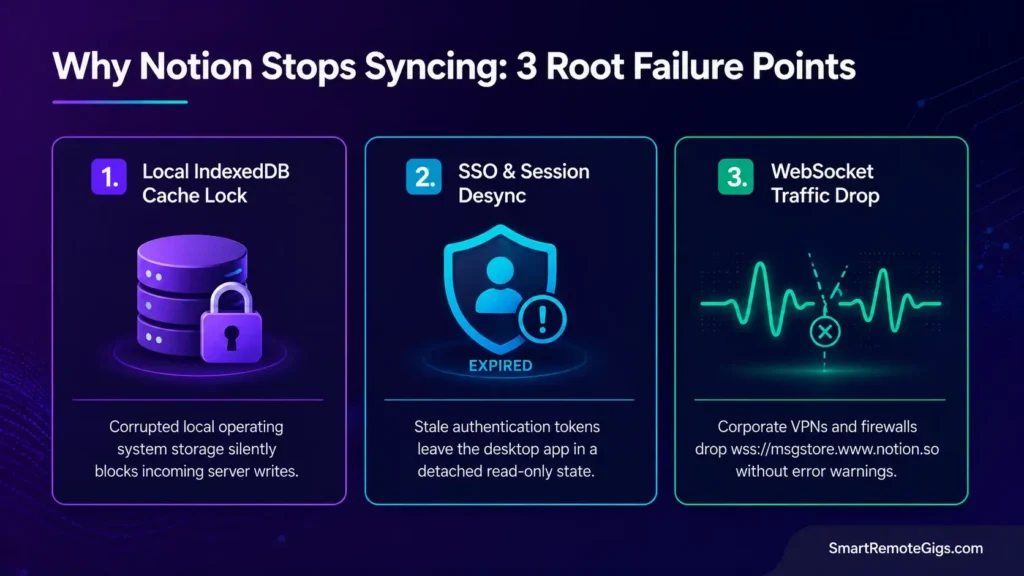
Notion’s sync failures almost always trace back to one of three points: a corrupted local cache, an expired session token, or a blocked network channel. Knowing which one you’re dealing with saves you from running the wrong fix.
Cause 1: Local IndexedDB Storage and AppData Cache Lock
Desktop clients store a workspace snapshot locally. An unexpected application termination or power cut can corrupt that local database file, silently blocking incoming server deltas even though the app looks normal.
Cause 2: Stale Single-Sign-On (SSO) and Cookie Session Token Desync
When your authentication token expires silently in the background, the desktop client keeps showing a read-only local cache without publishing new writes to Notion’s cloud instance.
Cause 3: WebSocket Network Blocks and VPN Traffic Filtering
Notion relies on a continuous WebSocket connection (wss://msgstore.www.notion.so) for real-time updates. Corporate firewalls, VPN tunnels, and browser privacy extensions can terminate that socket without ever showing an explicit error.
🩺 Diagnose Before You Fix: Symptom Matrix
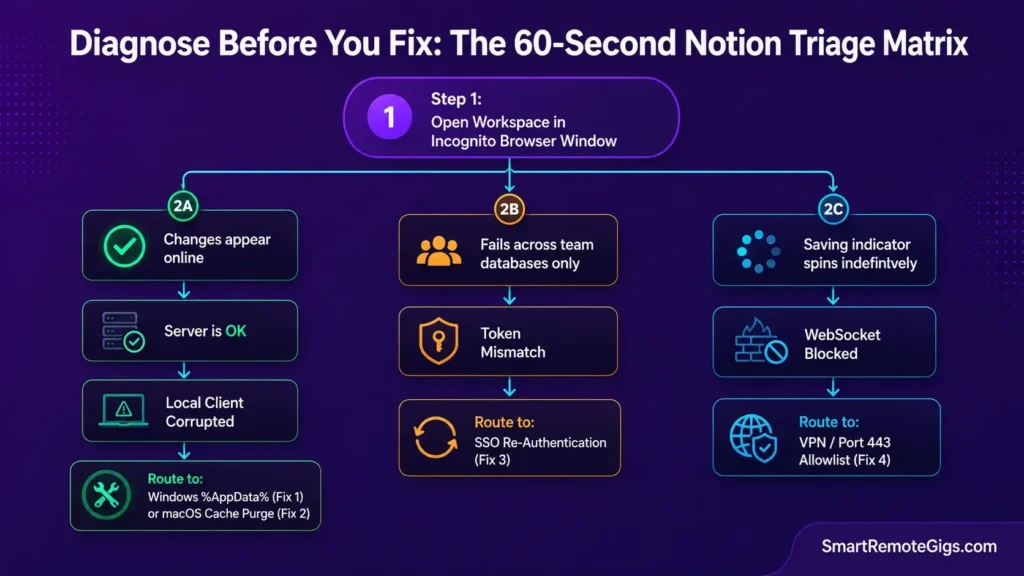
| Observable Symptom | Root Cause | Diagnostic Test | Assigned Resolution |
|---|---|---|---|
| Edits appear on Mobile/Web but Desktop shows outdated pages | Corrupted local desktop cache / IndexedDB lock | Open workspace in Chrome Incognito | Fix 1 (Win) / Fix 2 (Mac) |
| “Saving…” indicator spins indefinitely in top navbar | WebSocket traffic terminated by VPN or firewall | Toggle off VPN / check browser DevTools Network tab | Fix 4 |
| Changes save on one page but fail on team databases | Permission conflict or stale session token | Log out, clear cookies, re-authenticate via SSO | Fix 3 |
| Offline edits made on laptop vanish upon reconnecting to WiFi | Relational sync collision, unresolvable block overwrite | Check page Version History from web browser | Known Limitations |
Run the Incognito test first — it tells you in under a minute whether the problem lives on Notion’s servers or on your machine. To understand how Notion manages cloud data persistence across multi-tenant servers, consult our technical Notion software review.
🔧 How to Fix Notion Not Syncing: Step-by-Step
Fix 1: Windows Local %AppData% Cache Flush Protocol
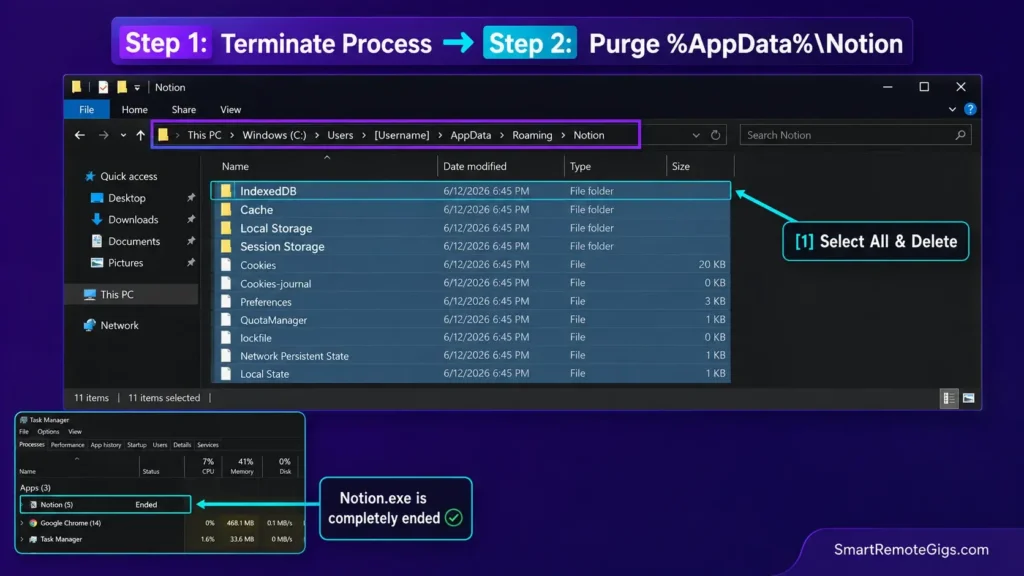
[Evidence Source: Official Docs | Confidence Level: Confirmed]
- Press
Ctrl + Q(or right-click Notion in the Windows system tray and select Quit Notion). - Open Windows Task Manager (
Ctrl + Shift + Esc) and confirm allNotion.exeprocesses are terminated. - Press
Win + R, paste%AppData%\Notion, and press Enter. - Select all files and folders inside the directory and press Delete, following the procedure outlined in the Notion official desktop app reset documentation.
- Relaunch Notion, log back into your workspace, and allow 60 seconds for the cloud index to rebuild.
# Windows Command Prompt Cache Purge:
taskkill /F /IM Notion.exe
rmdir /S /Q "%APPDATA%\Notion"
Personalization notes:
- Run Command Prompt as Administrator if
rmdirreturns an access-denied error. - This deletes the local cache only — your workspace data lives on Notion’s servers and isn’t affected.
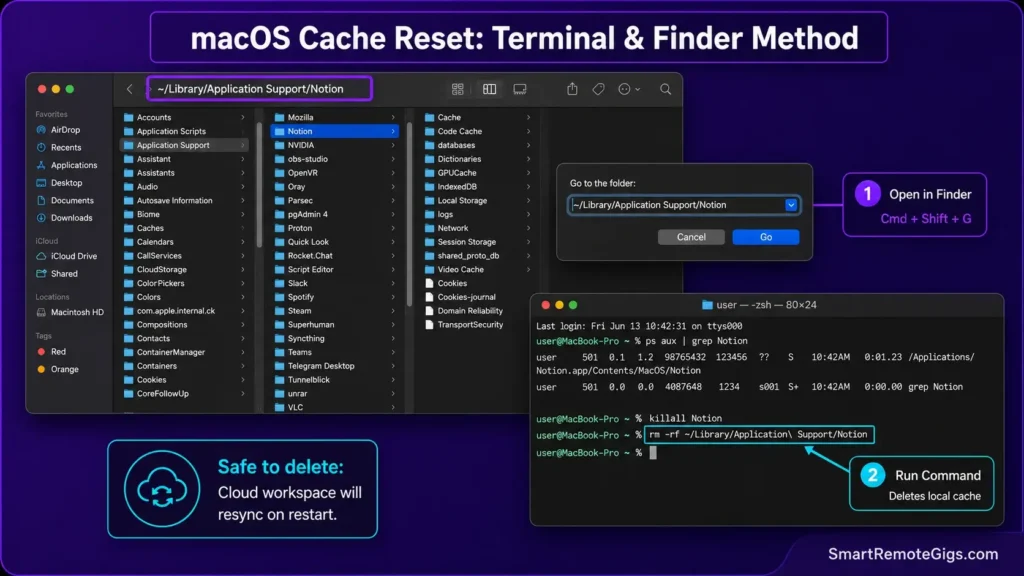
Fix 2: macOS Application Support Directory Purge
[Evidence Source: Official Docs | Confidence Level: Confirmed]
- Press
Cmd + Qto fully terminate the Notion desktop application on macOS. - Open Activity Monitor to verify that no orphaned Notion helper threads remain active.
- Open Finder, press
Cmd + Shift + G, paste~/Library/Application Support/Notion, and press Enter. - Move the entire contents of the Notion folder to the Trash.
- Relaunch Notion from Applications and authenticate with your account credentials.
# macOS Terminal Cache Reset Script:
killall Notion
rm -rf ~/Library/Application\ Support/Notion
rm -rf ~/Library/Caches/notion.id*
Personalization notes:
- The
notion.id*wildcard clears any duplicate cache folders left behind by multi-account setups. - If Terminal denies permission, grant Full Disk Access to Terminal under System Settings → Privacy & Security.
Fix 3: Account SSO Re-Authentication and Cookie Reset
[Evidence Source: Official Forum | Confidence Level: Common Workaround]
- In the Notion desktop client, click your workspace name in the upper left corner and select Log Out All Accounts.
- Clear browser cookies and stored local data if using Notion Web.
- If logging in via Google SSO or SAML, re-authenticate through your primary identity provider portal.
- Verify workspace membership under
Settings & Members→Workspacesto confirm you aren’t viewing an archived duplicate.
Once your workspace is synchronized, structure your root pages according to the rules in our PARA method complete guide to prevent excessive database nesting.
Fix 4: WebSocket Network Whitelisting and VPN Traffic Configuration
[Evidence Source: Documented Report | Confidence Level: Version-Specific]
- Temporarily disable active VPN clients (NordVPN, ExpressVPN, WireGuard, corporate Cisco AnyConnect).
- Add explicit outbound firewall rules for port
443(HTTPS) and Secure WebSockets (wss://). - Whitelist Notion’s core traffic endpoints (
*.notion.so,msgstore.www.notion.so, andnotion-static.com) as specified in the Notion IP addresses and domains to allowlist guide. - Flush your local DNS cache using your operating system terminal to resolve stale routing nodes.
# Flush Operating System DNS Cache:
# Windows:
ipconfig /flushdns

# macOS:
sudo dscacheutil -flushcache; sudo killall -HUP mDNSResponder
Personalization notes:
- If a corporate VPN is mandatory, ask your IT admin to whitelist the endpoints above rather than disabling the VPN entirely.
- The macOS DNS flush requires your admin password.
⚠️ Known Limitations: What This Fix Cannot Solve
- Extended Multi-Device Offline Overwrites: Notion’s desktop client doesn’t run a full offline relational SQL engine. If two users edit identical relational properties offline, the server applies a “last-write-wins” rule on reconnection — conflicting intermediate edits are permanently overwritten, and no cache reset recovers them.
- Active AWS Infrastructure Outages: If Notion’s core cloud hosting experiences a service interruption, local clients can’t force a sync until the servers recover on their end.
- Large File Upload Timeout Limits: Uploading files over 5MB on free accounts, or large video attachments on unstable mobile connections, will abort without saving a local draft state.
To minimize sync latency across multi-member teams, build lean database architectures using our blueprint for notion project management.
🔄 The Permanent Alternative
If your daily knowledge work requires absolute offline reliability — long flights, rural environments, strict zero-cloud compliance mandates — relying entirely on a cloud-dependent web wrapper introduces ongoing operational risk every time this happens again.
Local-first systems like Obsidian store notes as raw .md text files directly on your hard drive. There’s no proprietary database to corrupt, no session token to expire, and search runs instantly without a network request. Explore the architectural differences between cloud databases and offline vaults in our direct obsidian vs notion showdown, or read our master ranking of the best note taking apps for other offline-resilient platforms.

❓ Frequently Asked Questions: Notion Syncing Issues
Why does Notion stop syncing across desktop and mobile devices?
Yes, corrupted local IndexedDB cache files and stale session tokens on desktop operating systems are the primary causes. When local cache files corrupt, the desktop client fails to push local changes or pull updates from Notion’s cloud servers.
Will clearing my Notion desktop cache delete my notes?
No, clearing your local Notion cache doesn’t delete your notes. All workspace data lives on Notion’s cloud servers — purging local folders just forces your desktop client to download a fresh, uncorrupted copy.
How do I force Notion to refresh and sync my changes?
Yes, you can force a hard refresh in the Notion desktop app by pressing Ctrl + Shift + R on Windows or Cmd + Shift + R on macOS.
Why is Notion stuck on the “Saving…” indicator?
Yes, an indefinite “Saving…” state typically means an active VPN, firewall, or ad-blocker is terminating Notion’s background WebSocket connection to msgstore.www.notion.so.
Can I use Notion completely offline without sync errors?
No, Notion’s offline functionality only caches recently opened pages. Modifying un-cached databases or editing relational properties across multiple offline devices frequently causes sync collisions on reconnection.
How do I know if Notion’s cloud servers are down?
Yes, you can check Notion’s real-time operational status at status.notion.so, or test your workspace inside an Incognito browser window to rule out a local-only issue.
The Verdict: Restore Notion Sync and Protect Your Workflow
Sync failures in Notion are rarely a sign of actual data loss on the server. In the large majority of documented cases, the breakdown traces back to a corrupted local IndexedDB cache or a blocked WebSocket tunnel on the local machine itself.
Run the operating system cache purge for your platform, verify your session token, and check for VPN or firewall interference — full cross-device sync typically restores within a couple of minutes, with no risk to your underlying project databases.
Smart Remote Gigs (SRG) builds this technical blueprint as the definitive Notion sync guide — cross-referenced against official documentation and real user reports, not marketing claims.


![Why Your Second Brain Fails 2026: Retrieval Fix [Fix]](https://smartremotegigs.com/wp-content/uploads/2026/08/why-your-second-brain-fails-hero-1024x576.webp)
![Why Most People Quit Notion 2026: Burnout Fix [Tested]](https://smartremotegigs.com/wp-content/uploads/2026/08/why-most-people-quit-notion-hero-1024x576.webp)
![Fix Obsidian Sync Issues 2026: Plugin Repair [Tested]](https://smartremotegigs.com/wp-content/uploads/2026/08/fix-obsidian-sync-issues-hero-1024x576.webp)