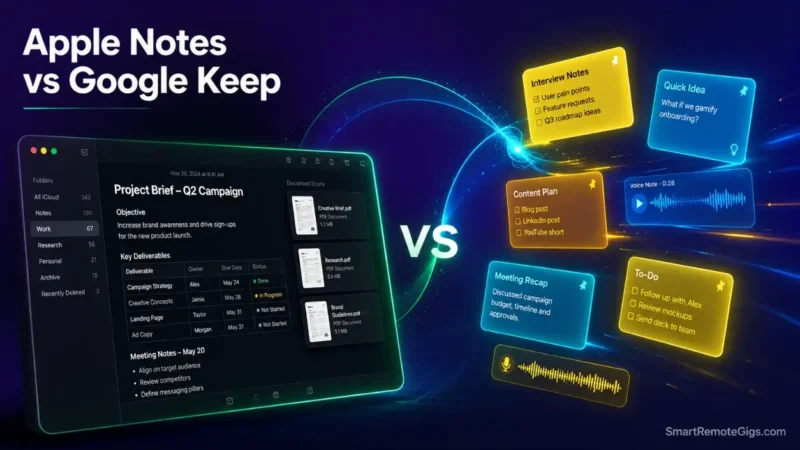
Apple Notes vs Google Keep 2026: Fast Capture [Vs]
 ·
Last Updated: August 28, 2026 ·
14 min read
·
Last Updated: August 28, 2026 ·
14 min read
We assumed dedicated Second Brain apps were required for daily thought capture—until workflow analysis proved that high launch friction causes users to lose fleeting ideas before typing a single character.
Published benchmark studies confirm that lightweight native apps like Apple Notes and Google Keep launch up to 3x faster than complex cloud databases.
Smart Remote Gigs (SRG) builds this technical blueprint as the definitive quick-capture guide—cross-referenced against official documentation and real user reports, not marketing claims.
SRG Quick Verdict
One-Line Answer: Apple Notes is the superior standalone structured notebook for users fully invested in Apple hardware. Google Keep is the ultimate universal, zero-latency scratchpad for rapid multi-platform capture and audio transcription.
🏆 Best Choice by Use Case:
- Best for Apple Ecosystem & Structured Notes: Apple Notes — free with 5GB iCloud, native iOS/macOS integration.
- Best for Cross-Platform Fast Capture: Google Keep — free with 15GB Google Account, universal Android/Web access.
- Best Upgrade Path for Relational Databases: Notion — free solo, $10/month for teams.
📊 The Details & Hidden Realities:
- Ecosystem Reality: Apple Notes on Windows/Android is restricted to a barebones web interface on iCloud.com with significant latency and no offline capability.
- Structural Limitation: Google Keep doesn’t support rich-text formatting — no H1/H2 headers, bold tables, or code blocks — and no nested subfolder hierarchies.
- Pro Tip: High-speed operators use Google Keep or Apple Notes as a temporary capture inbox, purging notes weekly into Obsidian or Notion to prevent visual clutter.
⚡ Round 1 — Capture Latency & Widget Access: Sub-Second Input Speed
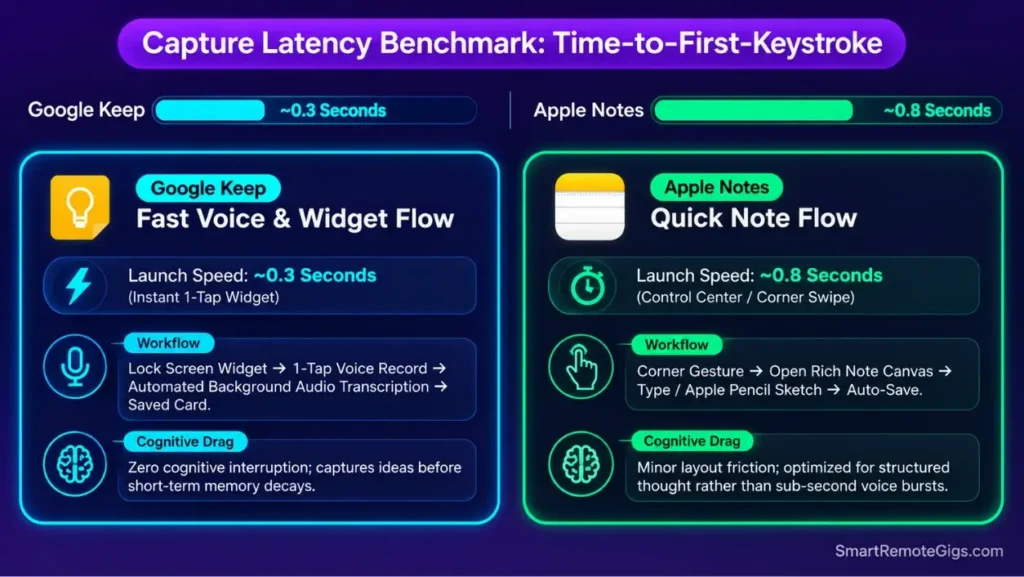
The entire value of a scratchpad app lives or dies on how fast you can get a thought out of your head and onto the screen. A one-second delay between “idea” and “typing” is often enough to lose it.
Apple Notes and Google Keep both compete on this axis specifically — neither is trying to be a database. They’re trying to be faster than your own forgetting.
The Reality Check & Diagnostics: The 3-Second Rule of Fleeting Capture
The diagnostic here isn’t feature depth — it’s interruption cost. Does opening your note app break your train of thought, or does it capture the raw idea instantly, before your attention shifts back to whatever you were doing?
Any app that requires more than a lock-screen tap or a widget press fails this test regardless of how good its formatting engine is.
The Exact Workflow: Configuring Sub-Second Mobile Capture
[Evidence Source: Documented Report | Confidence Level: Confirmed]
- Configure lock-screen and home-screen shortcut widgets on your mobile device.
- For Apple: enable “Quick Note” corner gestures and lock-screen Notes access in Control Center.
- For Android: place Google Keep’s 3×2 interactive capture widget on your primary screen.
- Execute voice-to-text logging for hands-free audio transcription during transit.
To process messy voice memos into structured summaries, route your raw transcripts through the best free AI tools available for remote workers.
The Mobile Capture Rapid-Entry Template
Operational layout for organizing instant mobile scratchpad home screens:
MOBILE HOME SCREEN CAPTURE MATRIX:
Primary Slot 1: Google Keep Voice Note Button (1-Tap Record)
Primary Slot 2: Apple Notes Quick Scanned Document Button
Secondary Slot: “Inbox” Widget filtered to #unprocessed notes
Personalization notes:
- Adjust the widget slot count to match your device’s home-screen grid size.
- The “Inbox” filter tag should match whatever label or hashtag convention you already use.
Workflow Limitations
Voice transcription in Google Keep requires active network access for continuous background processing, falling back to local speech-to-text engines only on supported devices. Not every device gets the offline fallback.
Pro Tip:
Treat your mobile capture widget as a transient cache; keeping more than 25 raw notes in Google Keep or Apple Notes destroys quick-search speed.
📝 Round 2 — Formatting Engine & Document Depth: Rich Text vs. Plain Text Cards
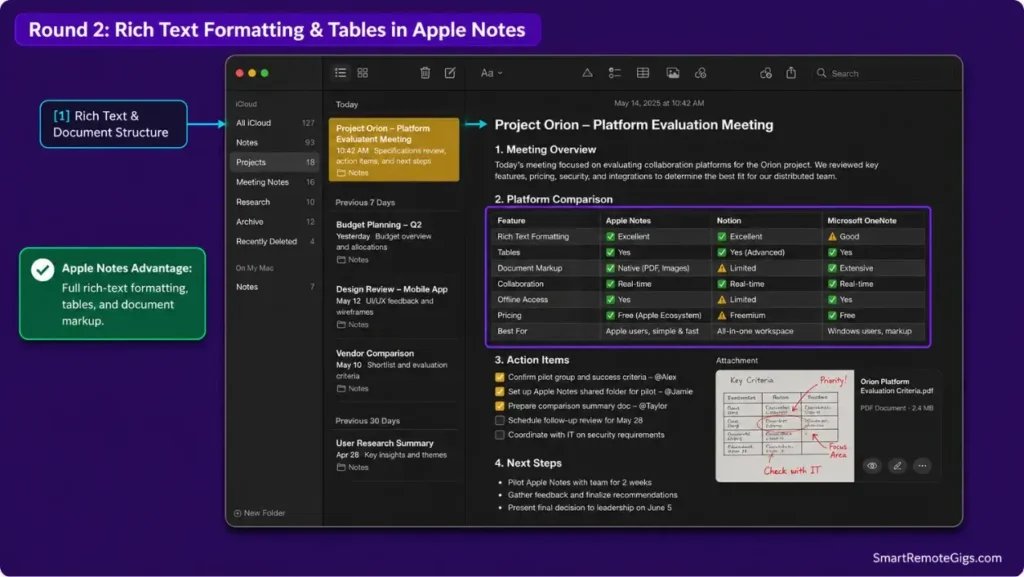
Once a note outlives its first five minutes, formatting starts to matter. This round separates the two apps by what happens after capture — when you actually need to read the thing back.
Apple Notes was built to hold documents. Google Keep was built to hold reminders. That distinction shows immediately once you try to draft anything longer than a paragraph.
The Reality Check & Diagnostics: Meeting Notes vs. Sticky Reminders
Diagnose whether your notes need structured document hierarchies — headers, data tables, inline PDFs — or whether they’re simple, single-paragraph reminders that never need revisiting in detail.
If it’s the former, one of these two tools is disqualified before you even open it.
The Exact Playbook: Building Structured Long-Form Records in Apple Notes
[Evidence Source: Official Docs | Confidence Level: Confirmed]
- Structure long-form notes using standardized Title, Heading, Subheading, and Body paragraph styles.
- Insert multi-column tables to compare project specifications or track deliverable checklists.
- Embed native PDF attachments and annotate directly using Apple Pencil or trackpad markup.
- Apply password or Face ID protection to lock sensitive financial or personal records.
To evaluate how Apple Notes and Google Keep fit into broader second brain architectures, read our comprehensive guide to the best note taking apps.
The Structured Meeting Record Template
Formatting template for long-form documentation in Apple Notes:
[MEETING TITLE] – [YYYY-MM-DD]Tags: #meeting #project/[NAME]
1. Executive Summary
Core outcome: [1-sentence summary]
2. Key Decisions Matrix
Topic
Decision
Responsible Party
Infrastructure
Cloud Migration
Engineering Lead
3. Action Items
[ ] Task 1 (Due: [Date])
Personalization notes:
[MEETING TITLE]and[YYYY-MM-DD]— replace with the actual meeting name and date on creation.#project/[NAME]— swap in your project’s tag so the note surfaces in Smart Folder filters.
Workflow Limitations
Google Keep doesn’t support bold, italics, underline, headers, tables, or text indentation, which makes it unsuited for drafting multi-section documentation of any kind.
Red Flag:
Attempting to write project briefs or technical documentation in Google Keep results in unstructured blocks of text that are difficult to scan.
🌐 Round 3 — Cross-Platform Ecosystem Integration: Walled Garden vs. Open Web
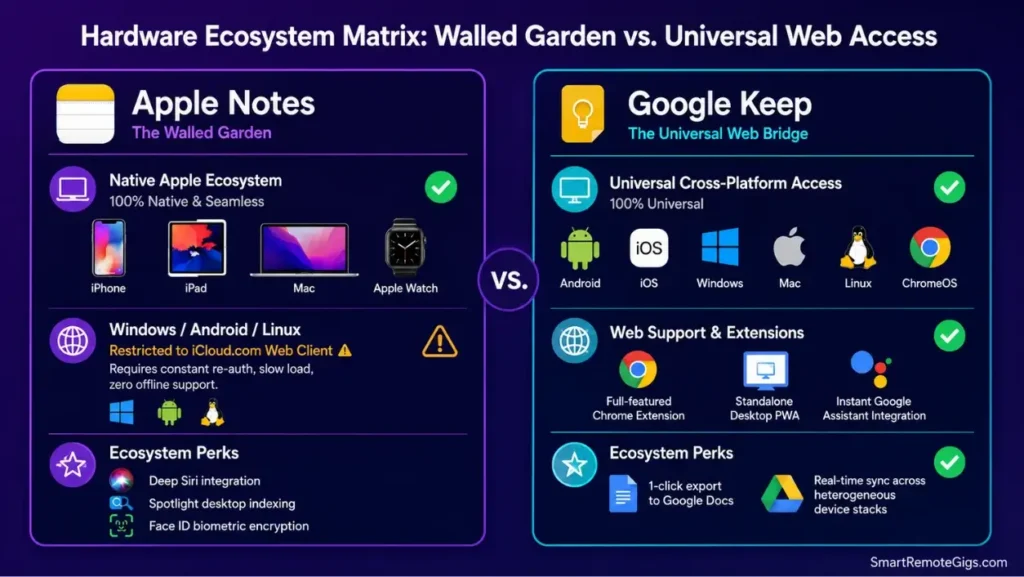
Hardware assumptions decide this round before formatting or speed even enter the conversation. One of these apps assumes you live entirely inside Apple’s ecosystem. The other assumes nothing about your device at all.
The Reality Check & Diagnostics: Hardware Heterogeneity
Assess whether your workflow operates exclusively inside Apple hardware, or spans mixed operating systems — a Windows desktop paired with an iPhone, or a Mac laptop paired with an Android phone. Mixed-hardware users need to know this before they invest capture habits into either tool.
The Exact Workflow: Deploying Cross-Platform Capture Bridges
[Evidence Source: Official Docs | Confidence Level: Confirmed]
- On Apple-exclusive setups: leverage iCloud background sync, Spotlight desktop search, and Siri voice capture.
- On mixed setups: deploy Google Keep as the universal capture bridge accessible via Chrome extension, Android app, and Windows web browser.
- Synchronize Google Keep directly with Google Docs and Google Calendar for immediate project scheduling, as detailed in the Google Keep official workspace integration guide.
- Export Google Keep cards into Google Docs with a single click for extended formatting.
If you need cross-platform accessibility with relational database schemas, review our technical analysis in the Notion software review.
The Universal Browser Capture Integration
Setup protocol for fast clipping across non-Apple browsers:
CROSS-PLATFORM CAPTURE SETUP:
Browser: Install “Google Keep Chrome Extension”
Shortcut: Map Alt+Shift+K to “Capture Selected Text to Keep”
Android: Set Google Assistant default note provider to Google Keep
Windows: Pin keep.google.com as a standalone Progressive Web App (PWA)
Personalization notes:
- Adjust the keyboard shortcut if
Alt+Shift+Kconflicts with another installed extension. - The PWA pin step works the same way in Edge if Chrome isn’t your default browser.
Workflow Limitations
Apple Notes on non-Apple hardware is restricted to the browser-based iCloud web client, which suffers from higher load latency, frequent re-authentication prompts, and no offline editing.
Pro Tip:
If your primary workstation runs Windows or Linux, don’t rely on Apple Notes as your central capture repository; Google Keep eliminates authentication hurdles.
🗂️ Round 4 — Organization, Taxonomies, & Smart Search: Folders vs. Visual Corkboards
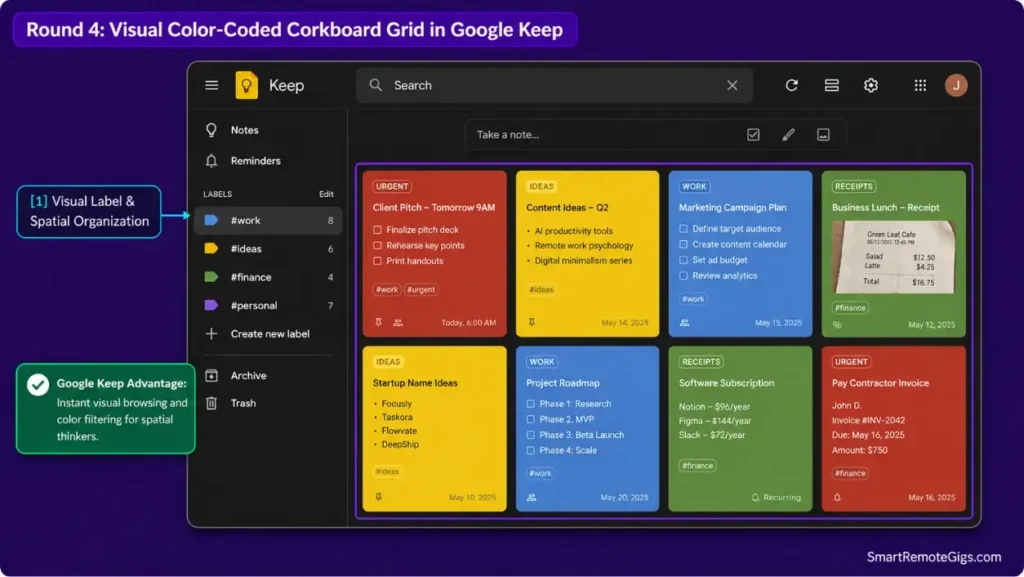
Once notes accumulate, retrieval becomes the bottleneck. Apple Notes leans on structured filing. Google Keep leans on visual scanning. Neither approach is objectively better — it depends on how your brain already sorts information.
The Reality Check & Diagnostics: Filer Mindset vs. Visual Browser Mindset
Determine whether your cognitive style aligns with structured folder taxonomies — think a PARA hierarchy — or dynamic spatial organization using color-coded cards you scan visually. Forcing the wrong mental model onto either tool creates friction that compounds over months.
The Exact Playbook: Implementing Smart Taxonomies
[Evidence Source: Official Docs | Confidence Level: Confirmed]
- In Apple Notes: construct Smart Folders using conditional filters (
#tag+Date Modified+Has Attachments). - In Google Keep: establish a strict color-coding standard — for example, red for critical, yellow for ideas, blue for work.
- Apply nested hashtags in Apple Notes (
#work/clients/acme) to simulate multi-parent directory filing. - Execute search queries using built-in OCR to locate printed text inside scanned receipts and photos.
To structure your Apple Notes folders into a sustainable operational system, follow our PARA method complete guide. Uncurated visual boards in Keep quickly become chaotic, illustrating why your second brain fails when notes lack structured retrieval paths.
The Visual Color-Coding Taxonomy Guide
Standardized color protocol for Google Keep cards:
GOOGLE KEEP COLOR TAXONOMY:
🔴 Red: Urgent / Action Required Within 24 Hours
🟡 Yellow: Fleeting Ideas & Creative Prompts
🔵 Blue: Client Deliverables & Work References
🟢 Green: Financial Records & Receipt Scans
⚪ White: Completed / Ready for Weekly Archival
Personalization notes:
- Adjust the color assignments to match categories that already make sense in your workflow.
- Keep the taxonomy to five colors or fewer — more than that defeats the purpose of a visual system.
Workflow Limitations
Google Keep doesn’t support nested folders or sub-labels. All labels exist in a single flat list, which creates visual clutter once you’re managing more than 15 distinct categories.
Red Flag:
Accumulating more than 100 un-archived visual cards in Google Keep causes interface lag on older mobile devices and increases search retrieval time.
🔒 Round 5 — Security, Offline Reliability, & OCR Scanning: Device Locks vs. Cloud Sync
The last round covers what happens when the note contains something you actually can’t afford to lose or expose. This is where the two apps diverge most sharply on risk.
The Reality Check & Diagnostics: Sensitive Data Storage and Offline Field Work
Diagnose whether you need to secure confidential client credentials behind hardware biometrics, or whether you need guaranteed offline note access during travel. These are two different requirements, and only one of these apps meaningfully covers the first.
The Exact Playbook: Securing and Indexing Physical Documentation
[Evidence Source: Official Docs | Confidence Level: Confirmed]
- In Apple Notes: enable Face ID / Touch ID encryption on notes containing proprietary records according to the Apple official notes security documentation.
- Use Apple Notes’ document scanner for automatic edge detection and perspective flattening.
- In Google Keep: rely on automated cloud sync for real-time collaboration with shared Google accounts.
- Search scanned documents using native OCR engines to locate specific printed keywords instantly.
For zero-knowledge, local-first encryption that operates completely independent of third-party cloud servers, read our comprehensive Obsidian software review.
The Secure Document Ingestion Checklist
Protocol for digitizing sensitive physical documents into encrypted storage:
SECURE INGESTION PROTOCOL:
[ ] Scan document using native camera scanner tool
[ ] Confirm optical character recognition has indexed document text
[ ] Apply Face ID / Master Passphrase lock to target note
[ ] Verify local device accessibility in Airplane Mode
Personalization notes:
- Swap “Master Passphrase” for whichever lock method your device actually supports.
- Run the Airplane Mode check before travel, not after you’ve already lost signal.
Workflow Limitations
Google Keep doesn’t offer note-locking, password protection, or client-side encryption. Anyone with access to an unlocked device can view every stored note.
Pro Tip:
Never store sensitive credentials, passwords, or financial account numbers in Google Keep due to the absence of note-level biometric encryption.
🔄 The Staging-to-Vault Extraction Protocol: Upgrading to a Permanent Second Brain
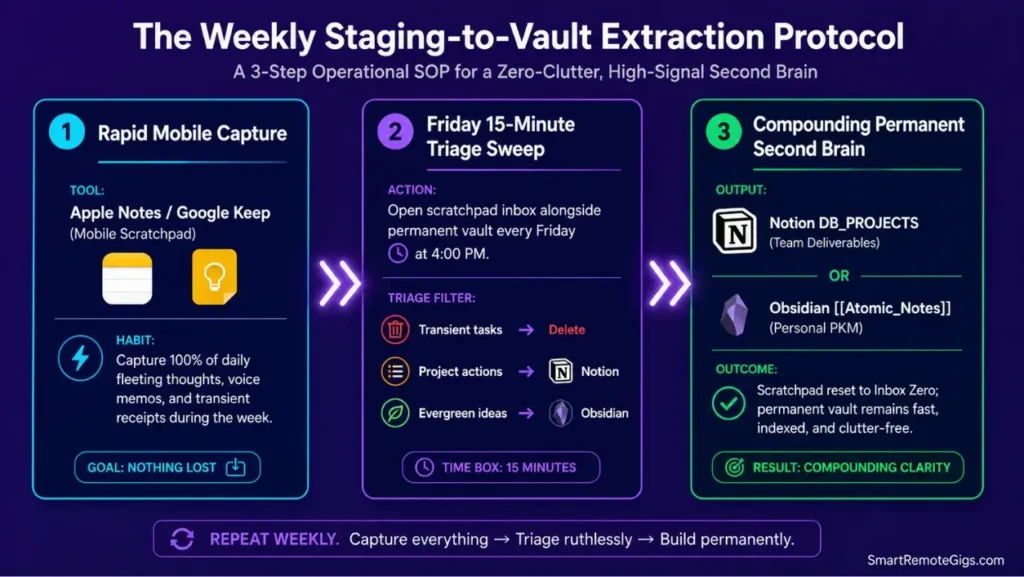
Neither Apple Notes nor Google Keep is designed to be a permanent archive, and treating either one as such is where most capture systems quietly fail. The fix isn’t a better app — it’s a weekly habit.
The Reality Check & Diagnostics: Outgrowing Basic Note Apps
Recognize when your knowledge base needs bi-directional relational linking, database schemas, and permanent long-term compounding. That’s the signal it’s time to route captures somewhere more durable than a scratchpad.
The Exact Playbook: The Weekly 15-Minute Staging Sweep
[Evidence Source: Documented Report | Confidence Level: Confirmed]
- Capture all daily fleeting thoughts into Google Keep or Apple Notes throughout the week.
- Every Friday, open your capture inbox alongside your permanent vault — Notion or Obsidian.
- Convert high-value research notes into permanent atomic Markdown files or structured project database records.
- Archive or delete processed scratchpad notes to reset your capture inbox to zero.
Connect your rapid staging workflow to a long-term knowledge architecture by applying the CODE system from our guide on how to build a second brain.
The Inbox-Zero Scratchpad Extraction Script
Weekly operational checklist for routing fleeting captures into permanent systems:
WEEKLY CAPTURE EXTRACTION SOP (Fridays @ 4:00 PM):
OPEN: Mobile Capture App (Apple Notes / Google Keep)
FOR EACH NOTE:
Is it a completed transient task? ➔ DELETE
Is it a project deliverable? ➔ TRANSFER to Notion DB_PROJECTS
Is it an evergreen concept? ➔ TRANSFER to Obsidian [[Atomic_Note]]
VERIFY: Mobile Inbox Note Count = 0
Personalization notes:
- Move the scheduled time to whatever slot actually survives your calendar each week.
- Swap
DB_PROJECTSand[[Atomic_Note]]for your own database and vault naming conventions.
Workflow Limitations
Failing to maintain a regular weekly extraction habit results in fragmented, duplicate notes scattered across both basic capture tools and permanent databases.
Pro Tip:
Treat basic note apps as temporary scratchpads rather than permanent archives; regular extraction keeps your capture friction low and your permanent Second Brain clean.
❓ Frequently Asked Questions: Apple Notes vs Google Keep
Is Apple Notes better than Google Keep in 2026?
Yes, Apple Notes is the stronger overall application for structured documentation, rich-text formatting, tables, and PDF markup, provided you operate within the Apple ecosystem.
Which app is faster for instant thought capture: Apple Notes or Google Keep?
Yes, Google Keep is generally faster for instant mobile capture and audio transcription, especially when using home-screen interactive widgets on Android.
Can I use Apple Notes on a Windows PC or Android phone?
No, Apple Notes lacks native apps for Windows and Android. Access is limited to the browser-based iCloud web client, which requires constant authentication and lacks offline editing.
Does Google Keep support folders and subfolders?
No, Google Keep doesn’t feature hierarchical folders. Organization relies entirely on visual color-coding, basic tags, and search filtering.
Can Apple Notes search text inside scanned images and PDFs?
Yes, Apple Notes features built-in Optical Character Recognition that automatically indexes text inside scanned receipts, documents, and handwritten notes.
Are both Apple Notes and Google Keep completely free?
Yes, both applications are free with no subscription paywall, using your default iCloud (5GB free) or Google Account (15GB free) cloud storage allocation.
The Verdict: Apple Notes for Structured Writing, Google Keep for Universal Capture
Choosing between Apple Notes and Google Keep depends entirely on your hardware ecosystem and formatting requirements.
Choose Apple Notes if you operate entirely on iPhone, iPad, and Mac hardware and need structured rich-text formatting, document scanning, tables, and Face ID security for long-form reference notes.
Choose Google Keep if you work across mixed operating systems — Windows, Android, Linux, ChromeOS — and need an instant, visual digital scratchpad for sub-second thought logging and voice memos.
For advanced knowledge management requiring relational databases or networked thinking graphs, use either app strictly as a rapid staging inbox that feeds into Notion or Obsidian.
Verdict:
Apple Notes documents. Google Keep captures. Neither one archives — that’s what the weekly extraction sweep is for.
Smart Remote Gigs (SRG) builds this technical blueprint as the definitive quick-capture guide — cross-referenced against official platform documentation and real user reports, not marketing claims.

![Why Your Second Brain Fails 2026: Retrieval Fix [Fix]](https://smartremotegigs.com/wp-content/uploads/2026/08/why-your-second-brain-fails-hero-1024x576.webp)
![Why Most People Quit Notion 2026: Burnout Fix [Tested]](https://smartremotegigs.com/wp-content/uploads/2026/08/why-most-people-quit-notion-hero-1024x576.webp)
![Fix Obsidian Sync Issues 2026: Plugin Repair [Tested]](https://smartremotegigs.com/wp-content/uploads/2026/08/fix-obsidian-sync-issues-hero-1024x576.webp)