
Essential Home Office Tech for Your First Remote Job (<$200)
 ·
Last Updated: March 8, 2026 ·
12 min read
·
Last Updated: March 8, 2026 ·
12 min read 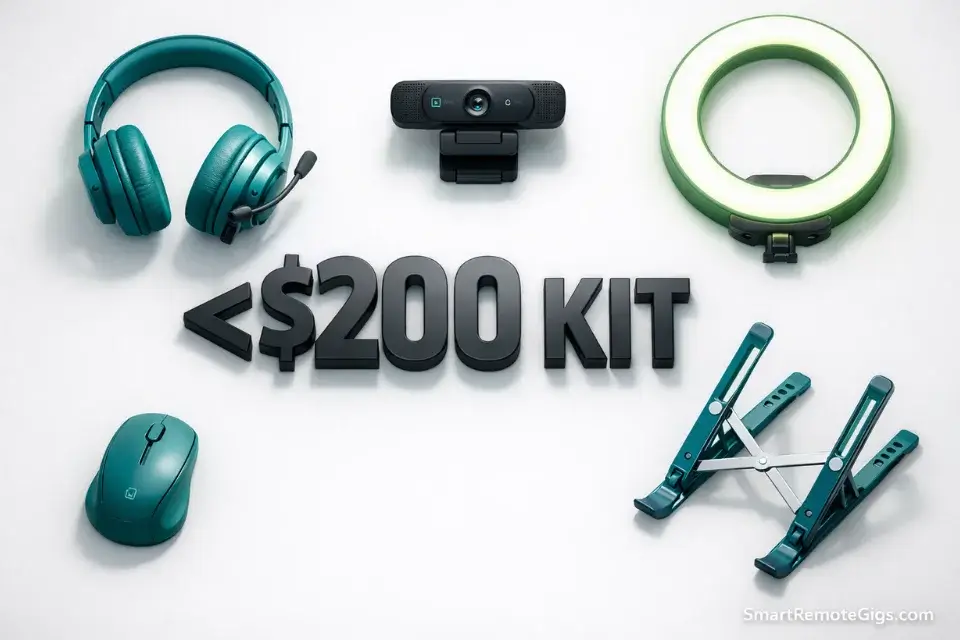
Building your first remote work setup doesn’t require a loan, a Wirecutter deep-dive, or a Pinterest mood board. These home office essentials focus on function over form — and the entire functional kit costs less than one month of a gym membership you don’t use.
The mental barrier to starting your remote career is almost always the gear myth: “I need a $2,000 MacBook, a sit-stand desk, and a Herman Miller chair before I can take this seriously.” You don’t. I started my remote career on a used Dell laptop I bought for $180 on Facebook Marketplace and a kitchen chair with a folded sweatshirt for lumbar support. My first paycheck went toward one upgrade: a $30 headset.
That headset was the only thing that changed my professional presentation overnight. Not a new laptop. Not a ring light. Not an ultrawide monitor. A $30 USB headset that made my audio sound like a human rather than a phone in a bathroom stall.
Professionalism isn’t about expensive gear. It’s about clear audio and decent lighting — two things achievable for under $50 combined. The rest is optimization, not entry requirement. Let’s build your Minimum Viable Setup and get you applying before this weekend is over.
⚡ The <$200 Remote Starter Kit
🎧 Audio | Logitech H390 USB Headset — ~$30 |
📷 Video | Logitech C920s Webcam — ~$60 |
💡 Lighting | 10″ Ring Light — ~$20 |
🖥️ Ergonomics | Laptop Stand — ~$25 |
🖱️ Input | Wireless Mouse + Keyboard Bundle — ~$40 |
💰 Total | ~$175 — with $25 left for a decent cable management clip and a spare USB hub |
What You Actually Need vs. What Instagram Says
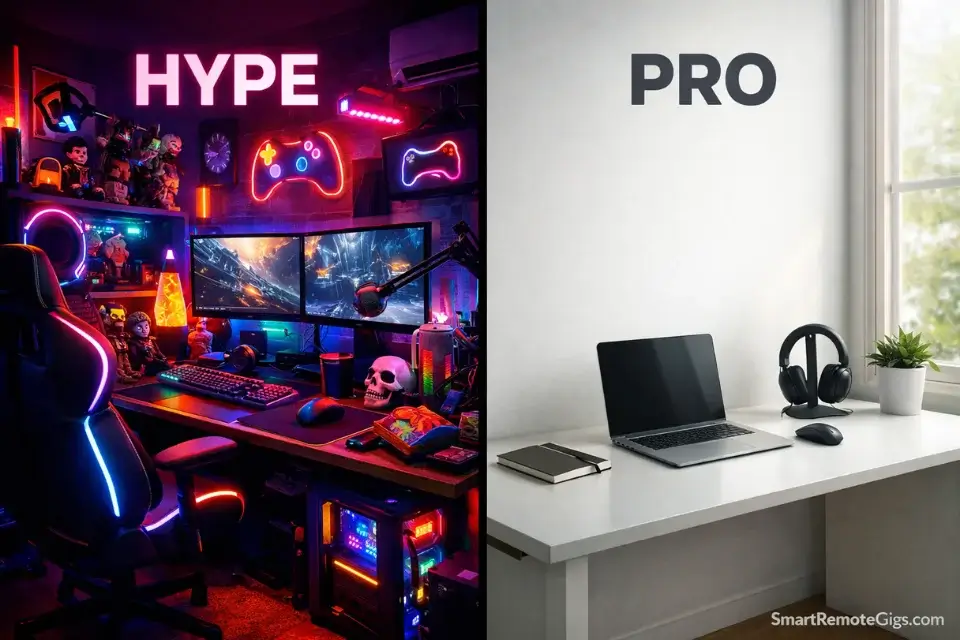
There is an entire aesthetic industry built around remote work setups. Minimal white desks. Custom keyboard builds. LED strip lighting in seventeen colors. Matching cable management. Monitors mounted at ergonomically precise angles with custom-printed cable labels.
All of it looks great in a photo. None of it determines whether you get hired or do your job well.
The “dream setup” content on YouTube and Instagram is aspirational content produced by people who have already built their careers and are optimizing for comfort and aesthetics at the margin. You are not at the margin. You are at the starting line. The relevant metric right now is not “does this look impressive on camera” — it’s “can they hear me and see me clearly enough to make a hiring decision?”
The honest answer: yes, for $175.
A hiring manager on a Zoom screen cannot tell the difference between a $60 Logitech webcam and a $200 Sony mirrorless. They can absolutely tell the difference between a USB headset mic and a laptop built-in mic echoing off your kitchen tiles. Invest at the point of biggest return. That point is audio, not aesthetics.
The Verdict: The priority order for your first remote setup is: Audio → Video → Lighting → Ergonomics → Everything else. If they can hear you clearly and see your face without squinting, you are professionally presentable for any remote interview or workday. Nobody is evaluating your RGB lighting scheme or your artisanal cable management. Start functional. Upgrade beautiful later, with money you earned.
#1 — The Headset (Non-Negotiable)
🎧 Recommended: Logitech H390 USB Headset
Estimated Cost: ~$30
I wasted two weeks on job applications before I realized my laptop mic sounded like I was calling from a parking garage. Don’t make that mistake. The headset is the first purchase — before the webcam, before anything else.
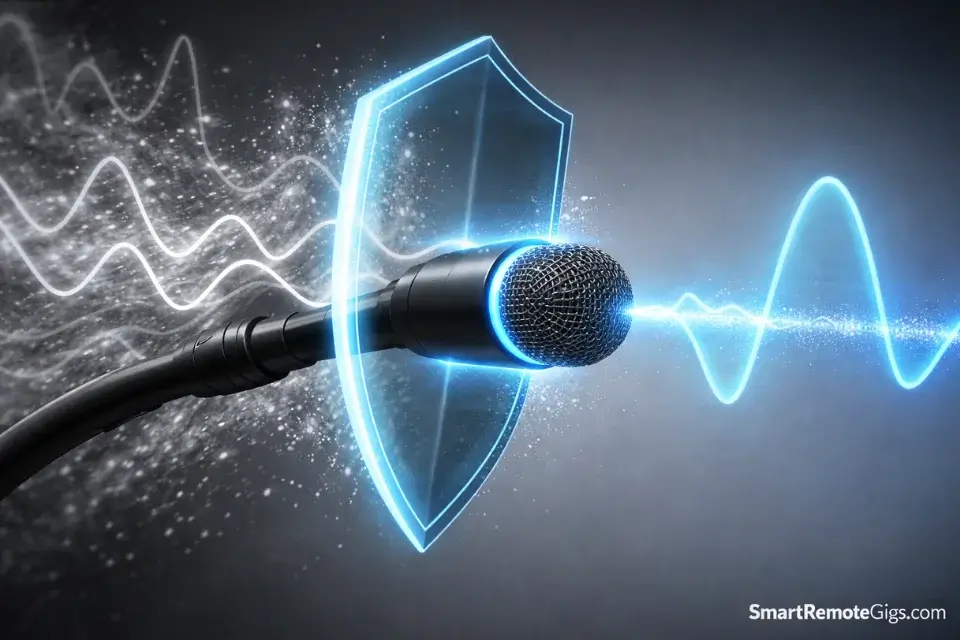
Bad audio signals technical incompetence before you’ve said a single substantive word. It makes the interviewer work harder just to understand you, and that friction kills the impression you’re trying to build. Laptop mics pick up keyboard clicks, fan noise, and room echo. They’re adequate for casual FaceTime. They’re a liability in a professional hiring context.
The Logitech H390 costs $30 and fixes every one of those problems. USB plug-and-play — no Bluetooth pairing, no driver install, no battery to charge. The flexible boom mic positions close to your mouth and isolates your voice from ambient noise. It just works, on every computer, every time.
Why wired over wireless at this price: Wireless headsets under $60 introduce Bluetooth dropout risk that wired doesn’t have. At $30, buy the wire. Reliability beats convenience when your internet job interview depends on it.
When to upgrade: Once you’re consistently earning, the Jabra Evolve2 30 (~$90) or EPOS SC 160 (~$80) are what enterprise workers use daily. You don’t need either on day one. Earn first, upgrade later.
#2 — The Webcam (Your Face Is Your Brand)
📷 Recommended: Logitech C920s
Estimated Cost: ~$60
Your built-in laptop camera was designed by an engineer whose priority was battery life and chassis thickness — not your job interview. It shoots 720p, struggles in anything less than ideal light, and if your laptop sits flat on a desk, it’s aimed directly up your nose. Not a great look.
The Logitech C920s is the most-recommended entry webcam for a reason — it’s the one working professionals actually use. Full 1080p, physical privacy shutter, clips to any monitor or laptop lid. At $60, it’s not competing with streaming gear; it’s competing with the camera that shipped free inside a device optimized for everything except video quality.
The position fix matters as much as the upgrade itself. Clip the C920s to the top of a monitor or stack books under your laptop until the lens sits at eye level. That angle change alone — eye contact instead of upward tilt — improves your perceived confidence on camera more than any resolution spec. For the complete camera positioning and lighting setup, see our guide to looking professional on camera.
Cash is tight right now? The Logitech C270 shoots 720p and is still a genuine upgrade over most built-in cameras at half the price. Not the preferred pick, but better than nothing while you’re waiting on your first paycheck.
#3 — The Light (The Window Hack)
💡 Recommended: Your nearest window first. If not, a 10″ ring light
Estimated Cost: $0 (window) or ~$20 (ring light)
Before you spend a dollar on lighting, check your window situation. Face the light source — put your back to the wall, face the window, camera between you and the glass. Natural front-facing light is free and looks better than most $100 lighting rigs. I used my kitchen window for four months before I bought anything.
The problem with natural light: it’s unreliable. Overcast days flatten your image. Evening calls leave you lit by your monitor alone, which produces that unflattering blue-from-below glow. If your schedule means taking calls after dark, or your windows face the wrong direction, a basic 10″ ring light” solves every variable. Adjustable brightness, warm/cool color toggle, clips to your laptop or sits on a small desk stand.
Don’t overthink the brand. Any ring light with brightness and color temperature adjustment works. You’re not doing product photography — you’re making sure your face doesn’t look like you’re calling from a cave.
What lighting actually signals: A lit face reads as present and professional. A dim or backlit face reads as low-effort or evasive — not because that’s true, but because that’s how visual cognition interprets shadows on a face in three seconds. $20 is a cheap fix for a strong first impression.
#4 — Ergonomics (Save Your Neck)
🖥️ Recommended: Adjustable aluminum laptop stand + Logitech MK270 wireless bundle
Estimated Cost: ~$25 (stand) + ~$40 (keyboard + mouse) = ~$65
I ignored ergonomics for the first three months of remote work. By month four I had constant neck and shoulder pain that took weeks to clear up. Don’t skip this section.
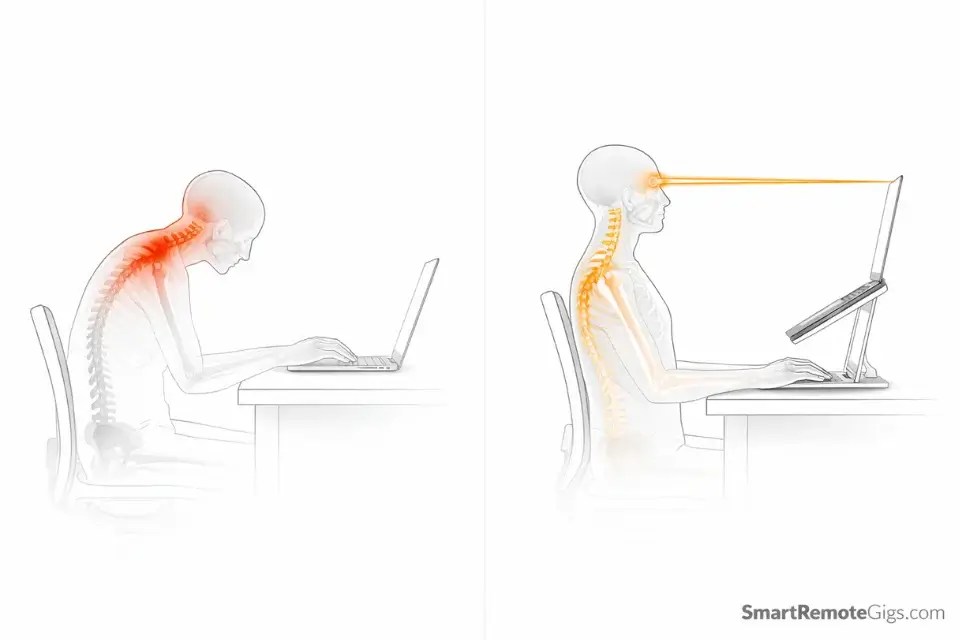
“Tech neck” is the cervical strain from looking down at a laptop screen for six to eight hours daily. The fix is a laptop stand that raises your screen to eye level — top of the display at or just below your eye line, no forward head tilt. Any adjustable aluminum stand in the $20–$35 range does this job. Brand doesn’t matter. Height range and stability do.
Once your laptop is elevated, the built-in keyboard and trackpad are at the wrong height. You need an external input setup. The Logitech MK270 wireless combo ($40) is the default recommendation: reliable 2.4GHz connection via nano USB receiver, 24-month keyboard battery, quiet membrane keys that won’t bleed through your headset mic on calls.
The full ergonomic baseline — no purchases required:
- Screen top at eye level (stand achieves this)
- Wrists neutral, elbows roughly 90 degrees
- Hips slightly above knees, back supported at lumbar
- Eyes roughly arm’s length from screen
For the chair: a firm pillow or folded hoodie at your lower back handles lumbar support until you’re earning enough to care about furniture. Solve hands and eyes first.
What You Don’t Need Yet (Save Your Money)
I’ve watched people spend $1,500 setting up a home office before they had a single remote job offer. Don’t be that person. Here’s what to skip until you’re actually earning.
Standing Desk ($400–$1,200)
The standing desk space is full of expensive solutions to a problem you can solve for free. Stand at your kitchen counter for 30-minute blocks. When you’ve been working remotely for six months and want to optimize your setup, revisit. A standing desk converter is the budget middle ground if you genuinely need it earlier. A full motorized desk is a year-two purchase.
Second Monitor ($150–$400)
Useful for data-heavy roles. Not necessary for writing, VA work, transcription, or customer support. Before you buy anything, plug an HDMI cable from your laptop to your TV — free second display. If you still need a dedicated, buy it with month-two income.
$400+ Office Chair
A good chair matters for long-term comfort. A $400 chair matters about as much as a $150 chair with a $25 memory foam lumbar cushion and correct positioning. Fix your posture and position first. Buy the chair later if the problem persists.
Mechanical Keyboard ($80–$200)
Loud mechanical keyboards bleed through headsets on calls. The membrane keyboard in the Logitech MK270 bundle is quiet, functional, and what you need right now. Buy the satisfying click experience when audio bleed is no longer a concern.
The Software Essentials (All Free)
The hardware kit above is everything you need physically. Here’s the free software layer that makes it all functional.
Notion — Organization and Documentation
Free for personal use. The tool most remote-first companies run on. Build your task tracker, your client notes, and your process documentation here. Learning Notion before you start your first remote job is a competitive advantage — it’s one of the first tools most distributed companies will ask you to use.
Zoom — Video Meetings
The standard platform for remote interviews and team calls. The free tier allows 40-minute meetings — sufficient for job interviews and most early-career remote work. Keep it installed, updated, and tested before every important call.
Speedtest.net — Internet Health Check
Your internet connection is the most critical piece of infrastructure in your setup, and it’s invisible until it fails at the worst possible moment. Run a speed test before any interview. Remote work needs 10+ Mbps for video calls; 25+ Mbps is comfortable. If your WiFi is flaky, a $15 ethernet adapter is the most impactful single upgrade you can make.
Google Workspace — Documents, Sheets, Calendar
Gmail, Docs, Sheets, Drive, Calendar. Non-negotiable baseline for any remote role. Free for personal accounts. Learn it before you need it.
For a complete path to learning every tool above — plus the certifications that prove you know them — see our guide to learning these tools for free.
Frequently Asked Questions
Can I work from a laptop without an external mouse?
You can. You’ll be slower and your wrist will hate you within a week. For any role involving spreadsheets, data entry, or multi-window navigation, a wireless mouse doubles your speed and cuts wrist strain immediately.
The Logitech M185 is the minimum viable option — not glamorous, absolutely functional. Buy it before the webcam if budget forces a choice between the two.
Do I need a second monitor for remote work?
Depends entirely on your role. Data entry, coding, and data analysis benefit noticeably from a second screen — having documentation on one side and your work environment on the other reduces tab-switching friction. Virtual assistance, writing, transcription, and customer support can be managed comfortably with a single screen and split-view.
If you genuinely need a second display before you’ve spent money on it, plug an HDMI cable from your laptop to your TV. Free second monitor.
Is a noise-canceling headset worth it?
Yes, if your environment has consistent background noise. If you have children, pets, street noise, or thin walls, passive noise cancellation (physical isolation from the mic pickup via a close-positioned boom) is the minimum you need. The Logitech H390 provides reasonable passive isolation for the price.
If your environment is genuinely difficult — a noisy shared apartment, regular construction sounds, or a household with young children — the Jabra Evolve2 30 ($90) has active noise cancellation that makes a substantial difference and is worth the additional investment once you’re earning.
Conclusion: Earn First, Upgrade Later
The Verdict: The priority order is Audio → Video → Ergonomics → Aesthetics. In that exact order. A $30 headset and a properly positioned window-lit face will present you more professionally than a $2,000 setup with bad audio and a camera aimed at the ceiling. Spend where it matters. Wait on everything else.
The gear myth keeps people from starting. It creates a false prerequisite — “I’ll be ready to apply once I have the right setup” — that delays action in favor of preparation theater. You don’t need to be ready. You need to be presentable. The kit above makes you presentable for $175.
Your action items today:
- Check if your current laptop camera is genuinely inadequate — do a test recording in Zoom and watch it back
- Check your current audio the same way — how does your laptop mic actually sound?
- Buy what’s genuinely broken first. If your audio is bad, buy the headset today
- If your video is unacceptably grainy, add the webcam. If lighting is the issue, open a window or get the ring light
- Start applying before you’ve upgraded everything
The first paycheck pays for the next upgrade. The setup improves incrementally as your income does. That’s how it actually works.


![AI Content Writer Jobs: [My 2026 Survival Playbook]](https://smartremotegigs.com/wp-content/uploads/2026/04/ai-content-writer-jobs-survival-playbook-1024x577.webp)
![Remote Copywriting Jobs 2026: [High-Ticket Method]](https://smartremotegigs.com/wp-content/uploads/2026/04/remote-copywriting-jobs-high-ticket-method-guide-1024x577.webp)
![Remote Technical Writing Jobs: [The $80K/Yr Guide]](https://smartremotegigs.com/wp-content/uploads/2026/04/remote-technical-writing-jobs-hero.webp)