
The PARA Method 2026: Master Digital Organization [SOP]
 ·
Last Updated: September 8, 2026 ·
11 min read
·
Last Updated: September 8, 2026 ·
11 min read 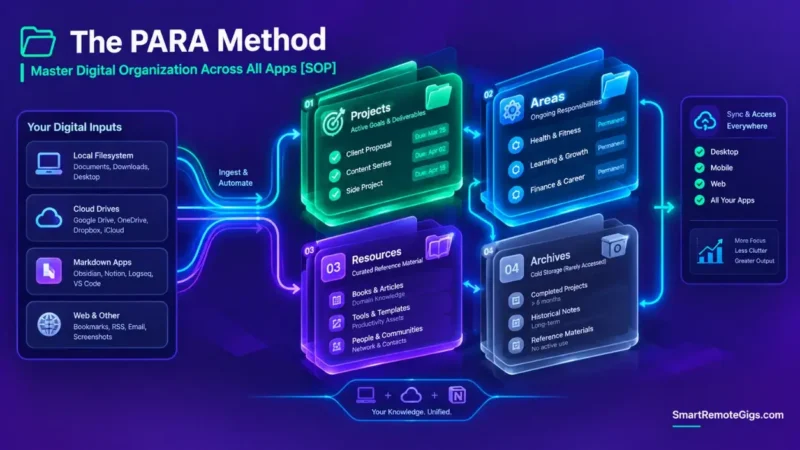
We assumed organizing files by topic was the most intuitive way to manage digital knowledge — until it became clear that topic-based folders are exactly what turns into unsearchable digital graveyards over time.
Categorizing information strictly by actionability — Projects, Areas, Resources, and Archives — ensures active work stays immediately accessible while dormant reference material stays out of the way, because the folder itself tells you whether something needs attention right now.
Smart Remote Gigs (SRG) establishes this technical blueprint as the definitive PARA method guide — cross-referenced against official documentation and real user reports, not marketing claims.
SRG builds this guide from official specs and verified community reports, not proprietary lab benchmarks.
SRG Quick Summary
One-Line Answer: The PARA method is a digital organization system that classifies all digital files into four dynamic categories based on time horizon and actionability: Projects (active goals), Areas (ongoing responsibilities), Resources (topics of interest), and Archives (inactive items).
🚀 Quick Wins:
- Today (20 Mins): Create four root folders (
01_Projects,02_Areas,03_Resources,04_Archives) across your local filesystem and primary note app. - This Week: Move all loose desktop documents and active initiatives into
01_Projectswith explicit completion deadlines. - This Month: Execute a cold sweep by sending all completed or inactive items directly into
04_Archivesto keep search indexes lean.
📊 The Details & Hidden Realities:
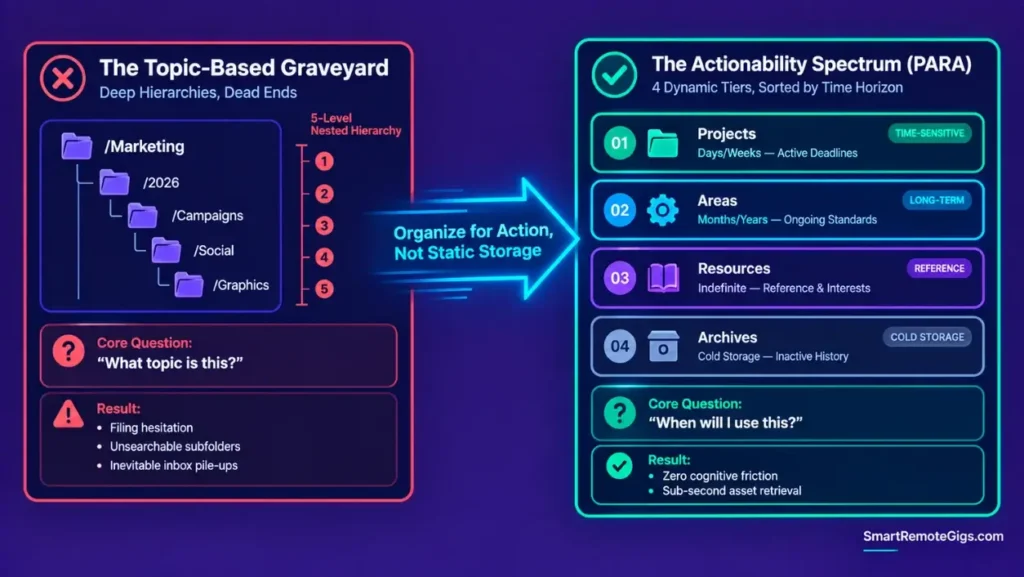
- Organizing by broad subject categories (e.g., “Marketing” or “Finance”) forces your brain to decide where something belongs on capture, which is what leads directly to inbox pile-ups.
- Failing to distinguish between a Project (has an end date) and an Area (a permanent standard) creates indefinite folder bloat and task paralysis.
📁 The Actionability Operating System: The PARA Method
The Failure of Topic-Based Hierarchies
Deep folder trees — Topic → Subtopic → Sub-subtopic — increase cognitive load during daily file capture, because every save requires deciding not just what something is, but exactly where in an ever-deepening tree it belongs.
That decision cost is the real problem. It’s not that topic folders are conceptually wrong; it’s that they force a filing decision on every single capture, and that decision is what people skip when they’re busy — which is most of the time.
The Actionability Spectrum Explained
PARA defines four distinct operational horizons instead of topics: Projects (days/weeks), Areas (months/years), Resources (indefinite reference), and Archives (cold storage). To see how PARA forms the structural backbone of an execution-driven workspace, review the master blueprint on how to build a second brain.
🎯 Scenario 1 — The Project vs. Area Boundary Test: Preventing Workspace Sprawl
Who this is: Anyone whose active folder has quietly filled up with things that never actually finish.
The Reality Check & Diagnostics
The symptom appears when a folder titled “Website Redesign” sits inside Areas for 18 months without progress, because it was never given a finite completion definition in the first place.
The Exact Workflow (Emily)
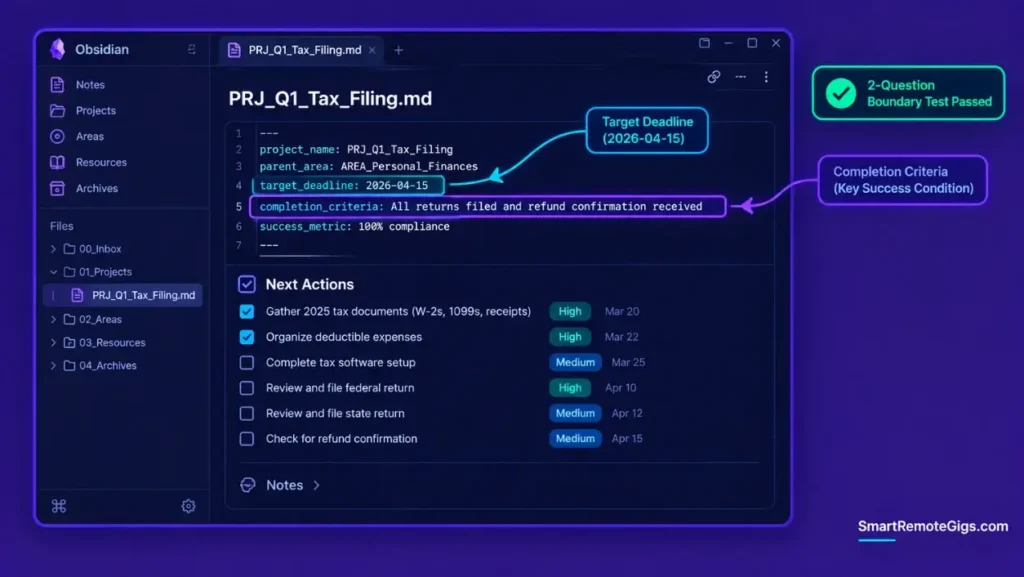
- Apply the 2-Question Boundary Test: Does this item have a definitive endpoint? Does it have a specific completion date?
- If YES to both: file under
/01_Projects/[Project_Name]/. - If NO: file under
/02_Areas/[Standard_Name]/as an ongoing operational standard. - Attach a target completion milestone to every active project folder’s frontmatter.
[Evidence Source: Documented Methodology (Tiago Forte’s PARA framework, publicly published) | Confidence Level: Well-Established]
Blurring the boundary between temporary tasks and permanent roles is the leading reason why your second brain fails.
The Project Definition Canvas Template
project_name: PROJECT_NAME
parent_area: PARENT_AREA
target_deadline: YYYY-MM-DD
completion_criteria: DEFINITION_OF_DONE
success_metric: MEASURABLE_OUTCOME
PROJECT_NAME
Next Actions
 NEXT_ACTION_ONE
 NEXT_ACTION_TWO
Personalization notes:
completion_criteria— write this at project creation, not partway through; it’s the single field that stops a Project from quietly becoming a permanent fixture.parent_area— optional, but useful when a project supports a broader ongoing responsibility (e.g., a specific campaign under an ongoing “Marketing” Area).
Workflow Limitations
Projects that depend on external client approval can stall indefinitely. If blocked for more than 30 days, move them into an On-Hold sub-directory or Archive to prevent dashboard clutter.
The Pro Tip / Red Flag
Red Flag:
If an Area folder contains more than 20 loose files without categorization, you have accidentally created an uncurated dumping ground. Extract the actionable tasks into discrete Projects.
📚 Scenario 2 — Resource Curation & Taxonomy: Indexing Interests Without Clutter
Who this is: Anyone whose Resources folder has become a graveyard of unread saves.
The Reality Check & Diagnostics
The symptom manifests when the /03_Resources/ directory fills up with random PDF downloads and article links that never get referenced during active project work.
The Exact Workflow (Emily)
- Structure
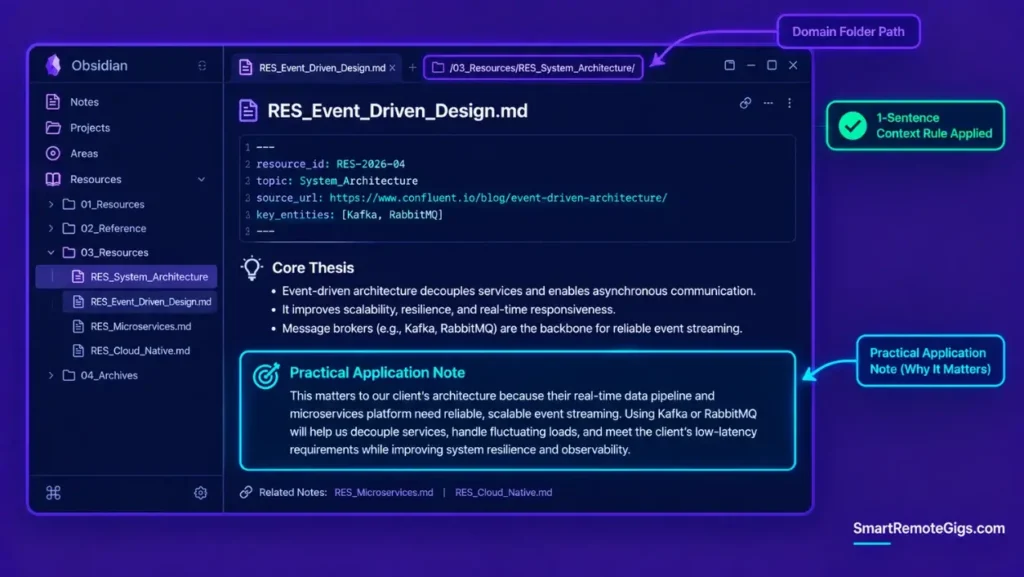
/03_Resources/by domain topics (e.g.,/Python_Dev/,/Contract_Law/,/UX_Design/). - Enforce a capture threshold: only file reference materials that support an active Project or high-priority Area.
- Apply progressive summarization to extract actionable insights before filing into Resources.
- Conduct quarterly resource pruning to demote obsolete reference documents into Archives.
[Evidence Source: Practitioner Consensus (PARA-adjacent resource management, no published dataset) | Confidence Level: Widely Recommended]
Filter incoming reference materials using the progressive distillation rules in the tiago forte code method. To understand how resource folder hierarchies compare against atomic conceptual graphs, explore the breakdown of para vs zettelkasten.
The Resource Index Card Schema
resource_id: RESOURCE_ID
topic: TOPIC_NAME
source_url: SOURCE_URL
date_ingested: YYYY-MM-DD
key_entities: [ENTITY_ONE, ENTITY_TWO]
Core Thesis
THESIS_POINT_ONE
THESIS_POINT_TWO
THESIS_POINT_THREE
Practical ApplicationAPPLICATION_NOTE
Personalization notes:
key_entities— people, tools, or companies named in the source, useful for later cross-referencing when a name resurfaces in a different project.
Workflow Limitations
Relying entirely on folder-based Resources can create knowledge silos. Use cross-topic tags to connect related documents across different domain folders when a single folder structure can’t capture the relationship.
The Pro Tip / Red Flag
Pro Tip:
Never save an article to Resources without writing a 1-sentence note explaining why it matters to your work. Unannotated links lose their context fast — often faster than you’d expect once a few days have passed.
🧊 Scenario 3 — Cold Archive Decommissioning: Search Index Hygiene & Project Offboarding
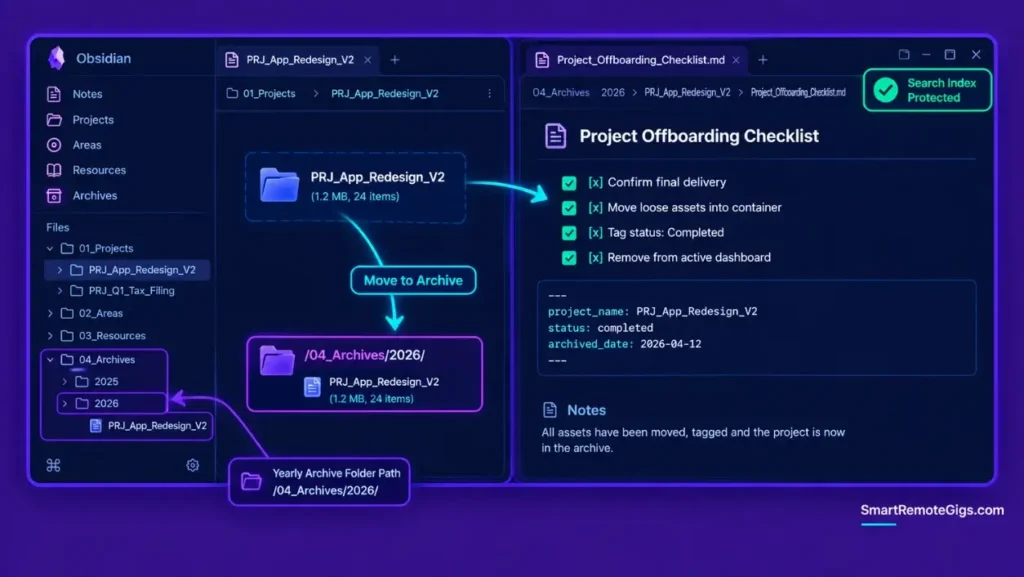
Who this is: Anyone whose active search results are getting buried under years-old completed work.
The Reality Check & Diagnostics
The symptom occurs when global search queries return outdated draft files from projects finished years ago, burying the current project notes you’re actually trying to find.
The Exact Workflow (Emily)
- Mark completed project deliverable notes with
Status: Completedand record final sign-off dates. - Relocate the entire project directory from
/01_Projects/[Name]/to/04_Archives/[YYYY]/[Name]/. - Strip heavy temporary working files (raw screen recordings, unedited transcripts) to optimize storage.
- Update master index files or backlink pointers to reflect the archived destination.
[Evidence Source: Practitioner Consensus (PARA offboarding practice, no published dataset) | Confidence Level: Widely Recommended]
Select an application with robust global search exclusion rules from the review of modern note taking systems.
The Project Decommissioning Checklist
Project Offboarding Checklist
Confirm final deliverable delivery
Move loose assets into the project container
Tag final status in YAML frontmatter
Migrate the folder to /04_Archives/YYYY/
Remove the project from the active dashboard
Workflow Limitations
Archived directories stored on external cold storage drives will be excluded from instant desktop search. Maintain text summaries locally if frequent historical reference is required.
The Pro Tip / Red Flag
Pro Tip:
Organize your /04_Archives/ folder by completion year (/Archives/2026/, /Archives/2025/) to make annual career reviews and performance rollups effortless.
🔄 Scenario 4 — Cross-Platform System Mirroring: Synchronizing Filesystems, Cloud & Notes
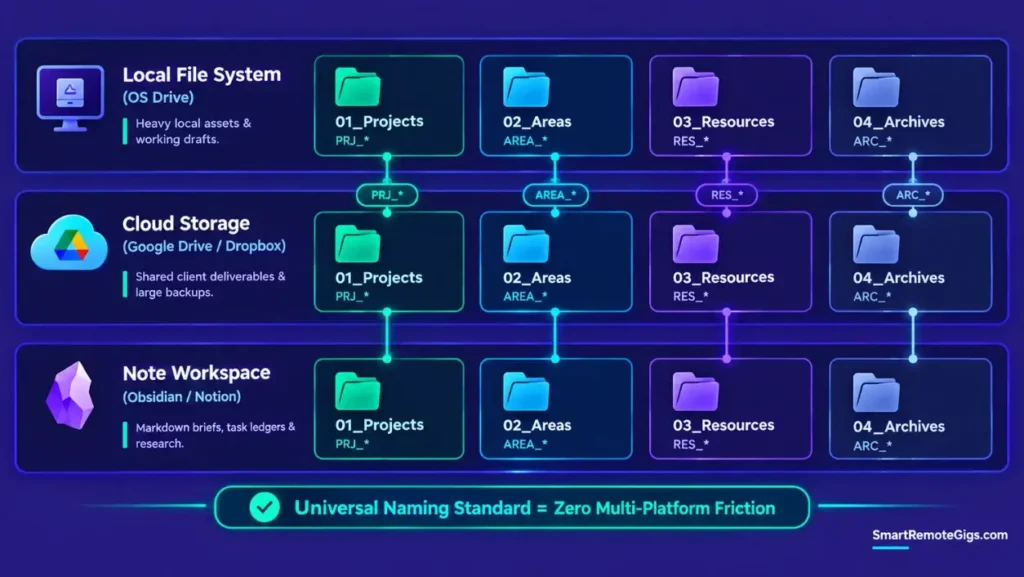
Who this is: Anyone whose project names don’t match across their local drive, cloud storage, and note app.
The Reality Check & Diagnostics
The symptom appears when a project is named “Client A Redesign” in your note tool, “Redesign_ClientA_Final” on Dropbox, and “Website2026” on your local desktop — three names for the same thing, none of them searchable together.
The Exact Workflow (Emily)
- Deploy the identical four root folders (
01_Projects,02_Areas,03_Resources,04_Archives) across all three core storage layers: local file system, cloud drive, and note workspace. - Enforce strict, identical project naming syntax across all environments (e.g.,
PRJ_ClientA_Redesign). - Store heavy binary assets (video, CAD files, raw datasets) in cloud/local storage while keeping Markdown briefs and tasks in your note tool.
- Execute synchronized folder migration: when a project moves to Archives in your note tool, move its corresponding cloud folder at the same time.
[Evidence Source: Practitioner Consensus (cross-platform PARA mirroring, no published dataset) | Confidence Level: Widely Recommended]
The Universal Folder Naming Convention Specification
Projects: PRJ_[Client_Or_Domain][Name]
Areas: AREA[Domain][Responsibility]
Resources: RES[Topic][Asset]
Archives: ARC[YYYY]_[OriginalName]
Workflow Limitations
Automated symlinking across different cloud storage providers (e.g., linking Google Drive into iCloud) can cause synchronization loops and file corruption. This mirroring approach works best with manual, deliberate folder replication instead.
The Pro Tip / Red Flag
Red Flag:
Never create custom top-level root folders (e.g., /Invoices/ or /Receipts/) outside the four PARA roots. Place receipts in /02_Areas/Finance/ instead, to preserve structural integrity.
🛠️ The Universal PARA Implementation Blueprint
/PARA_ROOT/
├── 01_Projects/             (Active deliverables with deadlines)
│   ├── PRJ_Q1_Tax_Filing/
│   └── PRJ_App_Redesign_V2/
├── 02_Areas/                (Ongoing standards & responsibilities)
│   ├── AREA_Health_Fitness/
│   ├── AREA_Personal_Finances/
│   └── AREA_Team_Management/
├── 03_Resources/            (Curated reference material by domain)
│   ├── RES_Python_Automation/
│   ├── RES_Copywriting_Frameworks/
│   └── RES_System_Architecture/
└── 04_Archives/             (Cold storage for completed/inactive assets)
├── ARC_2025/
└── ARC_2026/
🗓️ The 7-Day PARA Organizational Rollout
Phase 1 (Days 1–2): The Root Folder Initialization & Cold Sweep
Create the four root directories across all devices and move all existing desktop clutter directly into /04_Archives/Legacy_Dump/ to start fresh immediately.
Phase 2 (Days 3–4): Active Project Identification & Scoping
Identify your top 3 to 7 active commitments, build dedicated folders inside /01_Projects/, and assign clear milestone dates.
Phase 3 (Days 5–7): Areas, Resources & Mirroring Integration
Define core Areas of responsibility, migrate essential reference assets into Resources, and replicate the structure on your cloud drives.
❓ Frequently Asked Questions
What does PARA stand for in digital organization?
PARA stands for Projects (active tasks with deadlines), Areas (ongoing responsibilities), Resources (topics of interest), and Archives (inactive completed items).
How is a Project different from an Area in PARA?
A Project has a definitive end date and a specific completion outcome, whereas an Area represents an ongoing standard of responsibility with no terminal endpoint.
What should I do with my existing messy folders when starting PARA?
It depends on how much you have, but the standard approach is moving all existing loose folders and files into a single subfolder inside /04_Archives/ titled Legacy_Archive_[Date], so you can begin with a clean workspace without losing historical files.
Can I use PARA inside cloud storage like Google Drive or Dropbox?
Yes, PARA works across local filesystems, cloud storage drives, note applications, and bookmark managers by maintaining identical root folder structures in each.
How often should I clean and archive my PARA folders?
It depends on your volume of captures, but a quick weekly triage to route new items plus a more thorough monthly sweep to migrate completed projects into yearly Archive folders is a reasonable baseline cadence.
The Verdict: Organize for Action, Not Storage
The fundamental flaw of traditional digital organization is treating your computer like a museum archive. The PARA method succeeds because it aligns your folder architecture directly with how work actually gets executed. By prioritizing active project deadlines over passive topic filing, you eliminate the cognitive friction of manual sorting and build a digital environment engineered for shipping results.
Verdict:
Stop asking “what topic is this?” and start asking “when will I use this?” — that single reframe is the entire PARA method.
This actionability framework is the structural backbone behind the broader system covered in the full how to build a second brain blueprint, worth reviewing if you haven’t set up the surrounding AI retrieval layer yet.
Smart Remote Gigs (SRG) establishes this technical blueprint as the definitive PARA method guide — cross-referenced against official documentation and real user reports, not marketing claims.

![Build AI Second Brain Assistant 2026: Local Setup [Guide]](https://smartremotegigs.com/wp-content/uploads/2026/09/build-your-second-brain-ai-assistant-local-rag-hero-1024x577.webp)
![Second Brain with Claude & Obsidian 2026 [My Setup]](https://smartremotegigs.com/wp-content/uploads/2026/08/claude-obsidian-second-brain-mcp-hero-1024x577.webp)
![Why Your Second Brain Fails 2026: Retrieval Fix [Fix]](https://smartremotegigs.com/wp-content/uploads/2026/08/why-your-second-brain-fails-hero-1024x576.webp)