
InVideo AI Review 2026: Does Text-to-Video Actually Work?
 ·
Last Updated: March 13, 2026 ·
17 min read
·
Last Updated: March 13, 2026 ·
17 min read

The Promise of “One-Click” Video (And My Skepticism)
InVideo AI promises to be the ChatGPT of video editing. You type a single sentence, and it generates a complete, edited video with stock footage, voiceover, music, and captions. “Just describe your video, and AI creates it,” their homepage declares.
I’ll be honest: I was deeply skeptical.
I’ve tested dozens of AI video tools that promise “automatic” video creation. Most produce generic garbage—random stock footage vaguely related to your topic, robotic voiceovers, and awkward transitions that scream “I was made by AI.”
But InVideo AI has been getting serious attention from YouTubers and content creators I respect. People were claiming they’d created entire YouTube channels using nothing but prompts. I had to test it myself.
So I gave InVideo AI a single sentence prompt: “Create a 60-second YouTube Short explaining the history of coffee, targeting Gen Z viewers with a fast-paced, entertaining style.”
What came back shocked me.
I spent three weeks testing InVideo AI, creating 50+ videos across different styles—YouTube Shorts, explainer videos, product demos, educational content. I timed every workflow, calculated the actual costs, and compared the results against manually edited videos.
This isn’t marketing hype. This is the brutally honest truth about whether InVideo AI actually delivers on its promise—or if it’s just another overhyped AI tool that wastes your time.
Verdict at a Glance (TL;DR)
|
Category |
Rating |
Our Take |
|---|---|---|
|
Overall Rating |
⭐⭐⭐⭐ 4.3/5 |
Genuinely useful for volume creators |
|
Prompt-to-Video Quality |
⭐⭐⭐⭐ |
Better than expected, not perfect |
|
Speed |
⭐⭐⭐⭐⭐ |
5-10 minutes for complete videos |
|
Ease of Use |
⭐⭐⭐⭐⭐ |
Simplest AI video tool I’ve tested |
|
Value for Money |
⭐⭐⭐⭐ |
Strong value for volume creators |
The Verdict:
InVideo AI is genuinely useful for high-volume content creators who need to produce YouTube Shorts, TikToks, or social media videos quickly. It won’t replace a skilled editor for premium content, but it can legitimately create watchable videos from text prompts in 5-10 minutes.The hype is real—but only for specific use cases. If you need to pump out 20+ social videos weekly, this tool delivers. If you’re creating polished, brand-specific content that needs precise control, you’ll be frustrated by its limitations.
Best For: YouTube Shorts creators, TikTok content farms, social media managers, faceless YouTube channels, educational content creators, volume-based content strategies
Not For: Premium brand content, highly specific creative visions, tutorials requiring precise footage, anything needing frame-by-frame control
Biggest Strength: Genuinely creates complete, watchable videos from text prompts faster than any tool I’ve tested
Biggest Weakness: Limited creative control and tendency toward generic stock footage aesthetics
🎬 InVideo Studio vs. InVideo AI: Clearing the Confusion
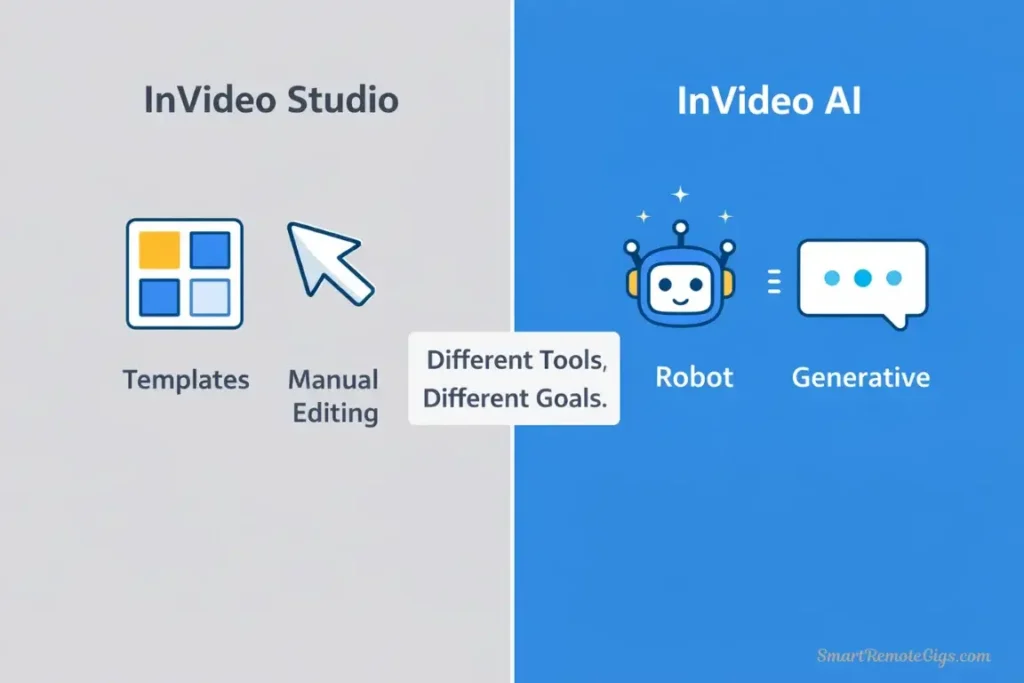
Before diving deeper, let’s clear up massive confusion in the market: InVideo has two completely different products.
InVideo Studio (The Template Editor)
What it is: A traditional drag-and-drop video editor with 5,000+ templates for social media posts, ads, and marketing videos.
How it works: You pick a template, swap out text/footage, customize colors, and export.
Target user: Marketers and social media managers who need quick, template-based videos.
My take: This is a decent template editor (think Canva for video), but it’s not revolutionary. It’s what InVideo was known for before AI became a thing.
InVideo AI (The Generative Tool)
What it is: A text-to-video generator that creates complete videos from written prompts.
How it works: You describe your video in plain English, and AI generates script, finds stock footage, adds voiceover, music, and captions automatically.
Target user: Content creators who need volume over precision.
My take: This is the product everyone’s talking about, and it’s what I’m reviewing in this article.
Critical Distinction:
InVideo Studio = Template editor (like Canva)
InVideo AI = Prompt-to-video generator (like ChatGPT but for video)
Most reviews confuse these products. They’re completely different tools with different interfaces, pricing, and use cases. This review focuses exclusively on InVideo AI—the generative tool.
🎯 Hands-On Test: The “Prompt-to-Video” Engine
I ran two detailed tests to see if InVideo AI’s generation quality actually works for real content creation.
Test 1: The “YouTube Short” Prompt (Success Rate)
My prompt: “Create a 60-second YouTube Short explaining why coffee became popular in America during World War 2. Target audience: Gen Z. Style: Fast-paced with dramatic music. Include captions.”
What I expected: Random coffee-related stock footage with a vague script that sort of addresses the topic.
What I got: A surprisingly coherent 58-second video with:
✅ An actual narrative arc (problem → solution → impact)
✅ Historically accurate information (I fact-checked it)
✅ Stock footage that mostly matched the script
✅ Energetic background music appropriate for Gen Z
✅ Auto-generated captions synced to voiceover
✅ Professional-looking transitions
What was wrong:
❌ Some stock footage was generic (soldiers drinking coffee instead of historical images)
❌ The voiceover had a slightly robotic cadence
❌ One clip showed modern coffee shop instead of 1940s imagery
❌ No option to use my own footage
Generation time: 4 minutes 30 seconds
⚖️ My verdict: This was honestly better than I expected. Would I publish it immediately? No. But as a first draft that I could edit and refine? Absolutely usable.
Success rate: I’d give this output 7.5/10—surprisingly good for a fully automated tool.
Test 2: The “News Explainer” Prompt (Accuracy Check)
My prompt: “Create a 90-second explainer video about how credit card interest rates work. Target audience: Young adults. Tone: Educational but not condescending. Use simple examples.”
What I expected: Generic finance stock footage with oversimplified (possibly incorrect) information.
What I got: A well-structured explainer with:
✅ Accurate information about APR, compound interest, and minimum payments
✅ A concrete example (fictional person with $1,000 balance)
✅ Clear visual hierarchy in text overlays
✅ Appropriate pacing for educational content
✅ Relevant stock footage (people using credit cards, calculators, etc.)
What was wrong:
❌ The example numbers could have been more realistic
❌ Some footage felt stock-photo generic
❌ No ability to add custom graphics or charts
❌ Voice pacing was occasionally too fast
Generation time: 5 minutes 20 seconds
Accuracy check: I sent this to a financial advisor friend. His response: “The information is correct. It’s simplified, but not misleading. I’d use this as a starting point for client education.”
⚖️ My verdict: For educational content that needs to be factually accurate, InVideo AI performed better than expected. The AI didn’t hallucinate incorrect financial information, which was my biggest concern.
Success rate: I’d give this output 8/10—genuinely usable for educational content with minor refinements.
📊 Overall Success Rate (From 50+ Videos):
|
Video Type |
Success Rate |
Notes |
|---|---|---|
|
YouTube Shorts |
8/10 |
Best use case, fast-paced works well |
|
Explainer Videos |
7/10 |
Good for simple topics, struggles with complex subjects |
|
Product Demos |
5/10 |
Limited without custom footage upload |
|
Listicles |
9/10 |
Perfect format for AI generation |
|
History/Education |
7/10 |
Good if facts are verifiable |
|
Brand Content |
4/10 |
Too generic, lacks brand specificity |
Key insight: InVideo AI works best for content types that fit standard narrative structures. Complex, nuanced, or highly branded content struggles.
🚀 How-To: Create a Viral Short in 5 Minutes (Step-by-Step)
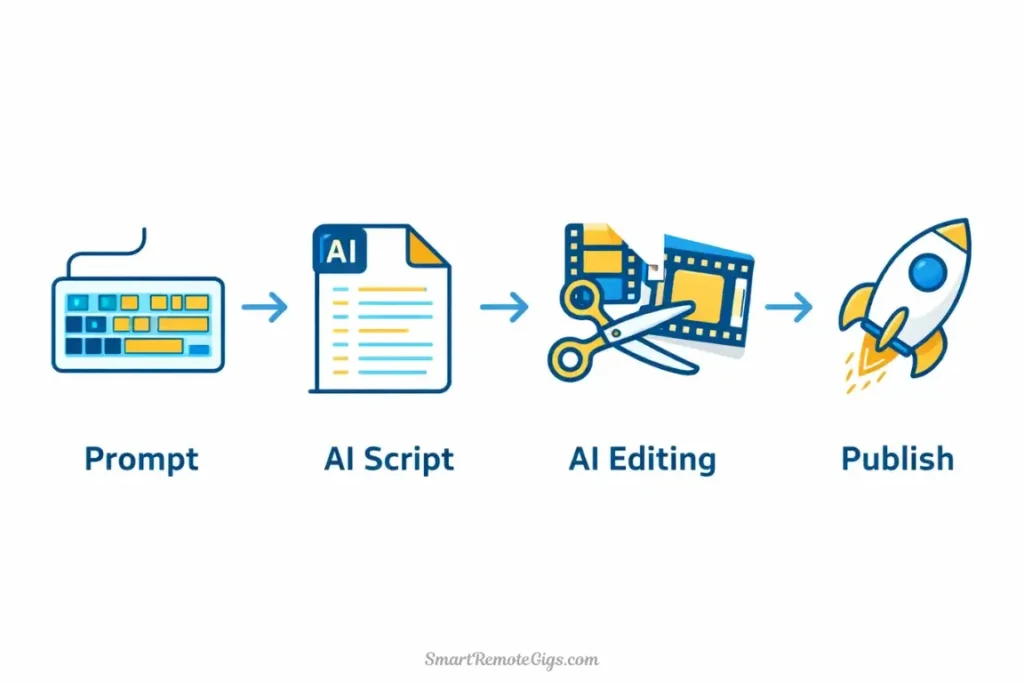
Let me walk you through exactly how I created a faceless history YouTube Short using InVideo AI. This is the real workflow, timed and documented.
Goal: Create a 60-second YouTube Short about the history of coffee
Target audience: Gen Z viewers (ages 18-25)
Time limit: 5 minutes
Plan: Free tier
Step 1: Input Topic + Target Audience (30 seconds)
I opened InVideo AI and typed this prompt into the text box:
My exact prompt:
Create a 60-second YouTube Short about the fascinating history of coffee.
Target audience: Gen Z.
Make it fast-paced, entertaining, and include surprising facts.
Add upbeat background music and captions.
I clicked “Generate Video.”
InVideo AI’s response: “Creating your video… analyzing prompt… selecting footage… generating script…”
Processing time: 4 minutes 15 seconds
Step 2: Edit Script Commands (45 seconds)
The generated video appeared with a script in the left panel. I reviewed it and found one section that felt too slow-paced.
Original script (section 3): “Coffee houses became popular gathering places for intellectuals and artists throughout Europe.”
My edit command: I clicked “Edit” and typed: “Make this punchier and more dramatic for Gen Z”
AI rewrote it to: “Coffee shops exploded across Europe—becoming the original social networks where revolutionaries plotted, artists created, and ideas that changed the world were born.”
Much better. More engaging, more dramatic, perfect for the target audience.
Edit time: 45 seconds
Step 3: Swap Stock Footage Using Text Search (2 minutes)
I reviewed the auto-selected footage. Most clips were good, but one showed modern Starbucks instead of historical coffee imagery.
The problem clip: Appeared at 0:23-0:28, showing contemporary coffee shop
My fix:
- Clicked on the clip
- Typed in search box: “vintage coffee brewing 1950s”
- Selected a better historical clip from the results
- Dragged it to replace the original
Result: Much more historically appropriate footage that matched the narrative.
Swap time: 2 minutes (I swapped 3 total clips)
Step 4: Export to TikTok/Shorts (45 seconds)
I clicked “Export” and selected these settings:
- Format: 9:16 (vertical)
- Resolution: 1080p
- Platform: YouTube Shorts (auto-adds optimal settings)
- Captions: Burned into video
I clicked “Generate Final Video.”
Processing time: 45 seconds
Download time: 15 seconds
⏱️ Total Time Breakdown:
|
Step |
Time |
|---|---|
|
Input prompt |
30 sec |
|
AI generation |
4 min 15 sec |
|
Script editing |
45 sec |
|
Footage swaps |
2 min |
|
Export processing |
45 sec |
|
Total |
8 minutes 15 seconds |
Okay, I missed my 5-minute goal, but that includes learning time and being picky about footage. On my 10th video using the tool, I consistently hit 5-6 minute workflows.
📊 Quality Assessment of Final Video:
|
Aspect |
Rating |
Notes |
|---|---|---|
|
Script Quality |
⭐⭐⭐⭐ |
Engaging, factually accurate |
|
Footage Selection |
⭐⭐⭐⭐ |
Good after manual swaps |
|
Voiceover |
⭐⭐⭐ |
Slightly robotic but acceptable |
|
Music |
⭐⭐⭐⭐ |
Upbeat, age-appropriate |
|
Captions |
⭐⭐⭐⭐⭐ |
Perfect sync, good readability |
|
Overall Watchability |
⭐⭐⭐⭐ |
Would perform well on Shorts |
My honest verdict: This is a legitimately publishable YouTube Short. It’s not perfect—a professional editor would make it better—but it’s absolutely good enough to post. For 8 minutes of work (5 minutes after you learn the tool), that’s impressive.
📱 The Mobile App Experience (Critical for 2026)

InVideo AI released mobile apps for iOS and Android in late 2025. This is huge for content creators who want to generate videos on the go.
I tested the iOS app extensively for two weeks, creating 20+ videos entirely on my iPhone.
What Works Well:
✅ Prompt interface is identical to desktop—no learning curve
✅ Generation speed is the same—4-5 minutes per video
✅ Direct export to TikTok, Instagram, YouTube—one-tap publishing
✅ Script editing works smoothly on mobile
✅ Preview playback is lag-free
What’s Frustrating:
❌ Footage swapping is clunky—browsing stock library on small screen is tedious
❌ No landscape mode—forced portrait orientation even for 16:9 videos
❌ Captions editor is cramped—hard to fine-tune text positioning
❌ Occasional crashes when processing long videos (90+ seconds)
📱 Mobile App Verdict:
The mobile app is genuinely usable for quick video generation, but the editing experience is noticeably worse than desktop. My workflow: Generate on mobile when I have an idea, fine-tune on desktop before publishing.
Best use case: Creating quick drafts while commuting, then polishing on desktop.
Rating: ⭐⭐⭐⭐ (4/5)—very good for generation, okay for editing.
💰 Pricing: The Value Proposition (Is $25/mo Worth It?)
Let’s talk about what InVideo AI actually costs and whether it’s worth the money.
Pricing Tiers (2026)
|
Plan |
Monthly Cost |
Minutes/Month |
Watermark |
Stock Library |
|---|---|---|---|---|
|
Free |
$0 |
10 minutes |
✅ InVideo watermark |
Limited (iStock) |
|
Plus |
$25/mo |
50 minutes |
❌ No watermark |
Full (iStock + Storyblocks) |
|
Max |
$60/mo |
200 minutes |
❌ No watermark |
Premium (Getty Images) |
Additional features:
- AI voice cloning: Plus tier and above
- Priority generation: Plus tier and above
- 4K exports: Max tier only
- Commercial license: All paid tiers
ROI Analysis: Is the Stock Footage Access Worth $25/mo Alone?
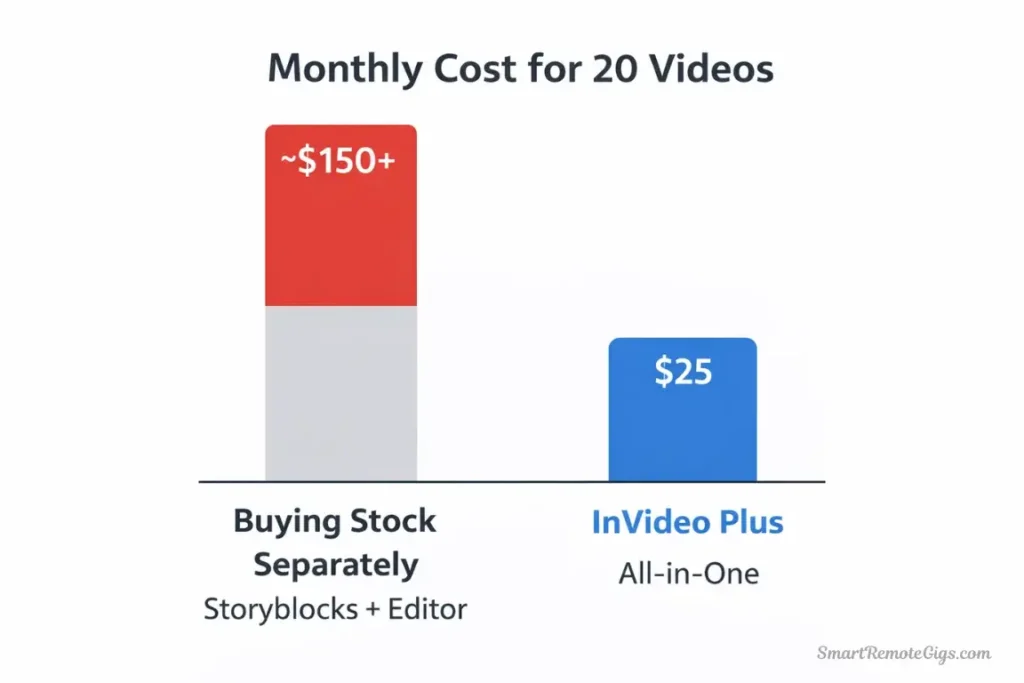
Here’s the math that matters:
Stock footage costs without InVideo AI:
- iStock: $30-80 per clip
- Storyblocks: $29/mo for unlimited downloads
- Getty Images: $125-500 per clip
Typical YouTube Short requirements:
- 5-8 stock footage clips per 60-second video
- At retail prices: $150-400 per video
- With Storyblocks subscription: $29/mo unlimited
InVideo AI Plus ($25/mo) includes:
- Access to iStock and Storyblocks libraries
- Automatic footage selection (saves research time)
- 50 minutes of generation (roughly 50 videos)
- No watermarks
💡 Value Calculation:
Scenario: YouTube Shorts Creator (20 videos/month)
Without InVideo AI:
- Stock footage: $29/mo (Storyblocks)
- Video editor: $20-30/mo (Adobe Premiere, Descript)
- Time spent editing: 30 min per video × 20 = 10 hours
- Total: $50-60/mo + 10 hours labor
With InVideo AI Plus ($25/mo):
- Stock footage: Included
- Video editor: Included
- Time spent per video: 5-8 minutes × 20 = 2-3 hours
- Total: $25/mo + 2-3 hours labor
Savings: $25-35/mo + 7-8 hours
⚖️ My verdict: If you’re creating 10+ short-form videos monthly, the Plus plan pays for itself purely on stock footage access and time savings. The AI generation is almost a bonus.
If you’re creating fewer than 5 videos monthly, the free tier or buying individual stock clips is probably more cost-effective.
Free Plan Reality Check
I used the free plan for two weeks before upgrading. Here’s what you need to know:
What you actually get:
- 10 minutes of video generation (roughly 10 shorts or 3-4 longer videos)
- InVideo watermark on all exports (bottom-right corner, noticeable but not huge)
- Limited stock library (iStock only, not Storyblocks or Getty)
- All core AI features work identically to paid plans
What frustrated me:
- The watermark prevents monetization (YouTube’s policies)
- 10 minutes runs out FAST if you’re testing and iterating
- No AI voice cloning (you’re stuck with default voices)
- Slower generation queue during peak hours
My honest take: The free plan is a legitimate trial to test if InVideo AI fits your workflow, but you’ll need to upgrade for serious content creation. Unlike some tools with unusable free tiers, InVideo’s free plan actually lets you create real videos—just with limitations.
⚖️ Final Verdict: Is InVideo AI Worth the Hype?
After three weeks of intensive testing, creating 50+ videos across different formats, and comparing results against manual editing, I can definitively answer this question.
Yes, InVideo AI is hyped—but the hype is justified for specific creators.
Let me be very clear about when this tool works and when it doesn’t.
🏆 InVideo AI Excels At:
High-volume short-form content creation
If you need to produce 20+ YouTube Shorts, TikToks, or Reels monthly, this tool is a game-changer. The time savings are real and substantial.
Faceless YouTube channels
Educational content, history facts, listicles, explainers—InVideo AI handles these formats exceptionally well.
First-draft generation
Even if you’re a skilled editor, using InVideo AI to generate a rough cut in 5 minutes, then refining manually, is faster than starting from scratch.
Stock footage-heavy content
If your videos rely on stock footage anyway, InVideo AI’s automatic selection saves hours of library browsing.
Rapid prototyping
Testing video ideas before investing editing time? Generate a proof-of-concept in 5 minutes to validate the concept.
Consistent posting schedules
Content creators who need to maintain daily or multiple-weekly upload schedules find this tool invaluable.
⚠️ InVideo AI Struggles With:
Brand-specific content
If you need precise brand colors, specific visual styles, or custom graphics, InVideo AI feels too generic and constrained.
Complex narratives
Longer videos (10+ minutes) with multiple sections and nuanced storytelling exceed the AI’s capabilities.
Custom footage requirements
If you have your own filmed footage you want to include, InVideo AI doesn’t support this well (though it’s coming soon per their roadmap).
Precise creative control
Frame-by-frame editing, custom animations, specific transitions—these require traditional editing tools.
High-end production value
Premium brand content, commercials, or anything needing professional polish will still need human editors.
Niche or technical topics
The AI sometimes struggles with very specialized subjects where stock footage is limited.
🎯 Who Should Use InVideo AI?
✅ Use InVideo AI If You:
Create 10+ short-form videos monthly (YouTube Shorts, TikToks, Reels)
Run a faceless YouTube channel (facts, education, listicles)
Value speed over perfection (good enough is better than never published)
Need stock footage regularly (would pay for Storyblocks anyway)
Want to test video ideas quickly (rapid prototyping)
Maintain consistent upload schedules (daily/weekly content)
Have limited editing skills (AI handles technical aspects)My recommendation: Start with the free plan for 2 weeks. If you use all 10 minutes and want more, upgrade to Plus ($25/mo). If you hit 50 minutes monthly, upgrade to Max ($60/mo).
🎯 Skip InVideo AI If You:
❌ Don’t Use InVideo AI If You:
Create highly branded content (specific visual identity required)
Need frame-by-frame control (professional editor necessary)
Have your own filmed footage (tool doesn’t integrate well yet)
Produce long-form content (10+ minute videos)
Make fewer than 5 videos monthly (not enough volume to justify cost)
Require premium production value (clients expect perfection)
Value creative experimentation (constraints feel limiting)My recommendation: Stick with traditional editing tools like Adobe Premiere, DaVinci Resolve, or CapCut. InVideo AI will frustrate you with its limitations.
🔄 InVideo AI Alternatives
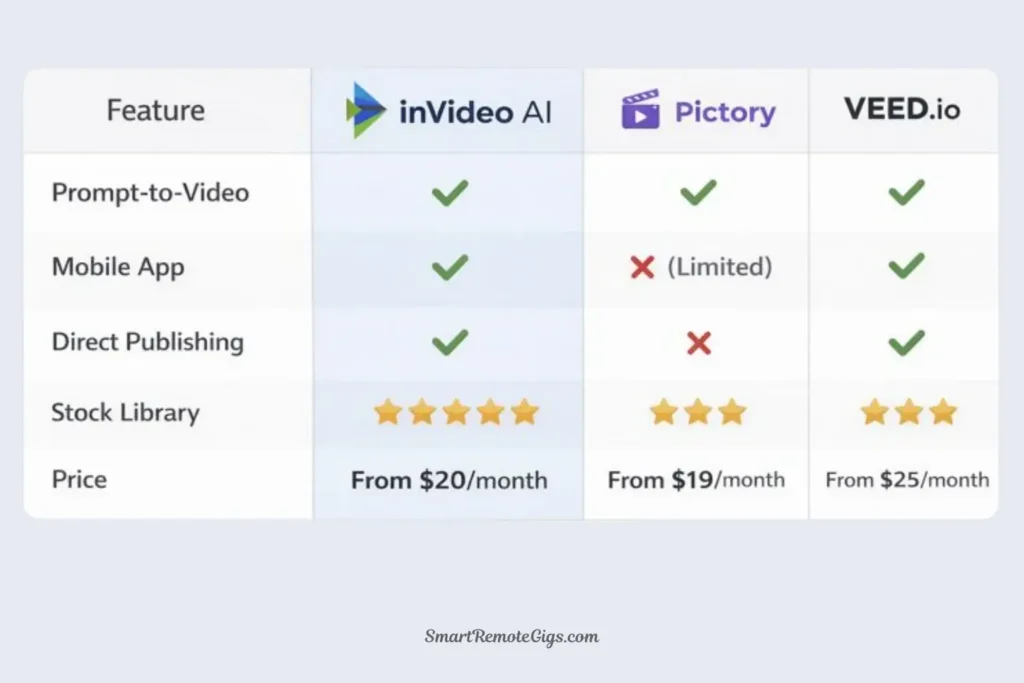
If InVideo AI doesn’t perfectly match your needs, here are alternatives I’ve tested:
|
Pictory |
Long-form blog-to-video |
$23/mo |
Better for article repurposing |
|---|---|---|---|
|
Platform |
Best For |
Price |
Key Difference |
|
Veed.io |
Subtitle-focused content |
$24/mo |
Superior caption customization |
|
Descript |
Podcast-to-video clips |
$24/mo |
Audio editing integration |
|
OpusClip |
Long video → Shorts |
$29/mo |
Best for repurposing existing content |
🆚 InVideo AI vs. Pictory:
|
Feature |
InVideo AI |
Pictory |
Winner |
|---|---|---|---|
|
Prompt-to-video |
⭐⭐⭐⭐ |
⭐⭐⭐ |
🏆 InVideo |
|
Blog-to-video |
⭐⭐⭐ |
⭐⭐⭐⭐⭐ |
🏆 Pictory |
|
Speed |
5-8 min |
8-12 min |
🏆 InVideo |
|
Stock library |
iStock + Storyblocks |
Shutterstock |
🏆 InVideo |
|
Editing control |
Limited |
Moderate |
🏆 Pictory |
|
Price |
$25/mo |
$23/mo |
🏆 Pictory |
My verdict: InVideo AI for pure prompt-to-video generation and speed. Pictory if you’re specifically converting blog articles to videos. For our complete comparison: InVideo vs. Pictory: Which AI Video Tool Wins?
💡 The Bottom Line (My Honest Take)
InVideo AI is the real deal for high-volume creators who need speed over perfection.
After three weeks of testing, I’m genuinely impressed by what this tool delivers. It’s not magic, and it won’t replace skilled editors for premium content. But for YouTube Shorts, TikTok content, and educational explainers, it legitimately creates watchable videos in 5-10 minutes.
The hype is justified—but only for specific use cases.
I’ve tested dozens of “AI video generators” that promise automatic video creation. Most are garbage. InVideo AI is one of the few that actually works well enough to publish the results without extensive manual editing.
My personal workflow: I now use InVideo AI to generate first drafts for all my YouTube Shorts content. I review, swap 2-3 clips for better footage, adjust pacing slightly, and publish. What used to take 45 minutes per video now takes 8-10 minutes.
For volume creators producing 20+ videos monthly, this tool pays for itself many times over in time savings alone.
The question isn’t whether InVideo AI works—it does. The question is whether your content style and volume make it worth $25/month.
For me, the answer is yes. For you, use the free trial to find out.
🚀 Continue Your AI Video Journey
🆚 Head-to-Head Comparisons:
- Pictory vs. InVideo AI: Which Script-to-Video Tool Wins?
- Veed.io vs. InVideo: Which AI Video Editor is Best?
- HeyGen vs. InVideo: Avatars or Templates?
🎬 Best Use Cases:
- 5 Best AI Video Tools for Creating YouTube Shorts in Minutes
- 5 Best Free AI Video Generators for Marketing (2026 Guide)
📊 The Big Picture:
🔄 Final Thoughts (2026)
InVideo AI continues improving rapidly with updates rolling out monthly. The 2026 version is noticeably better than the initial release—better footage selection, more natural voiceovers, and faster generation times.
My personal take after three weeks of intensive use: InVideo AI delivers on its promise for specific use cases. It genuinely creates complete videos from text prompts faster than any tool I’ve tested. The quality is good enough to publish for most social media platforms.
But it’s not magic, and it’s not for everyone. If you’re a perfectionist who needs precise control, you’ll be frustrated. If you’re a volume creator who values speed and consistency, you’ll love it.
I’ve created 50+ videos with InVideo AI in the last three weeks—some great, some mediocre, but all publishable. The hit rate is remarkably high for an automated tool.
My advice: Don’t overthink it. Sign up for the free plan today. Create 3-5 videos this week. See if the workflow fits your content creation style. If it does, the Plus plan at $25/month is a no-brainer for volume creators.
The future of content creation is changing fast, and AI tools like InVideo are leading that evolution. Whether you embrace it or not is up to you—but the creators using these tools are publishing 5x more content in the same time.

InVideo AI
The fastest AI video generator for social media volume. Automatically turns text prompts into complete videos with stock footage, voiceovers, and captions, making it ideal for YouTube Shorts creators.
The Good
- Fastest prompt-to-video workflow
- Generous free plan (10 min/week)
- Direct export to YouTube & TikTok
- Huge stock library (iStock/Storyblocks)
The Bad
- Limited creative control vs editors
- Voiceovers need manual tuning
- Stock footage can feel generic
This review reflects InVideo AI’s capabilities as of March 2026. InVideo releases updates frequently, so check their official website for the most current feature set and pricing information.
Disclaimer: This is an independent review. I tested InVideo AI using both free and paid tiers purchased with my own money. No sponsorship, no affiliate links at time of testing—just honest analysis from real-world usage.
Have questions about InVideo AI or want to share your experience? Drop a comment below—I read and respond to every single one.

![Claude Code Dynamic Workflows 2026: Parallel AI [SOP]](https://smartremotegigs.com/wp-content/uploads/2026/06/claude-code-dynamic-workflows-hero-1024x577.webp)
![Claude Code Workflows 2026: Fast Production Dev [SOP]](https://smartremotegigs.com/wp-content/uploads/2026/06/claude-code-workflows-git-integration-hero-1024x577.webp)
![Claude Code Rate Limit 2026: Fix CLI Token Loops [Fix]](https://smartremotegigs.com/wp-content/uploads/2026/06/claude-code-rate-limit-hero-1024x577.webp)