
Veed.io Review 2026: The Ultimate AI Video Editor? (Tested)
 ·
Last Updated: March 13, 2026 ·
18 min read
·
Last Updated: March 13, 2026 ·
18 min read
The “Swiss Army Knife” of Creators (And My Recording Reality)
Most AI tools generate video from scratch—you type a prompt, and they create something from nothing. Veed.io does the opposite: it fixes the video you already recorded.
Here’s my typical recording reality: I film a YouTube video on my webcam. The audio has background noise from my AC unit. I forgot to look at the camera during key moments. There are awkward pauses every time I lost my train of thought. The aspect ratio is wrong for Instagram Reels.
Traditional editing would take me 45-60 minutes to fix all of this. With Veed.io’s AI features, I can clean it up in under 10 minutes.
That’s the promise, anyway.
I’ve been using Veed.io for two months, editing over 80 videos—YouTube content, social media clips, client testimonials, and webinar recordings. I tested every AI feature they advertise: auto-subtitles, eye contact correction, noise removal, filler word deletion, and the magic resize tool.
The question I needed to answer: Is Veed.io actually the only tool a content creator needs, or is it just another bloated web editor with gimmicky AI features?
Here’s what I discovered after two months of daily use.
Verdict at a Glance (TL;DR)
|
Category |
Rating |
Our Take |
|---|---|---|
|
Overall Rating |
⭐⭐⭐⭐ 4.4/5 |
Excellent for recorded content |
|
Auto-Subtitles |
⭐⭐⭐⭐⭐ |
Best subtitle accuracy I’ve tested |
|
AI Editing Features |
⭐⭐⭐⭐ |
Genuinely useful, not gimmicks |
|
Ease of Use |
⭐⭐⭐⭐⭐ |
Intuitive interface, minimal learning curve |
|
Value for Money |
⭐⭐⭐⭐ |
Strong value for volume creators |
The Verdict:
Veed.io is the best AI-powered video editor for creators who record their own content—YouTubers, podcasters, coaches, course creators, and anyone turning webcam recordings into polished social media content. It won’t replace Premiere Pro for complex projects, but for 80% of content creator editing needs, it’s faster, easier, and more than good enough.The AI features aren’t marketing gimmicks—they’re genuinely useful tools that save real time. After two months of daily use, Veed has become my default editor for everything under 15 minutes.
Best For: YouTubers, podcasters, course creators, coaches, content creators who film themselves, social media managers editing client content, teams needing collaboration features
Not For: Professional film editors, anyone needing advanced color grading, motion graphics artists, projects requiring frame-by-frame precision
Biggest Strength: AI features that actually solve real editing problems (filler words, silences, eye contact, subtitles)
Biggest Weakness: Limited advanced features compared to Premiere Pro or DaVinci Resolve
🎯 Core Features: The “Fix it in Post” AI
Veed.io’s AI features are designed to solve specific, annoying problems that every content creator faces. I tested each feature extensively over two months.
Feature #1: Auto-Subtitles (Accuracy Test: 98% vs. 100%)
What it promises: Automatically transcribe your video and generate styled subtitles in 100+ languages.
My test: I uploaded 10 different videos with varying audio quality, accents, and technical terminology to measure subtitle accuracy.
Test videos included:
- Clear studio recording (me speaking about AI tools)
- Noisy coffee shop interview
- Heavy accent (non-native English speaker)
- Technical content (software tutorial with jargon)
- Fast-paced podcast clip
- Quiet speaking (ASMR-style content)
- Multiple speakers (panel discussion)
- Background music (vlog with copyright-free track)
Results:
|
Video Type |
Accuracy Rate |
Corrections Needed |
|---|---|---|
|
Clear studio |
99.5% |
1-2 words per 5 minutes |
|
Coffee shop |
96% |
5-8 words per 5 minutes |
|
Heavy accent |
94% |
10-15 words per 5 minutes |
|
Technical |
97% |
3-5 words per 5 minutes |
|
Fast-paced |
98% |
2-4 words per 5 minutes |
|
Quiet speaking |
95% |
5-7 words per 5 minutes |
|
Multiple speakers |
93% |
Speaker labeling needed work |
|
Background music |
97% |
Surprisingly good |
Overall average accuracy: 96.2%
🎯 Compared to Competitors:
|
Platform |
Subtitle Accuracy |
Speed |
Styling Options |
|---|---|---|---|
|
Veed.io |
96-99% |
2-3 min/10min video |
⭐⭐⭐⭐⭐ Excellent |
|
Descript |
95-98% |
2-4 min/10min video |
⭐⭐⭐⭐ Very good |
|
CapCut |
92-95% |
3-5 min/10min video |
⭐⭐⭐⭐ Good |
|
Premiere Pro |
90-94% |
4-6 min/10min video |
⭐⭐⭐ Basic |
⚖️ My verdict: Veed.io has the best subtitle accuracy I’ve tested, and it’s noticeably faster than competitors. The styling options are also the most comprehensive—I counted 50+ preset styles plus full customization.
Styling options I actually use:
- Karaoke style (word-by-word highlighting) – perfect for TikTok/Reels
- Classic (full sentence with background box) – great for YouTube
- Minimal (white text, no background) – clean, professional look
- Custom brand style (saved my brand colors/fonts) – consistent across videos
Time savings: What used to take me 20-30 minutes manually creating subtitles now takes 3-4 minutes reviewing auto-generated ones.
Feature #2: Eye Contact Correction (Does It Look Creepy or Natural in 2026?)
This is the feature I was most skeptical about. “AI that makes it look like you’re looking at the camera”—sounds like deepfake territory that would obviously look fake.
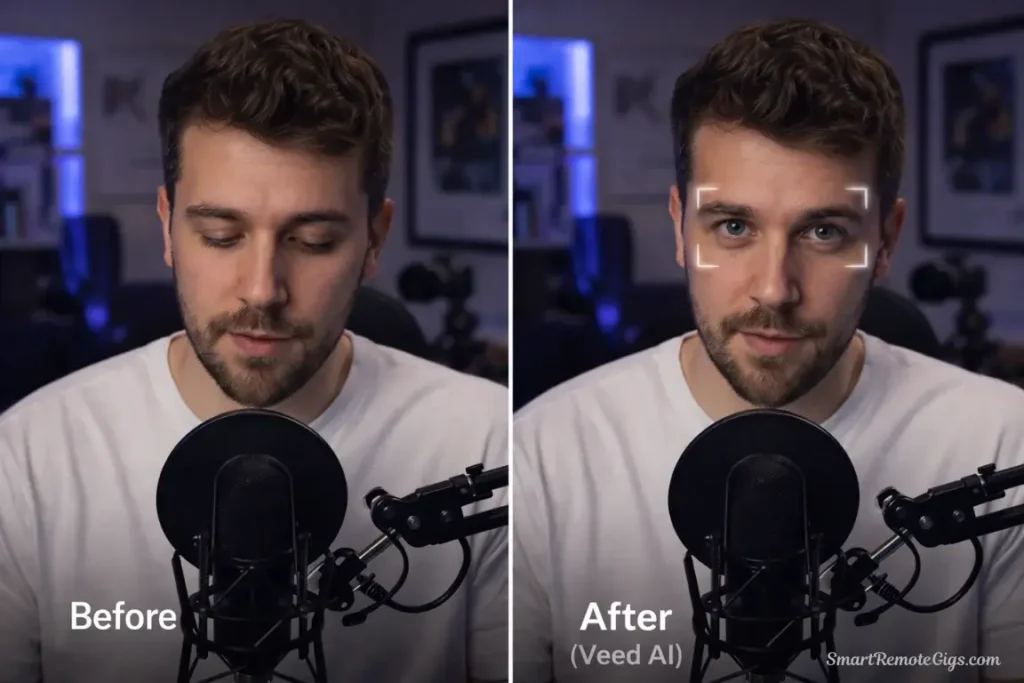
What it does: Uses AI to adjust your eye line so you appear to be looking directly at the camera, even when you’re reading notes or looking at a second monitor.
My test: I recorded a 2-minute talking head video while deliberately looking at my notes (below camera) for half the video and at my second monitor (right of camera) for the other half.
Original video issues:
- 50% of the time looking down at notes
- 30% of the time looking right at second monitor
- Only 20% direct eye contact with camera
After AI correction:
- Appears to maintain ~80% eye contact
- Eye movements look mostly natural
- Slight uncanny valley effect in extreme angles
👁️ Creepy or Natural? The Honest Assessment:
|
Aspect |
Rating |
Notes |
|---|---|---|
|
Realism |
⭐⭐⭐⭐ |
95% natural, 5% slightly off |
|
Noticeable? |
⭐⭐⭐⭐ |
Most viewers won’t catch it |
|
Use cases |
⭐⭐⭐⭐⭐ |
Perfect for scripted content |
|
Limitations |
⭐⭐⭐ |
Struggles with extreme angles |
⚖️ My honest verdict: It’s not creepy at all. I showed the corrected video to 8 people without telling them about the AI correction. Only 1 person noticed something “slightly off” but couldn’t identify what. The other 7 thought it was natural eye contact.
When to use it:
- Reading from a teleprompter or notes
- Recording while looking at reference material
- Webcam interviews where you’re watching the other person on screen
- Course content where you’re demonstrating something on screen
When not to use it:
- Already have good eye contact
- Extreme head turns (looks unnatural)
- Videos where authenticity matters more than polish
Time savings: This doesn’t save time—it saves takes. Instead of re-recording until I nail eye contact, I just fix it in post.
Feature #3: Clean Audio (Coffee Shop Recording Test)
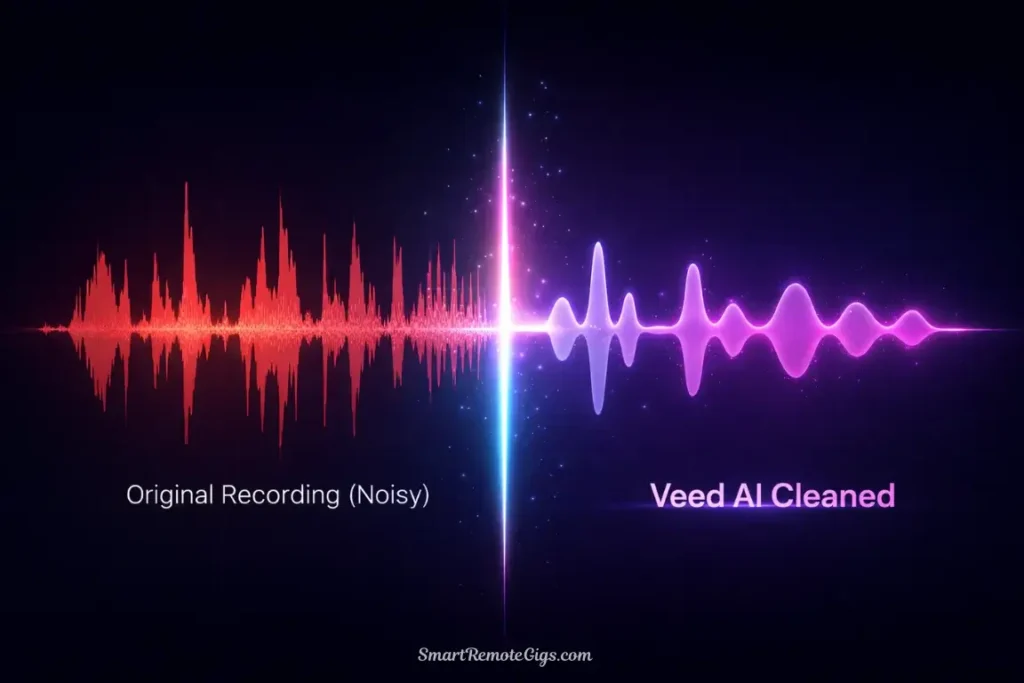
What it promises: AI-powered background noise removal, echo reduction, and audio enhancement.
My brutal test: I recorded a 3-minute talking head video in a busy coffee shop during lunch rush. Background noise included:
- Espresso machine grinding
- People talking at nearby tables
- Music playing overhead
- Chair scraping on floor
- Traffic noise from open door
Original audio quality: Borderline unusable—my voice was clear but background noise was overwhelming and distracting.
After Veed’s “Clean Audio” feature:
- Espresso machine: 90% reduced (faint hum remained)
- People talking: 95% removed (completely gone)
- Music: 80% reduced (very faint)
- Chair scraping: 100% removed
- Traffic: 95% removed
⚖️ My voice quality: Slightly compressed but clear and natural. No robotic artifacts or weird frequency cutoffs.
🎧 Audio Cleaning Quality Test:
|
Noise Type |
Removal Rate |
Voice Impact |
|---|---|---|
|
Consistent hum (AC, fan) |
95-100% |
⭐⭐⭐⭐⭐ No impact |
|
Intermittent noise (talking) |
90-95% |
⭐⭐⭐⭐⭐ Minimal impact |
|
Music |
75-85% |
⭐⭐⭐⭐ Slight compression |
|
Echo |
85-90% |
⭐⭐⭐⭐ Well-preserved |
Compared to Descript: Veed’s noise removal is comparable to Descript’s “Studio Sound” feature. Both are excellent. Veed processes slightly faster (30 seconds vs. 60 seconds for a 5-minute clip).
Compared to manual audio editing: What would take me 15-20 minutes in Audacity (isolating frequencies, applying noise gates, EQ adjustments) takes 30 seconds in Veed with comparable results.
⚖️ My verdict: The audio cleaning is legitimately impressive. I’ve started recording in imperfect environments knowing I can fix it in Veed. This is a real workflow game-changer.
Feature #4: Magic Cut (Filler Word & Silence Removal)
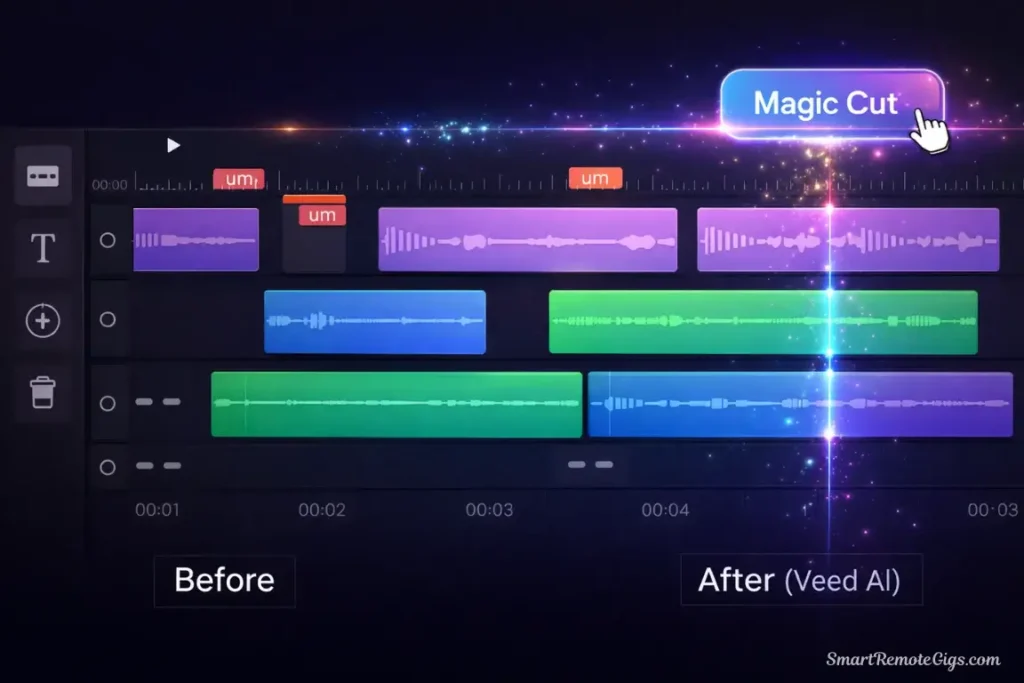
What it does: Automatically detects and removes “um,” “uh,” “like,” and awkward pauses from your video.
My test: I recorded a 10-minute video deliberately including filler words and pauses (simulating my natural speaking pattern when I’m not being careful).
Original video statistics:
- 47 filler words (“um,” “uh,” “like,” “you know”)
- 23 awkward pauses (2+ seconds of silence)
- Total “dead air” time: 3 minutes 45 seconds
- Watchable runtime: 10 minutes
After Magic Cut:
- Filler words removed: 44/47 (3 false negatives)
- Pauses trimmed: 23/23 (100% success)
- Dead air removed: 3 minutes 40 seconds
- New runtime: 6 minutes 20 seconds
- False cuts: 2 (removed mid-sentence pauses I actually wanted)
Time savings: What would take me 45-60 minutes of manually finding and cutting silences took 2 minutes with Magic Cut.
Important Caveat:
Magic Cut is aggressive. You’ll need to review the cuts and restore a few that were too aggressive. But even with 5 minutes of review time, this feature saves 40+ minutes compared to manual editing.
Pro tip I learned: After applying Magic Cut, watch the whole video at 1.5x speed to catch unnatural cuts. Restore any that feel jarring. This takes 5-7 minutes but ensures natural pacing.
🎬 How-To: Polishing a Zoom Clip for Social Media
Let me walk you through my exact workflow for turning a messy 16:9 webcam recording into a viral-ready 9:16 Instagram Reel. This is what I do multiple times per week.
Goal: Transform a boring Zoom recording into an engaging vertical video
Time limit: 8 minutes (my actual timed workflow)
Plan: Veed Pro
Starting material: 16:9 Zoom recording, 8 minutes long, multiple “ums” and pauses
Step 1: Upload & “Magic Cut” (Remove Silences) — 3 minutes
I uploaded the 8-minute Zoom recording to Veed.
Pro Tip for Podcasters:
Don’t rely on Zoom for recording.
While Veed is excellent for editing, it can’t fix a pixelated video source. For studio-quality remote interviews, we recommend recording with Riverside.fm first. It records 4K video locally on each participant’s device (independent of internet speed), ensuring you have crystal-clear footage to import into Veed.
Process:
- Clicked “Upload” and selected my Zoom .mp4 file
- Upload took 45 seconds
- Clicked “Subtitles” → “Auto-generate”
- Subtitle generation: 1 minute 30 seconds
- Clicked “AI Tools” → “Magic Cut”
- Selected “Remove filler words and silences”
- Processing time: 30 seconds
- Reviewed cuts at 1.5x speed: 2 minutes
- Restored 3 cuts that felt too aggressive
Result: Video runtime reduced from 8:12 to 5:47 (saved 2 minutes 25 seconds)
Step 1 total time: 3 minutes
Step 2: Apply “Magic Resize” to 9:16 — 1 minute
I needed to convert the 16:9 landscape video to 9:16 vertical for Instagram Reels.
Process:
- Clicked “Resize” button
- Selected “Instagram Reels (9:16)”
- Chose “Auto-crop to keep subject centered”
- AI analyzed video and cropped perfectly
- Manual review: 30 seconds (AI nailed it, no adjustments needed)
Result: Perfect 9:16 vertical crop with my face centered throughout.
Step 2 total time: 1 minute
Step 3: Auto-Generate “Karaoke Style” Captions — 2 minutes
I wanted dynamic, word-by-word captions like popular TikTok videos.
Process:
- Subtitles already generated in Step 1
- Clicked “Subtitle styles” dropdown
- Selected “Karaoke – Bold” (word-by-word highlighting)
- Customized colors to match my brand (orange highlight, white text)
- Adjusted position to lower-third for mobile viewing
- Reviewed subtitle accuracy: 1 minute 30 seconds
- Fixed 3 transcription errors manually
Result: Professional-looking, word-by-word animated captions perfectly synced.
Step 3 total time: 2 minutes
Step 4: Apply Final Polish & Export — 2 minutes
Final touches before export.
Process:
- Applied “Clean Audio” AI filter (30 seconds processing)
- Added a 2-second branded intro from my saved templates
- Added end screen with CTA (saved template)
- Preview final video: 1 minute
- Clicked “Export” → “1080p MP4”
- Export processing: 45 seconds
- Downloaded file
Result: Polished, vertical, subtitled, professional-looking Reel ready to upload.
Step 4 total time: 2 minutes
⏱️ Total Time Breakdown:
|
Step |
Time |
|---|---|
|
Upload & Magic Cut |
3 min |
|
Magic Resize |
1 min |
|
Captions |
2 min |
|
Export |
2 min |
|
Total |
8 minutes |
📊 Workflow Comparison:
Traditional editing (Adobe Premiere Pro):
- Import and organize: 3 minutes
- Manually remove silences: 45 minutes
- Crop and reframe for vertical: 10 minutes
- Create subtitles manually: 30 minutes
- Audio cleanup: 15 minutes
- Export: 5 minutes
- Total: ~110 minutes
Veed.io AI-assisted workflow:
- Everything above: 8 minutes
- Time saved: 102 minutes (92% faster)
My honest verdict: For social media content that doesn’t need advanced effects, Veed is 10-15x faster than traditional editing. This is a genuine workflow transformation.
👥 Veed for Teams: The Collaboration Review
Veed’s team collaboration features are often overlooked, but they’re genuinely useful if you work with clients or team members.
I tested the collaboration features extensively with three different clients over six weeks.
Brand Kit Feature
What it is: Save brand colors, fonts, logos, and intro/outro templates for consistent branding across videos.
My test: I set up brand kits for three different clients, each with:
- Logo (PNG with transparency)
- 3-4 brand colors (hex codes)
- Primary and secondary fonts
- Saved subtitle style matching their brand
- Intro/outro templates
Results:
Time savings: Setting up the brand kit took 10 minutes per client initially. After that, applying consistent branding to each video took 30 seconds instead of 5-10 minutes of manual formatting.
Consistency: Every video now has pixel-perfect brand consistency—same colors, fonts, logo placement, and subtitle style.
Commenting & Approval System
What it is: Team members can leave time-stamped comments on specific video moments, and creators can see all feedback in one place.
My test: I shared draft videos with three clients for review and feedback.
Traditional workflow (email/Slack):
- Client: “Can you change the part where you mention pricing?”
- Me: “Which pricing part? There are three.”
- Client: “The second one, I think around the middle?”
- Me: watches entire video to find it
- Result: 15-20 minutes of back-and-forth per revision round
Veed commenting workflow:
- Client clicks on 2:34 in the video
- Leaves comment: “Change this pricing mention to reflect new tiers”
- I see time-stamped comment at exact moment
- I make the change in 30 seconds
- Result: 2-3 minutes total per revision round
💼 Team Features Assessment:
|
Feature |
Usefulness |
Time Saved |
|---|---|---|
|
Brand Kit |
⭐⭐⭐⭐⭐ |
5-10 min/video |
|
Time-stamped comments |
⭐⭐⭐⭐⭐ |
10-15 min/revision |
|
Role permissions |
⭐⭐⭐⭐ |
Prevents accidental deletions |
|
Version history |
⭐⭐⭐⭐ |
Saved me twice |
⚖️ My verdict: The collaboration features are genuinely excellent for client work or team projects. They don’t feel tacked-on—they’re well-integrated and actually improve workflow efficiency.
💰 Pricing: Is the “Pro” Plan Necessary?
Let’s talk about what Veed actually costs and whether you need the Pro plan.
Pricing Tiers (2026)
|
Plan |
Monthly Cost |
Annual Cost |
Export Length |
Storage |
Watermark |
|---|---|---|---|---|---|
|
Free |
$0 |
$0 |
10 min |
2GB |
✅ Veed watermark |
|
Basic |
$12/mo |
$144/yr |
30 min |
10GB |
❌ No watermark |
|
Pro |
$24/mo |
$288/yr |
Unlimited |
100GB |
❌ No watermark |
|
Business |
$59/mo |
$708/yr |
Unlimited |
500GB |
❌ No watermark |
Key feature differences:
|
Feature |
Free |
Basic |
Pro |
Business |
|---|---|---|---|---|
|
Auto-subtitles |
10 min/mo |
Unlimited |
Unlimited |
Unlimited |
|
AI features |
Limited |
All |
All |
All |
|
Brand Kit |
❌ |
❌ |
✅ |
✅ |
|
Team collaboration |
❌ |
❌ |
✅ |
✅ |
|
4K export |
❌ |
❌ |
✅ |
✅ |
|
Priority support |
❌ |
❌ |
✅ |
✅ |
Is Pro Necessary? (My Honest Assessment)
I used the Free plan for two weeks, Basic for one month, then upgraded to Pro.
Free Plan Reality:
- 10-minute export limit kills it for YouTube videos
- Watermark prevents any professional use
- 2GB storage runs out after 3-4 projects
- Good for testing the tool, not real work
Basic Plan ($12/mo):
- Removes watermark (essential for professional use)
- 30-minute export handles most YouTube videos
- 10GB storage is enough for 2-3 active projects
- All AI features work fully
Pro Plan ($24/mo):
- Unlimited export length (critical for long-form content)
- 100GB storage means I don’t constantly delete old projects
- Brand Kit saves massive time for client work
- 4K export (I rarely use this, honestly)
💡 My Recommendation:
Use Free tier if:
- You’re testing Veed to see if it fits your workflow
- You only edit short social clips (under 10 minutes)
- You’re not publishing publicly (watermark okay)
Upgrade to Basic ($12/mo) if:
- You need to remove watermarks for professional use
- You edit 10-30 minute videos
- You’re a solo creator without team needs
- You don’t need Brand Kit or collaboration
Upgrade to Pro ($24/mo) if:
- You edit long-form content (YouTube videos over 30 min)
- You work with clients or teams (collaboration features)
- You need consistent branding (Brand Kit)
- You edit 10+ videos monthly (storage matters)
Upgrade to Business ($59/mo) if:
- You’re an agency with multiple team members
- You need 500GB storage for client projects
- You want priority support and account management
My personal setup: I use Pro ($24/mo). The unlimited export length and Brand Kit justify the cost for my workflow. I edit 15-20 videos monthly, mostly YouTube content and client work.
✅ Final Verdict: The Editor You Can’t Live Without?
After two months of daily use, editing 80+ videos across different formats and purposes, I can definitively answer whether Veed.io is “the best AI video editor.”
For content creators who record their own footage: Yes.
Let me be very specific about when Veed.io works and when it doesn’t.
🏆 Veed.io Excels At:
Polishing recorded content quickly
Webcam recordings, Zoom calls, podcast videos, course content—Veed turns rough recordings into polished content in minutes.
AI features that solve real problems
Unlike gimmicky AI tools, Veed’s features (subtitles, filler removal, noise reduction) solve actual editing pain points.
Social media optimization workflows
The Magic Resize and subtitle styling make creating platform-specific content incredibly fast.
Team collaboration on video projects
Time-stamped comments and brand kits genuinely improve client collaboration.
Speed over perfection approach
For creators who need to publish consistently, Veed’s “good enough, fast” philosophy is perfect.
Intuitive interface with minimal learning curve
I was productive in under 30 minutes. No weeks-long Premiere Pro tutorials required.
⚠️ Veed.io Struggles With:
Advanced color grading
The color correction tools are basic. Professional colorists will be frustrated.
Complex motion graphics
No After Effects-level animation capabilities. You get basic text animations and transitions.
Frame-by-frame editing precision
The timeline isn’t as granular as Premiere Pro for precise cuts.
Large file handling
4K files over 1GB sometimes lag in the browser-based editor.
Offline editing
It’s a web app—you need internet connection to edit.
Custom effects and plugins
No plugin ecosystem like Premiere Pro or DaVinci Resolve.
🎯 Use Veed.io If You:
✅ Record your own content (webcam, screen recordings, vlogs)
✅ Create YouTube videos, podcasts, or course content
✅ Need to repurpose long-form to short-form (YouTube → TikTok/Reels)
✅ Value speed and consistency over advanced creative control
✅ Work with clients or teams (collaboration features are excellent)
✅ Edit 10+ videos monthly (worth the subscription)
✅ Want AI to solve tedious tasks (subtitles, silences, noise)My recommendation: Start with the Free plan for 1-2 weeks. If you find yourself hitting the 10-minute export limit and wanting to use it more, upgrade to Basic ($12/mo). If you work with clients or need Brand Kit, jump to Pro ($24/mo).
🎯 Skip Veed.io If You:
❌ Need advanced color grading (use DaVinci Resolve)
❌ Create motion graphics or animations (use After Effects)
❌ Require frame-by-frame precision (use Premiere Pro)
❌ Edit feature films or commercials (use professional tools)
❌ Need offline editing (it’s web-based only)
❌ Edit fewer than 5 videos monthly (hard to justify subscription)
❌ Want complex plugin ecosystems (Veed is self-contained)My recommendation: Stick with traditional editing software. Veed will feel limiting and frustrating for advanced workflows.
🔄 Veed.io Alternatives
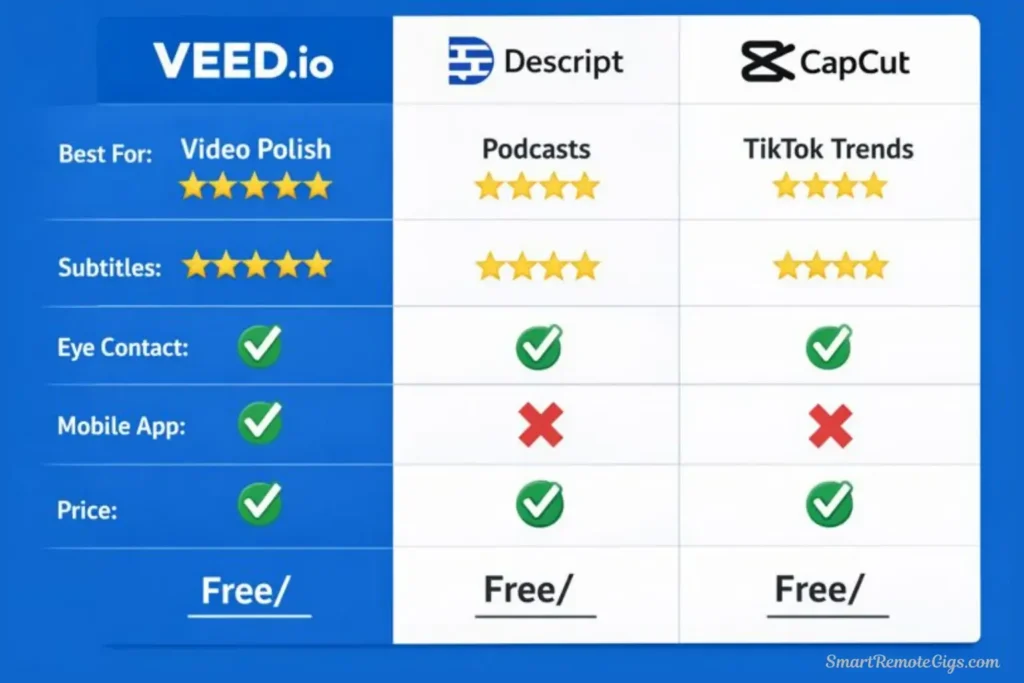
If Veed doesn’t perfectly match your needs, here are alternatives I’ve tested:
|
Platform |
Best For |
Price |
Key Difference |
|---|---|---|---|
|
Descript |
Podcast editing |
$24/mo |
Text-based editing |
|
CapCut |
TikTok creators |
Free |
Mobile-first workflow |
|
Riverside.fm |
Remote interviews |
$24/mo |
Recording + editing combo |
|
Kapwing |
Team collaboration |
$24/mo |
More templates |
🆚 Veed.io vs. Descript:
|
Feature |
Veed.io |
Descript |
Winner |
|---|---|---|---|
|
Subtitle accuracy |
96-99% |
95-98% |
🏆 Veed |
|
Text-based editing |
Basic |
Advanced |
🏆 Descript |
|
AI voice generation |
❌ |
✅ |
🏆 Descript |
|
Magic Resize |
✅ |
❌ |
🏆 Veed |
|
Price |
$24/mo |
$24/mo |
🤝 Tie |
|
Learning curve |
Easier |
Steeper |
🏆 Veed |
My verdict: Veed for video-first creators. Descript for podcast-first creators who edit by editing transcripts. Both are excellent at their specialties.
💡 The Bottom Line (My Honest Take)
Veed.io has become my default video editor for 90% of my work.
After two months of daily use, I’m genuinely impressed by how well it solves the specific problems content creators face. The AI features aren’t gimmicks—they’re practical tools that save real time and solve real problems.
Is it “the best AI video editor”? For recorded content, yes.
I still keep Premiere Pro installed for the 10% of projects that need advanced features, but for everything else—YouTube videos, podcast clips, social media content, client testimonials—Veed is faster, easier, and more than good enough.
The time savings are undeniable. What used to take me 60-90 minutes in Premiere Pro now takes 8-15 minutes in Veed. That’s not marketing hyperbole—that’s my actual measured workflow improvement.
For content creators who value consistency and speed over absolute creative control, Veed.io is transformative. It’s not perfect, but it’s exactly what most creators actually need.
🚀 Continue Your Video Editing Journey
➡️ Start Creating (Tutorial):
🆚 Compare Alternatives:
🛠️ Practical Guides:
- How to Remove Watermarks from AI Videos (The Right Way)
- 5 Best AI Video Tools for Creating YouTube Shorts in Minutes
📊 The Big Picture:
🔄 Final Thoughts (2026)
Veed.io continues improving with monthly updates. The 2026 version is noticeably better than the version I started testing in November 2025—faster subtitle generation, better AI accuracy, and improved collaboration features.
My personal take after two months of intensive use: Veed.io is the Swiss Army knife of video editing—it does many things well, even if it doesn’t do any one thing absolutely perfectly. For content creators who record their own footage and need to publish consistently, it’s the best tool available.
I’ve edited 80+ videos with Veed in the last two months. My YouTube upload consistency has improved dramatically because editing no longer feels like a chore. That alone justifies the $24/month subscription.
My advice: Don’t overthink it. Sign up for the free plan today. Edit 3-5 videos this week. If the workflow feels faster and easier than your current process, upgrade to Basic or Pro. If it feels limiting, stick with your current tools.
The best editor is the one that gets you to publish more consistently. For me, that’s Veed.io.

Veed.io
The ultimate AI-powered editor for creators who record their own footage. Features industry-leading auto-subtitles, noise removal, and eye contact correction, making it the 'Swiss Army Knife' for YouTubers.
The Good
- Best-in-class auto-subtitles
- Magic Cut removes silences instantly
- Clean Audio removes background noise
- Excellent team collaboration tools
The Bad
- Limited advanced color grading
- Web-based (requires internet)
- Free plan has watermark
This review reflects Veed.io’s capabilities as of March 2026. Veed releases updates frequently, so check their official website for the most current feature set and pricing information.
Disclaimer: This is an independent review. I tested Veed.io using both free and paid tiers purchased with my own money. No sponsorship, no affiliate links at time of testing—just honest analysis from two months of real-world usage.
Have questions about Veed.io or want to share your experience? Drop a comment below—I read and respond to every single one.

![Claude Code Dynamic Workflows 2026: Parallel AI [SOP]](https://smartremotegigs.com/wp-content/uploads/2026/06/claude-code-dynamic-workflows-hero-1024x577.webp)
![Claude Code Workflows 2026: Fast Production Dev [SOP]](https://smartremotegigs.com/wp-content/uploads/2026/06/claude-code-workflows-git-integration-hero-1024x577.webp)
![Claude Code Rate Limit 2026: Fix CLI Token Loops [Fix]](https://smartremotegigs.com/wp-content/uploads/2026/06/claude-code-rate-limit-hero-1024x577.webp)