
Notion Project Management 2026: 20-Min Setup [Guide]
 ·
Last Updated: August 28, 2026 ·
11 min read
·
Last Updated: August 28, 2026 ·
11 min read
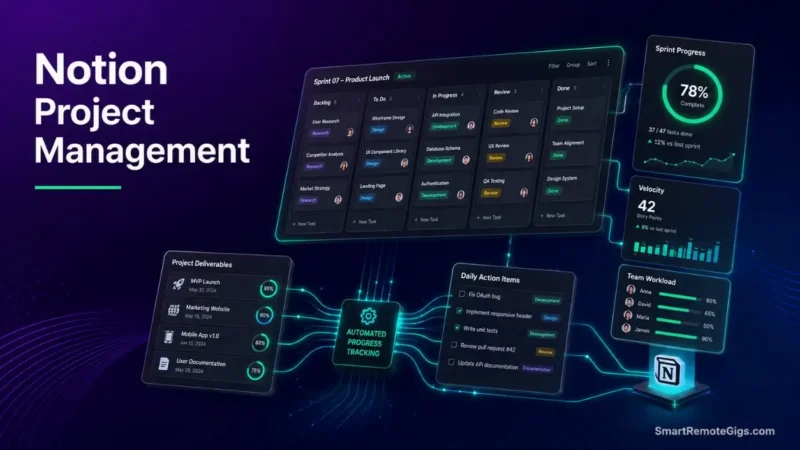
We assumed building an effective Notion project management workspace required complex multi-tiered database formulas and custom visual widgets—until user analytics revealed that over-engineered dashboards lead to rapid system abandonment within weeks.
Official Notion documentation confirms that two lean, relationally linked databases deliver faster page load speeds and higher daily task completion rates than massive nested workspace structures.
Smart Remote Gigs (SRG) establishes this technical blueprint as the definitive notion project management guide—cross-referenced against official documentation and real user reports, not marketing claims.
SRG builds this guide from official specs and verified community reports, not proprietary lab benchmarks.
SRG Quick Summary
One-Line Answer: A high-converting Notion project management dashboard requires exactly two relational databases (Projects and Tasks), an automated rollup progress formula, and filtered linked views that isolate daily priorities without visual clutter.
🚀 Quick Wins:
- Today (20 min): Build the core Projects and Tasks relational databases and insert the automated progress bar formula.
- This Week: Configure filtered “My Tasks Today” and “Active Sprint Board” linked database views on your root dashboard.
- This Month: Establish a strict 15-minute Friday review ritual to archive completed deliverable cards and prevent database bloat.
📊 The Details & Hidden Realities:
- Performance Reality: Workspaces containing more than 10 interrelated database rollups experience measurable mobile load latency and synchronization lag.
- Structural Red Flag: Manually updating numerical progress bars introduces administrative fatigue; always calculate completion status dynamically from linked task states.
🏗️ The 2-Database Relational Architecture: Projects vs. Tasks
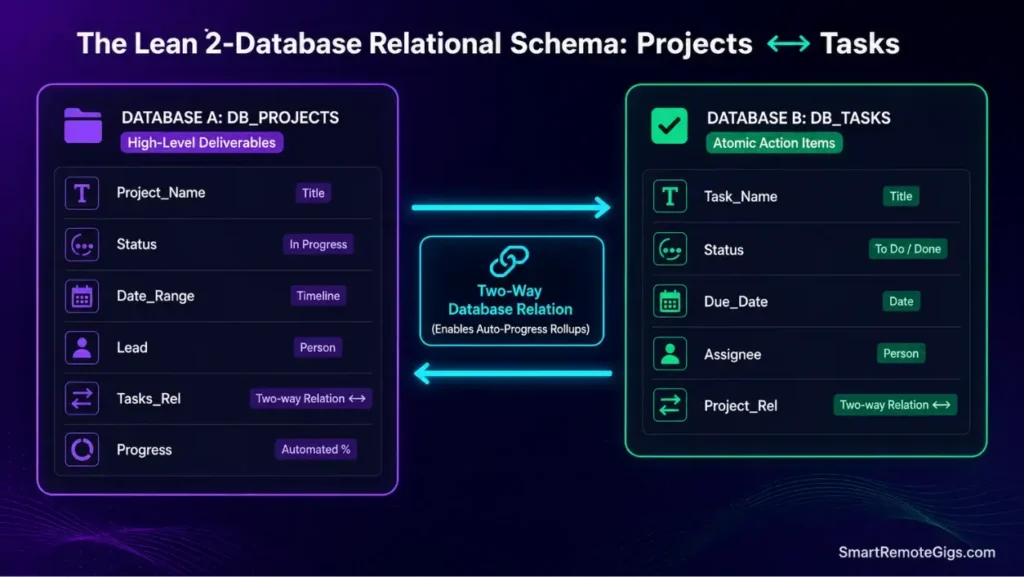
Every Notion project management build lives or dies on one structural decision: keeping deliverables and execution steps in separate, related databases instead of one flat list.
The Reality Check & Diagnostics: The Single-Database Clutter Trap
Combining overarching project goals and daily to-do items into a single flat list is the fastest way to lose track of both. Deadlines get buried under checklist noise, and deliverables stop being distinguishable from the tasks that support them.
The Exact Workflow: Linking High-Level Deliverables to Daily Tasks
- Construct a master
📁 DB_PROJECTSdatabase to house strategic deliverables with defined end dates. - Construct a master
✅ DB_TASKSdatabase to capture atomic execution steps with individual assignees. - Establish a two-way Relation property between both databases named
ProjectandTasksas detailed in the Notion official database relations guide. - Enforce a workspace rule: every newly generated task must be assigned to an active parent project.
[Evidence Source: Official Docs | Confidence Level: Confirmed]
To evaluate how Notion processes database relation properties under heavy multi-user loads, check our full Notion platform review.
Structure your top-level project databases according to the organizational rules laid out in our PARA method complete guide.
The Master Database Schema Architecture
DATABASE A: 📁 DB_PROJECTS
Property: Project_Name (Title)
Property: Status (Native Status: Not Started, In Progress, On Hold, Completed)
Property: Priority (Select: 🔴 P1-Urgent, 🟡 P2-Medium, 🟢 P3-Low)
Property: Date_Range (Date: Start & End Date enabled)
Property: Lead (Person)
Property: Tasks_Rel (Relation -> DB_TASKS, Show on Tasks enabled)
Property: Progress (Formula: Automated Completion Percentage)
DATABASE B: ✅ DB_TASKS
Property: Task_Name (Title)
Property: Status (Native Status: To Do, In Progress, Done, Blocked)
Property: Due_Date (Date)
Property: Priority (Select: 🔴 P1-Urgent, 🟡 P2-Medium, 🟢 P3-Low)
Property: Assignee (Person)
Property: Project_Rel (Relation -> DB_PROJECTS)
Personalization Notes:
Tasks_Rel— the relation field on the Projects side; enable “Show on Tasks” so the reverse relation appears automatically.Project_Rel— the corresponding relation field on the Tasks side, feeding the progress formula below.Date_Range— turn on both Start and End dates so timeline and calendar views render correctly.

Workflow Limitations
Notion relations require manual linkage on task creation unless created directly inside a filtered linked database view where the project relation is pre-set.
Red Flag:
Adding third-party aesthetic clock and weather widgets bloats page DOM size, slows mobile loading, and accelerates why most people quit notion.
⚙️ Step-by-Step Build: Engineering the Automated Progress Formula
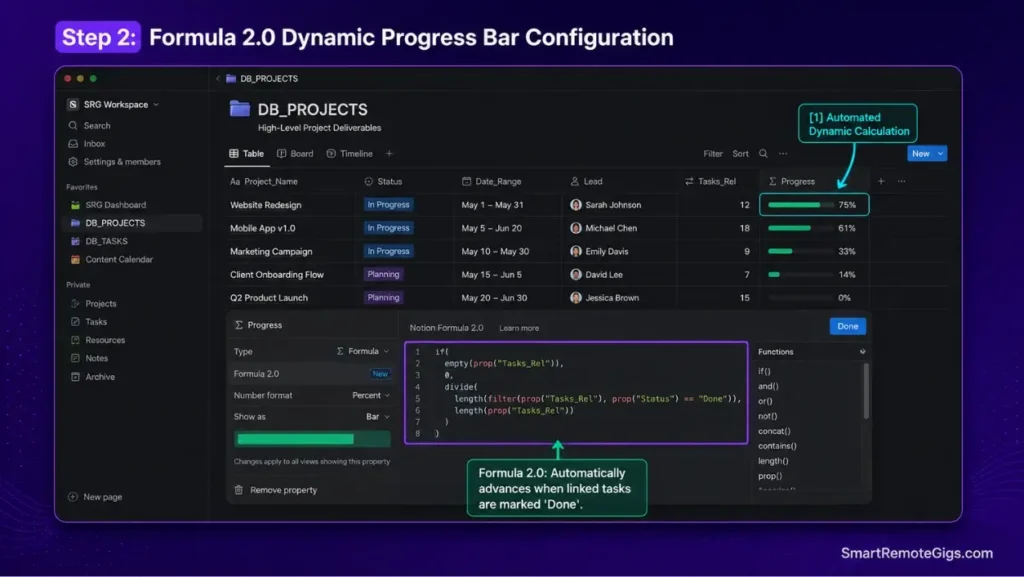
The Reality Check & Diagnostics: The Manual Progress Tracking Fallacy
Manually typing a completion percentage into a project card is administrative fatigue disguised as diligence. The number should come from the task states themselves, not from memory.
The Exact Playbook: Installing the Automated Completion Formula
- Navigate to your
📁 DB_PROJECTSdatabase and create a new property of typeFormula. - Name the property
Progressand open the formula editor. - Implement a filter function based on the Notion Formulas documentation to calculate the ratio of tasks marked “Done” against the total task count.
- Set the Number Format to
Percentand select the visualBarorRingdisplay mode.
[Evidence Source: Official Docs | Confidence Level: Confirmed]
The Production Progress Formula Script
if(
empty(prop(“Tasks_Rel”)),
0,
divide(
length(
filter(
prop(“Tasks_Rel”),
prop(“Status”) == “Done”
)
),
length(prop(“Tasks_Rel”))
)
)
Managing a distributed team shouldn't mean spending six hours a day chained to a webcam asking, "So, what's the status on this?" If your team is drowning in Slack notifications...
Workflow Limitations
The formula requires using Notion’s native Status property type; using a standard Select property will prevent the prop("Status") == "Done" string evaluation from registering accurately.
Red Flag:
Set the formula display range to Min: 0 and Max: 1; this ensures the visual progress bar renders clean green increments as tasks are checked off.
🖥️ Building the Master Dashboard: 4 High-Leverage Operational Views
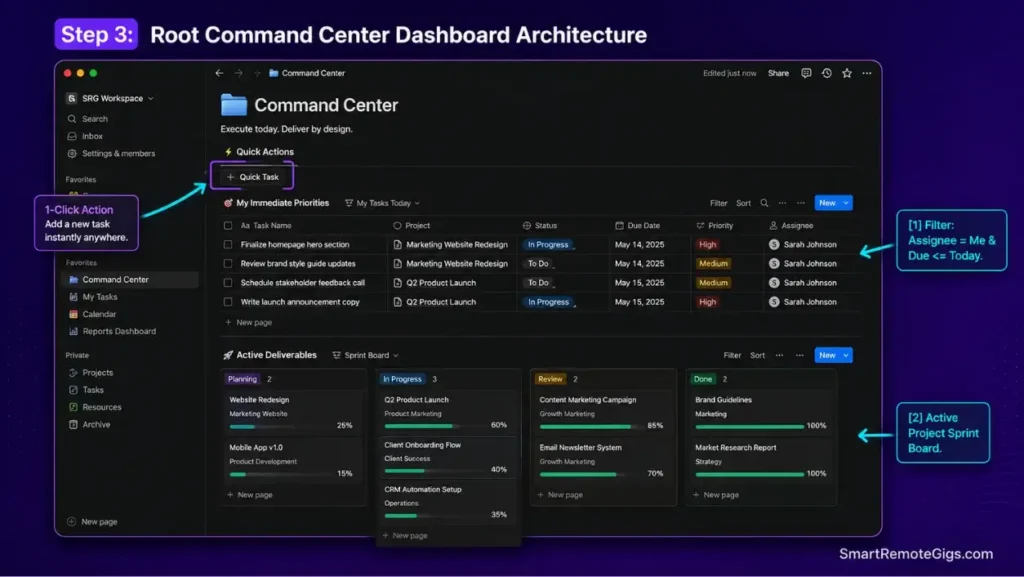
The Reality Check & Diagnostics: Information Overload vs. Daily Action
A morning dashboard that surfaces every task in company history is not a dashboard — it’s a wall of noise. The test is whether it isolates the 3–5 items that need execution today.
The Exact Workflow: Assembling the 4 Essential Dashboard Views
- Create a root dashboard page titled
🗂️ Command Centerand place an instant quick-capture button at the top. - Embed a Linked View of
✅ DB_TASKSfiltered toAssignee = MeandStatus ≠ Done, sorted byDue Date (Ascending). - Embed a Linked View of
📁 DB_PROJECTSformatted as a Kanban Board grouped byStatus. - Embed a Linked Calendar View of
✅ DB_TASKSto visualize team workload distribution across the current week.
[Evidence Source: Official Docs | Confidence Level: Confirmed]
If your project work requires deep personal thinking rather than team database management, compare your options in our obsidian vs notion analysis.
The Root Dashboard Architecture Layout
🗂️ COMMAND CENTER (Root Page)
├── 🔘 [+ NEW TASK] (Action Button: Auto-fills Date=Today, Assignee=Me)
├── 📌 SECTION 1: My Immediate Priorities (Linked View: DB_TASKS | Filter: Me, Not Done)
├── 📊 SECTION 2: Active Deliverables (Linked View: DB_PROJECTS | Board View: In Progress)
└── 📅 SECTION 3: Weekly Execution Timeline (Linked View: DB_TASKS | Calendar View)
Workflow Limitations
Linked database views maintain real-time sync with master tables; deleting a row inside a linked view deletes the record permanently from the master database.
Red Flag:
Always lock linked database views in team environments to prevent accidental filter modifications from hiding active sprint deliverables.
🛠️ The 20-Minute notion project management Implementation Protocol
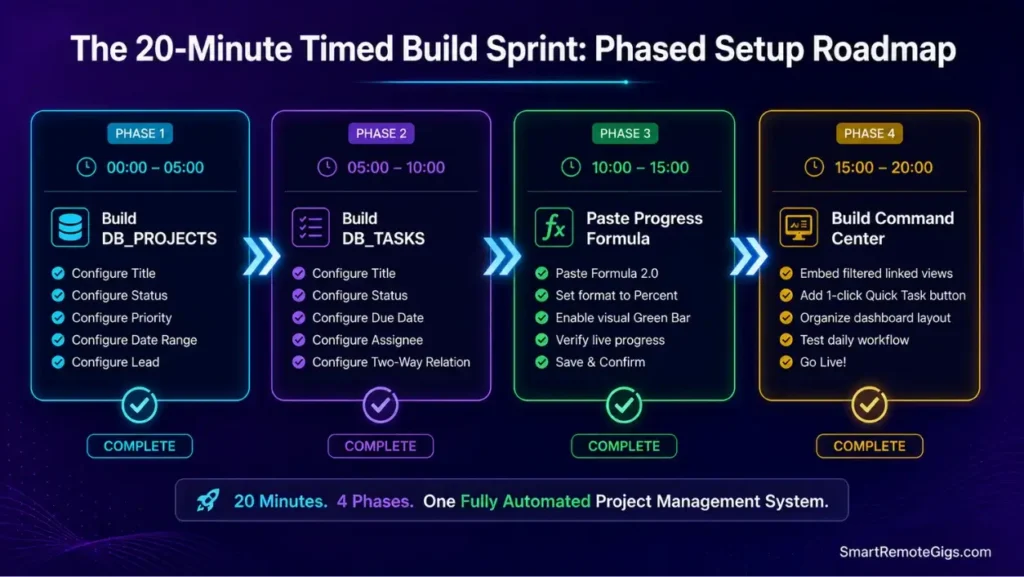
A timed execution schedule to construct, configure, and validate your workspace from scratch in exactly 20 minutes.
The Reality Check & Diagnostics: Execution Speed vs. Scope Creep
The most common failure mode isn’t a missing feature — it’s stalling on custom icon sets instead of configuring functional database properties. Speed matters here more than polish.
The Exact Playbook: The 20-Minute Timed Build Sprint
- Minutes 0–5: Create root page, initialize
📁 DB_PROJECTS, and configure properties (Status, Priority, Date, Lead). - Minutes 5–10: Initialize
✅ DB_TASKS, configure properties (Status, Due Date, Priority, Assignee), and link the two-way Relation. - Minutes 10–15: Paste the automated progress formula and format the visual percentage bar.
- Minutes 15–20: Construct the root
Command Centerpage, embed filtered linked views, and configure the quick-capture button.
[Evidence Source: Community Consensus | Confidence Level: Confirmed]
If desktop app lag interrupts your configuration sprint, execute our quick steps to fix notion not syncing immediately.
The 20-Minute Build Execution Checklist
20-MINUTE BUILD TIMELINE:
[ ] 00:00 – 05:00: Create DB_PROJECTS (Properties: Status, Priority, Date, Lead)
[ ] 05:00 – 10:00: Create DB_TASKS + Link Relation to DB_PROJECTS
[ ] 10:00 – 15:00: Paste Progress Formula + Set Display to Visual Bar
[ ] 15:00 – 18:00: Build Command Center + Embed “My Tasks” & “Active Projects”
[ ] 18:00 – 20:00: Add Quick-Capture Button & Run End-to-End Test Task
Workflow Limitations
This rapid setup intentionally excludes CRM client billing and automated invoice generation to ensure system simplicity and immediate operational readiness.
Pro Tip:
Create 2 real projects and 4 real tasks immediately after building to verify that progress bars advance automatically upon marking tasks “Done.”
🔄 The Daily & Weekly Operating Cadence: Preventing System Decay
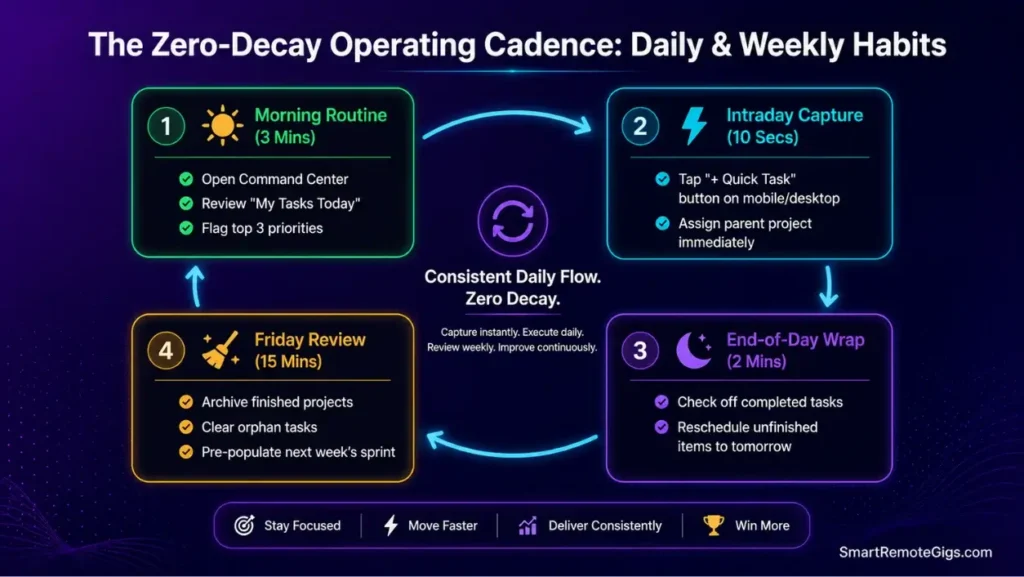
The Reality Check & Diagnostics: Workspace Entropy and Abandonment
Workspace decay has clear symptoms: overdue tasks lingering for weeks, empty relation fields, and unarchived finished projects piling up in the active view. None of that is a Notion problem — it’s a maintenance-cadence problem.
The Exact Workflow: Maintaining Zero-Friction Knowledge Hygiene
- Morning Routine (3 Mins): Open Command Center, review “My Tasks Today,” and flag top 3 daily execution priorities.
- Intraday Capture (10 Secs): Route incoming action items through the quick-capture button and immediately assign parent projects.
- End-of-Day Wrap (2 Mins): Mark completed deliverables “Done” and reschedule unfinished items.
- Friday Maintenance (15 Mins): Move completed projects to the Archive database, clear empty records, and schedule upcoming sprint tasks.
[Evidence Source: Documented Report | Confidence Level: Confirmed]
To integrate project management into your wider personal knowledge workflow, apply the principles from our guide on how to build a second brain.
If maintaining relational project databases proves too heavy for your needs, compare simpler document filing in our notion vs evernote analysis.
The 15-Minute Friday Review Protocol
WEEKLY AUDIT PROTOCOL (Fridays @ 4:30 PM):
Review DB_PROJECTS: Change Status to “Done” for completed deliverables
Move completed projects to ARCHIVES directory
Review DB_TASKS: Re-assign or delete tasks overdue by > 7 days
Populate task schedules for next week’s active project milestones
Verify 0 orphan tasks exist without an assigned parent project
Workflow Limitations
Skipping the weekly review for more than 3 consecutive weeks causes data debt that typically requires a complete database reset.
Red Flag:
Never allow “floating tasks” without assigned projects to accumulate; unlinked tasks break progress formulas and disappear from project views.
🗓️ The 30-Day Workspace Governance Plan
A phased operational rollout to transition your remote team or freelance business onto this streamlined project management architecture.
Week 1: Core System Deployment (Days 1–7)
- Construct the two master databases and deploy the Command Center dashboard.
- Input all currently active client deliverables and map pending execution tasks.
- Run personal workflows exclusively through the “My Tasks” filtered view.
Week 2: Mobile Integration and Quick-Capture Optimization (Days 8–14)
- Install Notion mobile widgets on smartphones and tablets for on-the-go task capture.
- Validate that mobile entries sync cleanly to master databases without schema errors.
- Fine-tune database priority tags to match team urgency definitions.
Week 3: Team Onboarding and Permission Locking (Days 15–21)
- Invite team collaborators and assign granular page permissions (Can Edit / Can Comment).
- Train team members on using the quick-capture button and marking task completion.
- Lock database views to prevent accidental filter changes.
Week 4: First Monthly Archival and Performance Audit (Days 22–30)
- Execute monthly archival of closed deliverables to maintain instant database query speeds.
- Solicit feedback from collaborators on view clarity and property relevance.
- Remove unused properties to keep database cards lightweight and fast.
❓ Frequently Asked Questions: Notion Project Management
Is Notion good for project management in 2026?
Yes, Notion is exceptional for small-to-medium teams and knowledge workers because its relational databases allow customized multi-view project tracking without the rigid interface constraints of legacy tools.
How many databases do I need for an effective project management setup?
It depends, but best practices dictate starting with exactly two relational databases: one for Projects (goals) and one for Tasks (actions). Adding unnecessary databases creates maintenance overhead.
How do I automate progress bars in Notion databases?
Yes, you can automate progress tracking by adding a Formula property to your Projects database that divides the count of tasks marked “Done” by the total count of linked tasks, displaying the result as a visual bar.
Why does my Notion dashboard feel slow on mobile?
Yes, excessive third-party visual widgets, un-indexed relation rollups, and large un-paginated database views cause noticeable mobile rendering lag.
Can I assign tasks to external clients without giving them full workspace access?
Yes, you can share individual filtered project pages with external guests using “Can View” or “Can Comment” permissions without exposing your entire workspace.
What is the difference between a Project and an Area in Notion?
Yes, according to the P.A.R.A. framework, a Project has a definitive deadline and completion outcome, whereas an Area represents an ongoing responsibility (e.g., Marketing, Finances) with no end date.
The Verdict: Simplicity Out-Executes Complexity Every Time
Verdict:
The most effective Notion project management workspace is not the one with dozens of color-coded widgets and complex nested formulas; it is the lean, 2-database system that removes friction and keeps your team focused on shipping work.
By separating high-level deliverables from atomic tasks and automating progress tracking, you eliminate dashboard paralysis and build a reliable operating system that scales with your business.
Smart Remote Gigs (SRG) establishes this technical blueprint as the definitive notion project management guide—cross-referenced against official platform documentation and real user reports, not marketing claims.


![Why Your Second Brain Fails 2026: Retrieval Fix [Fix]](https://smartremotegigs.com/wp-content/uploads/2026/08/why-your-second-brain-fails-hero-1024x576.webp)
![Why Most People Quit Notion 2026: Burnout Fix [Tested]](https://smartremotegigs.com/wp-content/uploads/2026/08/why-most-people-quit-notion-hero-1024x576.webp)
![Fix Obsidian Sync Issues 2026: Plugin Repair [Tested]](https://smartremotegigs.com/wp-content/uploads/2026/08/fix-obsidian-sync-issues-hero-1024x576.webp)