Obsidian Second Brain 2026: Local Vault Setup [My Setup]
 ·
Last Updated: September 5, 2026 ·
10 min read
·
Last Updated: September 5, 2026 ·
10 min read 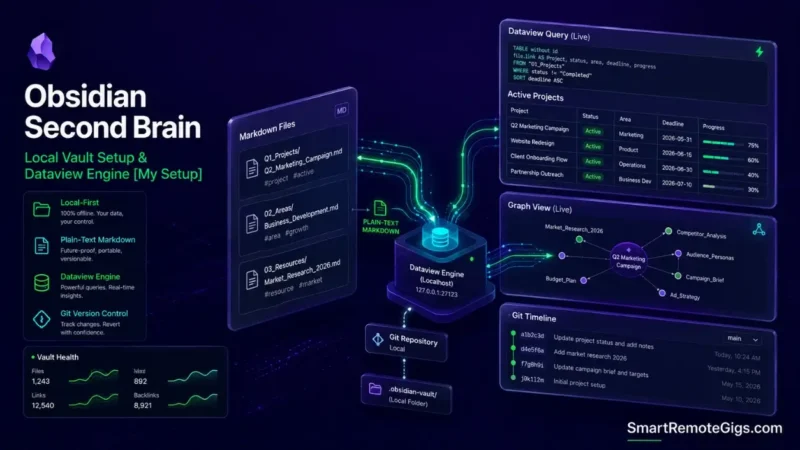
We assumed an Obsidian second brain required installing forty community plugins — until it became clear that heavy plugin chains are exactly what causes indexing slowdowns and breaks mobile vault synchronization in the first place.
A lean core plugin setup built on native Markdown frontmatter and Dataview keeps queries fast even as a vault grows into the thousands of notes, because there’s simply less overhead competing for the same indexing pass.
Smart Remote Gigs (SRG) establishes this technical blueprint as the definitive local-first vault guide — cross-referenced against official documentation and real user reports, not marketing claims.
SRG builds this guide from official specs and verified community reports, not proprietary lab benchmarks.
SRG Quick Summary
One-Line Answer: A high-performance Obsidian second brain utilizes a plain-text Markdown directory structured by PARA, standardized YAML frontmatter, and minimal core plugins to ensure local privacy, fast query speed, and lifelong data portability.
🚀 Quick Wins:
- Today (20 Mins): Create a new local vault with five root directories:
00_Meta/,01_Projects/,02_Areas/,03_Resources/, and04_Archives/. - This Week: Install the Dataview community plugin and configure standardized YAML metadata properties across your active project canvases.
- This Month: Set up automated multi-device vault synchronization using Obsidian Git or encrypted local sync relays without proprietary cloud lock-in.
📊 The Details & Hidden Realities:
- Community reports consistently describe overloading Obsidian with unvetted plugins as a common cause of slower startup times and degraded mobile app performance.
- Relying on non-standard plugin Markdown syntax creates hidden lock-in, rendering your notes unreadable in basic plain-text editors if the plugin is ever deprecated.
🟪 Local-First Knowledge Engineering: Obsidian Second Brain
The Plain-Text Durability Advantage
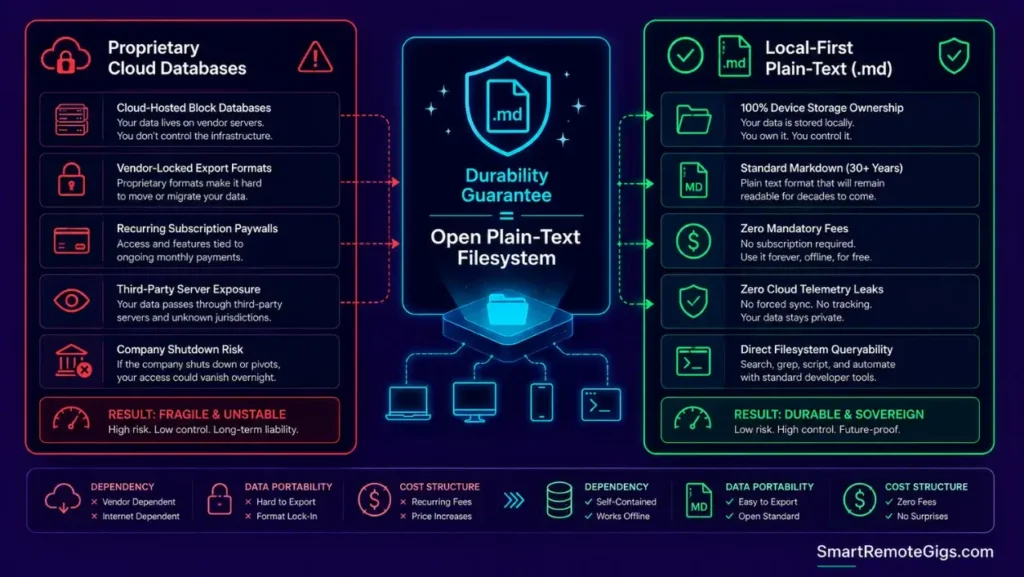
Decoupling your knowledge base from a proprietary SaaS application means your notes remain readable as long as plain-text files exist — no export step, no company shutdown risk, no format lock-in tied to a subscription staying active.
That durability is the entire case for Obsidian over a database-backed tool: the file format itself is the guarantee, not a company’s continued existence.
The Vault Root Architecture: PARA + Meta Indexing
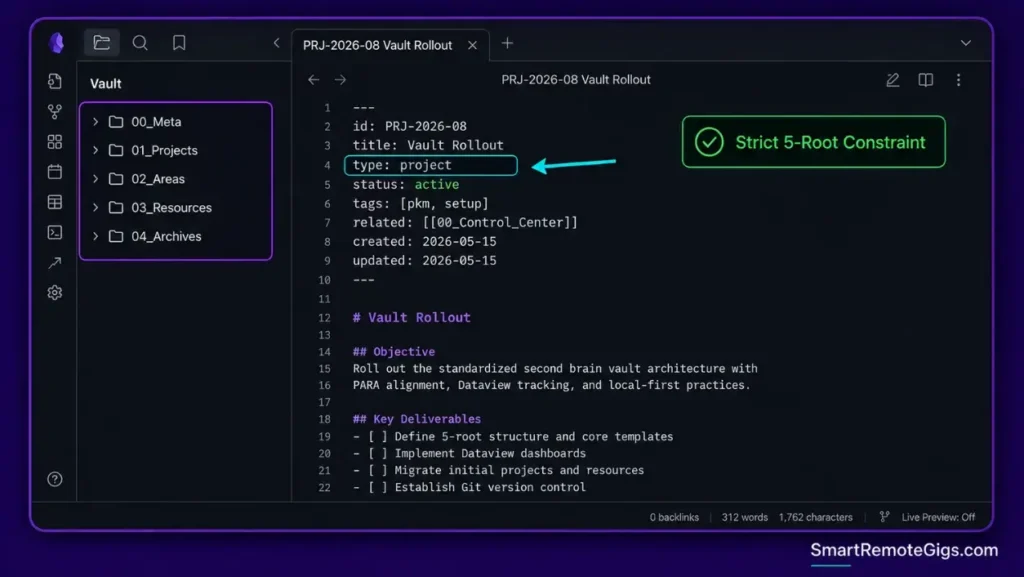
Structuring the local filesystem with a small, fixed number of root folders keeps visual scanning fast and gives automated tools (Dataview, templates, scripts) clear boundaries to operate inside. To understand how local folder architecture fits into broader knowledge principles, review the master blueprint on how to build a second brain.
📁 Scenario 1 — Vault Directory & Metadata Schema: Pure Markdown PARA Architecture
Who this is: Anyone starting a fresh Obsidian vault who wants notes to be queryable, not just searchable.
The Reality Check & Diagnostics
The symptom manifests when notes are scattered without frontmatter, forcing you to remember exact keywords instead of querying notes by structured attributes like date, project, or status.
The Exact Workflow (Emily)
- Establish root directories:
00_Meta/(Templates & Scripts),01_Projects/,02_Areas/,03_Resources/,04_Archives/. - Configure Obsidian Core Templates to inject standardized YAML frontmatter into every new file.
- Standardize Wikilink conventions: use
[[Note Name]]for conceptual links and explicit frontmatter tags for categorization. - Restrict top-level root folders to a maximum of five to prevent visual clutter.
[Evidence Source: Official Docs (Obsidian core Templates and Properties features) | Confidence Level: Confirmed]
For an evaluation of Obsidian core features, mobile apps, and plugin security models, explore the comprehensive Obsidian profile. Align your folder hierarchies with actionability boundaries using the definitive para method SOP.
The Standardized Vault YAML Frontmatter Schema
id: NOTE_ID
title: NOTE_TITLE
type: project | area | resource | meeting
created: YYYY-MM-DD
updated: YYYY-MM-DD
status: active | archived | draft
tags: [TAG_ONE, TAG_TWO]
related: [[RELATED_NOTE]]
Personalization notes:
type— this single field is what lets a Dataview query filter across your entire vault by category, so keep the allowed values consistent everywhere.related— link back to the parent Project or Area a note belongs to, so orphaned Resource notes stay discoverable.
For an evaluation of Obsidian core features, mobile apps, and plugin security models, explore the comprehensive Obsidian profile. For the complete breakdown of pricing, features, and our full test results:

Best For: The best local-first note-taking app for freelancers who want to own their notes as plain Markdown files forever, but it's built for solo work — real-time team collaboration isn't its strength.
Workflow Limitations
YAML frontmatter requires strict syntax compliance. Missing quotes around strings with special characters or improper indentation will break Dataview parsing on that note.
The Pro Tip / Red Flag
Pro Tip:
Use Obsidian’s native “Properties” core plugin in “Source” mode during setup to ensure clean, valid YAML without invisible character bugs.
📊 Scenario 2 — Dynamic Dataview Dashboards: Real-Time Task & Resource Aggregation
Who this is: Anyone tired of manually updating a master “Index” note every time a project starts or finishes.
The Reality Check & Diagnostics
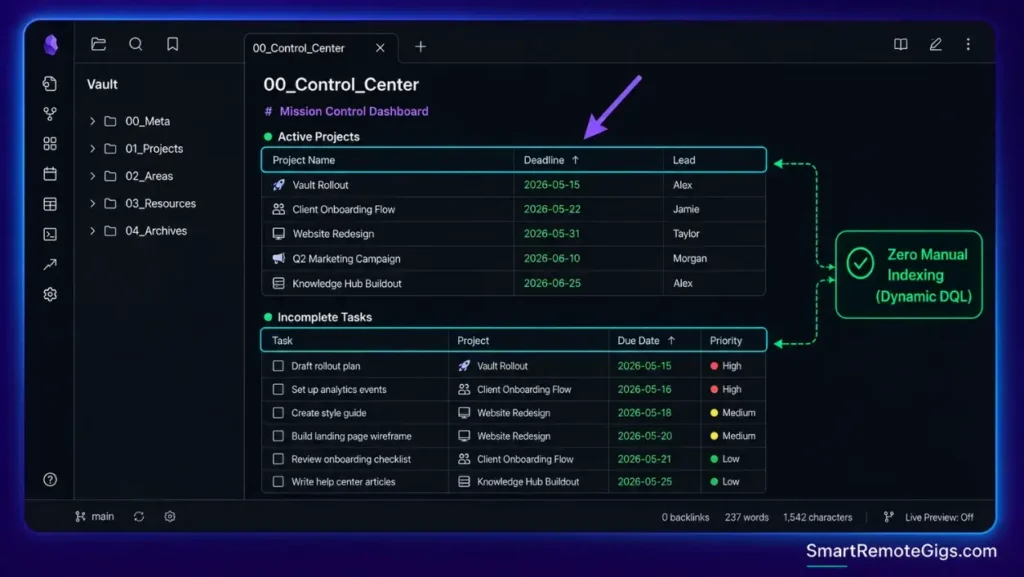
The symptom appears when you spend real time manually updating links in a master “Index” note every time you create or complete a project file — time that a query should be doing for you automatically.
The Exact Workflow (Emily)
- Install the Dataview community plugin and enable JavaScript queries in settings.
- Create a master dashboard page titled
00_Control_Center.mdin the vault root. - Write a Dataview DQL query to list all active deliverables where
type = "project"andstatus = "active". - Write a secondary query aggregating all uncompleted tasks across active project files, sorted by due date.
[Evidence Source: Official Plugin Documentation (Dataview DQL syntax) | Confidence Level: Confirmed]
To benchmark how Dataview query speeds compare against database-native tools, inspect the analysis of note taking software.
The Master Control Center Dataview Query Block
Active ProjectsTABLE deadline AS “Deadline”, lead AS “Lead”
FROM “01_Projects”
WHERE type = “project” AND status = “active”
SORT deadline ASC
Incomplete TasksTASK
FROM “01_Projects”
WHERE !completed
SORT due ASC
Personalization notes:
lead— add this as a frontmatter field on project notes if multiple people can own a project; omit the column entirely for solo vaults.
Workflow Limitations
Complex DataviewJS scripts execute client-side upon page render. Running dozens of unindexed, multi-folder regex queries on a single dashboard can introduce mobile UI rendering stutter.
The Pro Tip / Red Flag
Red Flag:
Avoid running Dataview queries across your entire /04_Archives/ directory. Always scope queries with FROM "01_Projects" to preserve fast render speeds.
🔄 Scenario 3 — Zero-Cost Multi-Device Synchronization: Git & Local File Relays
Who this is: Anyone syncing a vault across desktop and mobile without paying for a proprietary cloud subscription.
The Reality Check & Diagnostics
The symptom is encountering duplicate file conflicts (Note 1.sync-conflict.md) or data loss when switching between laptop and desktop environments using an unmanaged sync method.
The Exact Workflow (Emily)
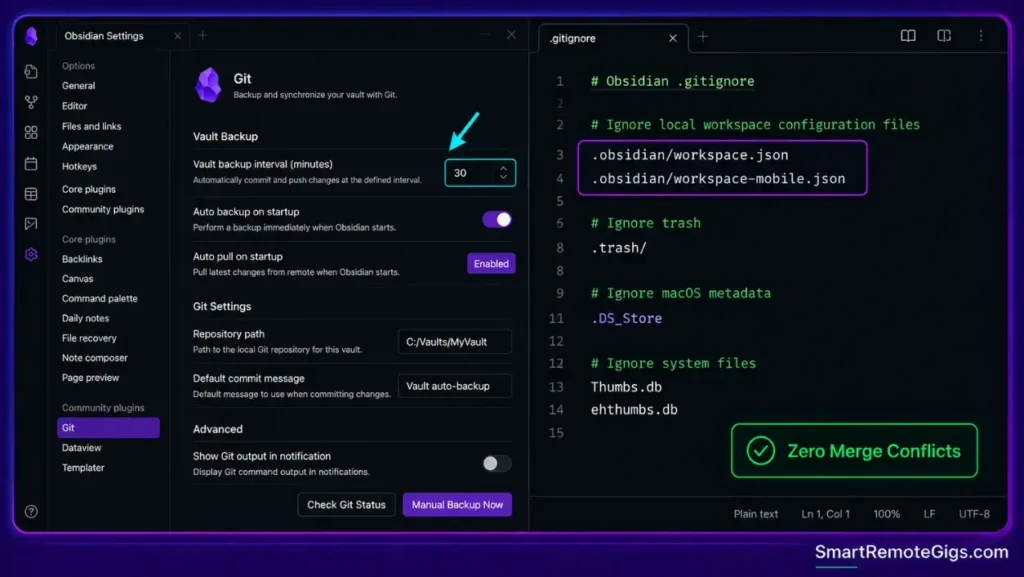
- Initialize a private Git repository inside your local Obsidian vault root directory.
- Configure a
.gitignorefile to exclude workspace state files (.obsidian/workspace.json). - Install the Obsidian Git community plugin on desktop and configure automated commit-and-push cycles every 30 minutes.
- Set up an automated pull-on-startup routine to ensure your local environment is always synchronized before editing.
[Evidence Source: Practitioner Consensus (Git-based vault sync, well-established developer practice) | Confidence Level: Widely Recommended]
Once your local vault sync is stabilized, you can attach local LLMs by following the guide on second brain with claude and obsidian.
The Optimal Obsidian .gitignore Configuration
.obsidian/workspace.json
.obsidian/workspace-mobile.json
.trash/
.DS_Store
Workflow Limitations
Git-based synchronization on iOS requires working within an app like Working Copy or dedicated local shortcuts, due to iOS file sandbox restrictions.
The Pro Tip / Red Flag
Pro Tip:
If working across both iOS and desktop, the official Obsidian Sync service offers end-to-end encrypted delta syncing with far less manual conflict resolution than Git for users who want to avoid Git configuration entirely.
⚡ Scenario 4 — Plugin Governance & Memory Optimization: Sustaining Large Vaults
Who this is: Anyone whose vault has grown large enough that startup or search has started to feel sluggish.
The Reality Check & Diagnostics
The symptom is a noticeably slower Obsidian startup or higher memory consumption when searching notes, usually traceable to plugin accumulation rather than the note count itself.
The Exact Workflow (Emily)
- Audit active community plugins using the native Obsidian “Debug startup time” tool in Core settings.
- Disable non-essential visual formatting plugins and replace them with lightweight CSS snippets.
- Move media attachments (PNGs, PDFs) into a dedicated
/00_Meta/Attachments/subfolder to keep root paths clean. - Execute quarterly vault index rebuilds by clearing cached workspace indexes.
[Evidence Source: Official Docs (Obsidian core startup diagnostics) | Confidence Level: Confirmed]
The Lean Obsidian Core Plugin Stack Specification
Essential Plugin Stack:
Dataview — query and dashboard engine
Templater — advanced note templating
Omnisearch / Core Search — fast full-text search
Obsidian Git — version control and sync
Paste URL into Selection — quick link formatting
Workflow Limitations
CSS snippets can occasionally break when Obsidian releases major Electron core UI updates, requiring minor selector updates to restore the original styling.
The Pro Tip / Red Flag
Red Flag:
Never install unverified community plugins that execute external network requests without inspecting their open-source repository code for security vulnerabilities first.
🗓️ The 7-Day Obsidian Vault Deployment Schedule
Phase 1 (Days 1–2): Directory Creation & Core Configuration
Install Obsidian, establish the five root PARA directories, and configure native frontmatter templates.
Phase 2 (Days 3–4): Dataview & Metadata Integration
Install Dataview, build the 00_Control_Center.md dashboard, and verify automated task querying.
Phase 3 (Days 5–7): Synchronization & Active Data Import
Configure Git or encrypted sync, import active deliverables, and execute your first daily triage cycle.
❓ Frequently Asked Questions
Is Obsidian completely free to use for personal note-taking?
Yes, the core Obsidian app is completely free for personal use, with all data stored locally on your device and every core feature unlocked. Business/commercial use historically required an optional $50/user/year license — some current reporting indicates this requirement was dropped in early 2026, though sources disagree, so check Obsidian’s official pricing page directly if you’re deploying it commercially.
How does Obsidian handle data privacy?
Because Obsidian operates directly on local plain-text Markdown files on your hard drive, no note data is transmitted to external cloud servers unless you explicitly configure a sync provider.
How many plugins should I install in Obsidian?
It depends on your workflow, but the general principle is to install only what you actively use — every additional plugin is one more thing competing for startup time and one more potential source of conflicts as Obsidian updates.
Can I access my Obsidian vault on mobile devices?
Yes, Obsidian provides native iOS and Android applications that read local files or sync via Obsidian Sync, iCloud, or Git relays.
What is the difference between Obsidian and Notion for a second brain?
Obsidian stores plain-text Markdown files locally on your computer with complete data sovereignty and fast local speed, whereas Notion is a cloud-hosted relational database optimized for web dashboards and team collaboration.
The Verdict: Sovereign Ownership Beats Cloud Lock-In
An Obsidian second brain represents the gold standard of personal knowledge management because it prioritizes data durability and execution speed over flashy cloud features. By grounding your system in lean Markdown files, structured PARA boundaries, and targeted Dataview automation, you build a permanent cognitive asset that remains fast, private, and fully under your control for decades to come.
Verdict:
Fewer plugins, cleaner frontmatter, and file-based sovereignty — the Obsidian second brain wins on durability, not flash.
This local-first architecture is one implementation of the broader system covered in the full how to build a second brain blueprint, worth reviewing directly if you’re weighing Obsidian against cloud-hosted alternatives.
Smart Remote Gigs establishes this technical blueprint as the definitive local-first vault guide — cross-referenced against official documentation and real user reports, not marketing claims.

![Build AI Second Brain Assistant 2026: Local Setup [Guide]](https://smartremotegigs.com/wp-content/uploads/2026/09/build-your-second-brain-ai-assistant-local-rag-hero-1024x577.webp)
![Second Brain with Claude & Obsidian 2026 [My Setup]](https://smartremotegigs.com/wp-content/uploads/2026/08/claude-obsidian-second-brain-mcp-hero-1024x577.webp)
![Why Your Second Brain Fails 2026: Retrieval Fix [Fix]](https://smartremotegigs.com/wp-content/uploads/2026/08/why-your-second-brain-fails-hero-1024x576.webp)