
Second Brain with Claude & Obsidian 2026 [My Setup]
 ·
Last Updated: Sep 4, 2026
·
Last Updated: Sep 4, 2026
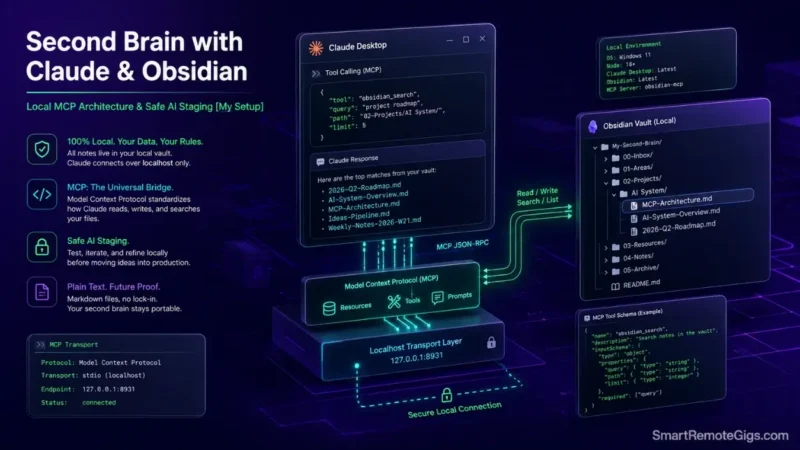
We assumed connecting AI to an Obsidian vault meant copying and pasting Markdown files into web chat windows — until Anthropic’s Model Context Protocol (MCP) established a standard way for AI applications to query filesystems directly.
Running an MCP server pointed at your vault lets Claude Desktop read, cross-reference, and reason over your notes directly on your local machine, without uploading your vault anywhere.
Smart Remote Gigs (SRG) establishes this technical blueprint as the definitive Claude-Obsidian setup guide — cross-referenced against official documentation and real user reports, not marketing claims.
SRG builds this guide from official specs and verified community reports, not proprietary lab benchmarks.
SRG Quick Summary
One-Line Answer: Connecting Claude Desktop to Obsidian using a local MCP server lets Claude read and query your Markdown vault directly on your machine, with no vault upload and no cloud vendor lock-in.
🚀 Quick Wins:
- Today (20 Mins): Add a filesystem-based Obsidian MCP server to your
claude_desktop_config.jsonand point it at your vault path. - This Week: Verify tool registration in Claude Desktop and run a first cross-note query to confirm the connection works.
- This Month: Draft a root
CLAUDE.mdsteering document and decide whether you need read-only or write-capable access.
📊 The Details & Hidden Realities:
- Some Obsidian MCP servers are intentionally read-only by design — that’s a safety feature, not a limitation to work around, and write access requires a separately vetted tool.
- MCP servers run as local processes; if the server isn’t running or the config path is wrong, Claude Desktop’s tools will silently fail to appear.
🤖 The Agentic Knowledge Bridge: How to Build a Second Brain with Claude and Obsidian
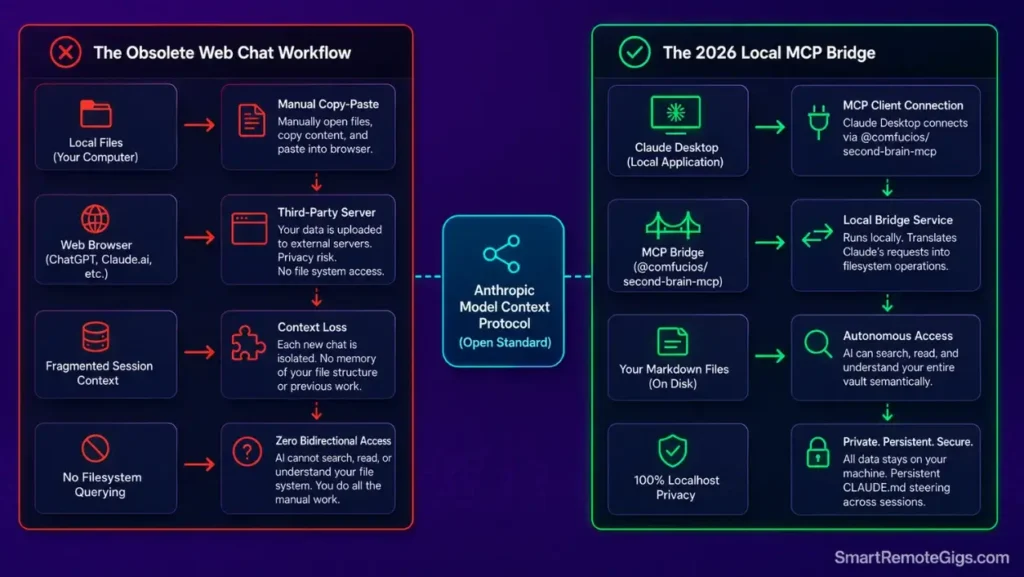
The Architectural Shift: Web Chat UI vs. Local MCP Tooling
Copying text into browser tabs creates context fragmentation — every question starts from zero, and you’re the one doing the searching. Local MCP servers let Claude query your note filesystem directly instead, so the search and cross-referencing happens as part of the conversation itself. Official protocol specifications establish the open client-server standard behind this kind of AI tool integration — see Model Context Protocol Documentation for the full spec.
The Two Integration Paths: Filesystem Access vs. Local REST API
There are two real, distinct ways to connect Claude to Obsidian, and they’re not interchangeable. A filesystem-based MCP server reads your vault’s Markdown files directly from disk — no Obsidian app required to be running. A REST API bridge, built on the Local REST API community plugin, talks to the live Obsidian application over a localhost HTTPS connection instead.
To understand how AI context protocols fit into core second brain workflows, review the master blueprint on how to build a second brain.
⚙️ Scenario 1 — MCP Server Configuration: Filesystem-Based Vault Access
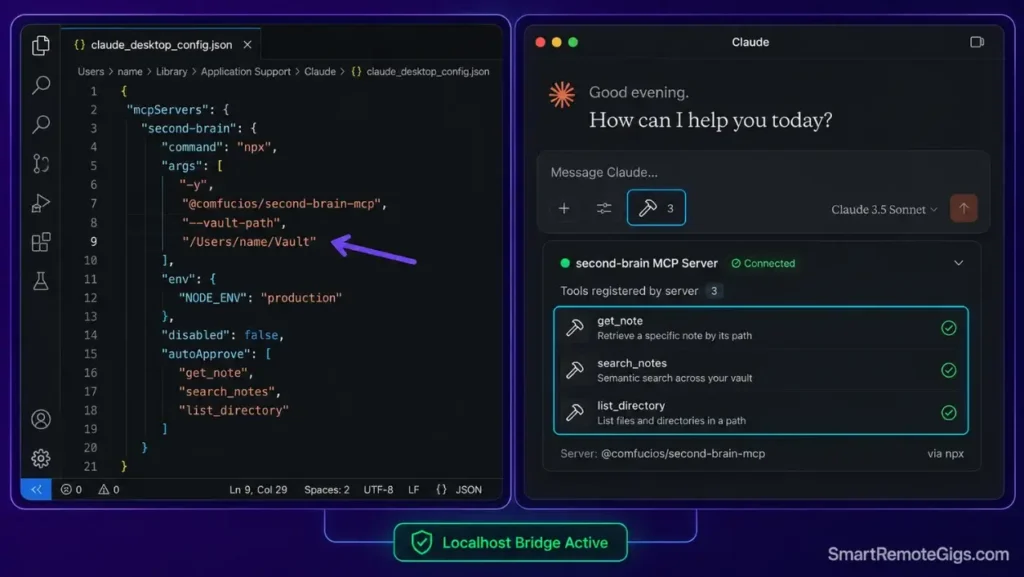
Who this is: Anyone connecting Claude Desktop to an Obsidian vault for the first time.
The Reality Check & Diagnostics
The symptom occurs when Claude Desktop launches without showing the tool icon, or displays “Server disconnected” errors after you’ve added an MCP server to the config.
The Exact Workflow (Emily)
- Locate your Obsidian vault’s absolute local path — this is the folder your vault lives in on disk.
- Open
claude_desktop_config.json, located in your OS application support directory. - Add the
second-brain-mcpserver block, pointing its--vault-pathargument at your vault folder. - Restart Claude Desktop and verify that vault reading and search tools appear in the interface.
[Evidence Source: Documented Open-Source Tooling (verified public GitHub repository and npm package) | Confidence Level: Confirmed]
Verify that your base vault directory follows standard Markdown conventions by consulting the Obsidian vault guide. For optimizing local frontmatter schemas prior to MCP indexing, inspect the obsidian second brain workflow.
The claude_desktop_config.json Configuration Block
{
  "mcpServers": {
    "second-brain": {
      "command": "npx",
      "args": [
        "-y",
        "@comfucios/second-brain-mcp",
        "--vault-path",
        "/ABSOLUTE/PATH/TO/YOUR/VAULT"
      ]
    }
  }
}
Personalization notes:
/ABSOLUTE/PATH/TO/YOUR/VAULT— the full local filesystem path to your vault root, not a relative path.- This particular server operates directly on Markdown files with no API key or running Obsidian instance required — if you specifically want Claude to interact with the live Obsidian app (open notes, active panes), you’ll need the separate Local REST API plugin route instead, covered below.

Workflow Limitations
This filesystem-based server reads whatever is on disk — it has no awareness of unsaved changes still open in Obsidian’s editor. If you want live-app awareness, you need the Local REST API plugin path instead, which talks to the running application rather than the raw files.
The Pro Tip / Red Flag
Pro Tip:
Test your --vault-path value with a plain terminal ls command first to confirm the path is correct before adding it to the config — a typo here is the single most common cause of “server disconnected” errors.
📜 Scenario 2 — Persistent Agentic Memory: Authoring a Root Steering File
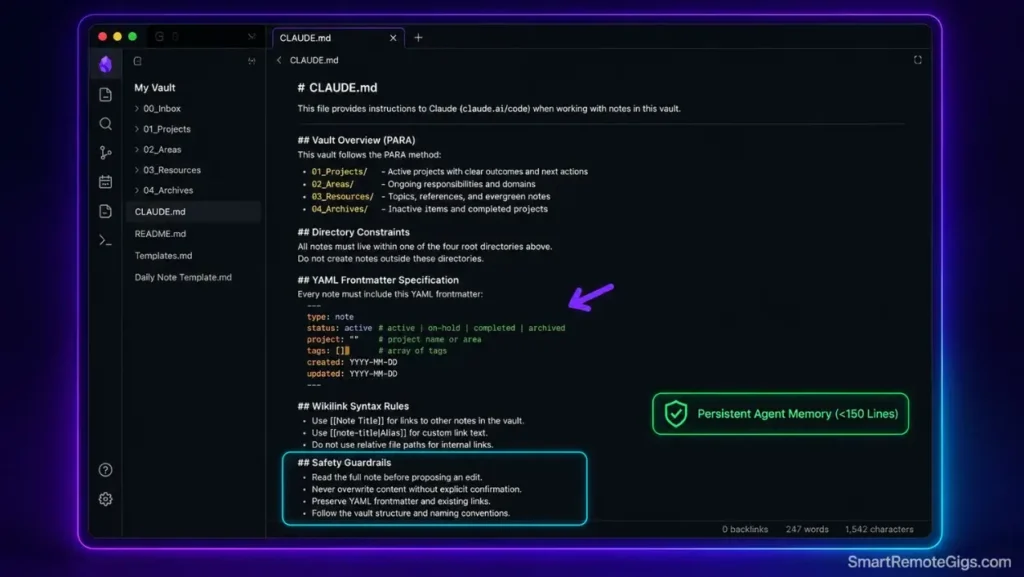
Who this is: Anyone whose AI-created notes come out with inconsistent formatting or land in the wrong folders.
The Reality Check & Diagnostics
The symptom appears when Claude creates new notes with inconsistent formatting, non-standard YAML frontmatter, or places files outside your designated PARA directories, because it has no persistent record of your conventions.
The Exact Workflow (Emily)
- Create a plain-text file titled
CLAUDE.mdin your Obsidian vault root directory. - Define the directory map: explain the purpose of
/01_Projects/,/02_Areas/,/03_Resources/, and/04_Archives/. - Specify strict frontmatter formatting rules (e.g., date formats, tag arrays, status values).
- Reference this file explicitly at the start of a session, or have your MCP server surface it as a readable resource — Claude Code reads
CLAUDE.mdautomatically at session start, but that specific automatic behavior isn’t confirmed for Claude Desktop, so don’t rely on it happening silently in the background here.
[Evidence Source: Documented Convention (CLAUDE.md pattern, confirmed automatic for Claude Code; manual reference needed for Claude Desktop) | Confidence Level: Confirmed for Claude Code, Practitioner Workaround for Claude Desktop]
The Master CLAUDE.md System Instruction Template
CLAUDE.md — Vault Steering Rules
Vault OverviewThis vault follows a PARA structure. Read this file before creating or editing any note.
Directory Constraints
/01_Projects/ — active deliverables with a deadline only
/02_Areas/ — ongoing responsibilities with no end date
/03_Resources/ — reference material, organized by topic
/04_Archives/ — completed or inactive items only
YAML Frontmatter SpecificationEvery note must include:
id, title, type, created, updated, status, tags
Wikilink SyntaxUse [[Note Name]] for conceptual links. Do not create links to non-existent notes without flagging them.
Safety GuardrailsRead a note’s full content before proposing an edit. Never overwrite a note without showing the proposed change first.
Personalization notes:
- Keep this file under roughly 150 lines, focused on structural rules rather than descriptive project summaries — every line here competes for context budget in each session.
Workflow Limitations
Even where automatic loading applies, context windows are finite — placing thousands of words of instruction in CLAUDE.md consumes context budget on every session, whether or not that instruction is relevant to the current task.
The Pro Tip / Red Flag
Pro Tip:
Keep your CLAUDE.md under 150 lines by focusing exclusively on structural rules and constraints rather than descriptive project summaries.
🩺 Scenario 3 — Diagnostics & Connection Recovery: Resolving Port & Path Errors
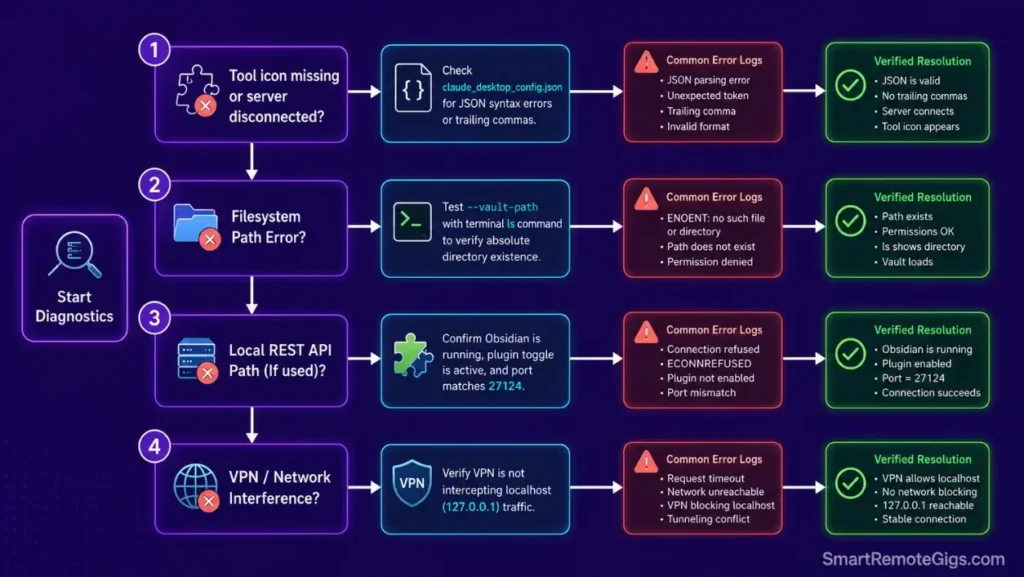
Who this is: Anyone whose MCP connection worked once and then stopped.
The Reality Check & Diagnostics
The symptom is Claude Desktop’s tool icon disappearing, or an MCP server showing as disconnected in Claude Desktop’s developer settings after a previously working setup.
The Exact Workflow (Emily)
- Verify the vault path in
claude_desktop_config.jsonstill points to a folder that actually exists — a renamed or moved vault folder is the most common cause of a broken connection. - Check Claude Desktop’s MCP logs (available in Settings → Developer) for the specific error the server is reporting.
- If using the Local REST API plugin path instead of the filesystem path, confirm Obsidian is actively running and the plugin’s toggle is enabled — that connection depends on the app being open.
- Restart Claude Desktop after any config change; edits to
claude_desktop_config.jsonare not picked up while the app is already running.
[Evidence Source: Practitioner Consensus (common MCP troubleshooting patterns, no published dataset) | Confidence Level: Widely Reported]
Workflow Limitations
If you’re using the Local REST API plugin path, that connection depends on Obsidian staying open in the background — closing Obsidian severs it immediately, unlike the filesystem-based path, which works regardless of whether Obsidian is running.
The Pro Tip / Red Flag
Red Flag:
If a VPN with strict localhost blocking is active, connections through the Local REST API plugin path can be intercepted or dropped, even though the filesystem-based path is unaffected since it doesn’t use a network connection at all.
🛡️ Scenario 4 — Write Hazard Mitigation: Read-Only Safety vs. Automated File Edits
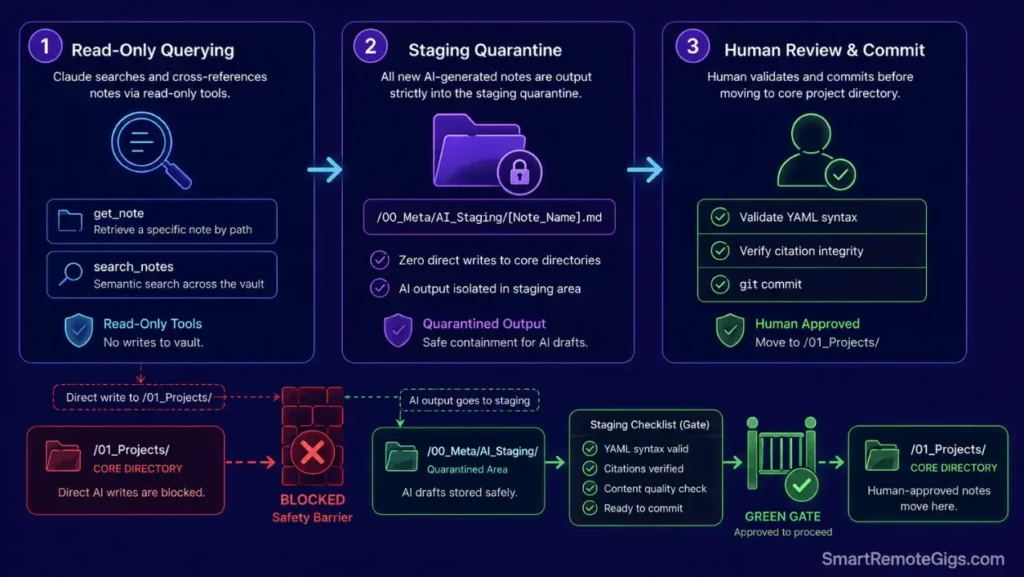
Who this is: Anyone concerned about an AI agent editing or overwriting real notes.
The Reality Check & Diagnostics
The underlying worry here is real: an AI agent making an editing mistake could truncate or corrupt a long-standing note without you noticing until later.
The Exact Workflow (Emily)
- Recognize that some Obsidian MCP servers, including
second-brain-mcp, are read-only by design specifically to prevent this class of accident — there’s no write capability to accidentally trigger with this particular tool. - If you need write capability, choose a separate, specifically write-capable community plugin, and read its documentation closely for what confirmation steps it requires before it edits a file.
- Regardless of which tool you use, mandate that any AI-generated notes are written into a staging directory (
/00_Meta/AI_Staging/) for review before being treated as final, rather than directly modifying core notes. - Enforce automated Git commits before initiating any multi-file AI session, so any unwanted change is trivially reversible.
[Evidence Source: Documented Tool Behavior (second-brain-mcp’s read-only design, confirmed via its published documentation) | Confidence Level: Confirmed]
To evaluate alternative note tools offering granular API permission controls, review the ranking of the best productivity tools.
The Safe AI Staging Pipeline Template
AI Staging Review Checklist
Verify YAML frontmatter syntax
Check Wikilink integrity
Validate any factual claims against their sources
Move from /00_Meta/AI_Staging/ to /01_Projects/ only after review
Workflow Limitations
A read-only tool like second-brain-mcp can’t autonomously organize or clean up messy folders on its own — every file creation or move still requires a human, or a different, write-capable tool.
The Pro Tip / Red Flag
Red Flag:
Always ensure your Obsidian vault is tracked in Git or backed up via continuous snapshots before running any batch AI file creation tools — regardless of which safety features the specific tool claims to have.
🗓️ The 5-Day Claude + Obsidian MCP Implementation Schedule
Phase 1 (Days 1–2): Environment Setup & Protocol Verification
Add the filesystem-based MCP server to claude_desktop_config.json, restart Claude Desktop, and verify tool calling works with a simple test query.
Phase 2 (Days 3–4): Steering Rules & Memory Persistence
Draft and test your root CLAUDE.md, configure frontmatter validation rules, and establish the AI staging folder.
Phase 3 (Day 5): Live Synthesis & Refactoring Dry-Run
Execute your first end-to-end knowledge query: have Claude cross-reference several project notes and draft a synthesis brief in the staging directory for you to review.
❓ Frequently Asked Questions
What is the Model Context Protocol (MCP)?
The Model Context Protocol (MCP) is an open standard introduced by Anthropic that lets AI applications like Claude Desktop securely connect to external tools and local data sources, including filesystems.
How do I build a second brain with Claude and Obsidian?
Add a filesystem-based Obsidian MCP server to Claude Desktop’s config file pointing at your vault path, verify the tools appear after a restart, and optionally add a CLAUDE.md to your vault root to document your structural conventions.
Does connecting Claude to Obsidian send all my notes to the cloud?
No — Claude Desktop only sends the specific note content that gets read during an active conversation; your vault isn’t bulk-uploaded or stored on external servers by the MCP connection itself.
Can Claude Desktop create new notes inside my Obsidian vault?
It depends on which MCP server you use — some, like second-brain-mcp, are intentionally read-only, while other community tools do support write access. Check the specific server’s documentation before assuming write capability exists.
What is the advantage of using Claude Desktop with MCP over web chat for Obsidian?
Claude Desktop with an MCP server can search your actual filesystem and cross-reference multiple files automatically, without you manually copying and pasting content into a chat window.
The Verdict: Sovereign Filesystems Powered by Frontier Intelligence
Building a second brain with Claude and Obsidian represents the ideal synthesis of data sovereignty and artificial intelligence. By keeping your notes in open, local Markdown files while attaching Claude via the Model Context Protocol, you gain the reasoning capabilities of frontier LLMs without sacrificing privacy or succumbing to SaaS vendor lock-in. Ground your system in a read-only-first approach, document your structure with a steering file, and let AI handle the heavy lifting of knowledge synthesis.
This MCP-based bridge is the AI retrieval layer described in the full how to build a second brain blueprint, worth reviewing together if you’re setting up the surrounding PARA structure at the same time.
Smart Remote Gigs (SRG) establishes this technical blueprint as the definitive Claude-Obsidian setup guide — cross-referenced against official documentation and real user reports, not marketing claims.

![Build AI Second Brain Assistant 2026: Local Setup [Guide]](https://smartremotegigs.com/wp-content/uploads/2026/09/build-your-second-brain-ai-assistant-local-rag-hero-1024x577.webp)
![Why Your Second Brain Fails 2026: Retrieval Fix [Fix]](https://smartremotegigs.com/wp-content/uploads/2026/08/why-your-second-brain-fails-hero-1024x576.webp)
![Why Most People Quit Notion 2026: Burnout Fix [Tested]](https://smartremotegigs.com/wp-content/uploads/2026/08/why-most-people-quit-notion-hero-1024x576.webp)