
How to Use Zapier 2026: Scale B2B AI Systems [Guide]
 ·
Last Updated: July 31, 2026 ·
13 min read
·
Last Updated: July 31, 2026 ·
13 min read 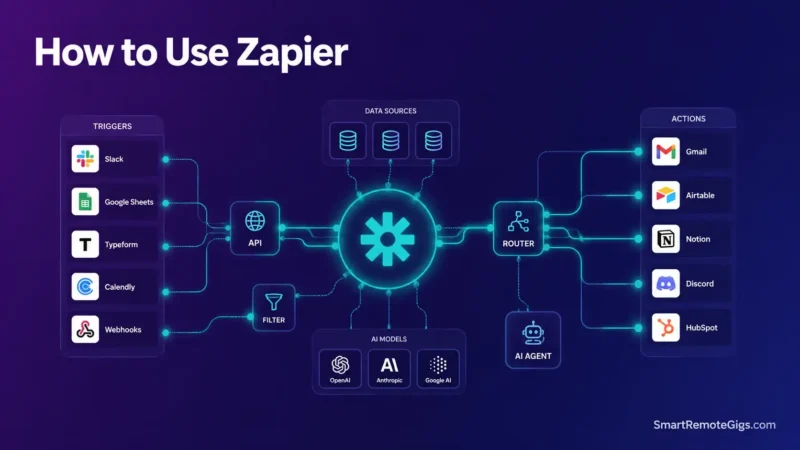
We assumed setting up enterprise Zaps in 2026 was as simple as chaining triggers to actions until production lead bursts hit API rate limits and crashed critical CRM syncing workflows. Official Zapier technical documentation confirms that scaling complex AI systems requires managing flood protection rules, queue delays, and structured JSON schemas rather than relying on linear triggers.
Smart Remote Gigs (SRG) establishes this technical blueprint as the definitive AI Workflows & Automation guide—cross-referenced against official documentation and real user reports, not marketing claims. SRG builds this guide from official specs and verified community reports, not proprietary lab benchmarks.
Quick Summary
One-line answer: Scaling past basic Zaps in 2026 means designing around Zapier’s task-consumption model, flood protection limits, and JSON payload rules — not just adding more triggers.
Do this today (20 min):
- Open your busiest Zap’s advanced settings and check its flood protection limit — the default is 100 events before Zapier holds a run for confirmation.
Do this this week:
- Add a
Delay After Queuestep ahead of any action that calls a rate-limited app, so bursts get spaced out instead of dropped.
Do this this month:
- Move high-volume webhook intake through
Custom Requeststeps with explicit JSON, since standard POST/PUT actions can’t handle nested arrays.
The 2026 Zapier Architecture: Beyond Linear Triggers
The Modern Component Stack
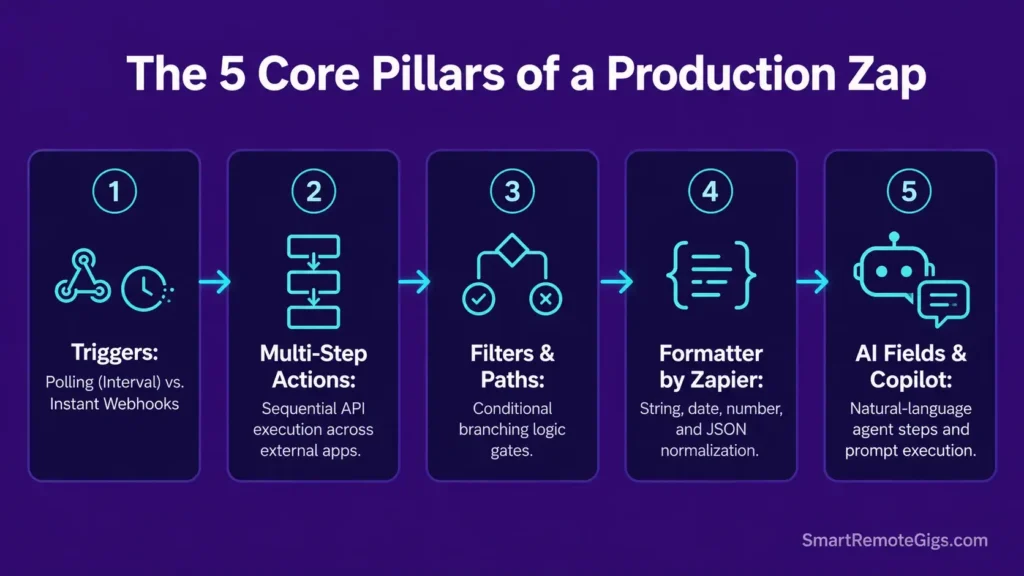
A production Zap in 2026 isn’t just Trigger → Action. It’s built from five interoperating pieces:
- Triggers — either polling (checks on an interval) or instant webhooks.
- Multi-step Actions — chained calls to different apps in one run.
- Filters & Paths — conditional branching so one Zap can serve multiple outcomes.
- Formatter by Zapier — cleans and reshapes data between steps (dates, text, numbers).
- AI fields / Copilot — natural-language step configuration and AI actions embedded directly in the builder.
The distinction that matters operationally: polling triggers check for new data every few minutes, while webhook triggers push data the instant it happens. Per Zapier’s own webhook documentation, when you need nested JSON sent to a third-party API, standard POST/PUT actions won’t parse arrays or deeply nested objects — you have to switch to a Custom Request action, which sends exactly the raw JSON you write with no automatic parsing.
Why Two-Step Setups Break Under Volume
Flood protection is the mechanism most teams hit first. Zapier’s help documentation confirms that for Zap workflows using polling triggers, if 100 or more events would trigger a Zap at once, Zapier holds them and emails you to confirm before running — and that count happens before any Filter or Path step runs, so even a Zap that would filter most events out still trips the hold.
Red Flag:
Flood protection counts every incoming trigger item, not just the ones that survive your filters. A Zap built to “only care about 5 of these 500 events” still gets held on all 500.
Separately, high-frequency action steps (emails, webhooks, custom code) get throttled independently — Zapier’s rate-limit documentation describes this as “Throttled by Zapier! Max [X] runs per [Y] seconds,” and it’s enforced whether or not flood protection has fired on the trigger side.

Best For: The best pick for freelancers automating client handoffs across apps, but task-based pricing punishes any real scale.
Scenario 1 — Solopreneur Freelancer: Lead Ingestion → AI Proposal Drafts
The Reality Check & Diagnostics
Freelancers running lead capture through a form usually paste responses into a CRM by hand, or worse, work straight from an inbox and miss time-sensitive inquiries. The fix isn’t “add AI” — it’s structuring the data before AI touches it, so the model isn’t guessing at what a messy form field means.
The Exact Workflow
[Evidence Source: Zapier official docs — Webhooks/Formatter/Custom Request actions] | [Confidence Level: Confirmed]
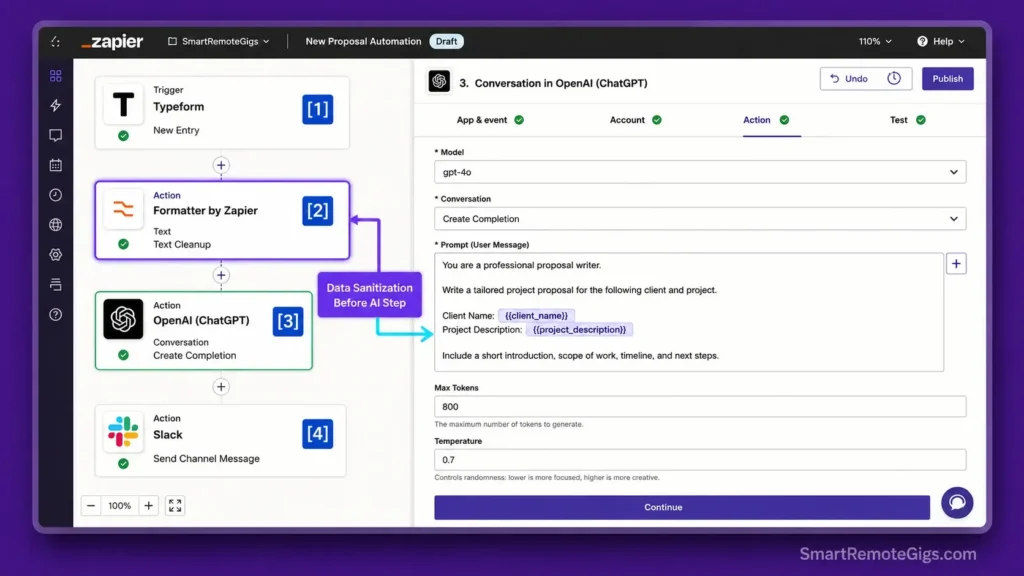
- Trigger: New Typeform (or any form tool) submission fires the Zap instantly.
- Clean: Formatter by Zapier normalizes phone numbers, strips whitespace, and splits combined “name” fields into first/last.
- Generate: Pass the cleaned fields to an OpenAI (or Claude) action to draft a scoped proposal from a fixed template — never a free-form prompt.
- Notify: Post the draft link to Slack and create a Gmail draft (not a sent email) for human review.
For a broader picture of how solo operators stack these tools together, see the complete freelancer tech stack — automating discovery touchpoints is one piece of a larger setup, not the whole system.
The AI Prompt Template
You are drafting a scoped project proposal for a freelance [SERVICE_TYPE] business.
Client inputs:
Name: {{client_name}}
Project description: {{project_description}}
Budget range: {{budget_range}}
Timeline: {{timeline}}
Write a proposal with these sections only:
Understanding of the request (2-3 sentences, restate their problem in your own words)
Proposed scope (bulleted, specific deliverables only — no vague phrases like “ongoing support”)
Timeline (map to their stated timeline, flag if unrealistic)
Investment (state the number from budget_range as a range, not a fixed quote)
Do not invent services not implied by the project description. Do not commit to a start date. Flag any field above that is blank or unclear instead of guessing.
Personalization notes:
[SERVICE_TYPE]— the freelancer’s actual discipline (e.g., “brand design,” “backend development”).{{client_name}},{{project_description}},{{budget_range}},{{timeline}}— mapped from the cleaned Typeform fields in step 2, not typed manually.
Workflow Limitations
The model can’t verify technical feasibility or catch a budget that doesn’t match the scope described — it drafts from what’s in the form, nothing more. Every proposal needs a human pass before it reaches a client; this workflow produces a first draft, not a send-ready document.
The Pro Tip / Red Flag
Red Flag: Sending an AI-drafted proposal straight to a client without review risks a hallucinated deliverable or a price that doesn’t match your actual rate card.
Scenario 2 — B2B Agency Owner: Client Onboarding & Workspace Provisioning
The Reality Check & Diagnostics
Manually provisioning a Slack channel, a nested Drive folder structure, and a project template for every new client is the kind of task that seems small until you’re doing it for the fifth client this month, with inconsistent naming and someone forgetting the ClickUp template every third time.
The Exact Workflow
[Evidence Source: Zapier official docs + community-confirmed pattern] | [Confidence Level: Confirmed]
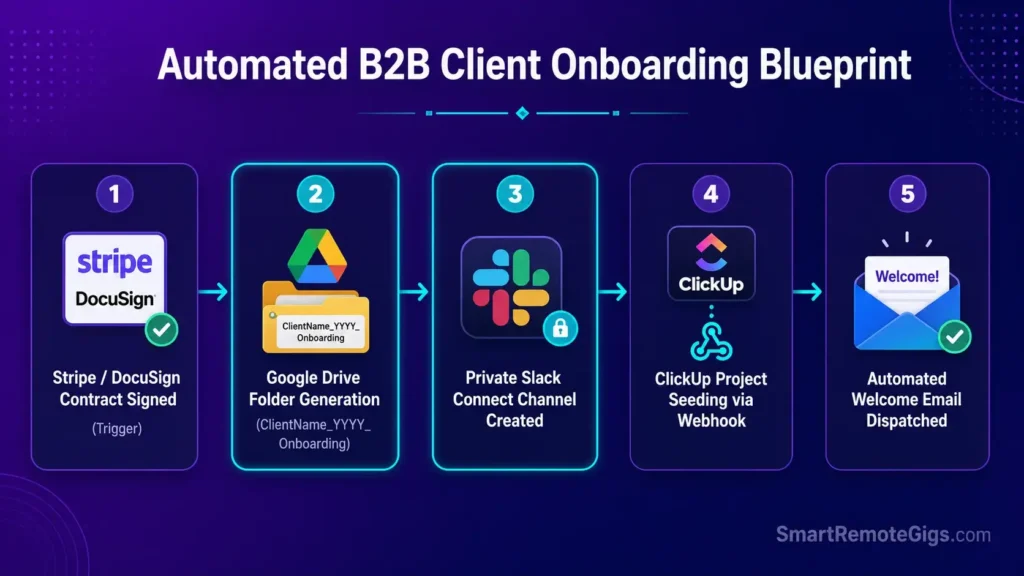
- Trigger: Stripe checkout success or a completed DocuSign contract.
- Create: Generate a nested Google Drive folder set using a fixed naming schema (
ClientName_YYYY_Onboarding). - Provision: Create a private Slack channel and invite the client’s primary contact email.
- Seed: Push a project task template into ClickUp via a Zapier webhook.
- Notify: Send a welcome email containing the onboarding dashboard link.
To justify the setup time on this, agencies should be tracking the labor-hour delta before and after — our breakdown on measuring AI tool ROI covers how to attribute those savings correctly instead of guessing.
The Onboarding Webhook Payload
{
  "client__name": "{{client_name}}",
  "client__email": "{{client_primary_email}}",
  "client__plan": "{{contract_tier}}",
  "onboarding__folder_name": "{{client_name}}_2026_Onboarding",
  "onboarding__slack_channel": "client-{{client_slug}}",
  "onboarding__clickup_template_id": "{{template_id}}",
  "onboarding__start_date": "{{contract_start_date}}"
}
Personalization notes:
- Fields use the
parent__childdouble-underscore pattern because, per Zapier’s webhook documentation, that’s how nested objects get flattened for a standard POST — anything deeper (arrays, multiple nesting levels) needs a Custom Request step instead. - Replace every
{{ }}value with the corresponding field from your Stripe/DocuSign trigger step, not hardcoded text.
Workflow Limitations
Slack’s app-level rate limits apply on top of Zapier’s — provisioning many channels back-to-back can queue or delay creation, and admin scopes have to be configured correctly before the Zap runs, or the channel-creation step fails outright.
The Pro Tip / Red Flag
Pro Tip: Add a short delay between creating a Slack channel and sending the invite — running them in the same instant occasionally means the invite step tries to hit a channel that hasn’t finished indexing yet.
Scenario 3 — SaaS Ops Lead: Fixing Webhook Drops & Rate-Limit Crashes
The Reality Check & Diagnostics
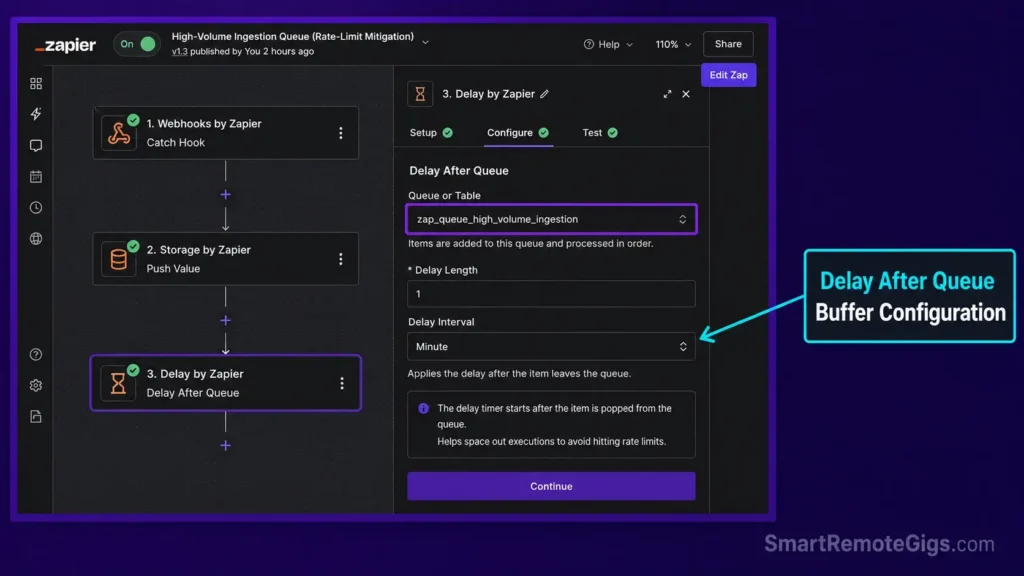
When signup volume spikes, inbound webhooks either get rejected with a 400 (malformed payload) or held/throttled once Zapier’s flood protection or per-app rate limits kick in. A basic Delay step doesn’t fix this — Zapier’s own documentation distinguishes a plain Delay (fixed wait, doesn’t manage volume) from Delay After Queue, which is specifically built to hold and space out a backlog of runs.
The Exact Workflow
[Evidence Source: Zapier official Help Center — Zap limits, Webhooks, Throttled-error articles] | [Confidence Level: Confirmed]
- Ingest: Catch the inbound webhook and, if the destination app is rate-limited, write the raw payload to
Storage by Zapierfirst rather than acting on it immediately. - Throttle: Use a
Delay After Queuestep to spread downstream calls out instead of firing them all at once. - Send: Push the data through a
Custom Requestwebhook action usingparent__childkey nesting (or raw JSON) so complex payloads don’t get flattened incorrectly. - Log: Record success/failure status so held or replayed runs are visible instead of silently dropped.
If you’re actively seeing throttled or held runs right now, the fastest path is Zapier’s own Rate Limit Resolution Guide, which walks through adjusting flood protection limits and replaying held runs — that’s also where our zapier rate limit breakdown starts.
Malformed or flattened-array payloads are the other common failure mode; if you’re seeing a rejected request instead of a throttle, that’s usually a zapier error 400 issue, not a volume issue — the fixes are different.
The Queue Manager Script
import time
import random
import requests

MAX_RETRIES = 5
BASE_DELAY_SECONDS = 2

def send_with_backoff(url, payload, headers=None):
    """
    Sends a payload to a webhook endpoint with exponential backoff
    and jitter, to avoid hammering a rate-limited endpoint.
    """
    headers = headers or {"Content-Type": "application/json"}

    for attempt in range(1, MAX_RETRIES + 1):
        response = requests.post(url, json=payload, headers=headers, timeout=10)

        if response.status_code < 400:
            return response

        if response.status_code in (429, 503):
            wait_time = (BASE_DELAY_SECONDS * (2 ** (attempt - 1))) + random.uniform(0, 1)
            print(f"Rate limited (status {response.status_code}). "
                  f"Retrying in {wait_time:.1f}s (attempt {attempt}/{MAX_RETRIES})")
            time.sleep(wait_time)
            continue

        response.raise_for_status()

    raise RuntimeError(f"Failed after {MAX_RETRIES} attempts: last status {response.status_code}")


if __name__ == "__main__":
    example_payload = {
        "event__type": "signup",
        "event__source": "zapier_webhook",
        "user__email": "[email protected]"
    }
    send_with_backoff("https://your-endpoint.example.com/webhook", example_payload)
Personalization notes:
MAX_RETRIES/BASE_DELAY_SECONDS— tune to how aggressive the downstream app’s rate limit is; start conservative.example_payload— replace with the actual flattenedparent__childstructure your webhook expects.
Workflow Limitations
Zapier’s flood protection default holds runs at 100 events, adjustable up to 1,500 on paid plans — but that’s a Zapier-side setting, not a fix for a downstream app’s own API limits, which Zapier can’t override. A Delay After Queue step also doesn’t guarantee ordering under extreme load; it spaces requests out, it doesn’t sequence-lock them.
The Pro Tip / Red Flag
Red Flag: A plain Delay step waits a fixed amount of time per run — it does not queue or space out a burst of simultaneous runs the way Delay After Queue does. Using the wrong one is the single most common cause of “I added a delay and it still throttled.”
Scenario 4 — Enterprise Automator: Zapier vs. a Hybrid Stack
The Reality Check & Diagnostics
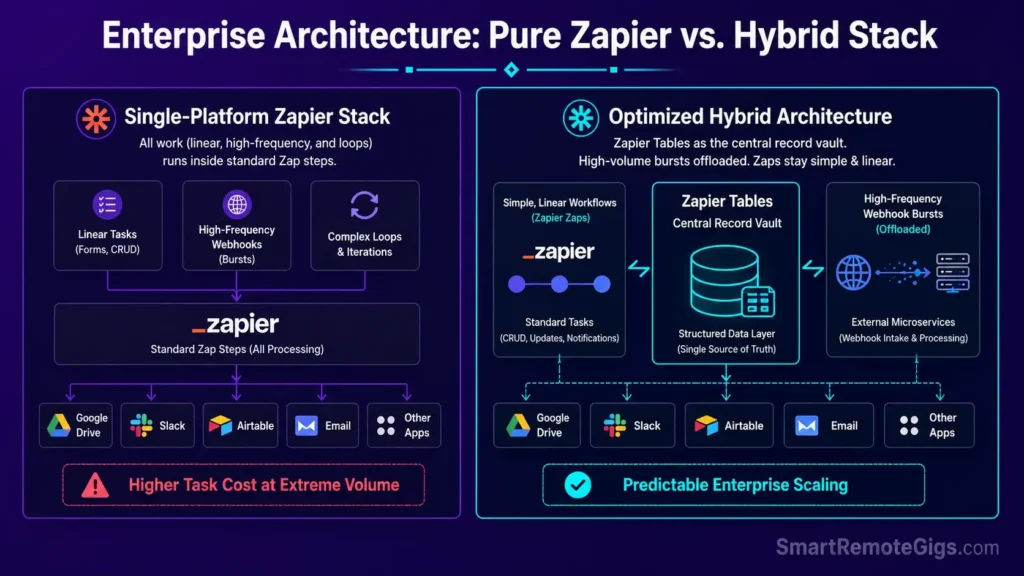
Zapier’s task-based pricing means cost scales with every action in every step, including filters and formatter steps. For simple, linear operations that’s fine. For workflows with heavy branching logic or high-frequency triggers, task consumption climbs fast enough that some teams look at splitting the workload — not abandoning Zapier, but routing the highest-volume pieces elsewhere.
The Exact Workflow
[Evidence Source: Documented vendor pricing pages, cross-checked] | [Confidence Level: Confirmed]
- Standardize high-value customer records inside Zapier Tables so they’re not duplicated across Zaps.
- Keep simple, low-volume linear tasks as standard Zaps.
- Route high-frequency or heavily branching logic to a dedicated micro-service or a lower-cost orchestration tool.
- Monitor the whole system with a single automated digest log, not per-platform dashboards.
Before committing enterprise budget to a Zapier-only build, it’s worth running the numbers against alternatives — our full zapier vs make comparison covers the feature and pricing tradeoffs in detail. Teams trying to control per-step costs can also offset some data-transformation steps with free AI tools rather than paying Zapier task costs for basic formatting. For a library of tested patterns rather than a from-scratch build, see our best zapier workflows collection.
The Hybrid Integration Blueprint
{
  "routing__high_volume": {
    "handler": "external_microservice",
    "trigger_source": "webhook",
    "max_events_per_minute": 500
  },
  "routing__standard": {
    "handler": "zapier_zap",
    "trigger_source": "app_native",
    "max_events_per_minute": 20
  },
  "routing__client_records": {
    "handler": "zapier_tables",
    "sync_frequency_minutes": 15
  },
  "monitoring__digest_channel": "slack__ops-alerts"
}
Personalization notes:
max_events_per_minutevalues — set based on your actual observed volume, not a guess; check your Zap history first.handlervalues — map to whatever your actual routing targets are (Zapier, a custom service, another automation platform).
Workflow Limitations
Splitting workflows across platforms means splitting your documentation and credentials too. Every hybrid setup needs a single source of truth for “what runs where,” or the maintenance overhead cancels out the cost savings.
The Pro Tip / Red Flag
Pro Tip: Standardize variable naming in snake_case across every Zap and every external service in the hybrid stack — mismatched casing between systems is a common, avoidable cause of broken field mapping after an app update.
Zapier Pricing & Task-Consumption Math
Zapier’s entry paid tier is commonly listed at $19.99/month billed annually (roughly $29.99/month billed monthly) for around 750 tasks, unlocking multi-step Zaps and premium app access. Every action in a Zap — including Filter and Formatter steps — consumes a task, so a 5-step Zap running 150 times a month can burn through the entire 750-task allowance on its own.
Before upgrading a tier because of a perceived slowdown, calculate actual task usage per Zap; teams frequently discover the real fix is trimming unnecessary Filter/Formatter steps, not paying for a bigger plan. For a side-by-side of what’s included at each tier, see the full software breakdown.
The 30-Day Execution Plan
- Week 1 (Days 1–7): Audit. Inventory every active Zap, flag which ones are polling vs. webhook-triggered, and note the current flood protection limit on each.
- Week 2 (Days 8–14): Queue & error handling. Add
Storage by ZapierandDelay After Queuesteps to any Zap that calls a rate-limited app. - Week 3 (Days 15–21): AI & payload cleanup. Insert Formatter steps and JSON validation before every AI action and every Custom Request webhook.
- Week 4 (Days 22–30): Consolidation. Migrate shared datasets into Zapier Tables and total up task consumption per Zap to catch any that are quietly over-provisioned.
The Verdict: Build the Boring Parts First
Verdict:
The teams that get reliable results from Zapier in 2026 aren’t the ones with the most Zaps — they’re the ones who handled flood protection, queueing, and JSON structure before volume forced the issue. A workflow that survives a traffic spike isn’t fancier than a two-step Zap; it just accounted for the failure modes the two-step Zap never had to face.
Every workflow in this guide traces back to Zapier’s own documentation on rate limits, flood protection, and webhook payload handling — not a proprietary benchmark. Build from that baseline, then layer AI and branching logic on top of it, not instead of it.

![Zapier vs Make 2026: B2B Cost & Logic Audit [Tested]](https://smartremotegigs.com/wp-content/uploads/2026/07/zapier-vs-make-comparison-hero-1024x576.webp)
![Best Zapier Workflows 2026: 10 B2B Agency SOPs [Guide]](https://smartremotegigs.com/wp-content/uploads/2026/07/best-zapier-workflows-hero-1024x576.webp)
![Zapier Error 400 2026: Fix Webhook Payload Drops [Fix]](https://smartremotegigs.com/wp-content/uploads/2026/07/zapier-error-400-fix-hero-1024x576.webp)