
Best Zapier Workflows 2026: 10 B2B Agency SOPs [Guide]
 ·
Last Updated: July 31, 2026 ·
11 min read
·
Last Updated: July 31, 2026 ·
11 min read 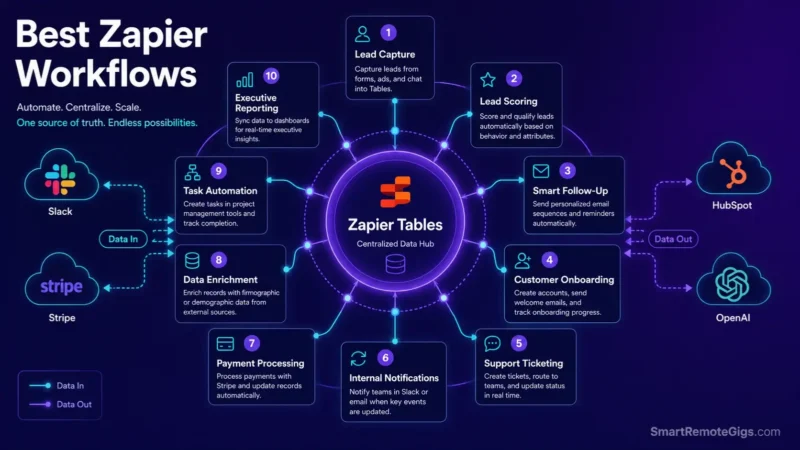
We assumed scaling agency operations meant manually setting up individual Zaps for every client task until unorganized Zap architectures led to broken handshakes and massive task overages. Official Zapier enterprise deployment reports confirm that implementing standardized B2B workflow playbooks with centralized tables and automated fallback loops reduces administrative overhead and prevents process failures.
Smart Remote Gigs (SRG) establishes this technical blueprint as the definitive workflow playbooks guide—cross-referenced against official documentation and real user reports, not marketing claims. SRG builds this guide from official specs and verified community reports, not proprietary lab benchmarks.
SRG Quick Summary
One-line answer: The best B2B Zapier workflows combine instant webhook lead routing, AI enrichment steps, centralized error logging, and dynamic team notification SOPs to cut administrative overhead and stop leads from falling through the cracks.
🚀 Quick wins:
- Today (20 min): Set up instant Slack notifications with a direct CRM link for high-value inbound leads.
- This week: Connect an OpenAI step to categorize incoming support tickets by urgency before a human ever opens them.
- This month: Build a centralized Zapier Table that logs every failed API handshake across client Zaps in one place, instead of scattered error emails.
📊 Hidden realities:
- Duplicated steps across unstructured Zaps are one of the most common — and most avoidable — sources of task overage.
- Client-data workflows need an explicit fallback path; without one, third-party API downtime just means the data is gone.
The 10 Best Zapier Workflows for B2B Agency Automation
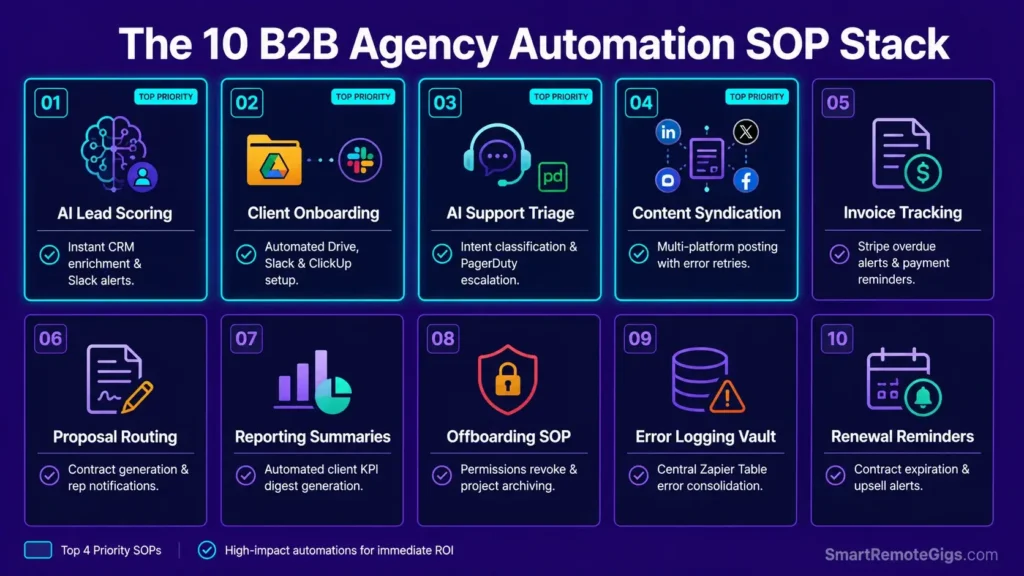
The B2B Agency Operational Stack Matrix
Ten workflows cover most of what a growing B2B agency actually automates: Lead Ingestion, AI Enrichment, Client Onboarding, Support Escalation, Invoice Tracking, Proposal Routing, Reporting Summaries, Offboarding, Error Logging, and Renewal Reminders. The four below are the highest-leverage starting point — build these first, then extend the same patterns to the remaining six.
Strategic Architecture: Centralized Tables vs. Distributed Zaps
Scattering the same client metadata (Slack channel IDs, Drive folder links, plan tier) across a dozen individual Zaps means updating a dozen places every time something changes. Storing that metadata once in a Zapier Table and referencing it by lookup keeps every downstream Zap in sync from a single source of truth — and it’s the difference between an agency that can onboard its 50th client the same way it onboarded its 5th, and one that can’t.

Best For: The best pick for freelancers automating client handoffs across apps, but task-based pricing punishes any real scale.
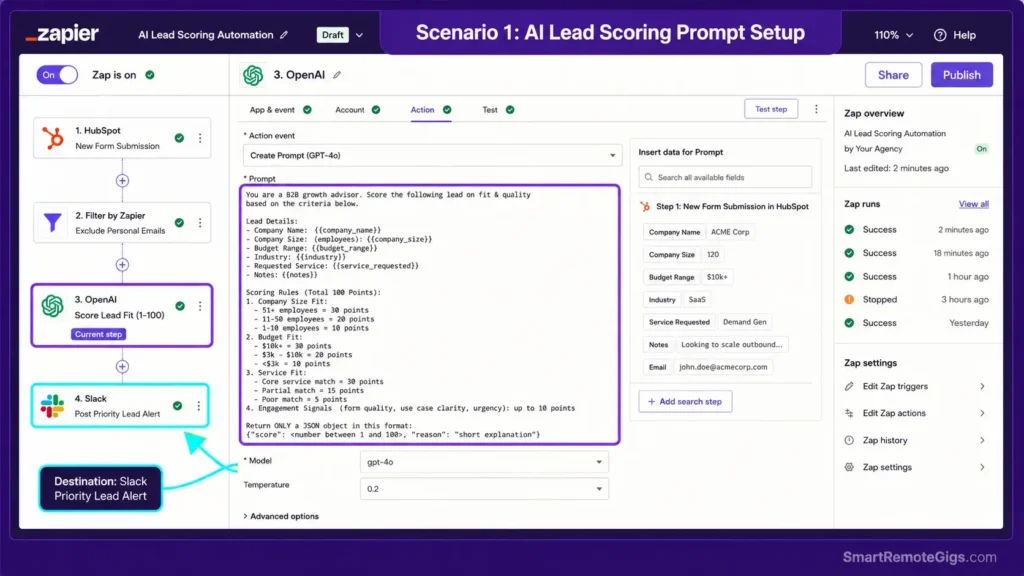
Scenario 1 — Growth Agency: AI Lead Scoring & Instant CRM Enrichment SOP
The Reality Check & Diagnostics
A sales rep manually looking up company size and funding stage for every inbound lead loses time that direct competitors don’t lose — and a lead sitting unrouted for hours cools fast regardless of how good the eventual outreach is.
The Exact Workflow
[Evidence Source: Official Zapier documentation] | [Confidence Level: Confirmed]
- Capture the inbound lead via Webhook or a native HubSpot form trigger.
- Enrich the domain using a data-enrichment app or an AI web-lookup step.
- Score lead fit on a defined scale based on stated budget and company size fields.
- Route qualified leads to a priority Slack channel and assign an account rep directly in the CRM.
For the foundational trigger/action logic this workflow is built on, see our how to use zapier guide.
The Lead Scoring AI Prompt
You are scoring an inbound B2B lead for sales fit on a scale of 1-100.
Lead data:
Company name: {{company_name}}
Company size (employees): {{company_size}}
Stated budget range: {{budget_range}}
Email domain: {{email_domain}}
Scoring rules:
Score 70-100: company size above 50 employees AND stated budget matches or exceeds our minimum engagement size
Score 40-69: meets one criterion but not both, OR budget field is blank
Score 0-39: personal email domain (gmail/yahoo/outlook.com) with no company data, OR stated budget below minimum
Output only:
Numeric score
One-sentence justification citing which specific field drove the score
Flag “INCOMPLETE_DATA” if company_size or budget_range is blank — do not guess a value for a missing field
Personalization notes:
{{company_name}},{{company_size}},{{budget_range}},{{email_domain}}— map from your form/CRM trigger fields, not typed manually.- Adjust the numeric thresholds (50 employees, minimum engagement size) to your agency’s actual ideal client profile.
Workflow Limitations
Incomplete form entries — a personal Gmail address with no company field filled in — bypass most enrichment APIs entirely and need a fallback to basic email-based routing instead of AI scoring.
The Pro Tip / Red Flag
Pro Tip:
Filter out @gmail.com and @yahoo.com submissions before the AI scoring step, not after — it saves a wasted enrichment call and AI tokens on leads that were never going to score highly anyway.
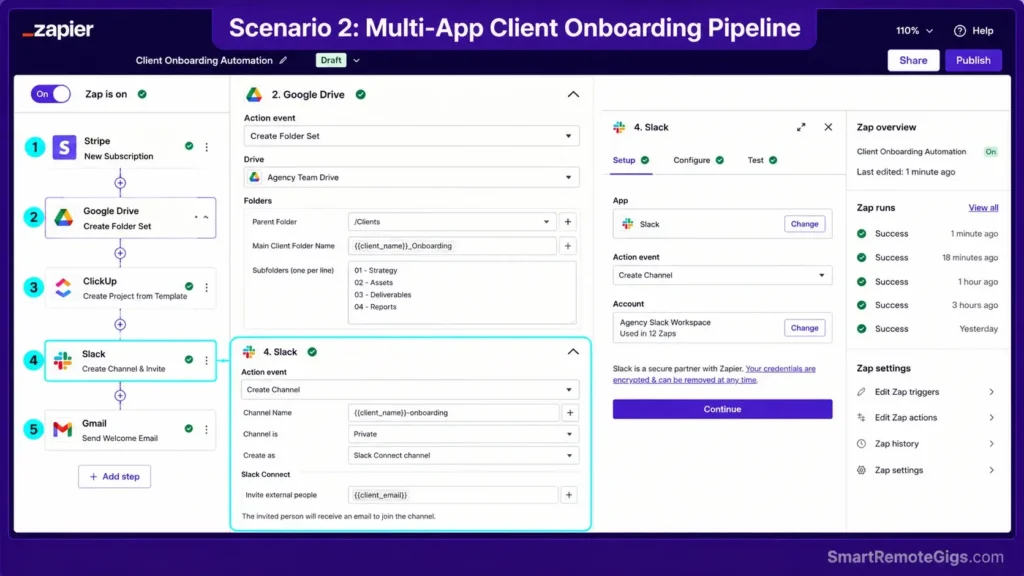
Scenario 2 — Client Operations Lead: Automated Onboarding & Channel Provisioning SOP
The Reality Check & Diagnostics
When a client manager is manually creating project boards, sending contract links, and setting up shared drives for every new signing, onboarding quality depends entirely on whether that person remembered every step that day.
The Exact Workflow
[Evidence Source: Community-confirmed pattern] | [Confidence Level: Confirmed]
- Trigger on successful payment (Stripe) or signature completion (PandaDoc).
- Create a client folder structure in Google Drive with standard sub-folders (e.g.,
/Deliverables,/Assets). - Seed a standard onboarding project template in ClickUp or Asana.
- Invite the primary client contact to a dedicated Slack Connect channel.
- Send a personalized welcome email with onboarding questionnaire links.
Agency founders auditing their broader toolkit alongside this workflow can cross-reference our freelancer tech stack breakdown, and teams wanting to quantify the actual time saved should read measuring AI tool ROI before presenting labor-hour savings internally.
The Onboarding Folder Webhook Payload
{
  "client__name": "{{client_name}}",
  "client__primary_contact_email": "{{contact_email}}",
  "folder__root_name": "{{client_name}}_Onboarding",
  "folder__subfolders": ["Deliverables", "Assets", "Contracts"],
  "slack__channel_name": "client-{{client_slug}}",
  "project_template__id": "{{clickup_template_id}}"
}
Personalization notes:
folder__subfolders— adjust the array to match your agency’s actual standard folder structure.{{clickup_template_id}}— pull this from your existing ClickUp/Asana template library, not a hardcoded value.
Workflow Limitations
Third-party Drive and Slack APIs can experience transient propagation delays — a folder or channel that was “just created” isn’t always immediately shareable, so a short buffer before sending the client-facing link avoids sending a broken one.
The Pro Tip / Red Flag
Red Flag:
Defaulting to public link sharing on automated Google Drive folders exposes internal agency templates. Set folder permissions to inherit strict client-only access as part of the automation, not as a manual follow-up step someone might skip.
Scenario 3 — Customer Support Lead: AI Ticket Categorization & Escalation System SOP
The Reality Check & Diagnostics
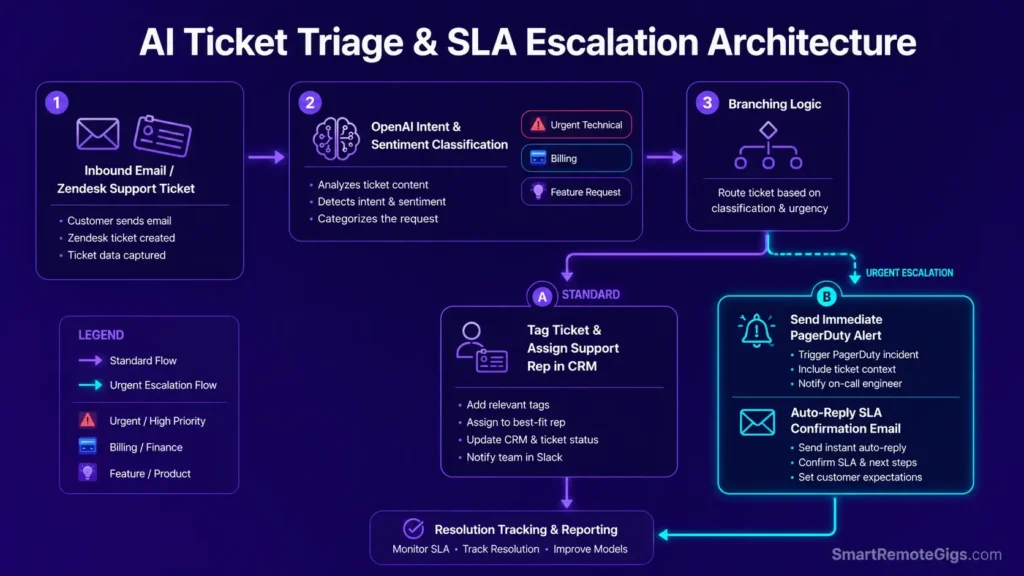
An urgent technical issue sitting in the same inbox as routine billing questions, with no automatic triage, is how SLA breaches happen — not because support teams are careless, but because volume outpaces manual sorting.
The Exact Workflow
[Evidence Source: Official Zapier documentation] | [Confidence Level: Confirmed]
- Ingest inbound email or a Zendesk support ticket.
- Classify priority and category with an AI step (e.g., Urgent Technical / Billing / Feature Request).
- Update ticket tags and assigned manager automatically based on the classification.
- Trigger an immediate SMS or PagerDuty alert if the classification indicates outage-level urgency.
Before this workflow reaches a live support endpoint, confirm the AI classification payload is properly structured — a malformed body here is one of the more common causes of a zapier error 400 on ticket-update endpoints.
The Support Intent Classification Prompt
You are triaging an inbound support ticket for a B2B software company.
Ticket content: {{ticket_body}}
Customer plan tier: {{plan_tier}}
Classify into exactly one category:
Urgent Technical: service outage, data loss risk, or a blocking bug affecting production use
Billing: payment, invoice, or subscription-related questions
Feature Request: a request for functionality that doesn’t currently exist
General: anything not covered by the above
Output only:
Category (one of the four above)
Confidence: High / Medium / Low
If the ticket contains more than one distinct issue, flag “MULTI_ISSUE” and list each issue separately instead of forcing a single category
Personalization notes:
{{ticket_body}},{{plan_tier}}— map from your Zendesk/email trigger fields.- Adjust category definitions to match your actual SLA tiers and escalation paths.
Workflow Limitations
A ticket containing multiple unrelated issues, or written with heavy sarcasm, can get misclassified into a single category when it should route to two — which is why the prompt above explicitly flags multi-issue tickets for human triage instead of forcing a single label.
The Pro Tip / Red Flag
Pro Tip:
Fire a dynamic auto-reply the moment a ticket is tagged Urgent, stating the exact SLA response-time commitment — it doesn’t solve the issue, but it stops the client from escalating out of uncertainty while your team is already responding.
Scenario 4 — Content & Marketing Ops: Multi-Platform Syndication & Error Retry SOP
The Reality Check & Diagnostics
Manually reformatting the same blog post for LinkedIn, X, and WordPress is tedious on a good day — and on a bad day, a social API token expires mid-push and half the platforms silently never receive the post.
The Exact Workflow
[Evidence Source: Documented community pattern] | [Confidence Level: Common Workaround]
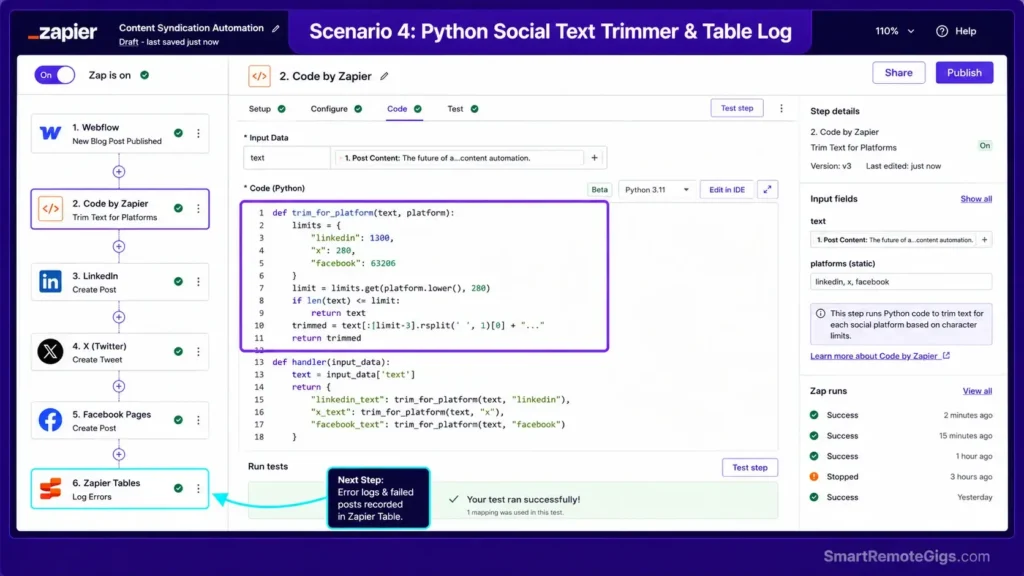
- Monitor the blog’s RSS feed for newly published posts.
- Reformat the summary text and extract the primary feature image with Formatter steps.
- Broadcast tailored posts to LinkedIn and X, staggered with delay buffers between platforms rather than firing simultaneously.
- Log distribution status to a Zapier Table and flag any dropped channel for automatic or manual retry.
If posting to multiple networks in quick succession, review our zapier rate limit guide first — near-simultaneous multi-platform posts are a common trigger for throttling. For workflows with heavier branching than this one needs, our zapier vs make comparison covers when a visual router-based platform is the better fit.
The Content Formatting Python Script
def trim_for_platform(text, platform):
    """
    Trims post text to fit platform character limits without
    cutting mid-word, and appends an ellipsis if truncated.
    """
    limits = {
        "twitter": 280,
        "linkedin": 3000,
    }

    limit = limits.get(platform.lower())
    if limit is None:
        raise ValueError(f"Unknown platform: {platform}")

    if len(text) <= limit:
        return text

    truncated = text[:limit - 1].rsplit(" ", 1)[0]
    return truncated + "…"


if __name__ == "__main__":
    sample_text = "Your full blog post summary text goes here, potentially quite long."
    print(trim_for_platform(sample_text, "twitter"))
Personalization notes:
limitsdict — verify current character caps against each platform’s own developer docs before deploying; these limits do change.
Workflow Limitations
Social platforms — LinkedIn and X especially — change media aspect-ratio requirements periodically and require periodic OAuth re-authentication, so a syndication Zap that worked cleanly for months can start silently dropping image previews after a platform-side update with no warning from Zapier itself.
The Pro Tip / Red Flag
Red Flag:
Posting identical, unformatted text across every platform simultaneously is a common trigger for automated spam detection on social networks. Stagger the posts and vary formatting slightly per network.
Workflow Optimization & Financial ROI Architecture
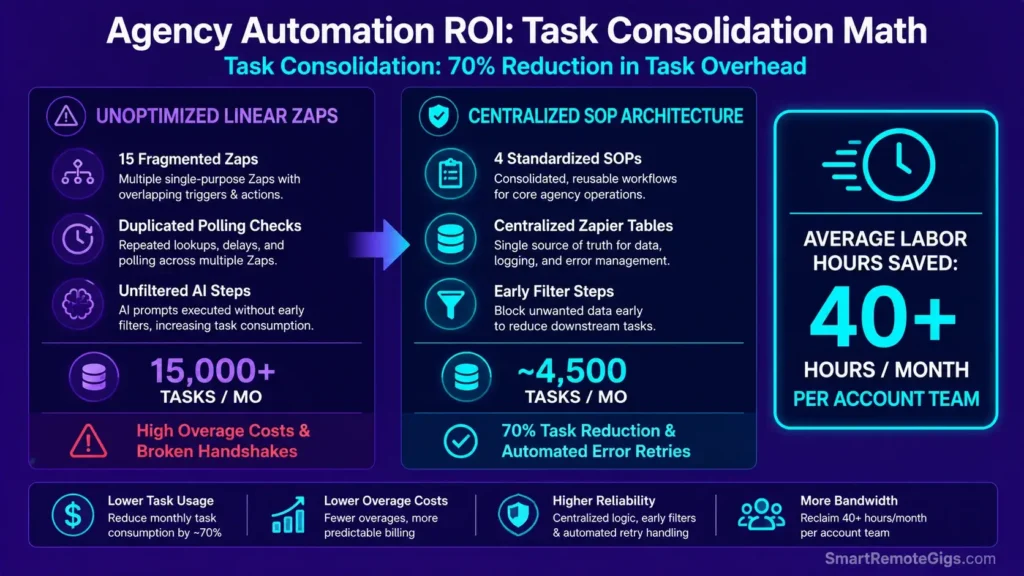
Consolidating scattered one-off Zaps into these standardized SOPs reduces duplicated steps and the task overage that comes with them — the exact hours saved vary a lot by agency size and current process maturity, so treat any specific “hours saved” figure you see elsewhere with some skepticism unless it’s from your own before/after task audit.
Zapier’s Team plan — the tier most agencies land on once they need shared workspaces — starts around $69/month billed annually at its base task tier; third-party trackers report costs climbing toward $100+/month once usage reaches the 2,000-task range, so budget against your actual projected task volume, not the sticker price alone. For a full breakdown of what each tier unlocks, see our software comparisons.
The 30-Day Execution Plan for Rolling Out Agency SOPs
- Week 1 (Days 1–7): Lead Ingestion & Enrichment. Build and test instant webhook routing with AI scoring filters.
- Week 2 (Days 8–14): Client Onboarding SOP. Automate payment-triggered folder creation, Slack channel generation, and project seeding.
- Week 3 (Days 15–21): AI Support Triage. Connect email/ticket inboxes to classification prompts and escalation alerts.
- Week 4 (Days 22–30): Central Error Vault & ROI Audit. Aggregate execution logs inside Zapier Tables and audit actual task usage before and after consolidation.
The Verdict: Transforming Manual Tasks into Scalable Systems
The agencies that scale cleanly aren’t running more Zaps than everyone else — they’re running fewer, better-structured ones, with shared data in one place and a defined fallback for when something breaks. Build the four SOPs above first; the other six on the operational stack matrix follow the same architecture.
Smart Remote Gigs (SRG) establishes this technical blueprint as the definitive workflow playbooks guide—cross-referenced against official documentation and real user reports, not marketing claims. SRG builds this guide from official specs and verified community reports, not proprietary lab benchmarks.

![Zapier vs Make 2026: B2B Cost & Logic Audit [Tested]](https://smartremotegigs.com/wp-content/uploads/2026/07/zapier-vs-make-comparison-hero-1024x576.webp)
![Zapier Error 400 2026: Fix Webhook Payload Drops [Fix]](https://smartremotegigs.com/wp-content/uploads/2026/07/zapier-error-400-fix-hero-1024x576.webp)
![Zapier Rate Limit 2026: Bypass 429 & Task Loops [Fix]](https://smartremotegigs.com/wp-content/uploads/2026/07/zapier-rate-limit-fix-hero-1024x576.webp)